

Identify the Block Source
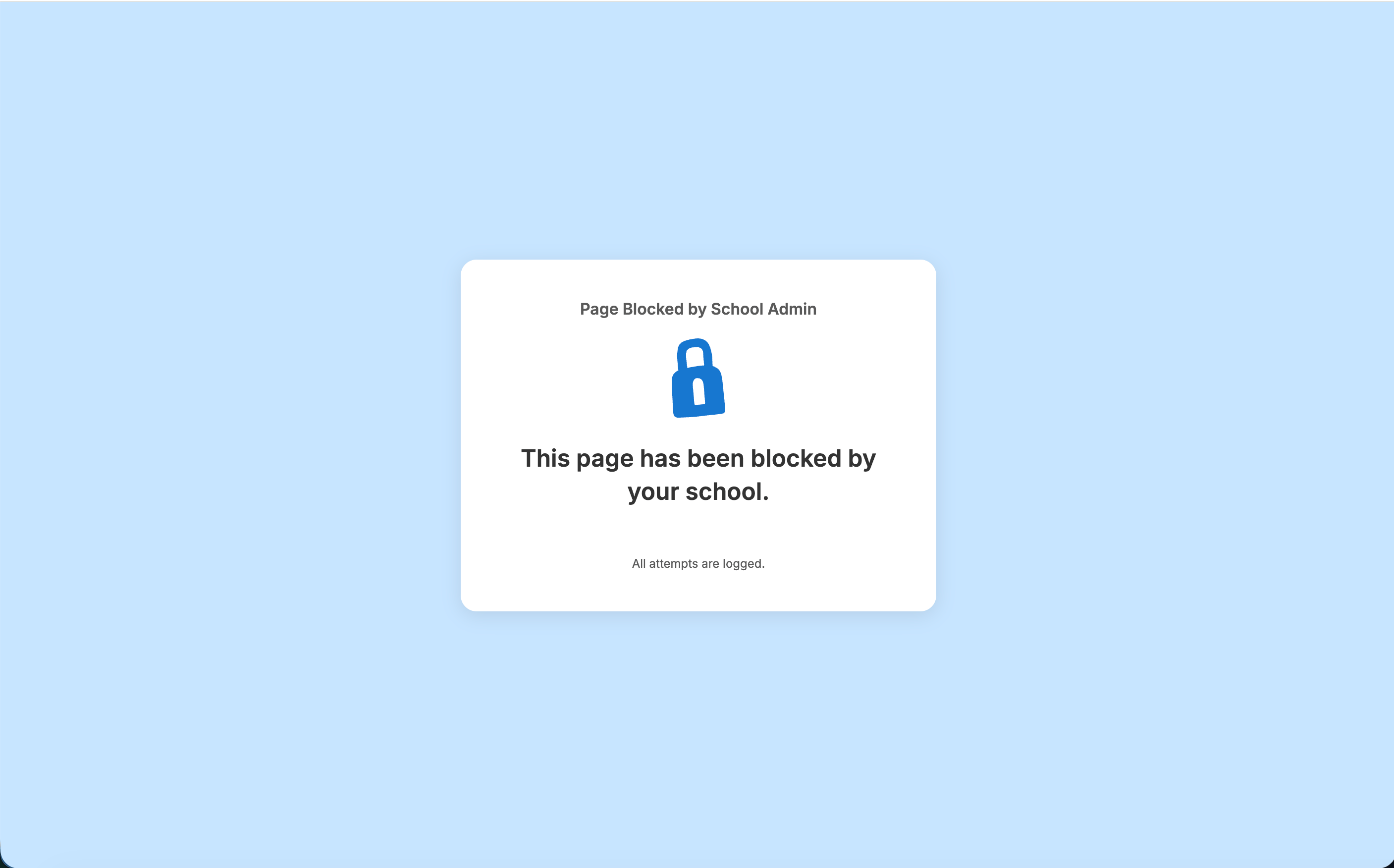
Each block page has a distinct visual signature. Match what you see on screen to the descriptions below.Recognize an Admin Filtering Policy Block
The GoGuardian Admin filtering policy block page uses an accessible design and displays the name of the organization managing the student’s browsing experience. The page also gives the student context about why the site was blocked. The Bypass option remains available when your organization has configured it. To remove it from the block page, see Customize the GoGuardian Admin Block Page.- To allow temporary access: The student clicks Bypass and enters a valid bypass password. Configure and manage bypass passwords on the Bypass page. See Configure Bypass Passwords.
- To adjust the policy: Go to Filtering > Policies and update the policy assigned to the student. See Create a Filtering Policy.
- To assign a policy to a student group: Go to Filtering > Assign and update the assignment.
Recognize a Smart Alerts Block
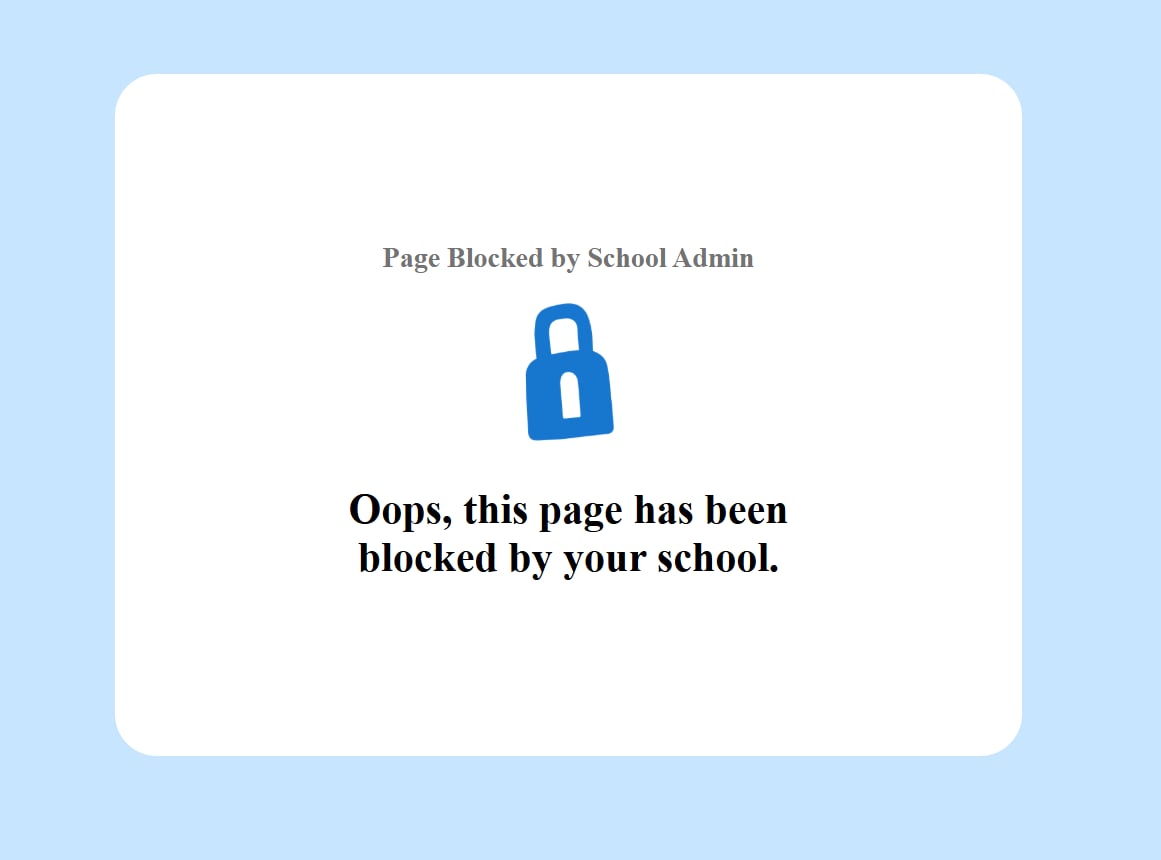
A Smart Alerts block page displays a custom trigger message configured for your organization. It fires when a student’s browsing activity matches a trigger rule in GoGuardian Beacon.- To review or update trigger rules: Go to the Triggers page in Smart Alerts.
Spot a Parent App Filter Block
A Parent App block page appears when a guardian has applied out-of-school-hours filtering through the GoGuardian parent app. This block is set by the student’s guardian, not by your organization’s policies, and applies only during the hours the guardian has configured. No admin action is required unless a guardian contacts the school about the block.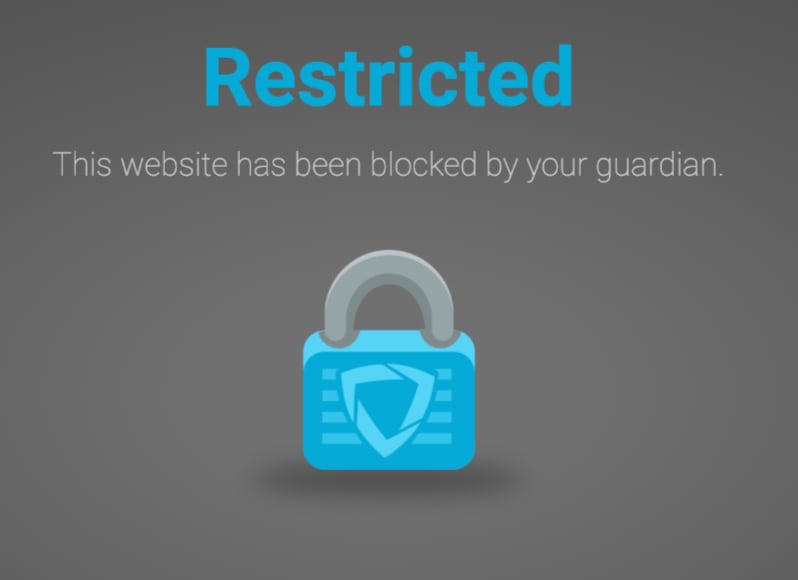
Spot a Browsing Disabled by Teacher Block
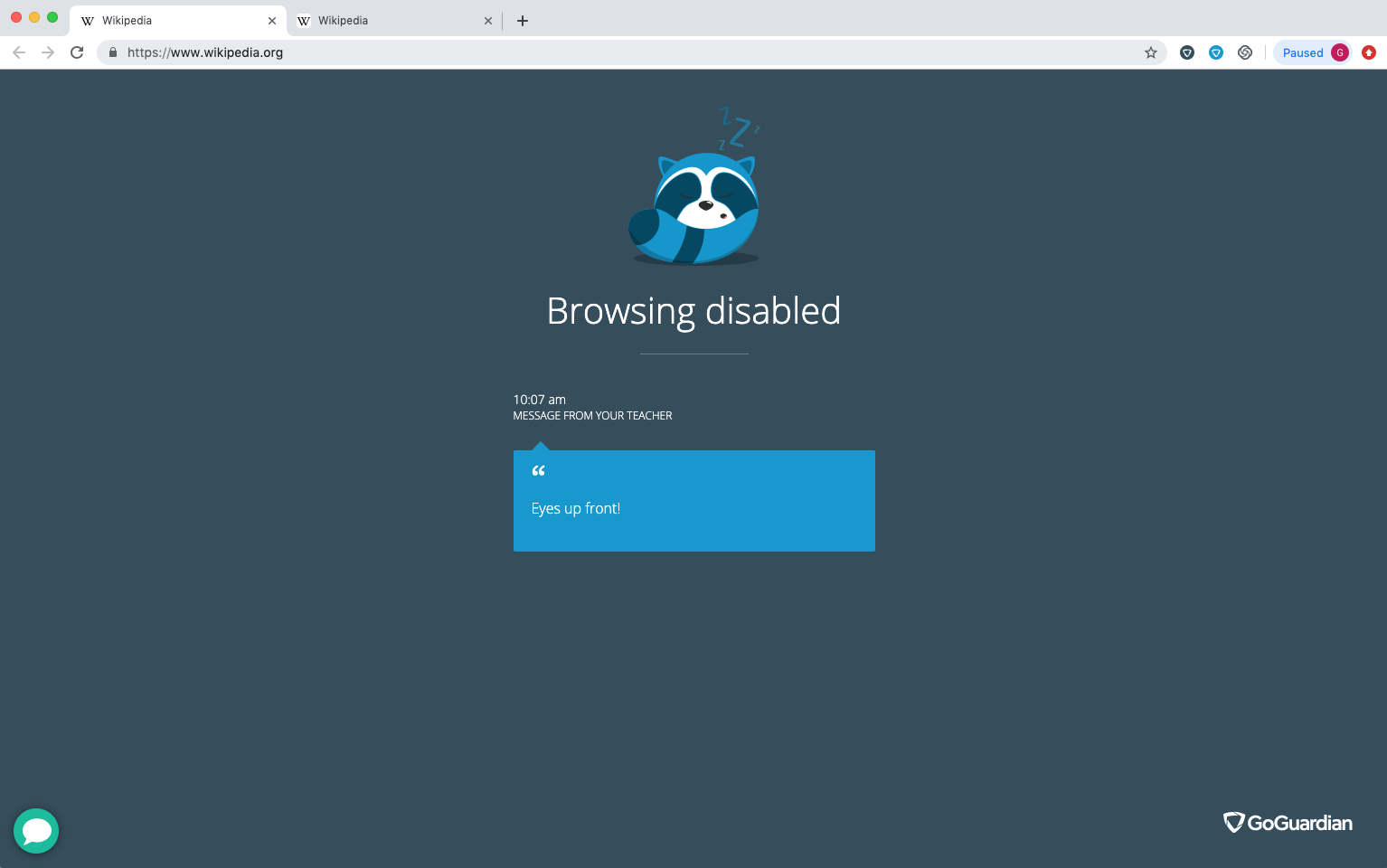
The “Browsing Disabled by Teacher” block page appears when a GoGuardian Teacher session is active and a teacher has used the Lock Screen command to pause browsing.- To restore access: Any teacher with an active session can issue the Unlock Screen command from GoGuardian Teacher.
Joining a new GoGuardian Teacher session before a previous session ends does not by itself release the lock. Any teacher whose session currently includes the student, including a teacher other than the one who issued Lock Screen, can clear it with the Unlock Screen command. See Unlock a Student’s Device if the lock does not clear.
Identify a Scene Filter Block
A scene filter block displays a “Hey there” page. It appears when a GoGuardian Teacher scene is active and the scene’s filtering settings restrict the current site.- To restore access: The teacher ends the scene or applies a scene that permits the site.

Identify a GoGuardian DNS Block
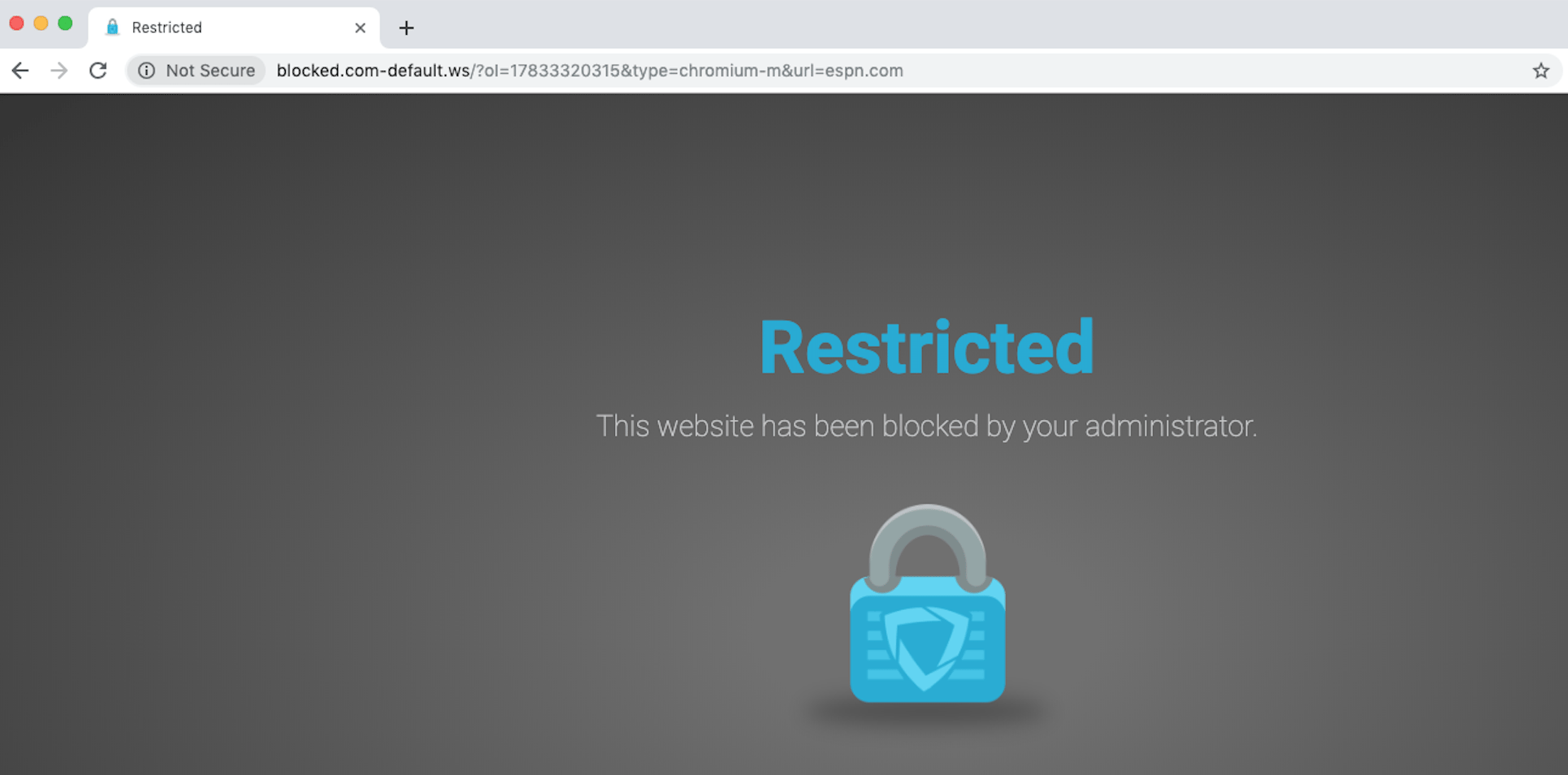
The GoGuardian DNS block page appears when network-level DNS filtering has blocked the request. This page does not display a Bypass button. HTTPS variant: On HTTPS sites, a DNS block may display “Your connection is not private” along with a certificate fromblocked.com-default.ws. This is expected behavior, not a certificate error on the destination site.
Organizations using both GoGuardian DNS filtering and The GoGuardian App v1.17.4 or later see the standard DNS block page for HTTPS requests. Earlier versions of The GoGuardian App may show the certificate warning instead.
Spot a YouTube Block from Admin Policies
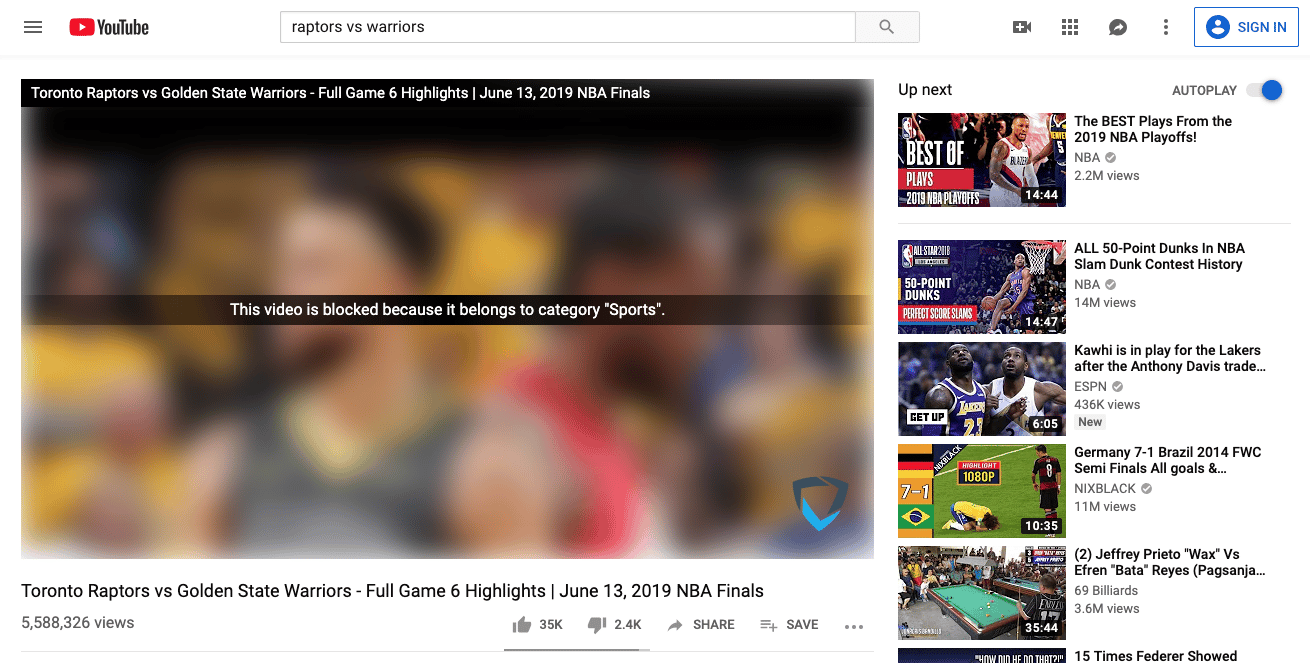
When a GoGuardian Admin filtering policy blocks a YouTube video, the video appears blurred with the message: “This video is blocked because it belongs to category [category name].”- To adjust video access: Update the YouTube rules in the filtering policy assigned to the student. See Configure YouTube Filtering.
Recognize a YouTube Block from Google Admin Console
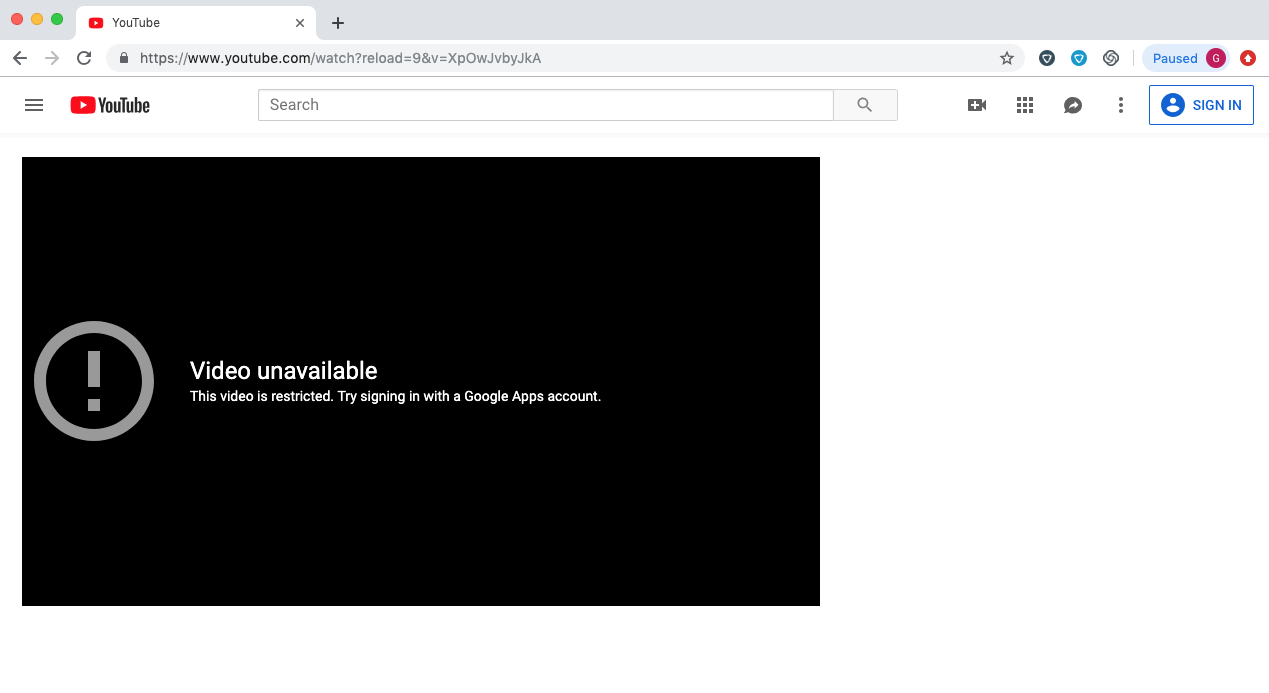
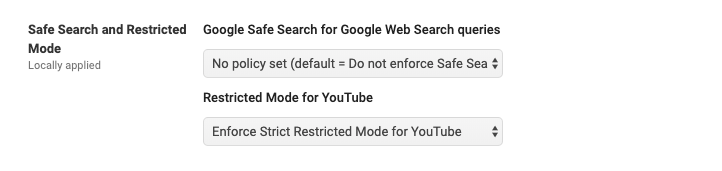
When Google Admin Console Restricted Mode is blocking a YouTube video, the page displays “Video Unavailable,” not a GoGuardian block page. To adjust this setting in Google Admin Console:- Go to Device Settings > Chrome Management > User Settings.
- Find the Safe Search and Restricted Mode section.
- Update the Restricted Mode setting as needed for your organization.
Recognize a Site Block from Google Admin Console
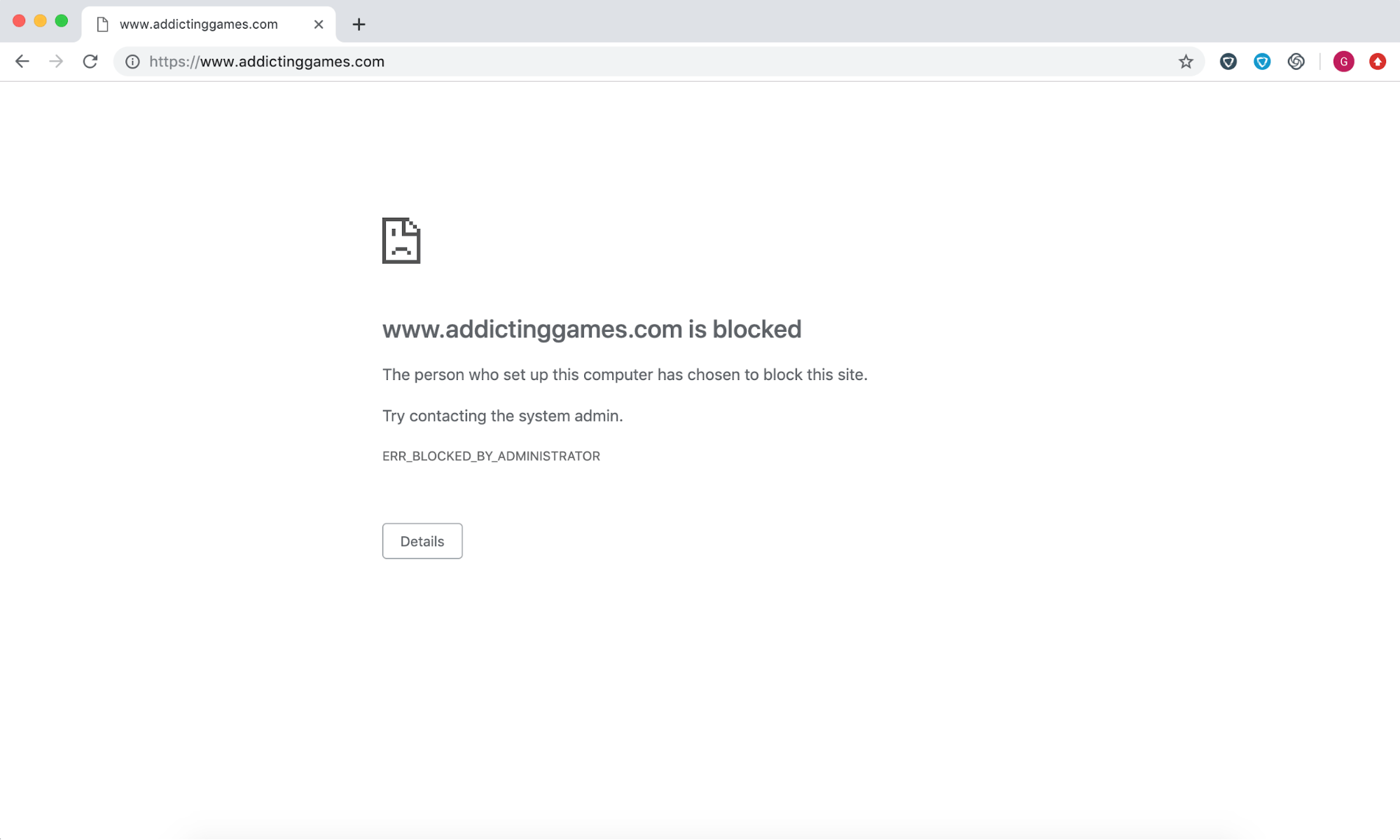
When Google Admin Console URL blocking is responsible, the browser displaysERR_BLOCKED_BY_ADMINISTRATOR, not a GoGuardian block page.
To adjust this setting in Google Admin Console:
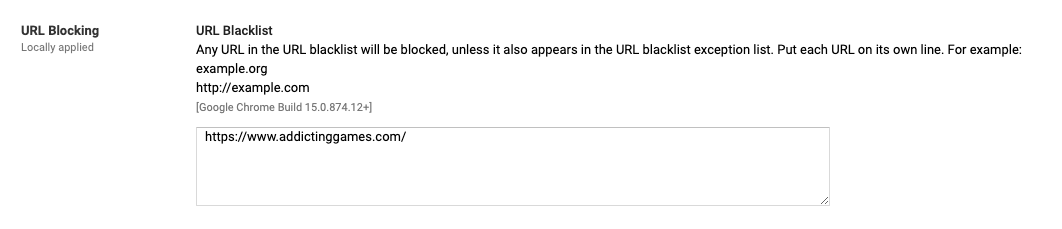
- Go to Device Settings > Chrome Management > User Settings.
- Find the URL Blocking section.
- Review and update the URL blocking list as needed.
The URL Blocking setting applies per organizational unit (OU). Check the setting for each OU and sub-OU individually. A change at the top-level OU does not automatically propagate to all child OUs.
Customize the Admin Policy Block Page
You can customize the GoGuardian Admin filtering policy block page to change its appearance, remove the Bypass button, add a form for students to request access to a blocked site, or include information for students using personal devices. See Customize the GoGuardian Admin Block Page for instructions and examples.Resources
Configure Bypass Passwords
Set up, delete, and review bypass passwords for the Admin Policy block page.
Create a Filtering Policy
Build or adjust the filtering policy that controls which sites produce Admin block pages.
Review DNS Filtering
Understand how DNS filtering works and where the DNS block page fits in your filtering stack.
Configure YouTube Filtering
Manage YouTube access, channels, videos, and playback restrictions at the policy level.