

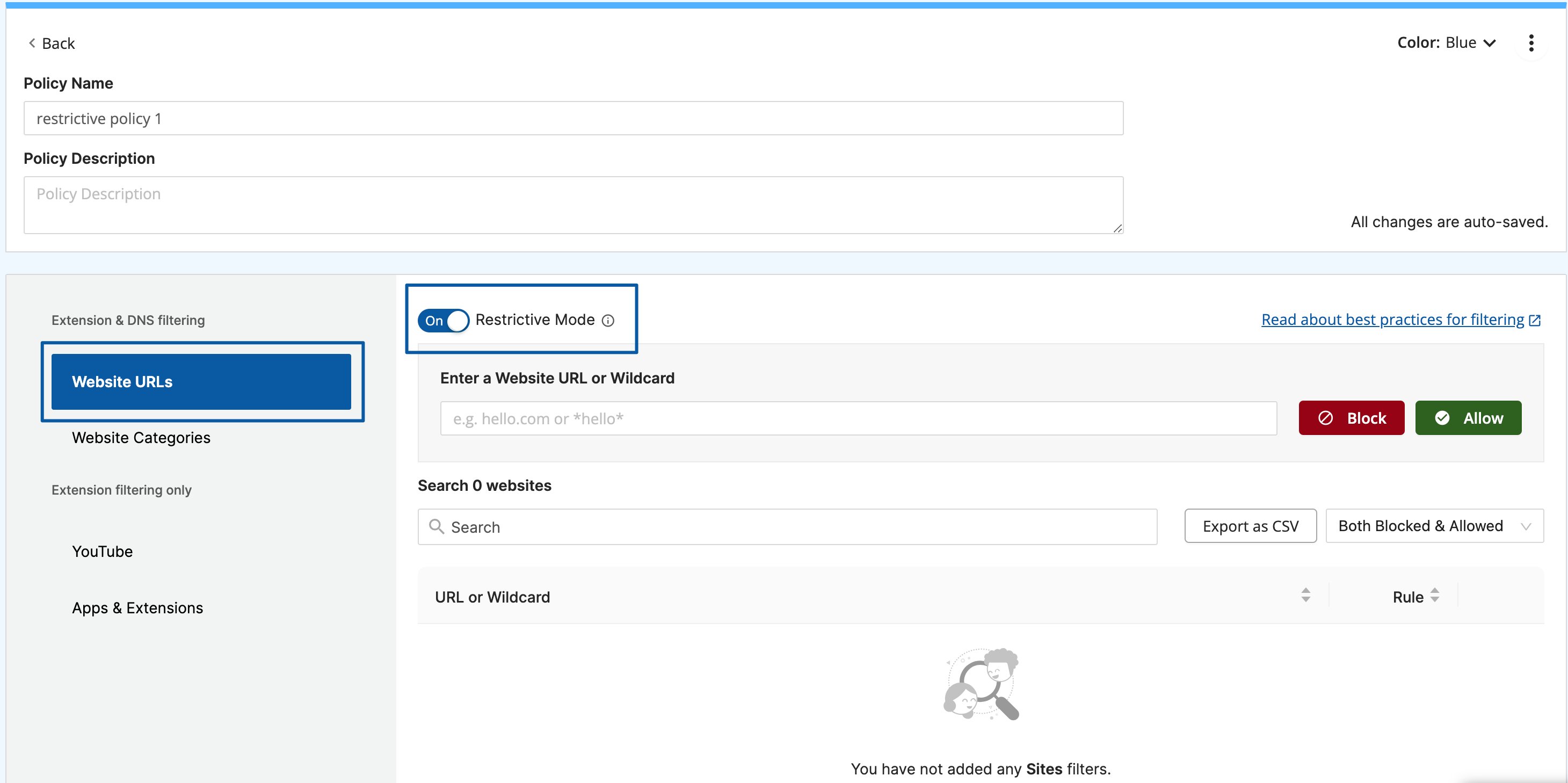
- A Website URLs section that filters websites and URLs directly.
- A Website Categories section that filters websites by category.
- A YouTube content filter.
- A Chrome Apps & Extensions filter.
Assign Policies to Organizational Units
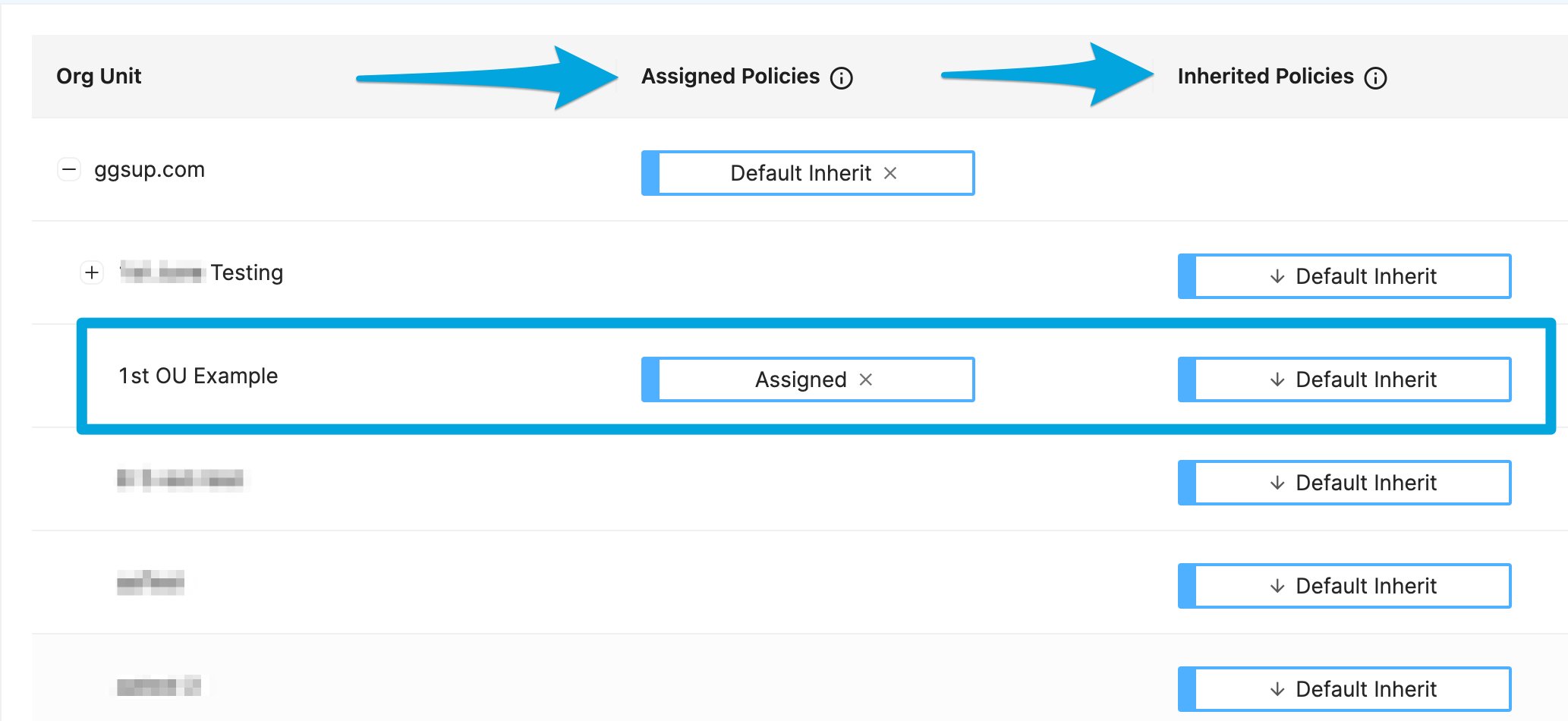
You apply a policy by assigning it to an organizational unit on the Filtering → Policies page. A policy applied to a parent OU is automatically inherited by all of its sub-OUs.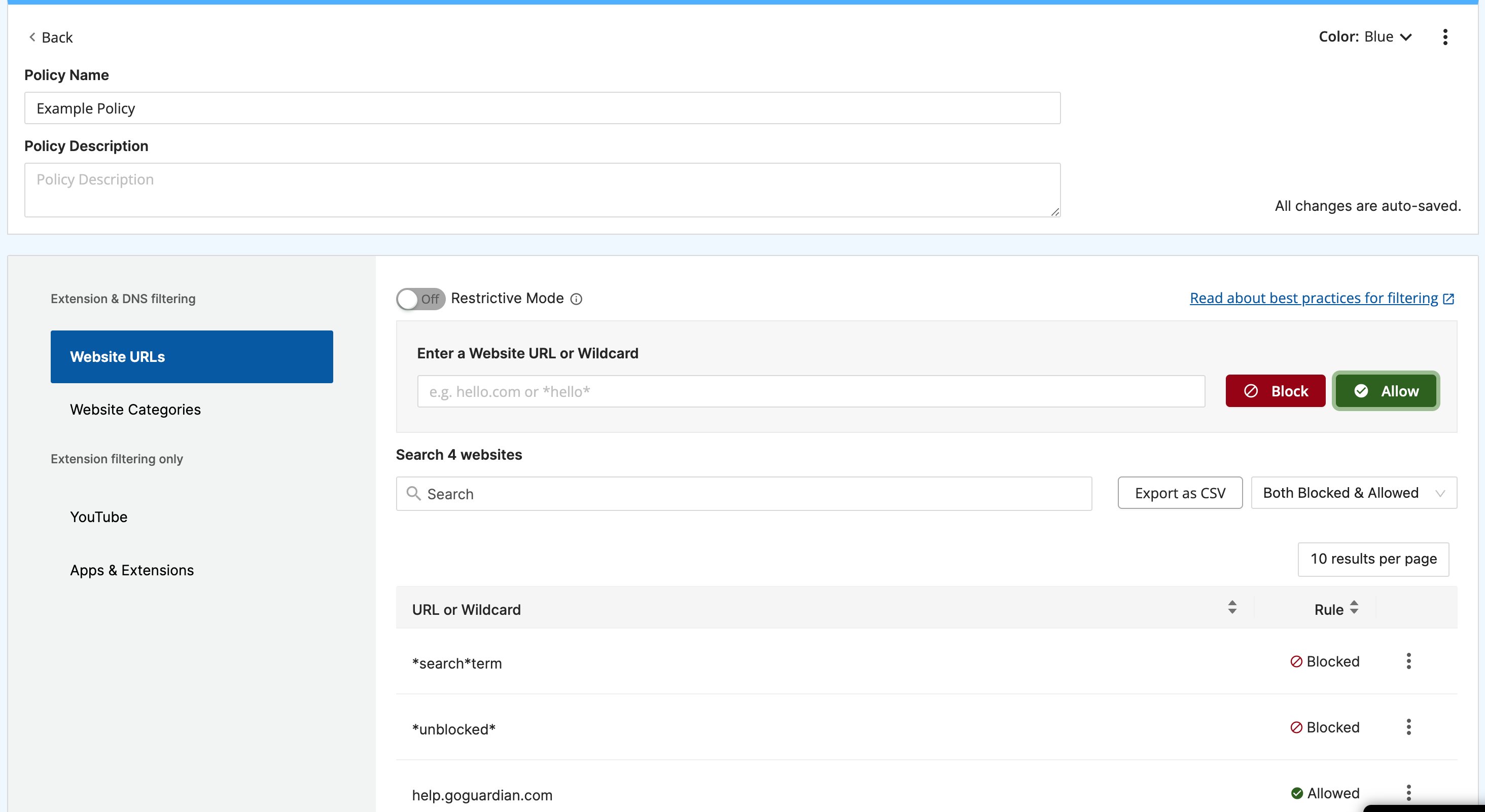
Review Permission Requirements
Applying or editing a policy requires Filter & Monitor or Full Access permissions in GoGuardian Admin. Users with Monitor Only can view which policies are assigned and their contents, but cannot edit or assign them.If a user sees an uneditable, greyed-out policy, the policy is applied to an org unit that the user does not have Admin OU access to. Super Users can edit user account permissions to update access and permission levels. See User Roles, Permissions, and OU Access.
Understand Policy Inheritance
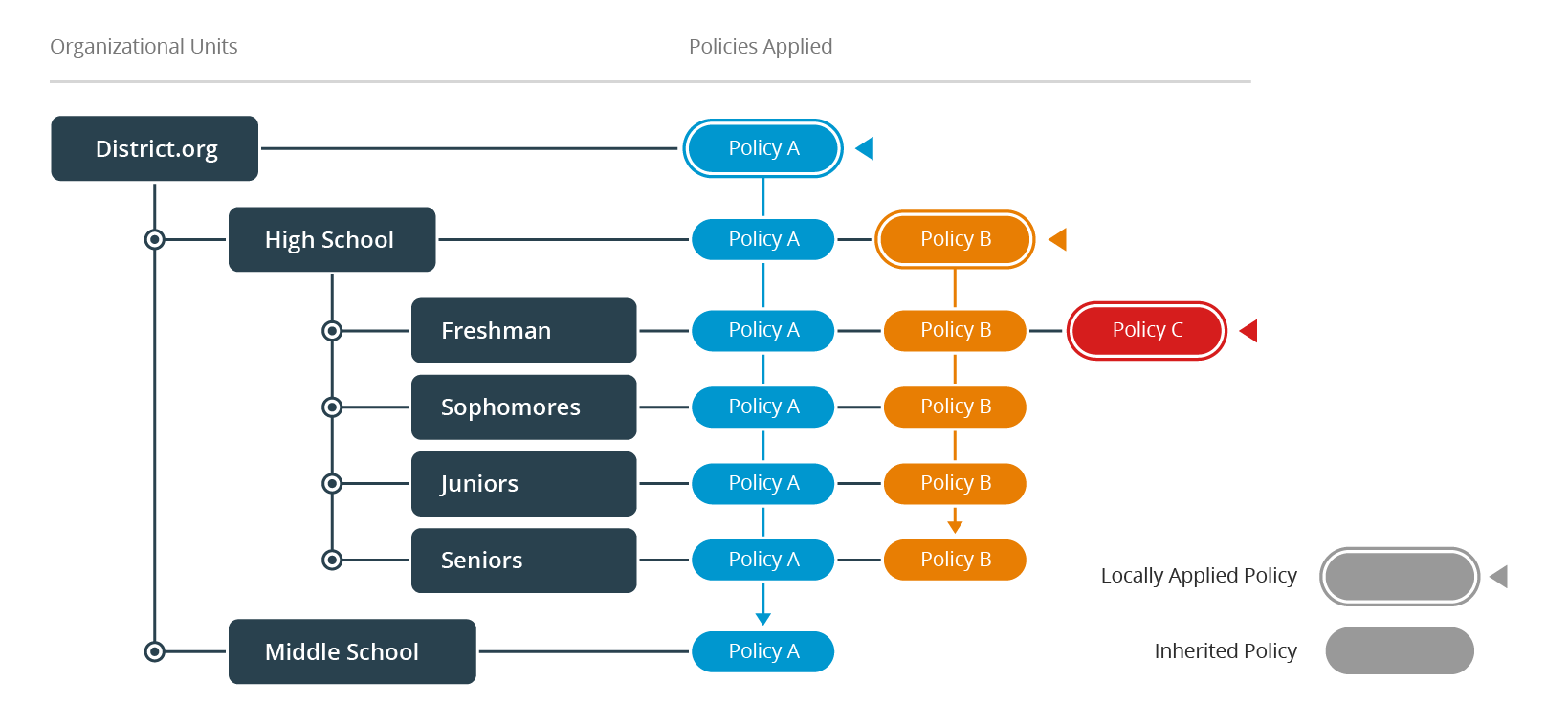
When a policy is applied to an OU, all of its sub-OUs inherit the policy. For example, a policy assigned to the top (domain) level OU filters every user in your organization. Policy inheritance cannot be disabled, but you can overwrite inherited rules by adding specific allow or block rules to the Website URLs section of a locally applied (Assigned) policy. When rules conflict, Assigned policies take precedence over inherited policies. Example: if an inherited default policy allowsamazon.com, but a policy assigned to the “5th grade” OU blocks the E-commerce category, amazon.com is blocked for users in the 5th grade OU despite the inherited allow rule.
GoGuardian recommends stacking as few policies as possible — ideally no more than two. In a typical structure:
- Policy A is applied at the root/domain level with baseline rules appropriate for all students.
- Policy B is applied at the High School OU; freshmen, sophomores, juniors, and seniors all inherit it.
- Policy C is applied to the Freshman OU; only students in that OU receive its rules.
Review Policy Precedence and Priority
When policies assigned at different levels of the OU hierarchy apply to a user, rules from the OU closest to the user’s OU take precedence over conflicting rules from higher-level OUs. Policies inherited from different parent OUs do not have equal priority. For example, Policy A is assigned at the District.org OU, Policy B at the High School OU, and Policy C at the Freshman OU. For users in Freshman, the priority isPolicy A < Policy B < Policy C. Policies A and B are both labeled Inherited, but Policy B takes precedence over Policy A because High School is closer to Freshman. Policy C is labeled Assigned and takes precedence because it is applied directly to Freshman. In the product, Assigned and Inherited labels show how each policy applies. To compare two inherited policies, check the source OU of each one.

Understand Restrictive Mode
Enabling Restrictive Mode in a policy blocks all websites and URLs except those explicitly allowed in the Website URLs section. If an Assigned policy has Restrictive Mode enabled, its priority is reduced to equal that of an inherited policy. Websites explicitly allowed in any other inherited policy remain allowed for that OU even if the Assigned policy has a conflicting block rule.This is the only exception to Assigned policies carrying higher priority than inherited policies. It prevents an Assigned policy with Restrictive Mode from effectively ignoring all other policies applied to that org unit.
Import and Export Policy CSVs
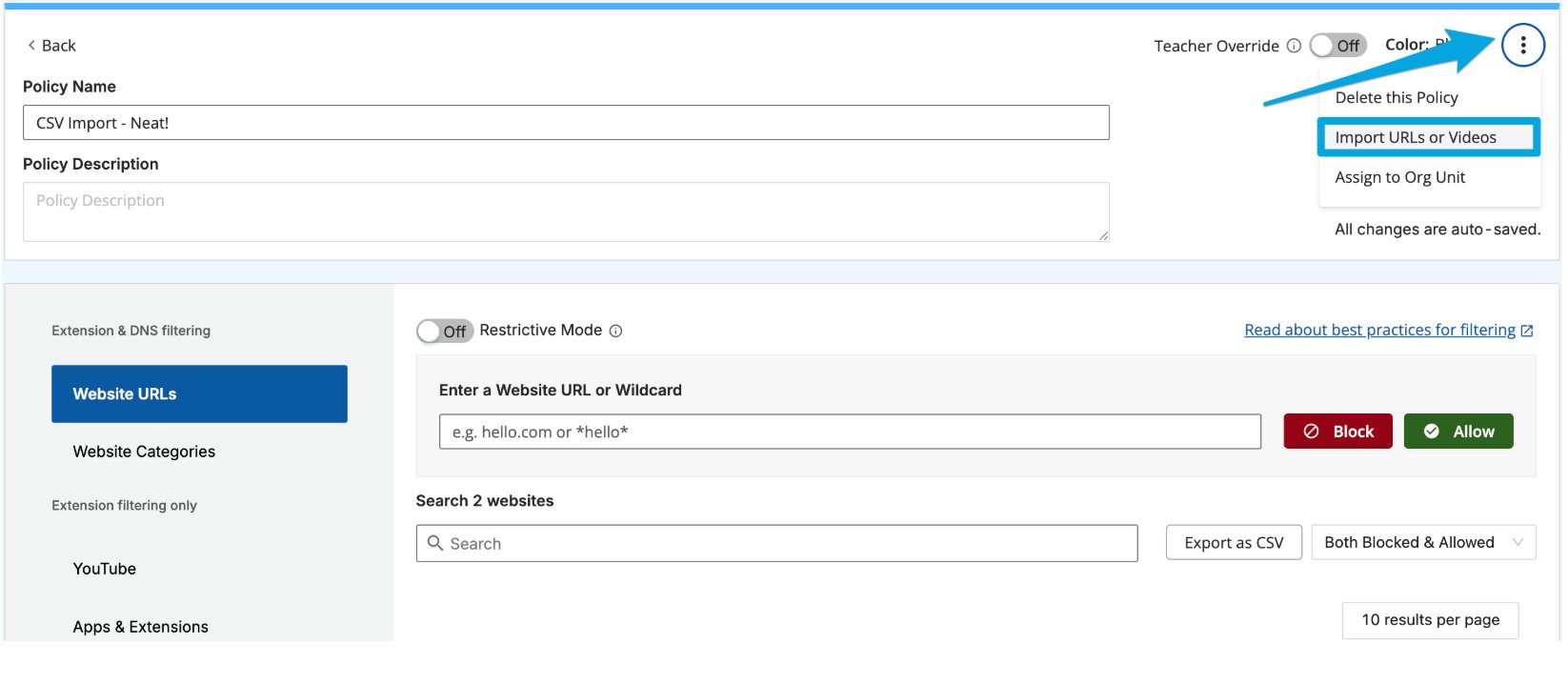
Export a CSV. Export any policy to a CSV with the Export as CSV option on a policy page. The export contains all blocked and allowed Website URL rules in the policy, but does not include Website Category, YouTube, or Apps & Extensions settings. Import a CSV. Upload a CSV to any policy to bulk-add blocked and allowed Website URL rules and YouTube videos. Click the kebab (three-dot) menu on the right side of the policy and choose Import URLs or Videos. Follow the CSV import requirements for blocked and allowed sites when preparing your file.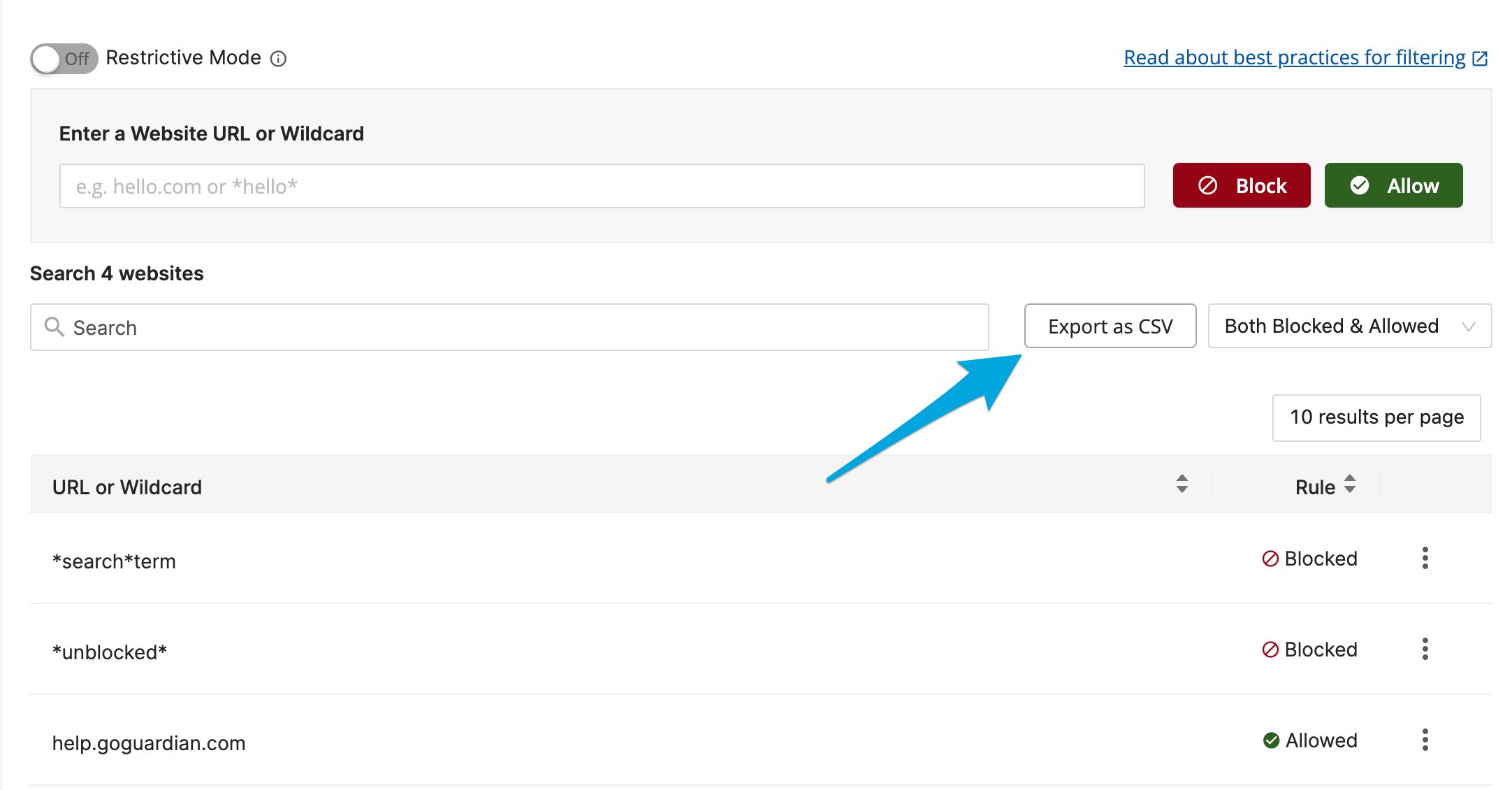
Resources
Create a Filtering Policy
Use this workflow when you need a new policy instead of a quick exception.
Update Multiple Policies with Quick Editor
Add website URL allow and block rules to 1 or more policies.
Block and Allow Websites
Add allow and block rules to a policy’s Website URLs section.
Configure YouTube Filtering
Filter YouTube channels, videos, keywords, and playback behavior.
A Site Is Blocked Unexpectedly
Start here when the observed result does not match the policy you expected.