

Super User Role
Users with Super User permissions can:- Access manage.goguardian.com
- Create, disable, and manage all GoGuardian user accounts and permissions
- Manage OU sources and integrations
- Manage all global GoGuardian Admin and GoGuardian Teacher settings, including At Home Mode, In School Hours, GoGuardian Teacher scheduling hours, and more
- Log in to a GoGuardian Teacher account using the Log-in-As feature
Site Administrator Role
The Site Administrator role has more limited access to Org Management than a Super User. Users with Site Administrator permissions can:- Manage GoGuardian user accounts and permissions
- Log in to a GoGuardian Teacher account using the Log-in-As feature
GoGuardian Admin Access Tiers
Full Access
Users with Full Access can:- Access all Admin features without restrictions
- View the Dashboard
- View student activity reports
- View and edit policies
- Apply policies to OUs
- Modify filtering settings
- Add or remove students from Custom Groups (requires access to the student’s OU)
- View and edit Smart Alerts
- Access Theft Recovery
- Modify their own flagged activity notification preferences
Filter & Monitor
Users with Filter & Monitor access can:- View the Dashboard
- View student activity reports
- View and edit policies
- Modify filtering settings
- Add or remove students from Custom Groups (requires access to the student’s OU)
- View and edit Smart Alerts
- Access Theft Recovery
- Modify their own flagged activity notification preferences
Monitor Only
Users with Monitor Only access can:- View the Dashboard
- View policies
- View student activity reports
- View Smart Alerts
- Modify their own flagged activity notification preferences
Data in all Admin roles is limited by the OU access assigned to the user.
GoGuardian Teacher Access
Users with Enabled access can:- Access teacher.goguardian.com
- Create and manage classrooms
- Review enrolled students during live classroom sessions
GoGuardian Fleet Access Tiers
- Full Access: Access all Fleet features without restriction.
- View Only: Read-only access to all data in Fleet.
GoGuardian Director Access
Users with Enabled access can use all Director features. Data is limited by OU access assigned to the user.GoGuardian Beacon Access Tiers
Super Counselor
Users with Super Counselor access can:- View and modify all components of Beacon Alerts, including notifications, phases, risk level, actions taken, local authority and hotline information, browsing activity, and previous actions
- Modify all Beacon settings
- Add and remove users within Beacon
- Modify permissions for other Beacon users
- Request updates to parent and guardian contact information for individual students
Counselor
Users with Counselor access can:- View and modify all components of Beacon Alerts
- View Beacon settings (cannot edit)
- Update their own profile, including phone number and notification preferences
View Only
Users with View Only access can:- View all components of Beacon Alerts
- View Beacon settings (cannot edit)
GoGuardian Discover Access Tiers
GoGuardian Discover uses the same roles and permissions system as the rest of the platform, managed in Org Management. Access is structured the same way as GoGuardian Admin’s role-based access, but the roles and permissions are specific to Discover. Super Users automatically have full access to Discover and do not need a role. Every other user needs a Discover role, assigned in Org Management under Manage Users, in the Discover dropdown. A user’s Discover access can also be limited to specific OUs. Discover has two default roles:- Full Access: Can edit everything in Discover.
- View Only: Can view Discover data, cannot change anything.
Discover Permissions
The Dashboard, App Catalog, and Screen Time Insights are visible to any user with a Discover role, but the data shown in those sections is still limited to the sub-OUs assigned to the user’s role in Org Management. App Licenses, App Approvals, and Custom Tags always allow at least View access. Shared Views is the only section a role can hide entirely, and View Only users do not see it.
Users need Edit/View access for App Approvals to change an app’s approval status or details. View access is read-only.
- Blocking an app in GoGuardian Admin from within Discover also requires GoGuardian Admin access with policy permissions.
- Only Super Users can start a Discover trial.
OU Access
Organizational Unit Permissions control which students and student information a user can see in GoGuardian Admin and GoGuardian Teacher. Each product has its own OU access configuration.- Admin: Controls which students, activity reports, policies, Dashboard data, and Smart Alerts can be seen or edited.
- Teacher: Controls which students a teacher can see in class sessions. If a student’s OU is not in the teacher’s access, the student’s screen displays “Monitoring not Allowed by Admin.” For a full explanation of how Teacher OU access affects class sessions, see Reviewing Activity Not Allowed By Admin.
- Discover: Controls which apps, licensing data, and tags a user can view or edit, based on the OU access assigned to their role.
- Fleet and Beacon: Users can only view information for OUs they have access to.
Role-Based Access Control
With RBAC, you can create customizable user roles and grant granular access to specific parts of Org Management without providing full Super User access.Create a New Role
-
Go to manage.goguardian.com and select Manage Roles in the User Management section.
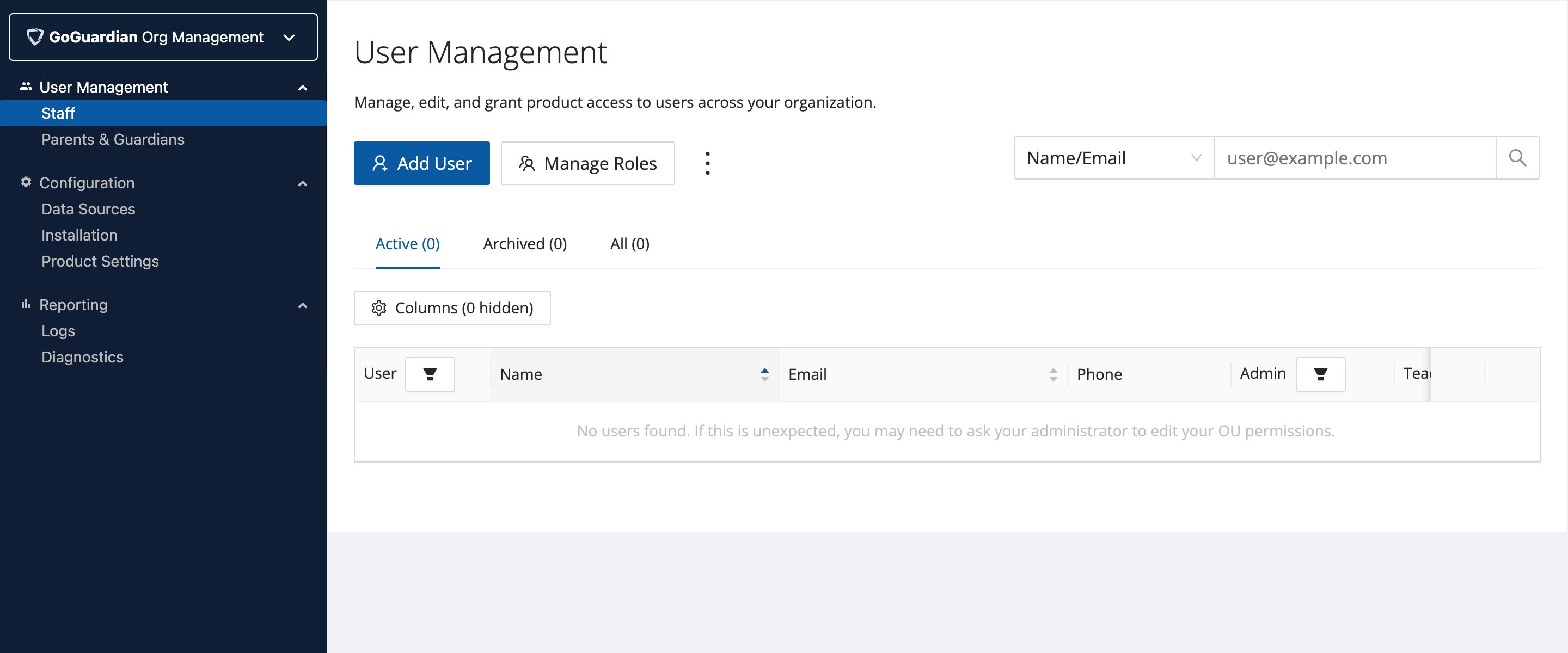
- From the Role Management interface, click + Add Role.
- Enter a name for the role and configure its access permissions.
Assign a Role to a User
- Select Edit next to an individual’s name in User Management.
- Expand GoGuardian Org Management and then select Role to assign the new role.
Delete a Role
- Select the three-dot menu next to the role and choose Delete.
- If users are assigned to the role being deleted, you will be prompted to reassign them before deletion completes.