

Welcome Email
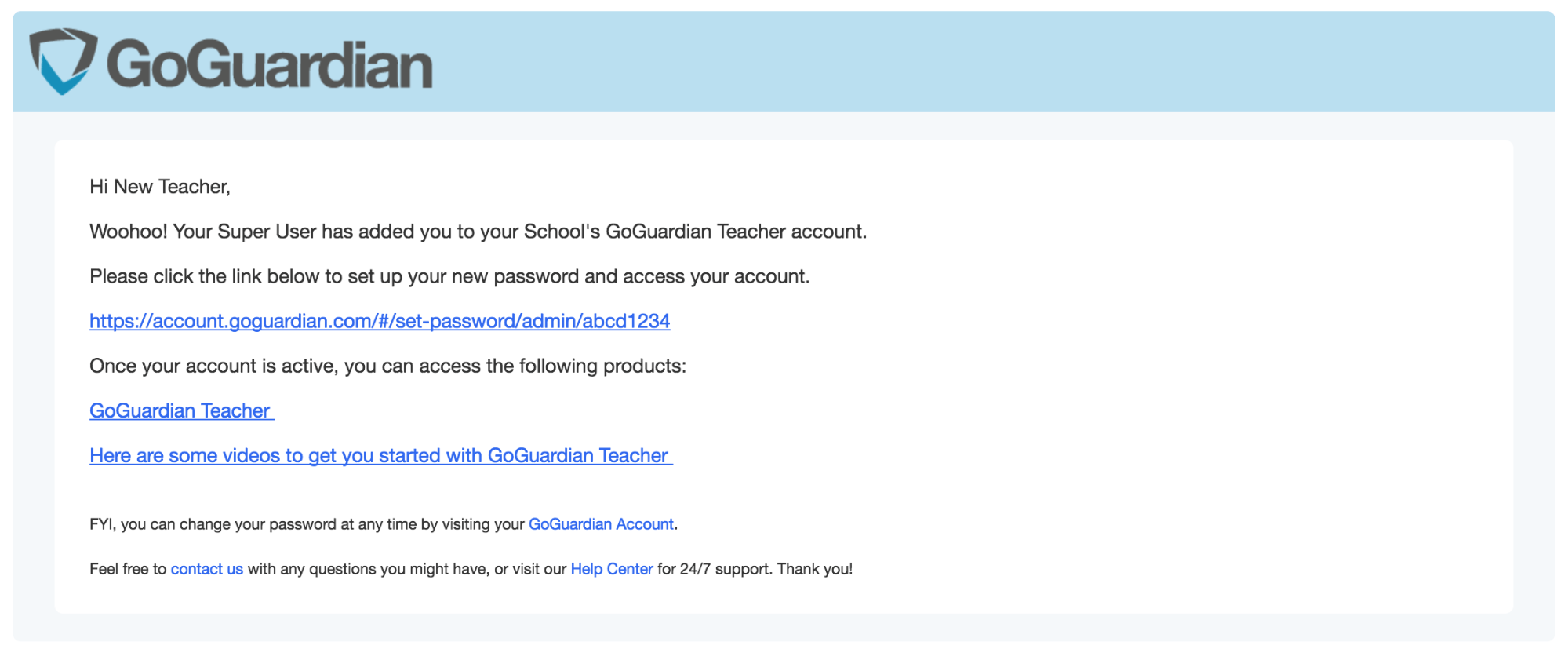
User accounts created manually (one at a time) receive a welcome email fromservice@goguardian.com that lists which GoGuardian products the account can access and includes a password setup link.
The welcome email is not required to access GoGuardian, as long as a Super User has set up the account.
Sign-In Options
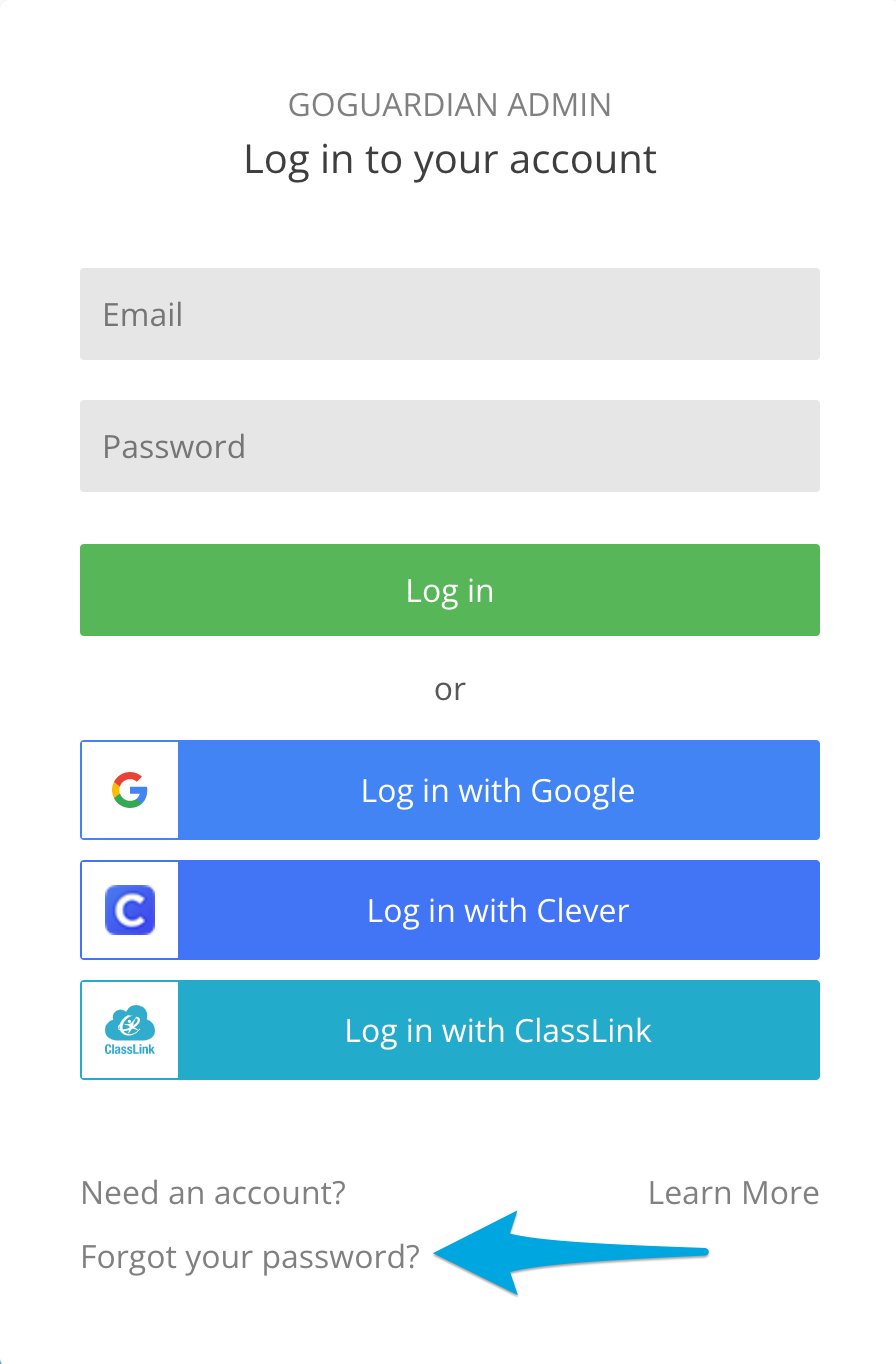
- Google SSO is automatically available to every account. If your school email is a Google account, use the Google login option so you have one less password to remember.
- GoGuardian password — a password used strictly for GoGuardian login. Recommended for non-Google emails such as Outlook. To set up or reset it, click Forgot your password? on any GoGuardian login page.
- Clever or ClassLink SSO — available once GoGuardian is synced with Clever or ClassLink. Administrators can also add GoGuardian as an application in Clever or ClassLink to provide a login option directly from those portals. See Using Clever SSO and Using ClassLink SSO.
