

What “Reviewing Activity Not Allowed By Admin” Means
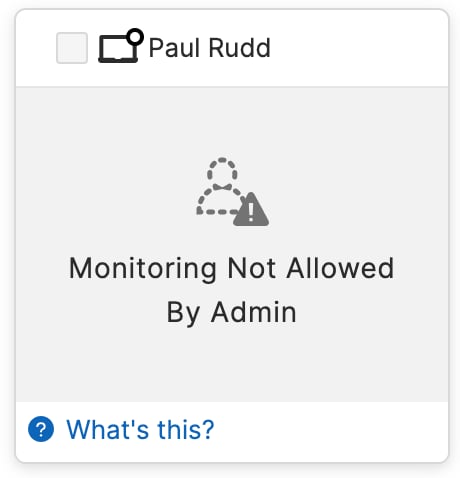
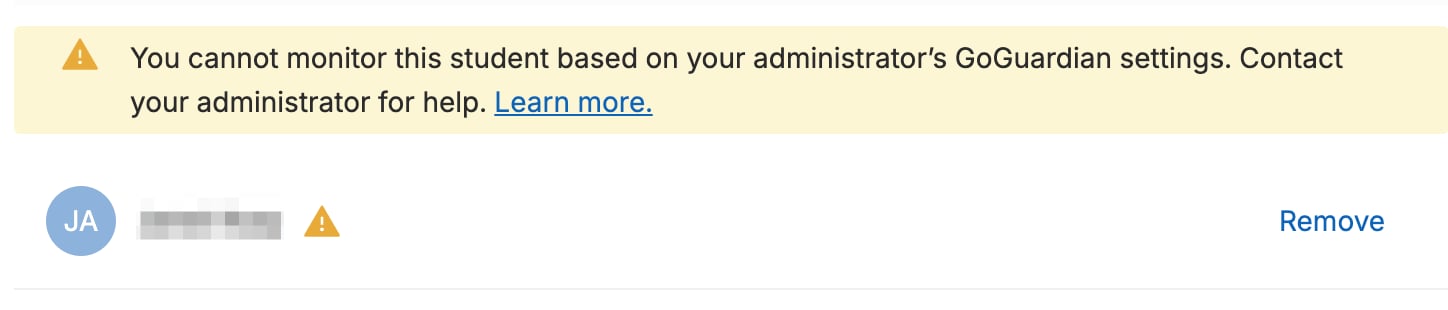
GoGuardian Teachers see the “Reviewing Activity Not Allowed By Admin” message over a student’s screen when the teacher’s account doesn’t have permission to review that student’s activity. This is caused by the teacher’s account not having the necessary access, or a student being assigned to the wrong organizational unit (OU). Teacher OU access is configured by GoGuardian Administrators to ensure teachers can only review activity for students they should have in class. Administrators can also grant a teacher full OU access, which allows the teacher to see any student. Example: A 5th grade teacher’s GoGuardian account is only given access to the “5th Grade” OU. That teacher can review activity for any student assigned to the “5th Grade” OU, but any student outside of that OU (3rd grade, 4th grade, 6th grade, etc.) will result in the “Reviewing Activity Not Allowed By Admin” message.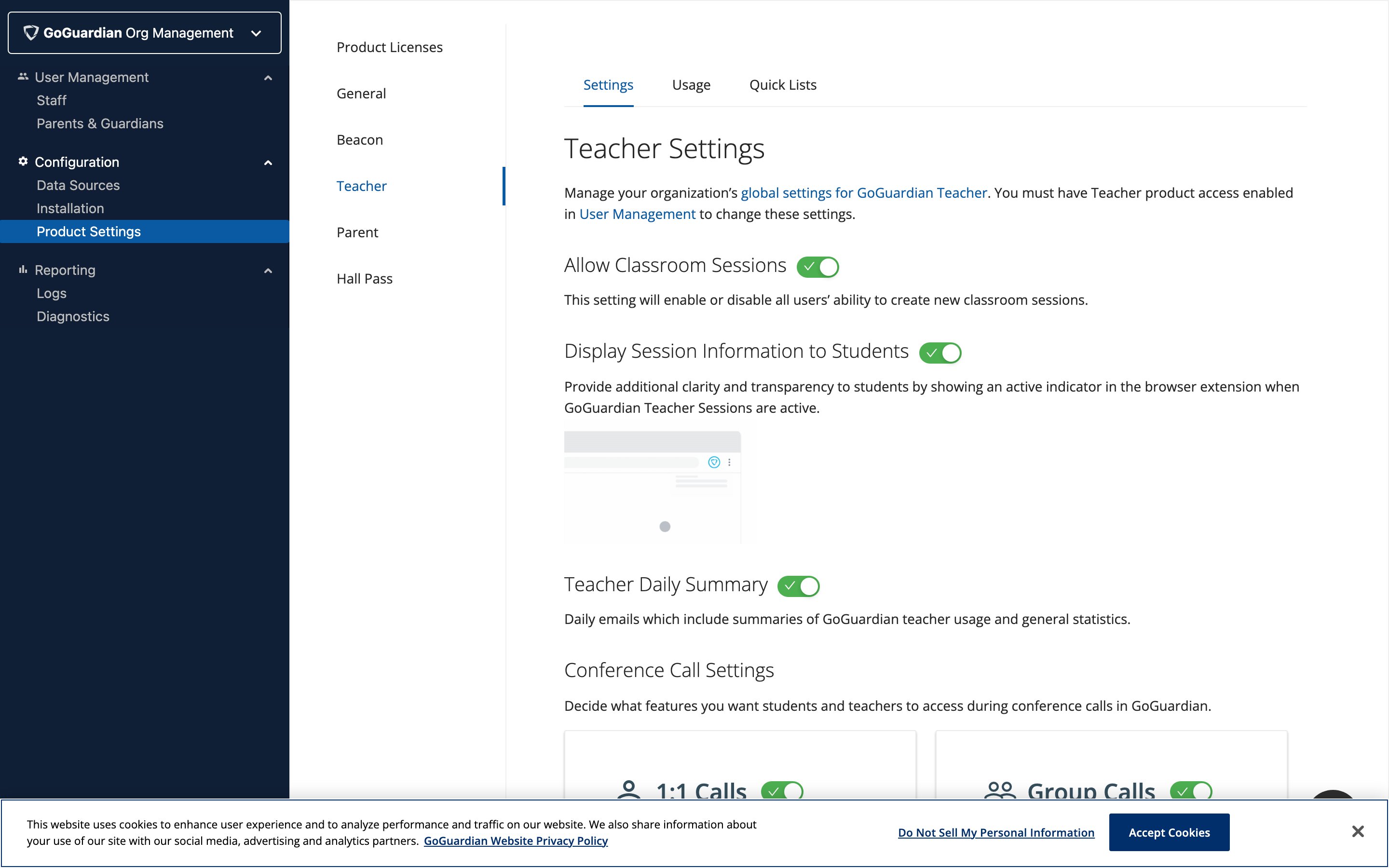
For GoGuardian Teachers: What to Know
To resolve the “reviewing activity not allowed” status, contact a GoGuardian Administrator with Super User access. Super Users can edit a teacher’s OU access or change a student’s assigned OU to fix this status. GoGuardian Support can’t make changes to teacher permissions or student OUs.If you’re unsure who to contact, reach out to your IT department or school administration for guidance.
For Super Users: How to Fix This Status
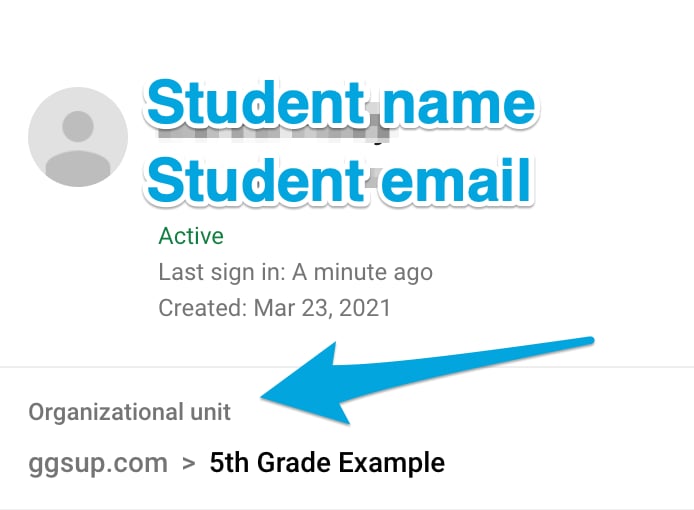
Fixing this status requires making sure each teacher’s account has OU access that matches their students’ OUs. Before making changes, determine the following:- What is the student’s current OU?
- Is this student in the correct OU in the OU source?
- What is the teacher’s OU access set to?
- Does the teacher’s OU access need to be updated?
-
If your organization has GoGuardian Admin:
- Go to admin.goguardian.com.
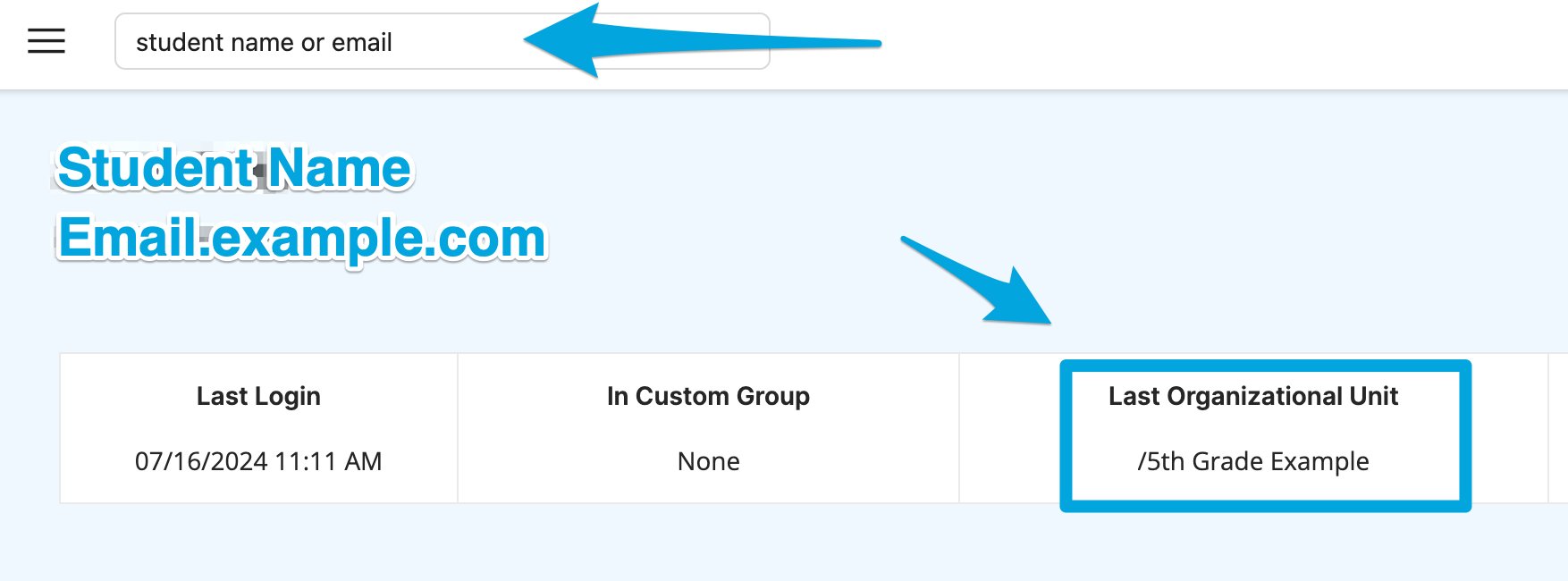
- Use the search bar to search for the student’s name or email address.
- Take note of the Last Organizational Unit.
- If the student’s OU is incorrect, move the student to the correct OU and manually sync OUs, or allow the automatic overnight sync to update the student’s OU.
- If the student’s OU is correct, manually sync OUs and make sure the student’s OU is selected for import. Allow up to 5 minutes for the changes to take effect, then check whether the teacher can now review the student’s activity.
-
Check the teacher’s OU access:
- Go to manage.goguardian.com and search for the teacher by name or email address.
- Click Edit next to the teacher’s name.
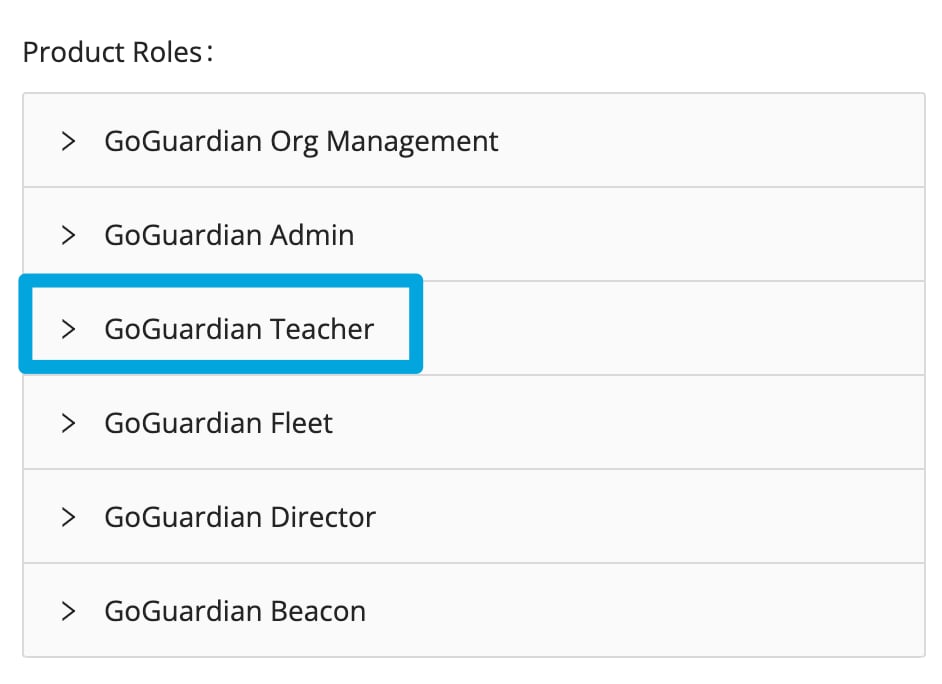
- In the Edit interface, expand the GoGuardian Teacher dropdown under Product Roles.
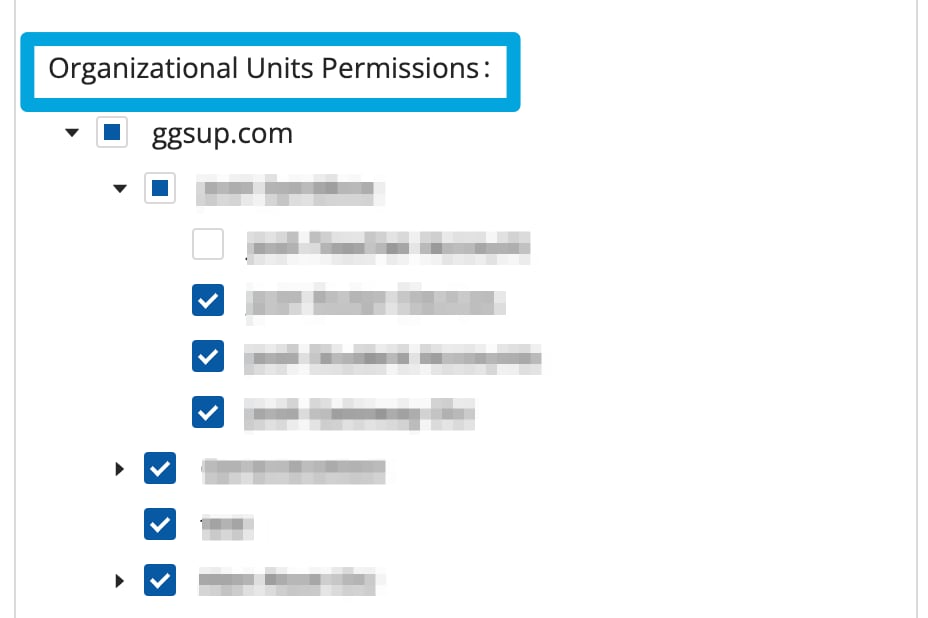
- Under Organizational Unit Permissions, confirm the teacher has the correct OU access using the checkboxes next to the OU names.
- To give a teacher full OU access, select the checkbox at the top-level root OU.
- A solid checkbox with a checkmark indicates full access for that OU.
- A partially filled checkbox indicates partial access (for example, missing sub-OU access).
- After updating the teacher’s OU access or the student’s OU assignment, allow up to 5 minutes for changes to take effect. Then verify the teacher can review the student’s activity without seeing the “not allowed” message. If the issue persists, contact GoGuardian Support with the teacher’s name or email and the student’s name or email.
If you’re still unable to resolve the status, contact GoGuardian Support and provide: (1) the name or email of the teacher having trouble, and (2) the name or email of the student displaying the “not allowed” message.
Resources
Log In As a Teacher
Use the Log In As feature to troubleshoot from a teacher’s account.
Manage Users and Settings
Manage teacher accounts, roles, and OU access in Org Management.
Set Up Teacher Accounts
Configure new teacher accounts and product role assignments.
Reviewing Activity Restricted
Troubleshoot other reasons a student’s activity may appear restricted.