

Cause 1: GoGuardian Extensions Are Not Installed
The student’s account is new and the GoGuardian extensions have not yet been deployed to their managed school account. Fix: Confirm that both GoGuardian extensions are installed on the student’s Chromebook. Enterchrome://extensions in the address bar to check. If one or both extensions are missing, contact your IT administrator to verify the extension deployment. See the Verify Extension Deployment article for steps.
For students on Windows, macOS, or iPad devices, contact your IT department or GoGuardian administrator for device-specific deployment assistance.
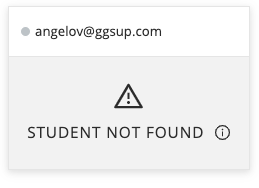
Cause 2: The Rostered Email Address Has a Typo or Error
The student’s email address in your class roster contains a typo, formatting issue, or incorrect domain. Fix: Go to the Students tab in your classroom and check the spelling and formatting of the student’s email address. If it is incorrect, remove the student from the roster and re-add them with the correct email address.GoGuardian cannot be installed to Google alias addresses — only to a student’s primary school-issued email address. Confirm you are using the student’s assigned school email, not an alias.
Cause 3: The Student’s Full Name Is Longer Than 20 Characters
If the student’s full name (as registered in GoGuardian) exceeds 20 characters, GoGuardian Teacher may be unable to match the account. Fix: Contact GoGuardian Support for assistance resolving this.Resources
Device Unavailable
Troubleshoot the “Device Unavailable” status.
Run Diagnostic on Unavailable Device
Run a self-service diagnostic test on the student’s device.
Add Students to a Class
Review how to add and manage students in a classroom.