

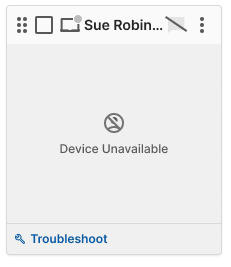
Many Device Unavailable cases require assistance from your IT department or a Google Workspace administrator. Troubleshooting requires physical access to the student’s device. If causes 2, 3, 4, and 5 below do not resolve the issue, contact your IT administrator for help.
Cause 1: GoGuardian Extensions Are Not Installed
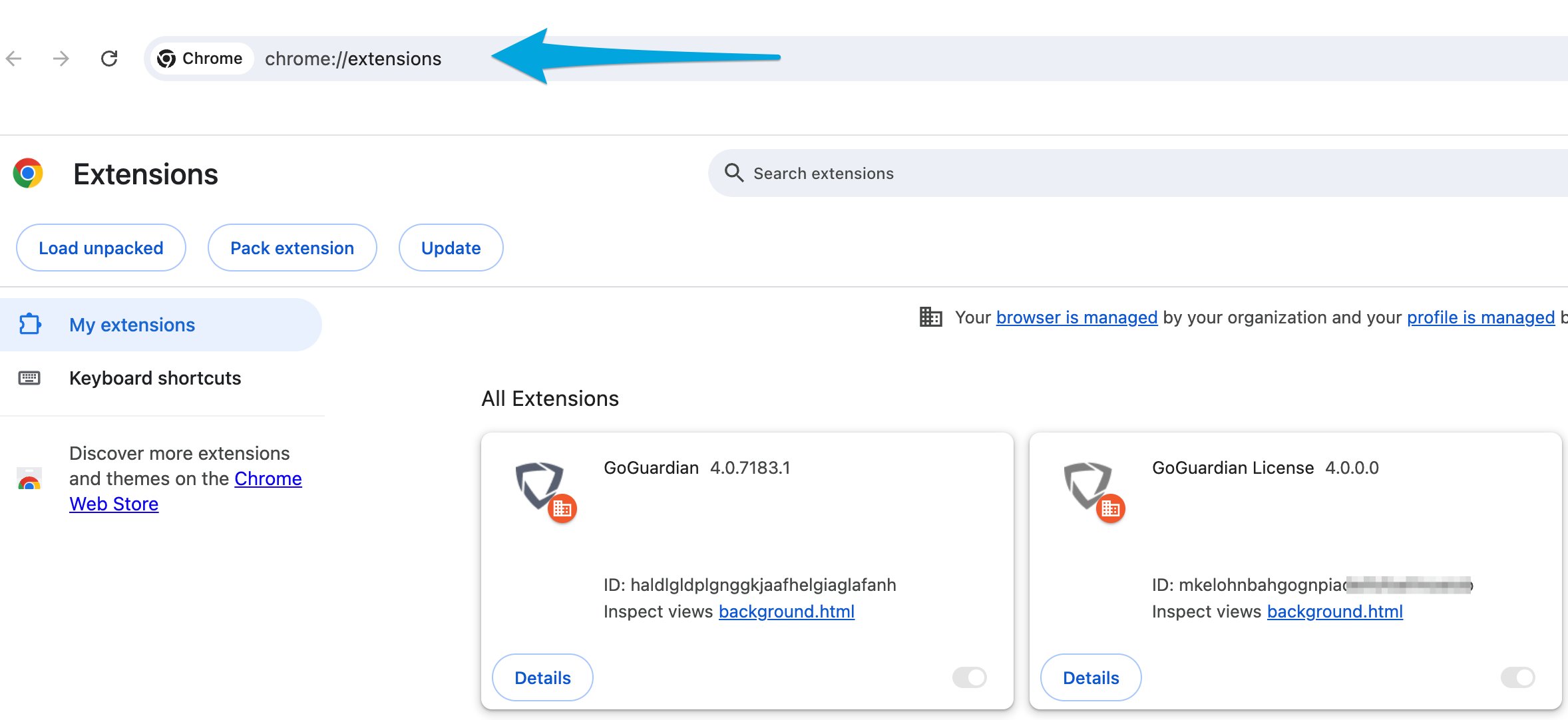
The student’s device is missing one or both GoGuardian extensions (GoGuardian and GoGuardian License). Check: Have the student enterchrome://extensions in the address bar and look for both extensions.
Fix: If one or both extensions are missing, the extensions may not be deployed for this student or their Organizational Unit, or they may not be set to Force install with Allow all permissions in Google Admin Console as required. Contact your IT administrator to verify and correct the GoGuardian extension deployment in Google Admin Console. See the Installing GoGuardian Extensions article for deployment requirements.
Cause 2: Device Needs to Be Restarted or Profile Refreshed
The student’s device or account may have an unresolved issue. Devices that run for extended periods without a restart can develop performance problems. Fix:- Have the student restart their device.
- If the problem persists, remove and re-add the student’s user profile:
- Sign the student out of the Chromebook.
- On the sign-in screen, click the down arrow next to the student’s name.
- Click Remove This Person and confirm by clicking Remove.
- Click Add Person and sign the student back in.
- The student should reconnect to the session automatically.
Cause 3: Student Is Signed Into the Wrong Account
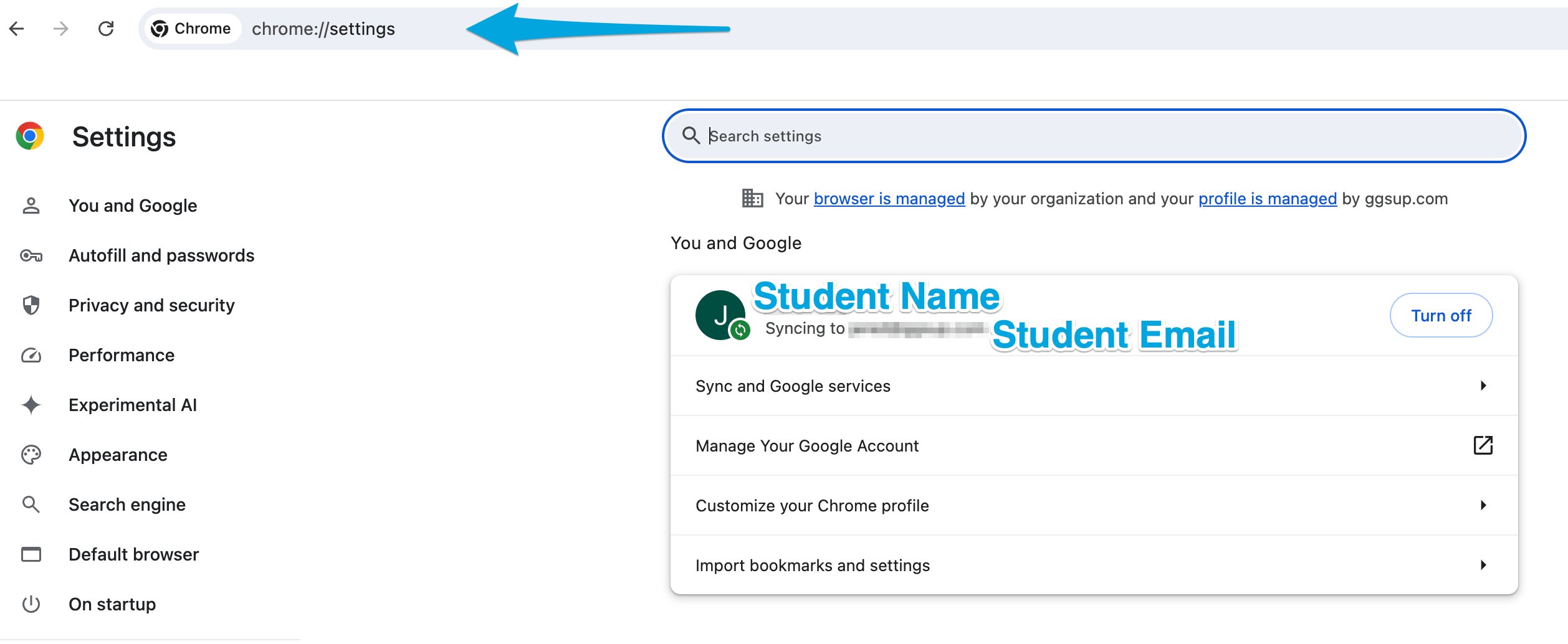
GoGuardian is installed based on the user’s signed-in email address. If a student is not signed into their assigned school email, the GoGuardian extensions will not be active. Check: Have the student enterchrome://settings in the address bar to confirm which account they are signed into.
Fix: If the student is signed into a personal, guest, or another student’s account, have them sign out and sign back in using their school-issued account.
Cause 4: Mac or PC Student Is Not Signed Into Chrome
Students on non-Chromebook devices (Mac or PC) must be signed into the Chrome browser as a user, not just signed into Google services in the browser. Check: Have the student enterchrome://settings in the address bar to confirm their signed-in browser user.
Fix: Have the student sign into Chrome using their school account.
Cause 5: An Ad-Blocking Extension Is Interfering
Browser extensions such as AdBlock or uBlock can block components of GoGuardian Teacher, causing students to appear offline. GoGuardian Teacher notifies teachers when it detects ad-blocking software. Fix: Remove, pause, or configure the ad-blocking extension to allow GoGuardian Teacher. Alternatively, try using an incognito window, which prevents filtering extensions from loading. See the article on disabling AdBlock and uBlock for more information.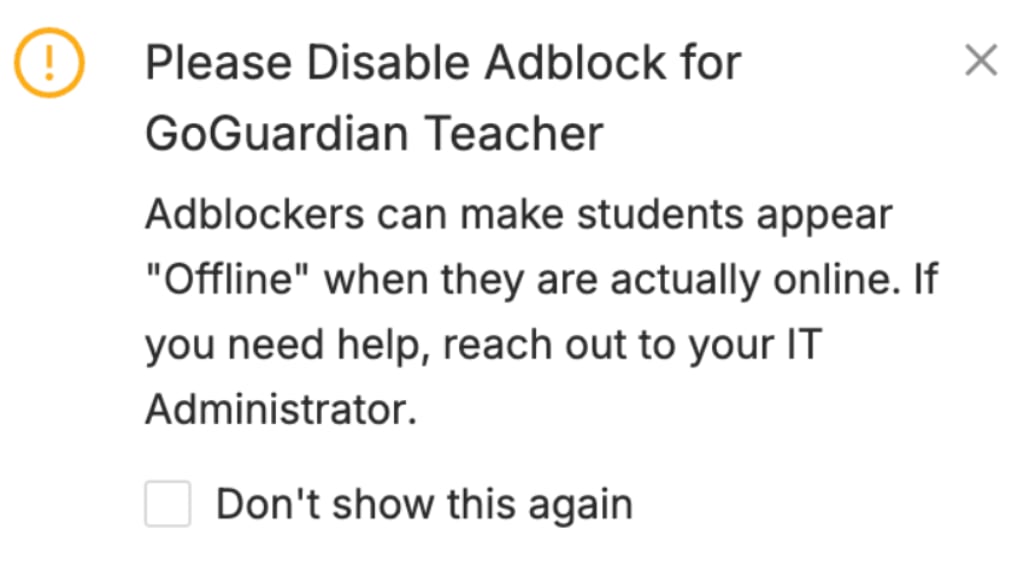
Cause 6: IP Restrictions Are Blocking the Student
Your organization’s Teacher IP restrictions may not include the student’s current network, or the student may be on an off-campus connection. Check: Go to Teacher Product Settings in Org Management and check whether IP restrictions are enabled and whether the student’s network is within the allowed range. Fix: Add the student’s network to the allowed IP range, or remove IP restrictions if students need to connect from off-campus.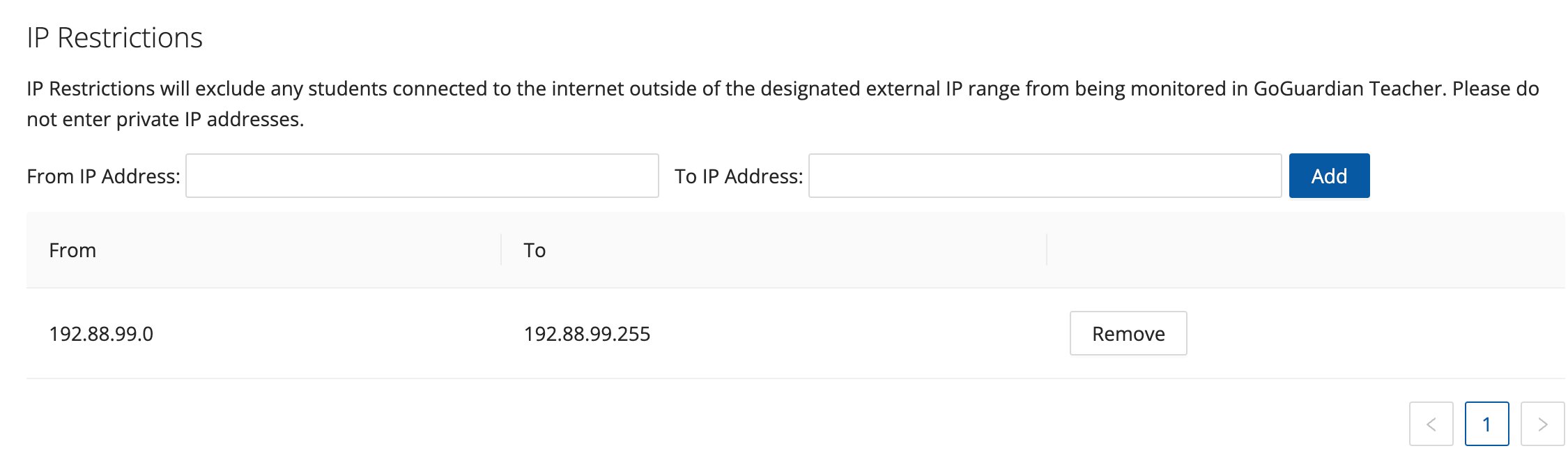
Cause 7: Firewall Is Blocking GoGuardian Services
A firewall or additional content filter may be blocking connections to GoGuardian’s back-end services. Fix: Have your network administrator verify that connections to the following services are allowed on ports 80 and 443:- goguardian.com
- laptoplookout.com
- kinesis.us-west-2.amazonaws.com
- s3-us-west-2.amazonaws.com
- *.pusher.com
Resources
Run Diagnostic on Unavailable Device
Run a self-service diagnostic test on the student’s device.
Student Not Found
Troubleshoot the “Student Not Found” status.
Waiting for Activity
Troubleshoot the “Waiting for Activity” status.
Reviewing Activity Restricted
Troubleshoot the “Reviewing Activity Is Restricted” status.