

Cause 1: Student Has No Browser Activity
The student’s device is on and connected, but they have not yet navigated to a website. GoGuardian Teacher has no browser activity to display. This also occurs if the student is on the Chrome homepage. Fix: Ask the student to navigate to any webpage. Alternatively, use the Open Tab command to send a URL directly to the student’s browser.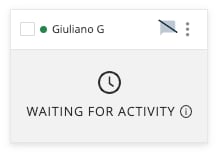
Cause 2: Screenshots Are Disabled in Google Admin Console
The student’s OU in Google Admin Console may have screenshot capture turned off. This cause is especially likely if the issue affects many students at once. Fix: Have your IT administrator verify that screenshot capture is allowed in Google Admin Console for your student OUs. See the Enabling Screenshots for Students article for configuration steps.Adjusting Google Admin Console settings requires Google Workspace administrator access. Contact your IT department or school administrator for assistance.
Cause 3: Firewall or Content Filter Is Blocking GoGuardian
An additional content filter or firewall may be blocking connections to GoGuardian’s back-end services, which prevents students from sending activity data to your session. Fix: Have your network administrator check for blocked connections to GoGuardian’s required services. See the Firewalls and Additional Content Filters article for the full list of URLs and ports that must be allowed. Running the student device diagnostics test on the student’s device can confirm this cause.Resources
Device Unavailable
Troubleshoot the “Device Unavailable” status.
Run Diagnostic on Unavailable Device
Run a self-service diagnostic test on the student’s device.
Take a Screenshot
Manually capture a student screen once they are connected.