

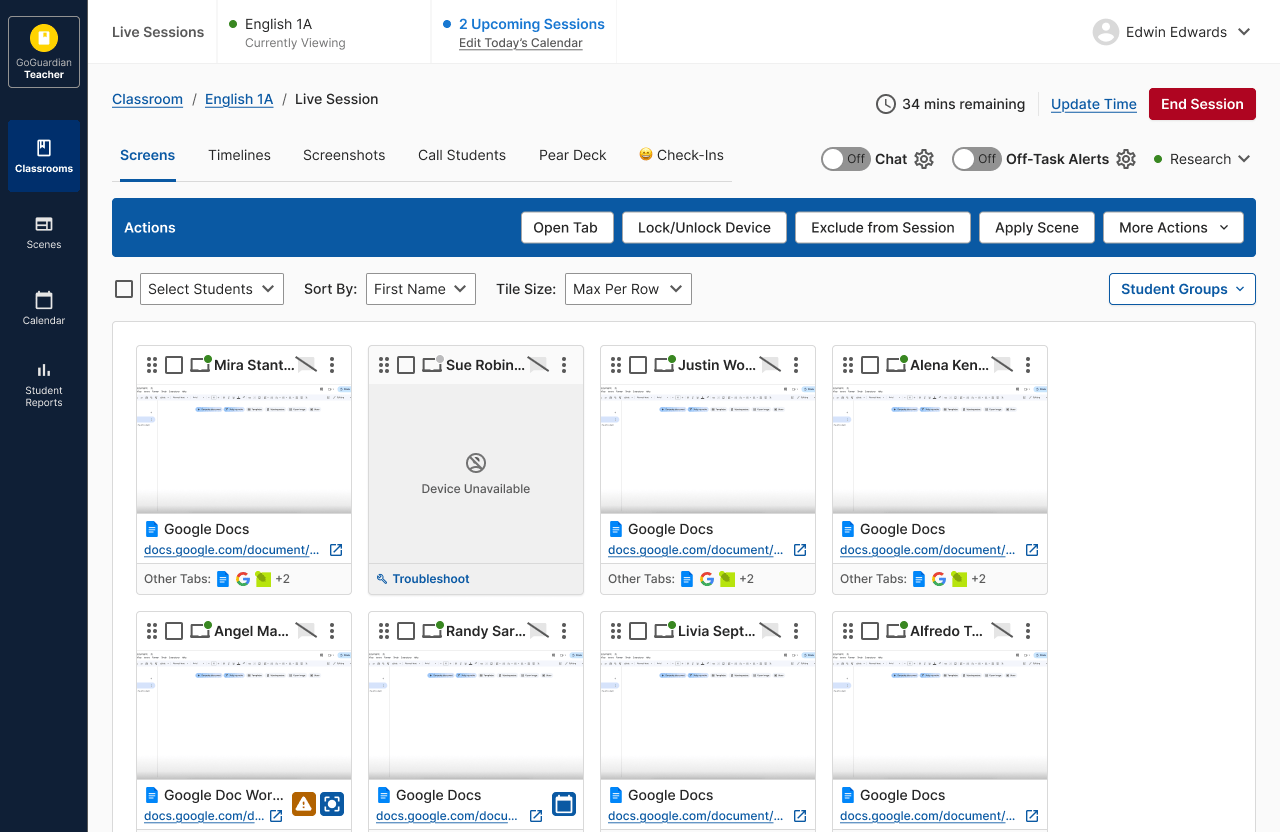
Run the Diagnostic Test
- Click the Troubleshoot link on the student’s tile in your Live Session. A six-digit code appears on your screen.
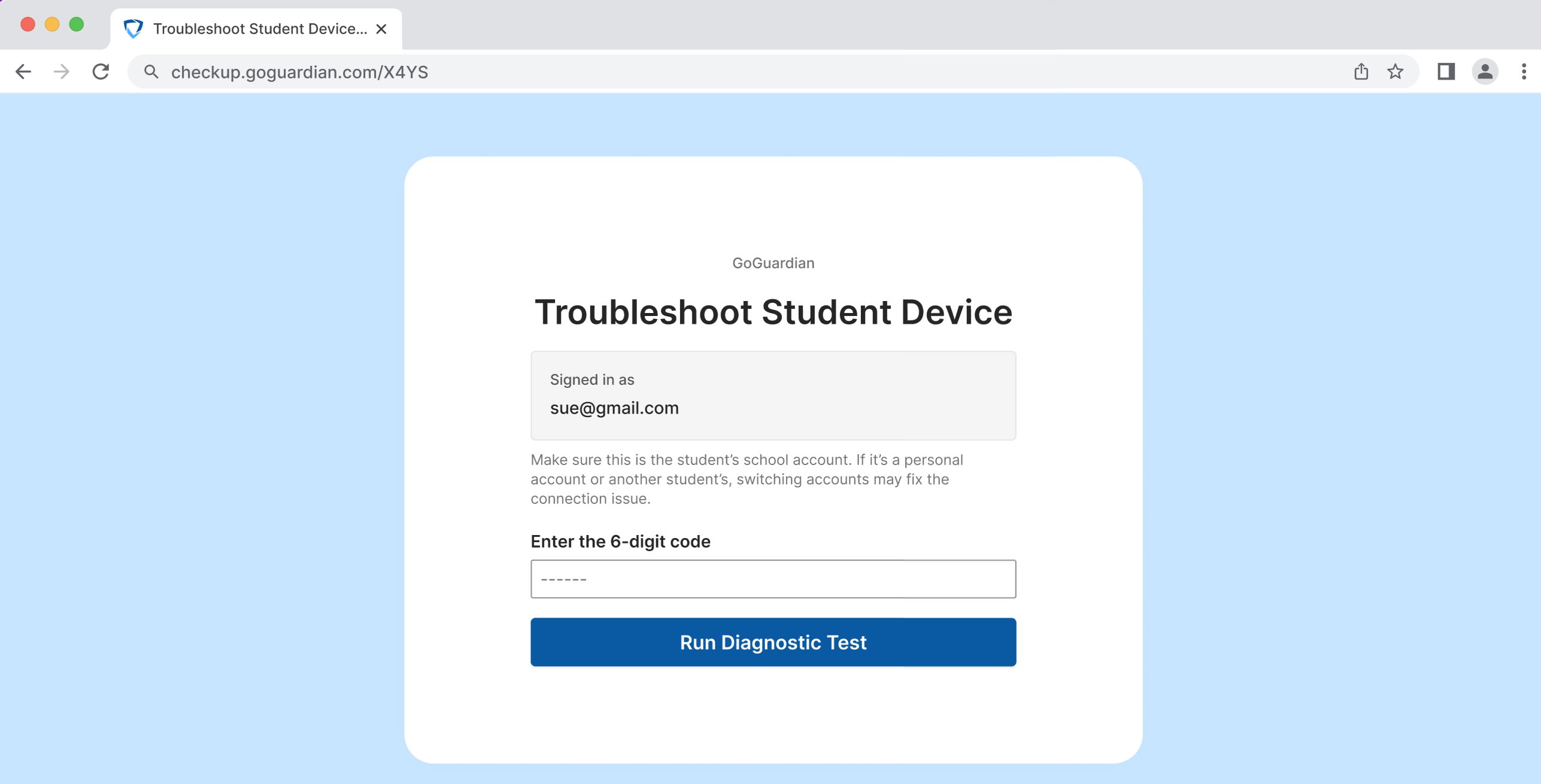
- On the diagnostics page, enter the six-digit code to connect the test to the student’s device. Confirm the account listed under Signed In As matches the student’s school-issued email. If it doesn’t, have the student sign in with the correct account before continuing.
- Click Run Diagnostic Test.
- Review the results under Diagnostic Results.
Review Troubleshooting Results
The diagnostics page checks four areas and reports each as a pass or an issue.Account Sign-In
Student Account Signed In confirms the student is signed into their school-issued account. If the page instead shows Incorrect Account Signed In, the student is signed into a personal, guest, or another student’s account. Fix: Have the student sign out and sign back in using their school account.Device Performance
Device Performance confirms the device has enough available memory to maintain a stable connection. If the page instead shows Low Device Performance, the device is using too much memory, which may be affecting the connection. Fix: Have the student close unnecessary browser tabs and windows.IT Environment
IT Environment confirms nothing on the network is blocking GoGuardian’s extensions. If the page instead shows IT Admin Action Required, an ad blocker or firewall is interfering with the connection. Fix: Click Send Report to IT Admin to send the diagnostic report to your IT department for further troubleshooting.GoGuardian Systems
GoGuardian Systems confirms GoGuardian’s back-end services are reachable. If the page instead shows GoGuardian Support Action Required, the test could not determine the exact cause of the connection failure. Fix: Click Send Report to GoGuardian Support to send the diagnostic data in a support ticket.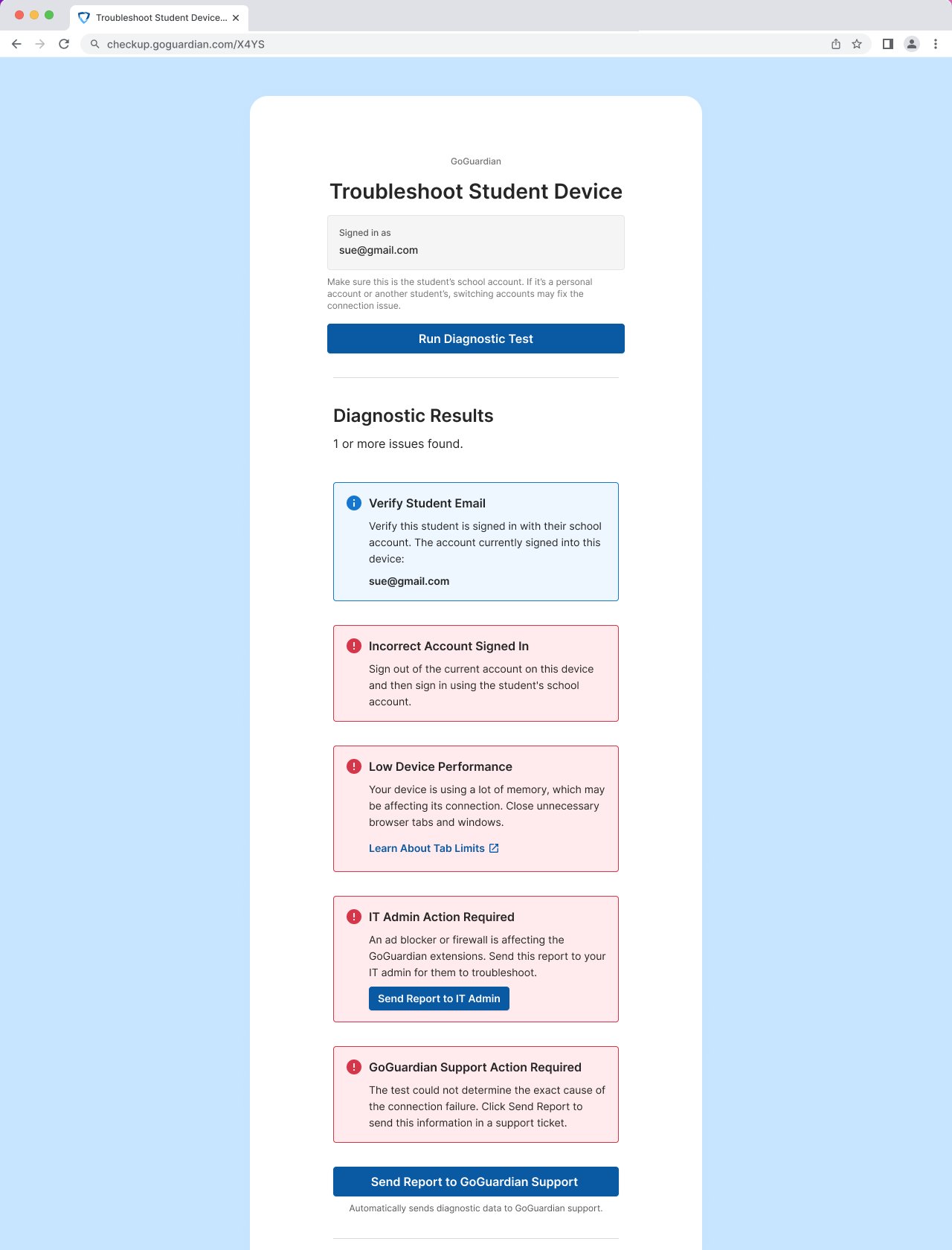
No Issues Found
If every check passes, the page shows No issues found with all four checks marked green.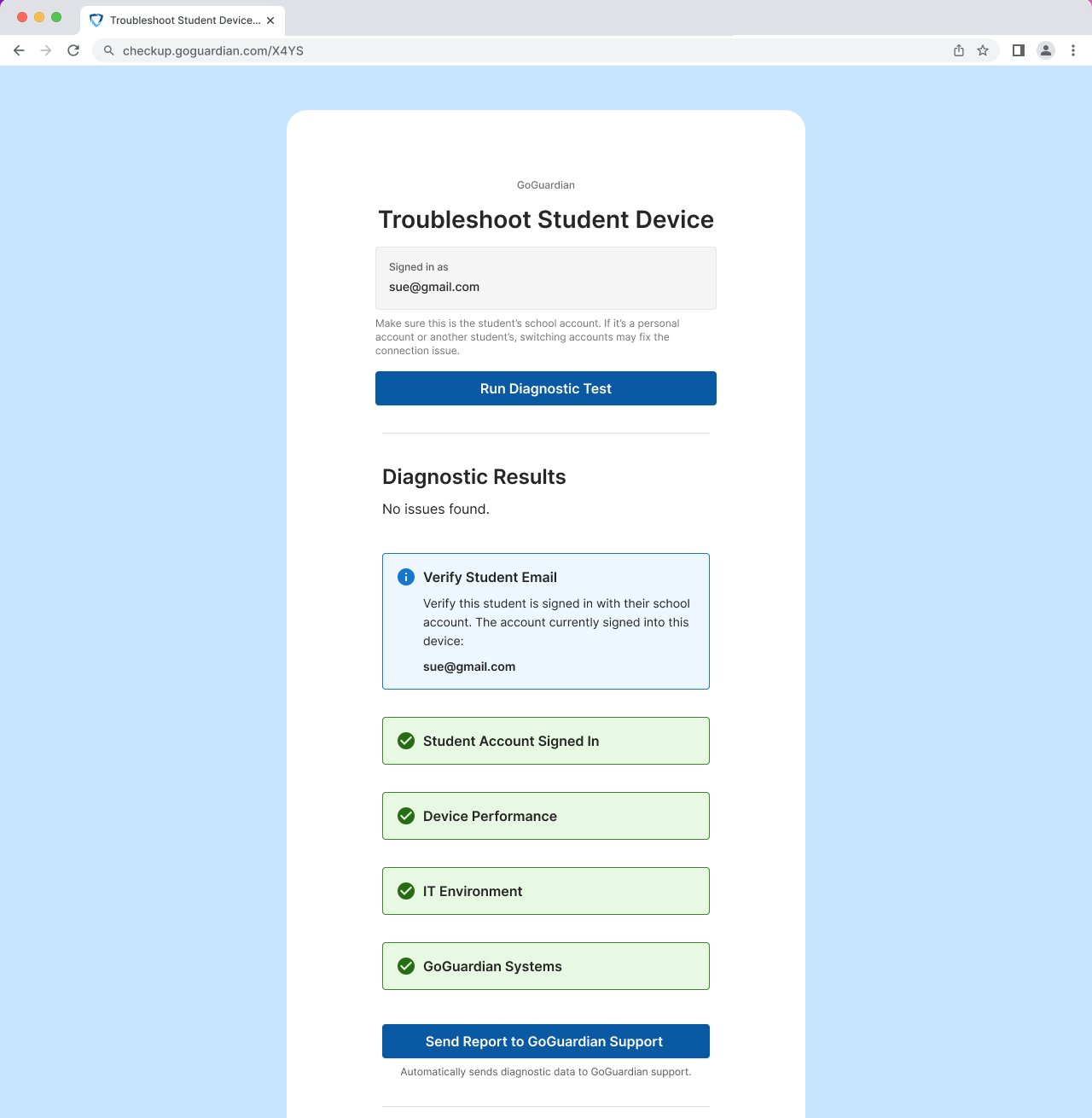
If the diagnostics page shows no issues but the student’s tile still shows a connection problem, the issue may be temporary. Have the student refresh the page, or contact GoGuardian Support if the tile doesn’t update.
Confirm the Connection Is Restored
After the student applies a fix, have them refresh their tile or rejoin the session. The tile updates from “Device Unavailable” to the student’s live screen once GoGuardian reconnects. If a report was sent to your IT admin or GoGuardian Support, the fix may take longer, since it depends on their response.Resources
Device Unavailable
Troubleshoot the “Device Unavailable” status.
Student Not Found
Troubleshoot the “Student Not Found” status.
Waiting for Activity
Troubleshoot the “Waiting for Activity” status.