

Cause 1: No Browser Window Open
The student doesn’t currently have a browser window open, or isn’t actively on a website or webpage. Resolution: Wait for the student to open a website, or use the Open Tab command to open one for them. Screen data populates once they begin using their browser.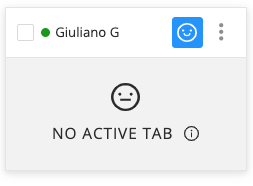
Cause 2: Student Is Using a Non-Browser App
The student is using an app or extension that runs outside of the web browser rather than using their browser to view a website. Resolution: Due to limitations of Chrome APIs used in GoGuardian Teacher, Teacher classroom sessions can’t view some third-party apps from the Chrome Web Store. Ask the student to switch to a browser-based activity.Commands Overview
Learn about available Teacher commands, including Open Tab.
Device Unavailable
Troubleshoot students who appear offline in your classroom.
Waiting for Activity
Understand the Waiting for Activity status in Teacher.
Active Screens View
See how to use the Active Screens view during a session.