

Understand When to Use Custom Groups
Custom Groups are the right tool when:- Students need to be grouped by grade or class where more or fewer website resources are required
- Students who need more focused browsing conditions should be separated from the rest of their OU
- A temporary restriction should expire automatically on a set date and time
- All students need a blanket change during school breaks or special occasions
Each user may only be in one Custom Group at a time. You must have GoGuardian Admin Full Access permissions to create a Custom Group.
Navigate the Custom Groups List
The Custom Groups page displays two views: All Groups shows every group in the organization, and My Groups shows only the groups you own or co-edit. Use the filter controls to narrow the list by Group Name, Restrictive Mode status, policy assignment, number of users, Group Owner, or creation date.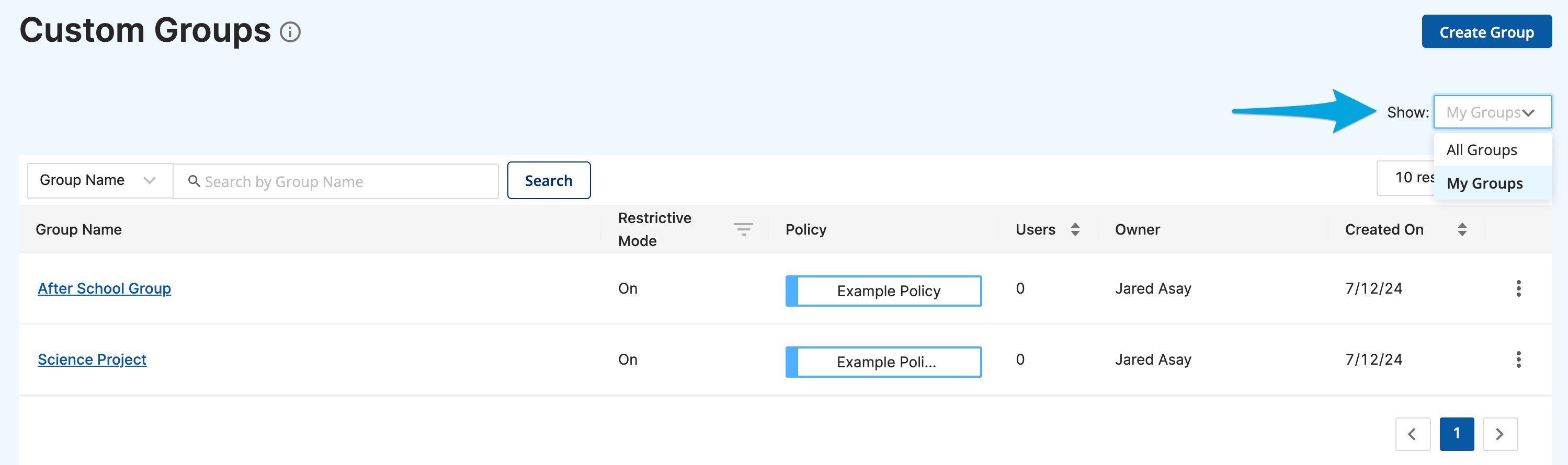
Create a Group
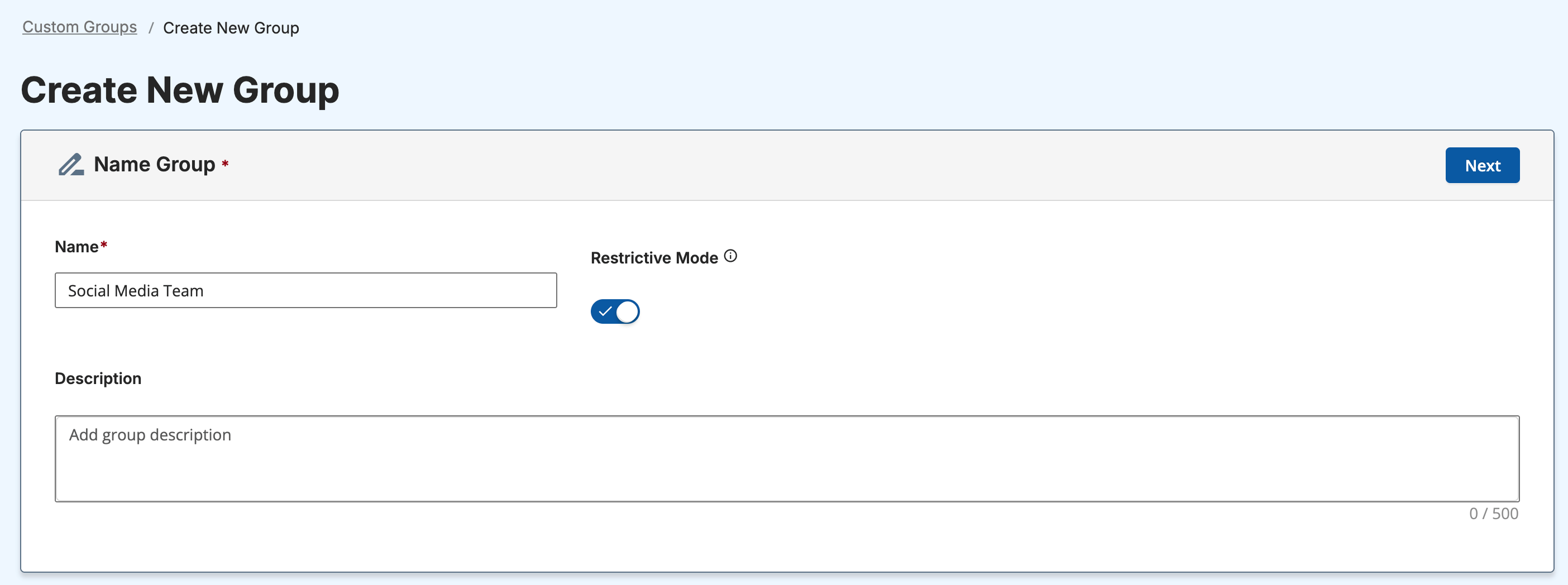
- In GoGuardian Admin, go to Filtering > Custom Groups, then select Create Group. Enter a group name (100-character limit). The group name field includes an optional Restrictive Mode toggle. Enable it here if you want the group to apply a blanket restriction across all content types. Restrictive Mode is enabled by default and can be changed after the group is created.
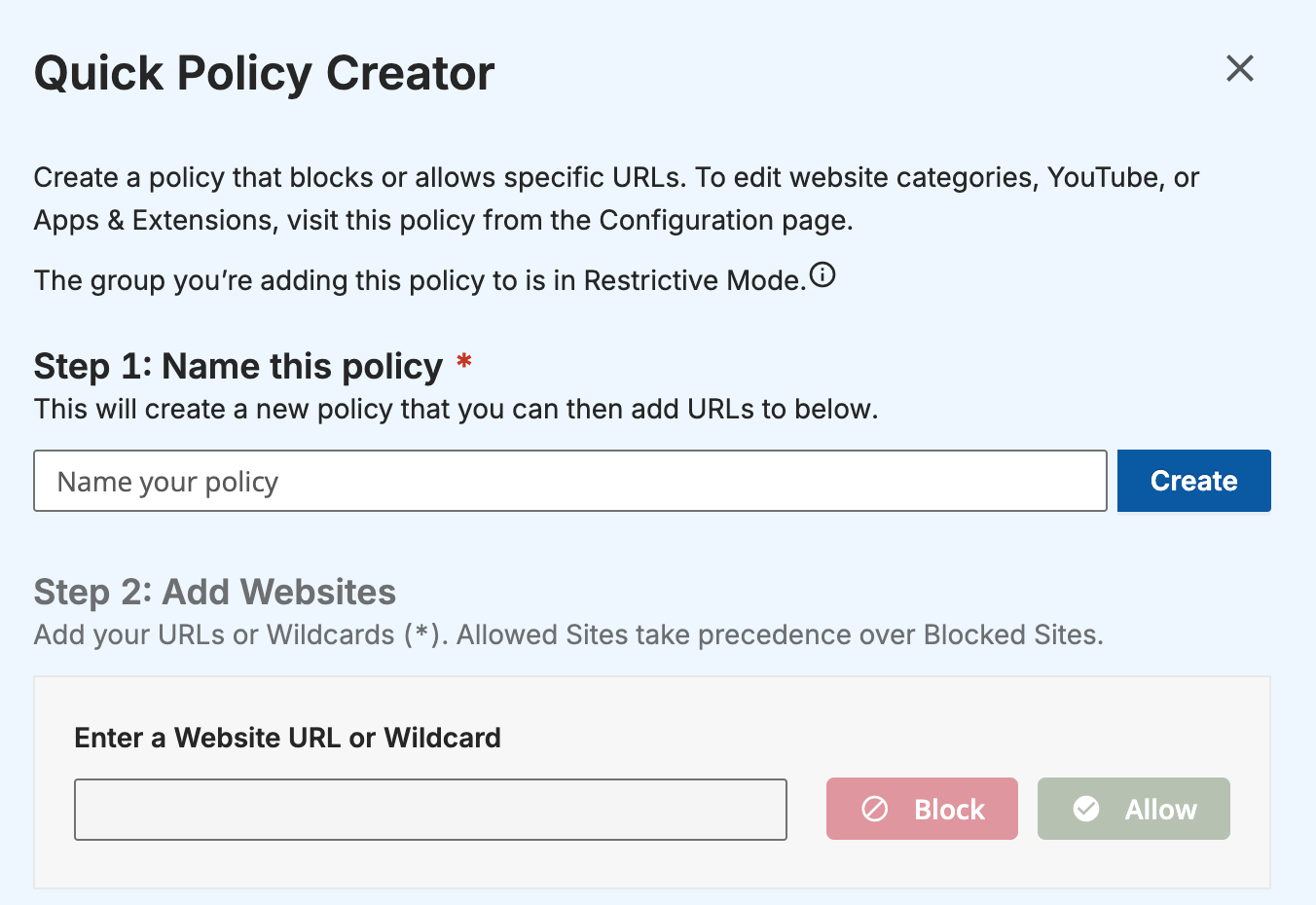
- Choose one policy from the list of existing policies in your organization. Sort policies alphabetically or search by name. To create a new policy immediately, select Create New Policy to open the Quick Policy Creator, which lets you add website URLs and wildcard rules directly. Add category rules and YouTube behavior later from the Admin Policies list.

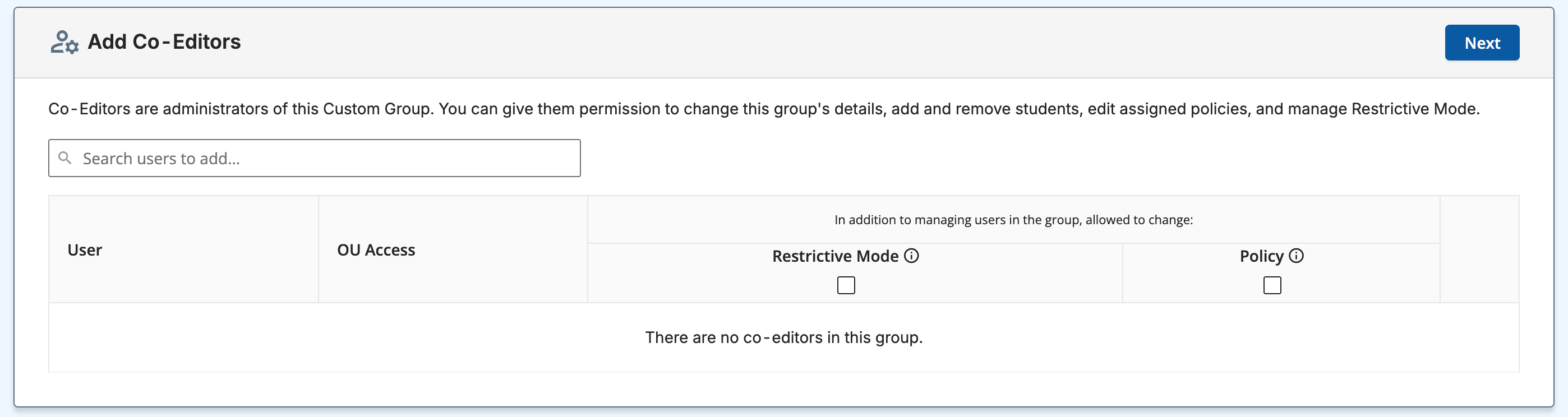
- Group owners can add other administrators as Co-Editors. Co-Editors must have GoGuardian Admin Filter and Monitor or Full Access permissions. By default, Co-Editors can edit group users. To extend Co-Editor access to Restrictive Mode settings or policy changes, select the appropriate checkboxes for each Co-Editor individually.
-
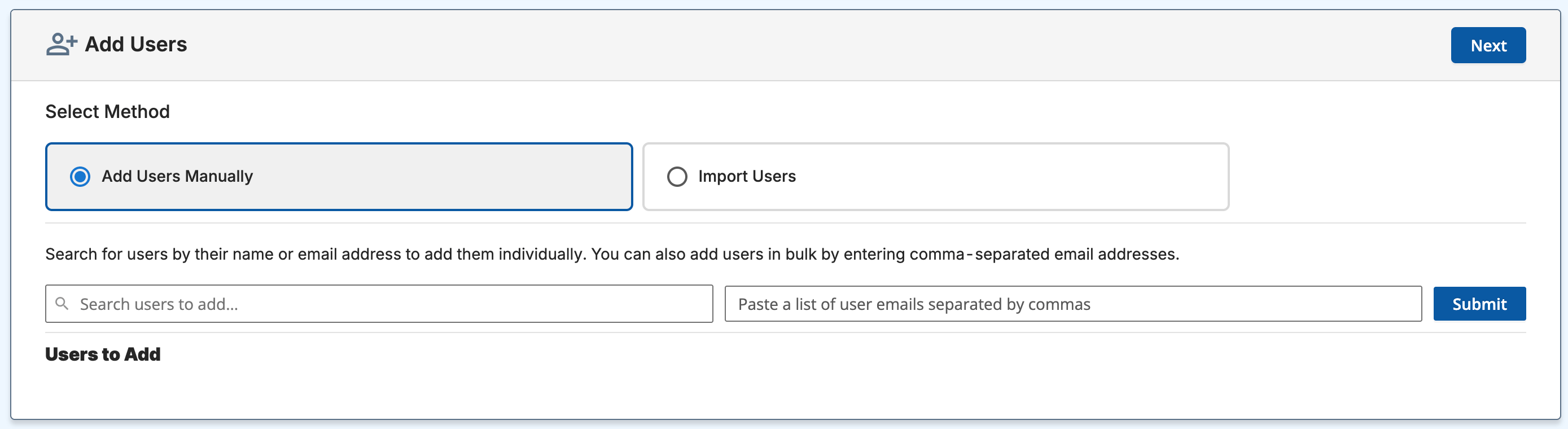
Add users to the group using one of three methods:
- Search by name or email: find and add one user at a time
- Paste email addresses: enter a comma-separated list of email addresses
- Import via CSV: upload a CSV file to add users in bulk


- When adding users, turn on Auto-Remove to schedule automatic removal from the group. Use the calendar interface to select a date and time for each user’s removal. The Auto-Remove column on the group page displays each user’s pending removal date. To update a removal date, select one or more users and choose Edit Auto-Removal Time. To disable Auto-Remove for a specific user, open the kebab menu next to their name, select Edit User, turn off Auto-Remove, and select Save.

- The new group appears in the Custom Groups list with the assigned policy and any scheduled Auto-Remove dates shown in the Auto-Remove column. Students in the group are now subject to the group’s filtering policy, regardless of their OU assignment.
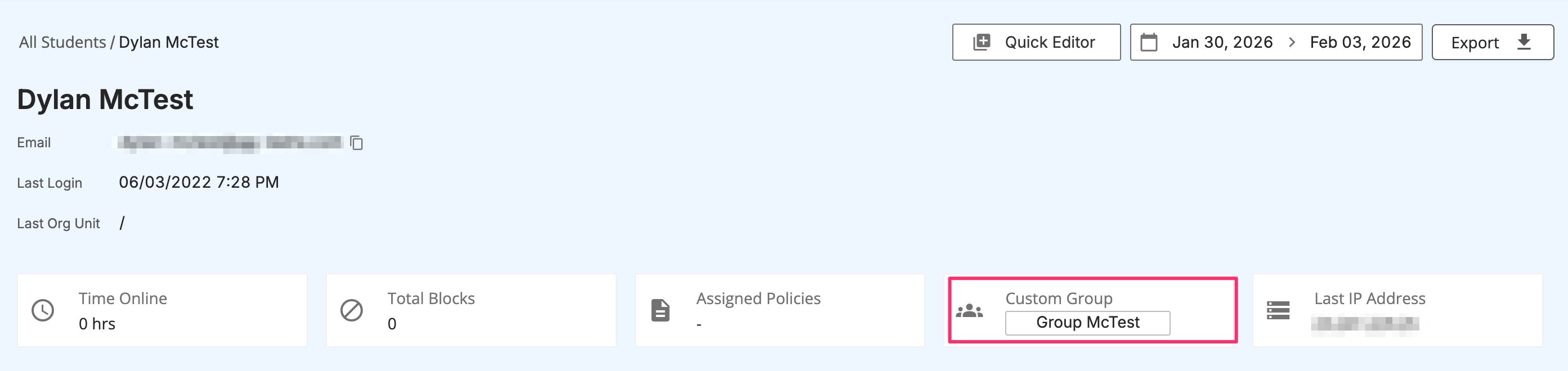
Each user’s profile in GoGuardian Admin displays their current Custom Group assignment. Use this to quickly confirm which group a student belongs to without navigating back to the Custom Groups list.
Understand Restrictive Mode
Restrictive Mode changes how group-level filtering interacts with the rest of your policy stack.Understand Restrictive Mode When Enabled
The group blocks all content (website URLs, YouTube, and apps and extensions) regardless of how each is configured in the assigned policy. Anything not explicitly allowed in the group’s policy is blocked. Explicit inherited allow rules are the exception. Enabling Restrictive Mode drops the group policy to equal priority with the user’s inherited OU policies rather than overriding them outright. At equal priority, an explicit allow rule beats a block — so a site specifically allowed in an inherited policy stays allowed even though the group’s Restrictive Mode would otherwise block it. If a group member can still reach a site you expected to block, check whether an inherited policy allows it. For the full priority model, see How Filtering Rules Interact.Restrictive Mode is not unique to Custom Groups. You can also enable it on any filtering policy — independently for Website URLs, YouTube, and Apps and Extensions — from the policy’s own settings. Enabling Restrictive Mode at the group level applies all three content-type restrictions simultaneously; to restrict only one content type, configure Restrictive Mode at the policy level instead. The precedence behavior described above is the same in both places.
chrome://newtab as an allow rule in the group’s policy so users can open new tabs. Add chrome://settings and chrome://extensions as allow rules if your school requires access to those as well.
Understand Restrictive Mode When Disabled
The group’s policy has the highest filtering priority, but OU-level policies also apply at a lower priority. A block in the group’s policy overrides an allow at the OU level. Example: If a user’s OU policy allows facebook.com but the group policy blocks the Social Networking category, facebook.com is blocked.Understand Teacher Scene Interaction
GoGuardian Teacher Scene filtering cannot override a block set in a Custom Group. If a teacher’s Scene allows a site that the group’s policy blocks, the site remains blocked. Coordinate between administrators and teachers to confirm students can access everything they need for class.Manage a Group
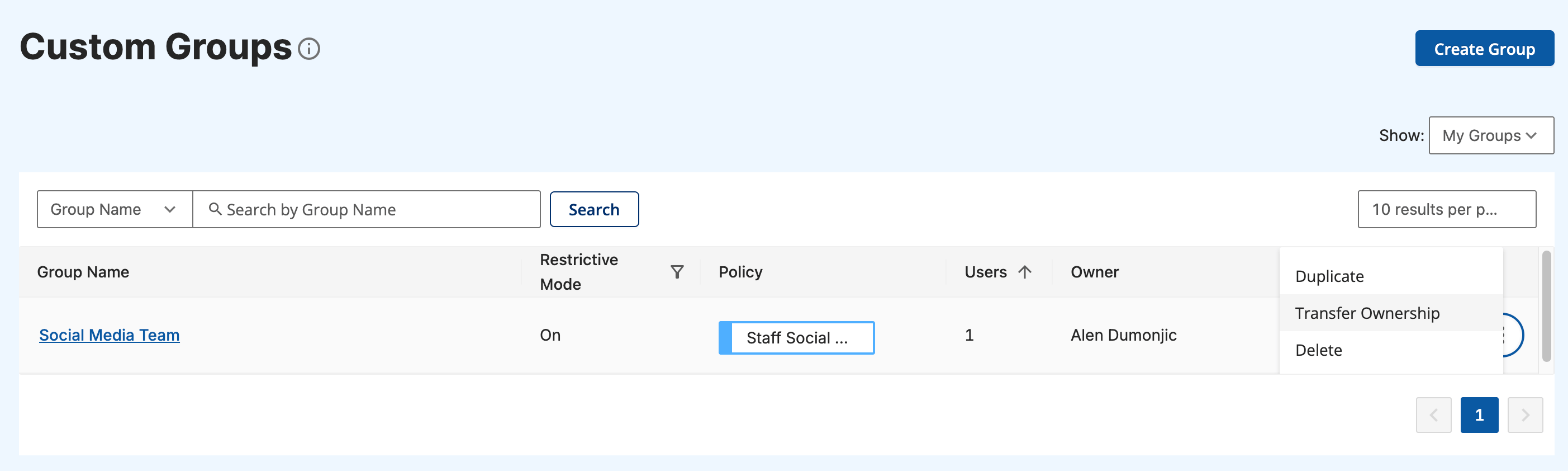
Select the kebab menu on a group’s row in the Custom Groups list to view management options. Duplicate: Creates a copy of the group’s settings, Co-Editors, and assigned policy. The duplicate requires a new, unique name. Users are not copied because each user may only be in one group at a time. Administrators with Full Access permissions can duplicate any group, including groups they are not a Co-Editor of.
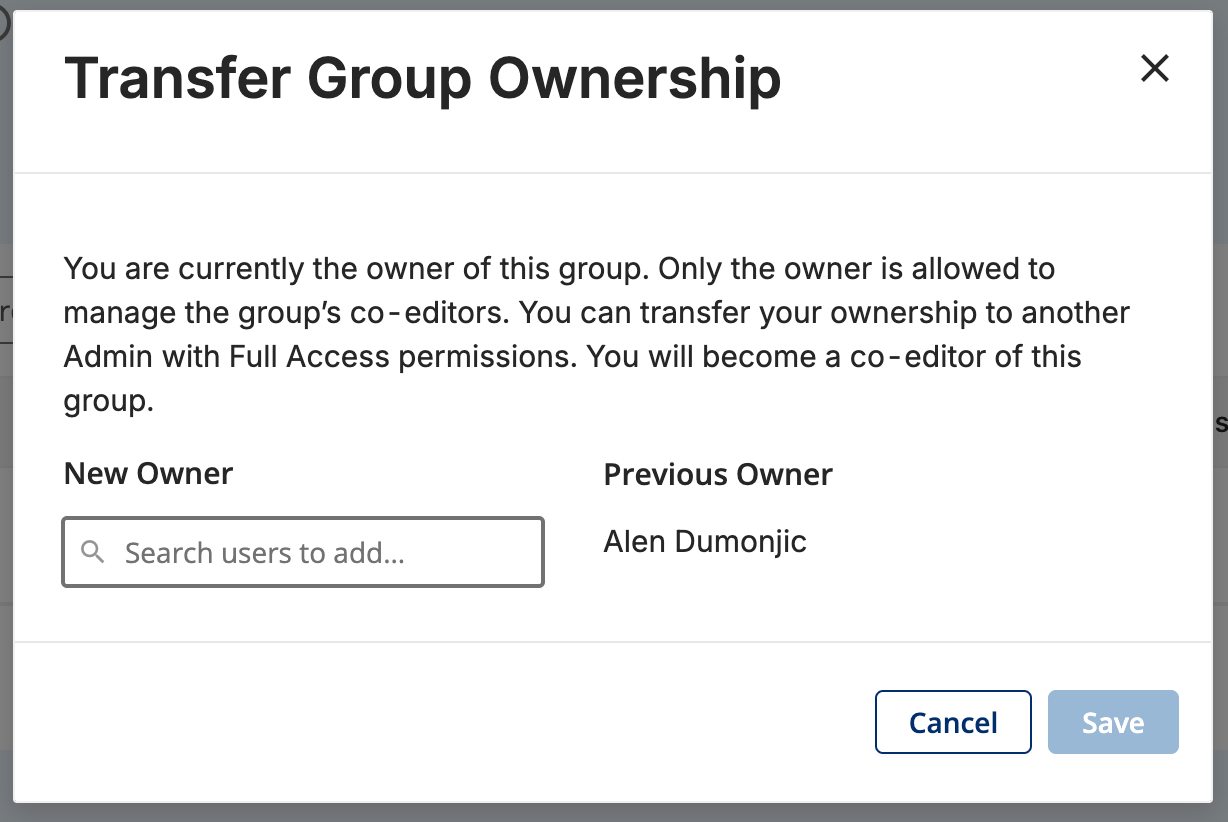
All administrators with Filter and Monitor access can delete any group, not just the group owner or Co-Editors. This prevents a scenario where a user becomes stuck under a group’s filtering policy because the group owner is unavailable.
Understand YouTube Behavior with Custom Groups
YouTube access in a Custom Group depends on whether Restrictive Mode is enabled for that group.Manage YouTube Access with Restrictive Mode Enabled
youtube.com is blocked unless you explicitly add it as an allow rule in the Website URLs section of the group’s policy. All YouTube videos and channels are also blocked unless you explicitly allow them in the YouTube section of the policy. To allow approved YouTube videos without granting access to the youtube.com homepage, addyoutube.com/watch as an allow rule in the Website URLs list.
Manage YouTube Access with Restrictive Mode Disabled
The block and allow rules in the group’s assigned policy determine access to youtube.com and individual videos. The group policy takes priority over OU-level YouTube rules. Example: If the group policy blocks the Music category for YouTube and the OU-level policy allows a video classified under music, the video is blocked.Grant YouTube Access to Select Students
When an OU-level policy blocks youtube.com or YouTube videos, adding students to a Custom Group does not automatically grant them YouTube access. The group’s policy must explicitly allow youtube.com and any approved videos or channels to override the OU-level block.Resources
Understand Filtering Policies
Review the policy model before creating or assigning a policy to a Custom Group.
Configure YouTube Filtering
Use this page when you need to fine-tune YouTube access within a group’s policy.