

- Recommendations do not change your settings automatically. Every recommendation requires you to accept it before any configuration change is applied. Dismissing a recommendation never changes your configuration.
- Recommendation access is limited to Full Access administrators and Filter & Monitor administrators who have access to all organizational units. Administrators with partial organizational unit access or read-only access cannot view or apply recommendations.
- Recommendation actions apply to the whole organization. If you accept, dismiss, or restore a recommendation, that change applies for every eligible administrator in your organization, not just for you.
Review Recommendation Types
GoGuardian Admin covers three recommendation types.Extend Filtering Coverage
This recommendation appears as Assign Policy to Unfiltered OUs when an organizational unit has users with no local or inherited filtering policy. The Finding names how many OUs are unfiltered and why, with a View Unfiltered OUs link to review them directly. Clicking Auto-Apply Default Policy applies a policy, either your organization’s existing default policy or a newly created standard default policy, to extend filtering coverage to those users. See Filtering Policies to review how policies apply to organizational units.Block Additional Categories
This recommendation appears as Block [N] Website Categories when the policy assigned to your root OU does not block a recommended critical category, such as pornography, weapons, or nudity. The Finding lists the specific missing categories, with a View Affected Policies link that opens your Policy List so you can review each affected policy’s Website Categories. Clicking Auto-Block Categories adds the missing category blocks to the policy. See Website Categories for the full list of filtering categories.Close Smart Alerts Gaps
This recommendation appears as a separate card for each missing trigger category, such as Create Trigger for Explicit Content, Create Trigger for Proxies, or Create Trigger for Games, when root organizational unit users are not covered by that Smart Alerts trigger. Applying the recommendation creates the missing trigger using Root OU, High Confidence, and Block Content settings. See Configure Smart Alert Triggers for the full range of confidence thresholds and trigger options.Open Recommendations
-
Go to GoGuardian Admin. If active recommendations exist, the top navigation shows a Recommendations button with a badge showing the number of active recommendations.

- Click Recommendations in the top navigation on the page.
-
Click a recommendation to expand it. Each recommendation shows a Finding section (what was identified and why), a Recommendation section (the suggested fix), and an Impact section (the value of applying it).
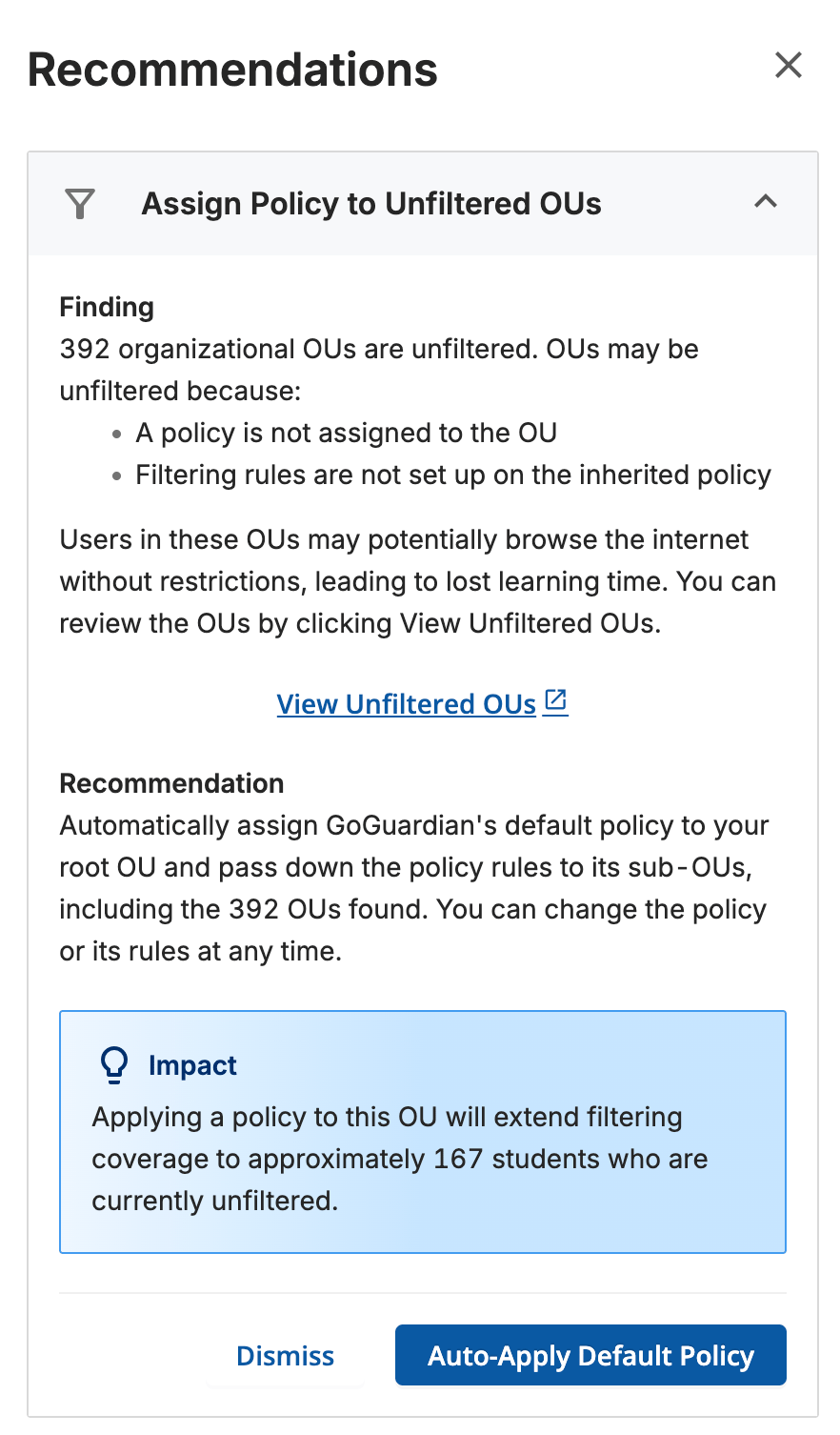
- In the Finding section, click the View link, such as View Unfiltered OUs or View Affected Policies, to open the affected configuration in a new tab and review the specific OUs, policies, or triggers involved.
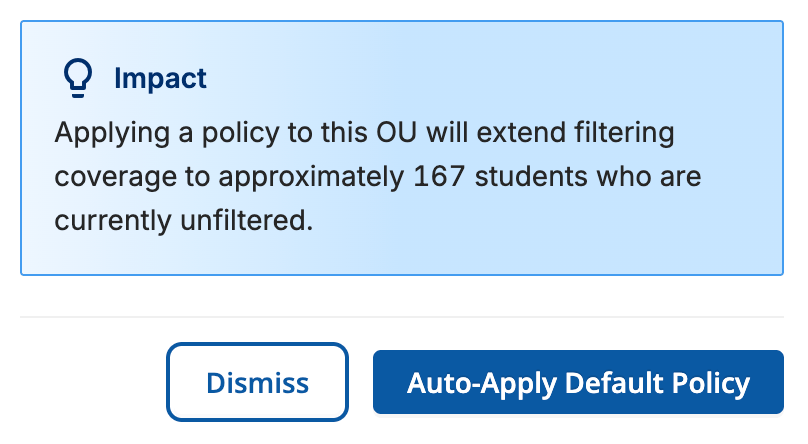
- Each active recommendation shows its Finding, Recommendation, and Impact sections, along with an action button and a Dismiss option.
Accept, Dismiss, or Restore a Recommendation
Accept a Recommendation
- In Recommendations, find the recommendation you want to apply and expand it.
- Review the Finding, Recommendation, and Impact sections to confirm the change is what you want.
- Click the recommendation’s action button. The button names the exact change it applies, such as Auto-Apply Default Policy for a filtering coverage recommendation or Auto-Block Categories for a category blocking recommendation.
- A confirmation banner names the change that was applied, such as “Default policy assigned to unfiltered OUs,” and the recommendation moves out of your active list. The action appears in the audit log.
Configuration changes from an accepted recommendation, and any related setting you change manually, can take up to 15 minutes to be reflected in Recommendations.
Dismiss a Recommendation
- In Recommendations, find the recommendation you want to dismiss and expand it.
-
Click Dismiss.
-
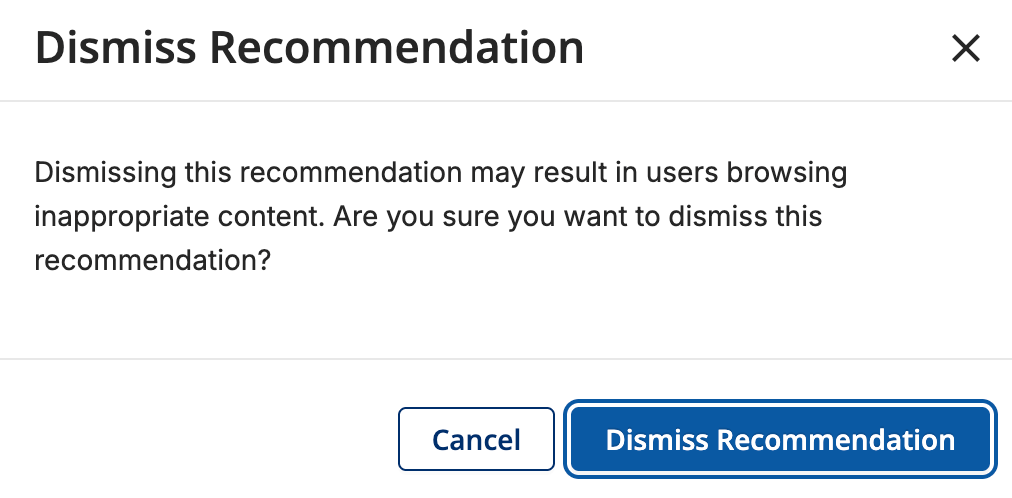
In the confirmation prompt, click Dismiss Recommendation to confirm, or Cancel to keep the recommendation active. The prompt warns that dismissing may let users continue browsing inappropriate content.
- The recommendation moves out of your active list, and no configuration change is applied. The action appears in the audit log.
Restore a Dismissed Recommendation
-
In Recommendations, click Show Dismissed. The link changes to Hide once dismissed recommendations are shown.
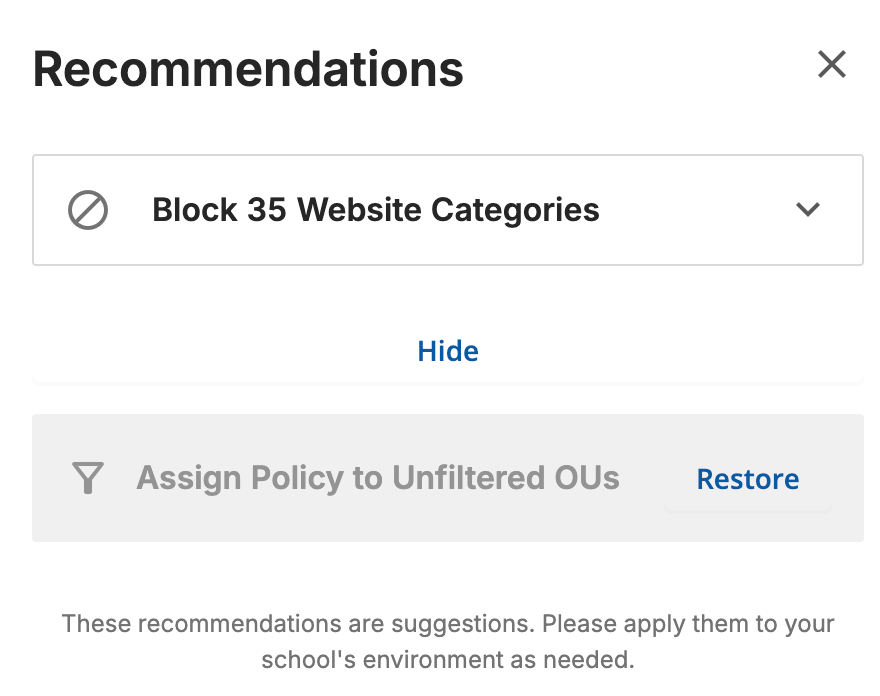
- Find the dismissed recommendation you want to restore.
- Click Restore.
- The recommendation moves back to your active list. The action appears in the audit log.