

Learn How Bypass Passwords Work
When a student reaches a blocked page, the GoGuardian Admin block page displays a Bypass button. The student clicks the button, enters a valid bypass password, and receives access to that URL for a preset duration (minutes, hours, or days), depending on the password configuration. Bypass passwords are global. Every bypass password you create applies to all users in your organization. Each password can be used multiple times.Bypass passwords are not supported on The GoGuardian App deployment. At least one bypass password must be configured before the Bypass button appears on the block page.
GoGuardian Admin supports a maximum of 150 bypass passwords. Delete unused passwords before creating new ones if you reach this limit.
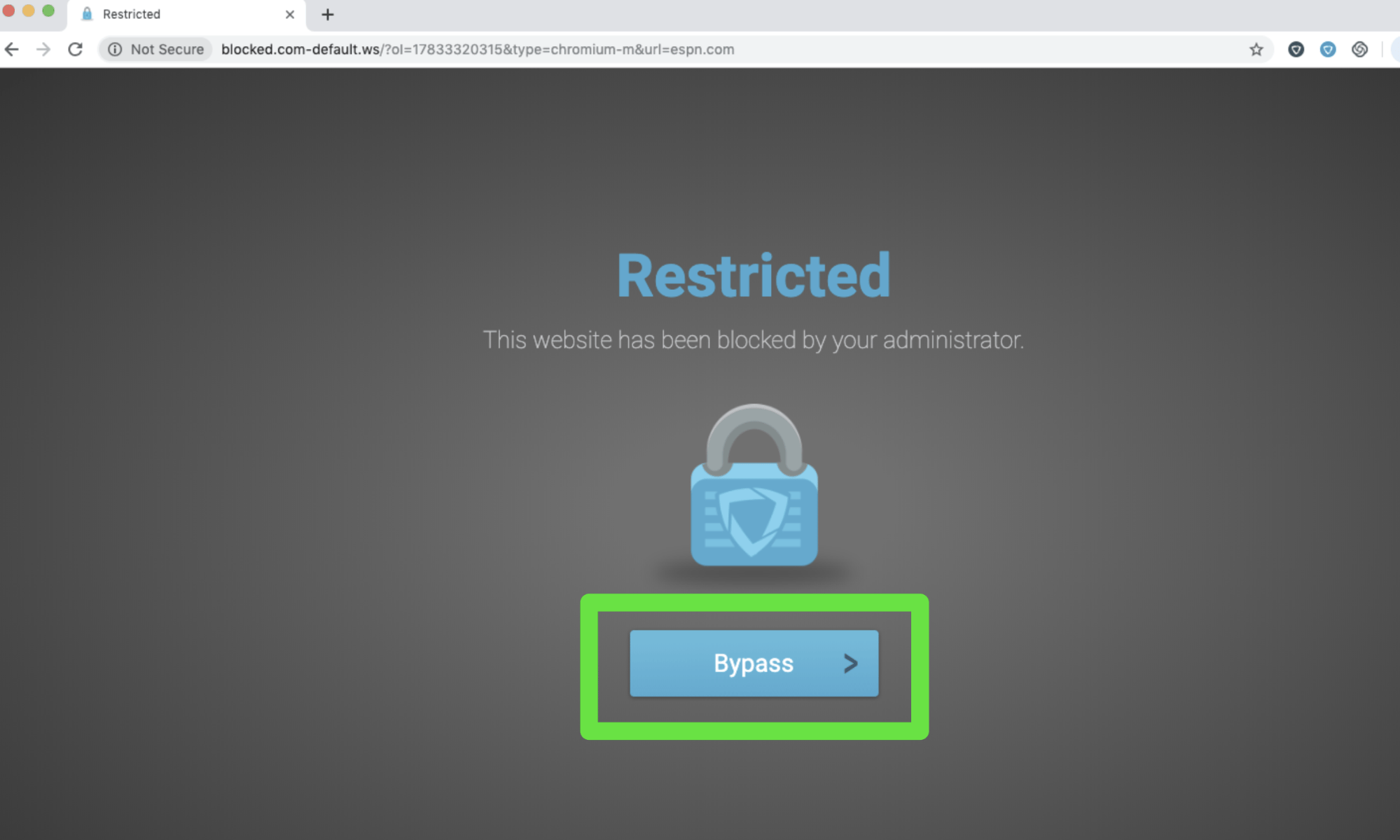
Create a Bypass Password
- In GoGuardian Admin, go to Filtering > Advanced Config > Bypass Passwords.
- Enter a password in the text field. Select the desired length of time for access, then choose Minutes, Hours, or Days from the duration drop-down.
- Click Add.
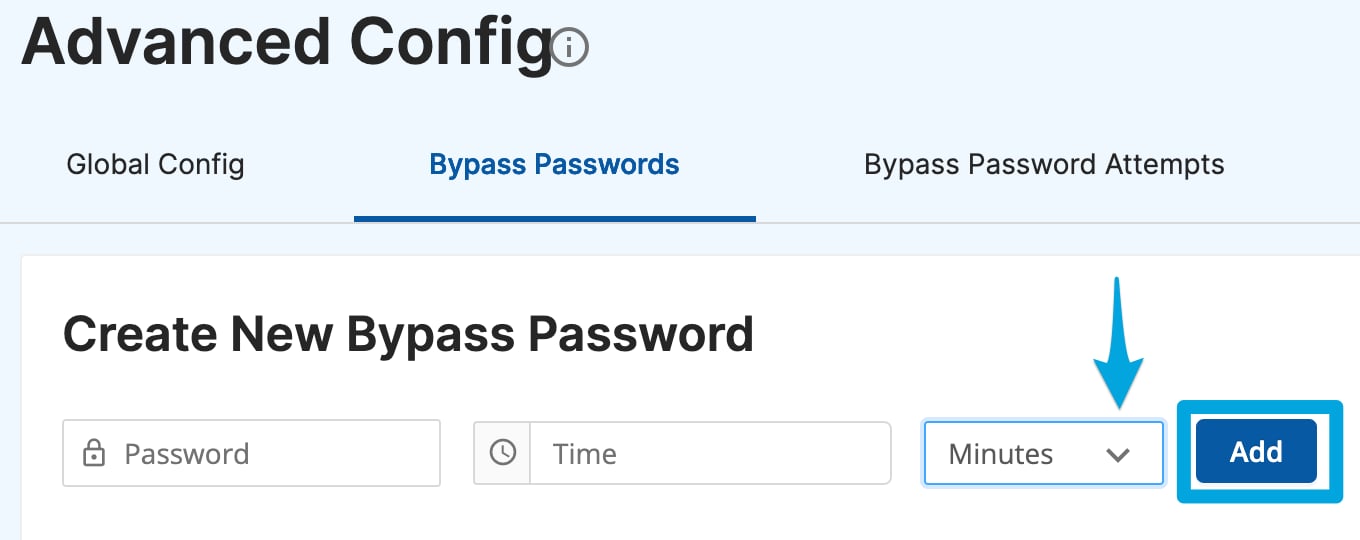
- The new password appears in your bypass password list with the configured duration. The Bypass button is now active on the block page for all users.
Delete a Bypass Password
- In GoGuardian Admin, go to Filtering > Advanced Config > Bypass Passwords.
- Turn on the Show All Passwords toggle to display all existing bypass passwords.
- Click Delete next to the password you want to remove.
- The deleted password no longer appears in the list. Students who enter that password will not gain access.
Review Bypass Password Attempts
Navigate to Advanced Config > Bypass Password Attempts to view a record of all bypass attempts across your organization. Each record includes:- URL: the page where the bypass was attempted
- Name: the name of the user who attempted the bypass
- Email: the email address of the user
- When: the date and time of the attempt
- Success: whether the attempt succeeded (yes or no)
- Password: the password that was entered
The Bypass Password Attempts page stores the 150 most recent attempts. Earlier records are not retained in the interface.
Manage Security for Bypass Passwords
Bypass passwords are global and reusable. A student who learns a bypass password can use it repeatedly to access any URL blocked by GoGuardian Admin filtering until the password is deleted. To reduce that risk:- Have an administrator or teacher enter the password for the student rather than sharing it directly with the student.
- If a browser save prompt appears, select Never to prevent the browser from storing the bypass password.
- Delete bypass passwords when they are no longer needed and create a new one for the next use case.
GoGuardian Beacon Smart Alert Trigger blocks and GoGuardian Teacher scene blocks cannot be bypassed with a bypass password.
Resources
A Site Is Blocked Unexpectedly
Diagnose and resolve situations where a site is blocked that should be allowed.
Use Wildcard Rules
Build precise allow and block rules using wildcard patterns.