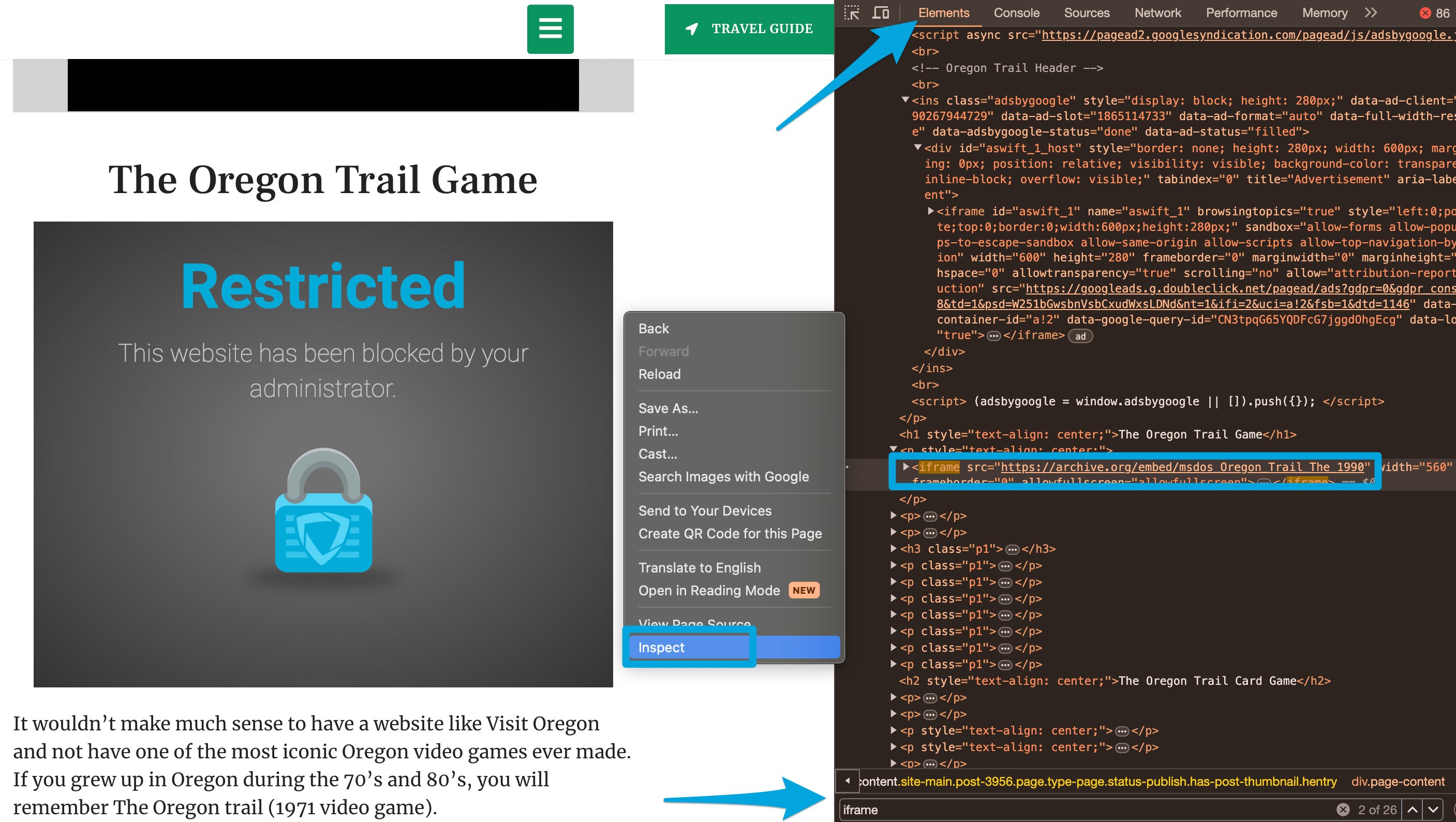
Identify the Block Page
Before troubleshooting, identify which block page the user sees. Different block pages indicate whether the site was blocked by GoGuardian Admin policies, Smart Alerts, GoGuardian DNS, GoGuardian Teacher Scenes, Google Admin Console, or something outside GoGuardian. See Types of GoGuardian Block Pages for examples.
Use the “Why Was This Blocked?” Feature
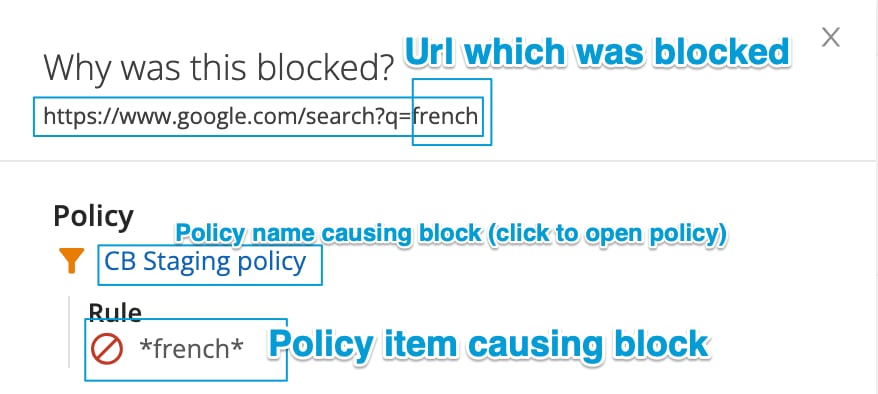
Administrators can see which policy rule, custom group, global config setting, or GoGuardian Teacher Scene caused a block using the Why was this blocked? feature.The “Why was this blocked?” feature does not support GoGuardian DNS filtering blocks, YouTube video filtering, or embedded content blocked through iFrames.
- Search for the student who saw the block page using the global search bar at admin.goguardian.com.
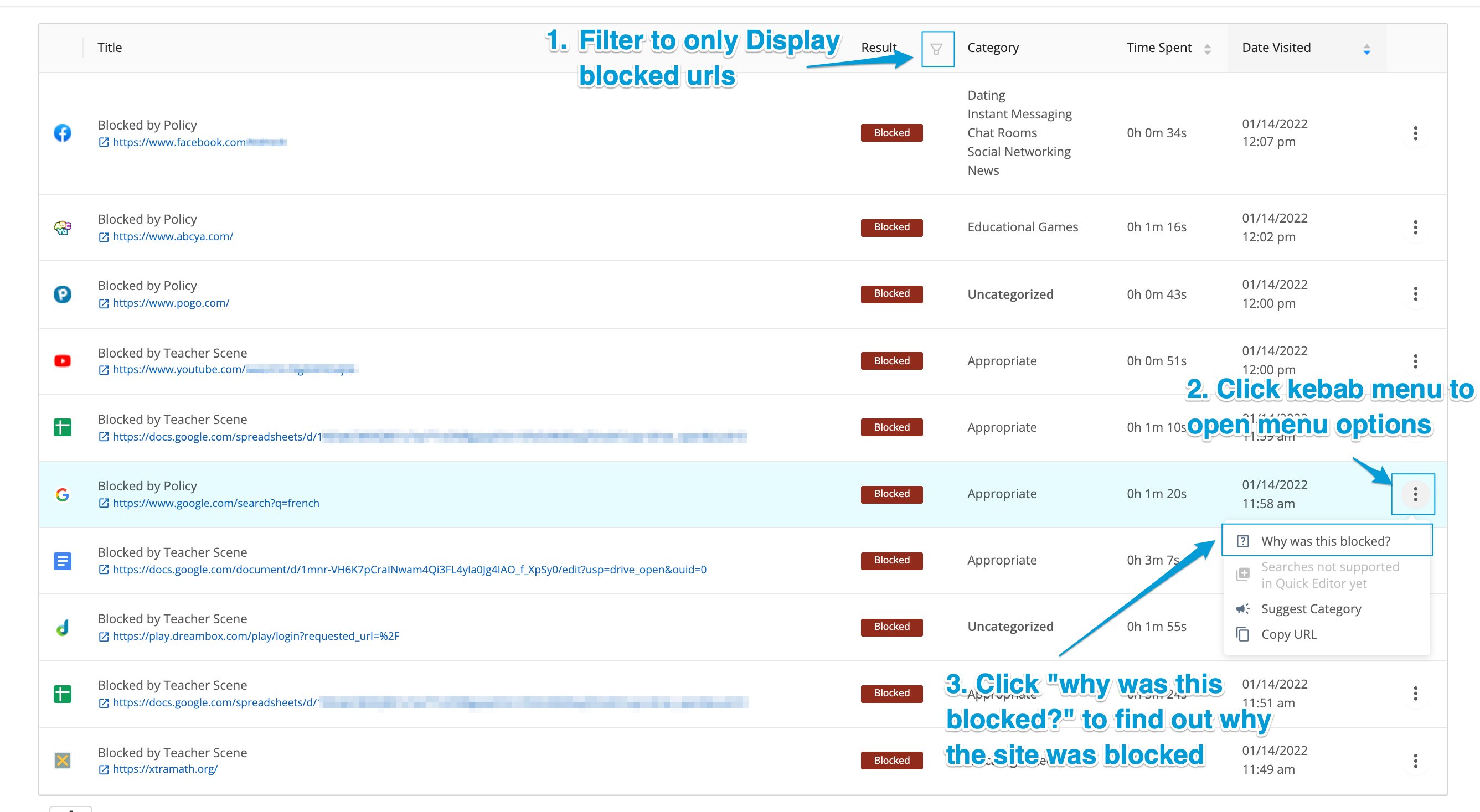
- Under Detailed Browsing History, click the filter icon in the Result column to show only blocked history.
- Click the kebab (three-dot) menu on the far right of the row containing the blocked URL.
- Click Why was this blocked? to view the rule that caused the block.
Troubleshoot Embedded Content Filtering
Filter Embedded Content is an optional setting in the Advanced Config section of GoGuardian Admin. When enabled, every user filtered by GoGuardian has their policy rules applied to content embedded on a webpage. A student may then see a partial block page when the page is allowed but embedded content on it is blocked. To find the blocked URL, start with the details drawer in Detailed Browsing History. If that doesn’t surface the URL, use one of the options below.Option 1: Use the Details Drawer in Detailed Browsing History
- Under Detailed Browsing History, find the entry for the page with the blocked embedded content and open its details drawer.
- Copy the blocked URL from the details drawer and add it as an allow rule in the user’s policy.
Option 2: Use the Inspect Tool
- Right-click the page and select Inspect.
- On the Elements tab, search (Ctrl+F on Windows and ChromeOS, Command+F on Mac) for
iframe. - Look for a result that reads
iframe src=followed by an HTTPS web address. - Hover over the matching
iframe src=link to highlight the block page.
Option 3: Use the Bypass Password
The Bypass Password temporarily unblocks blocked content. You can use it to surface a blocked URL in the logs.- Have the student go to the site with the blocked embedded content.
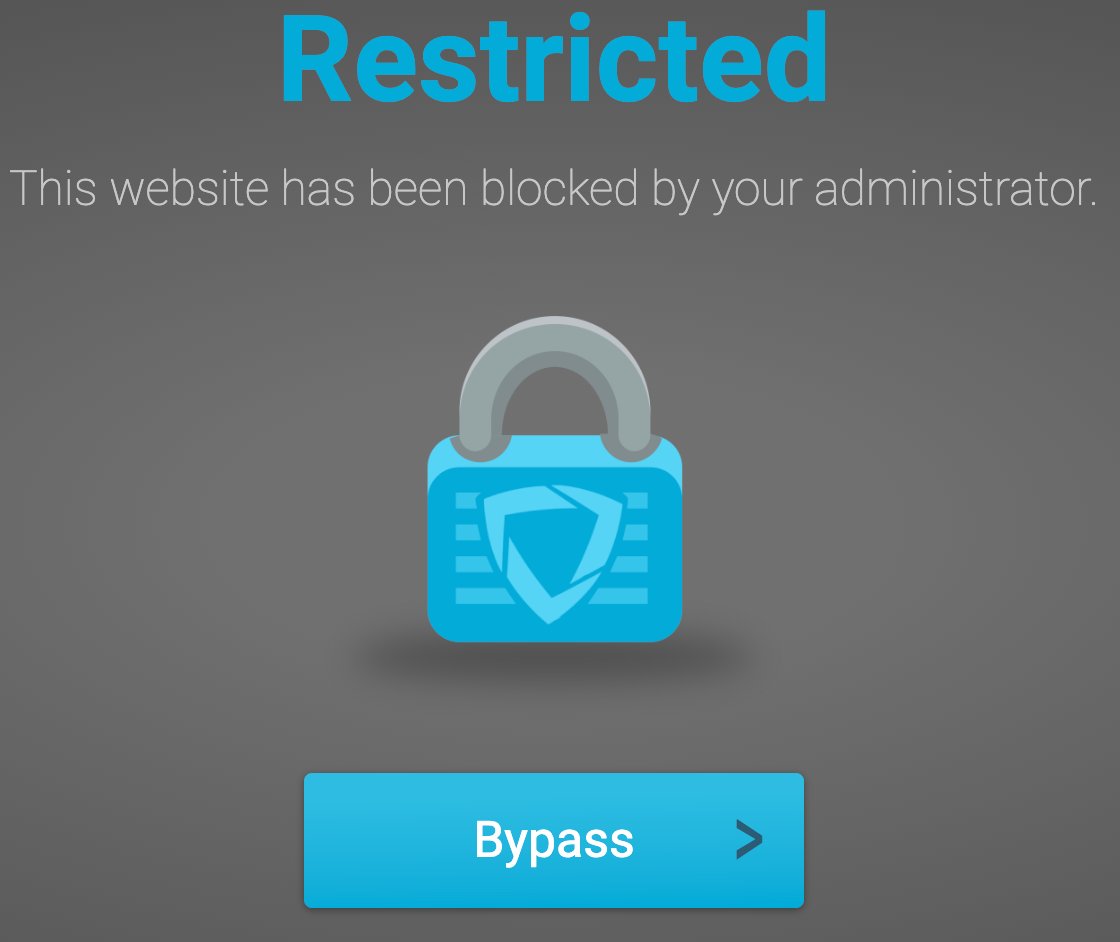
- Have the student click Bypass, enter any password, and click Submit.
- In GoGuardian Admin, go to Advanced Config → Bypass Password Attempts.
- Find the student’s attempt and its corresponding URL, then add that URL as an allow rule in the student’s policy.