

Understand the Cause
Chrome’s Network Prediction feature attempts to speed up browsing by pre-loading the top two website results from a Google search before the student selects any link. When at least one of those pre-loaded results is a site blocked by your GoGuardian Admin filtering policy, the block fires immediately — even though the student took no action.In GoGuardian Admin reporting, the block appears as if the student navigated directly to the blocked site. The student’s search string and intent are not visible in the block event.
reddit.com in GoGuardian Admin. A student searches Google for “dogs.” One of the top two results links to Reddit. Chrome pre-loads that result, GoGuardian identifies it as a blocked site, and the entire search is blocked. The student never clicked Reddit.
GoGuardian began receiving reports of this behavior starting March 10, 2025, following a change Google applied to the Network Prediction setting.
Confirm Network Prediction Is the Cause
Before disabling Network Prediction across your domain, confirm it is the source of the blocks.- The affected student was on a Google search page, not a specific site
- The block page shows a domain the student did not intentionally open
- The domain in the block event is one that appears commonly in search results (for example,
reddit.com,twitter.com, orquora.com) - The issue is intermittent and tied to search activity rather than direct navigation
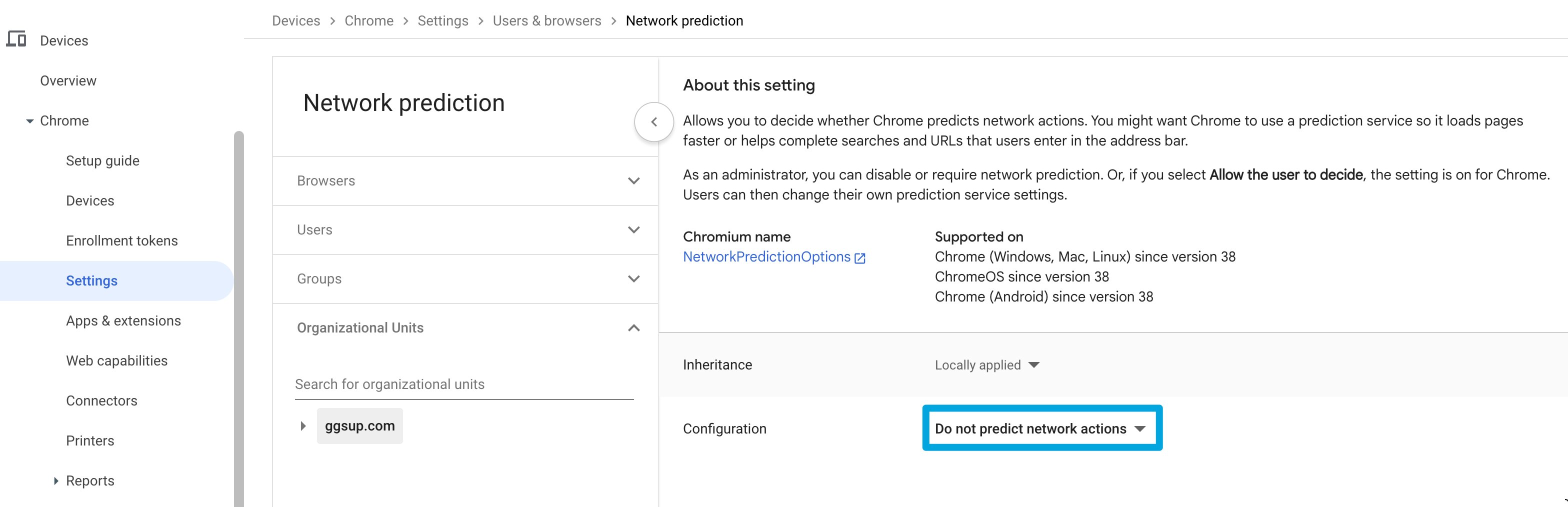
Disable Network Prediction in Google Admin Console
Apply this change to your top-level domain organizational unit (OU) or to each student OU. Applying it only to a sub-OU that does not cover all student accounts leaves other students exposed to the same behavior.- Go to admin.google.com and sign in with your Google Workspace admin account.
- Select Devices > Chrome > Settings > User and browser settings.
- In the left panel, select the OU you want to update. Apply the setting to your top-level domain OU to cover all users, or select individual student OUs if you need to limit the scope.
- In the settings search bar, type Network Prediction to locate the setting.
- Change the setting to Do not predict network actions.
- Click Save. The setting takes effect as Chrome policies propagate to managed devices.
Policy propagation timing varies. Allow up to 24 hours for the change to apply across all managed devices, though most devices receive updated policies within a few hours.
If Searches Are Still Blocked After the Change
If Google searches continue to trigger blocks after disabling Network Prediction, the cause is likely unrelated to pre-loading. Use the following resources to continue troubleshooting.- Check whether the blocked domain is explicitly listed in the student’s active filtering policy
- Review the filtering policy applied to the affected OU
- Confirm the block event timestamp and context in GoGuardian Admin reporting
Resources
A Site Is Blocked Unexpectedly
Use this page when a block is not related to Google searches or Network Prediction.
Block and Allow Websites
Review how to add or remove site-level rules in a filtering policy.