

Understand How CROSH Works
CROSH is a command-line shell built into Chrome OS, similar to Command Prompt on Windows or Terminal on macOS. Students can open it by pressing Ctrl+Alt+T on any Chromebook, which opens a new browser tab displaying a terminal window where commands can be entered, similar to a command-line interface on other operating systems. Most Linux commands are restricted inside CROSH by default. To run commands that could affect the GoGuardian extension, a student would also need Developer Tools enabled in Google Admin Console. Keeping Developer Tools disabled is the primary safeguard.If you are not sure whether Developer Tools is disabled for your students, review your Google Admin Console configuration. Keeping Developer Tools disabled limits what students can do inside CROSH, even if they open it. For guidance on disabling Developer Tools, see Allow and Block Websites.
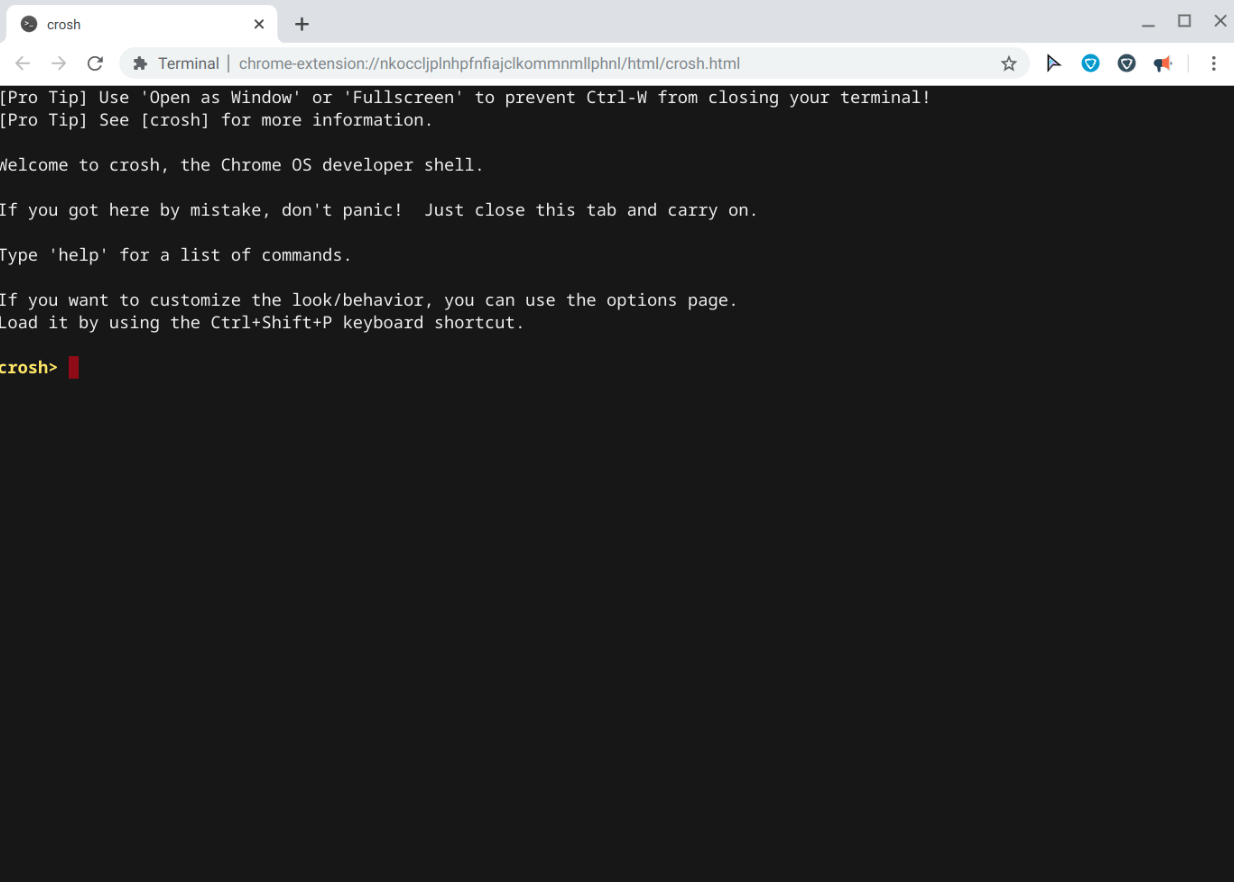


Review How CROSH Appears in GoGuardian
CROSH does not behave like a standard web page, so it shows differently depending on which GoGuardian product you use to review student activity.In GoGuardian Admin
When you review a student’s browsing history in GoGuardian Admin, CROSH access appears as the following URL:In GoGuardian Teacher
Because CROSH is a Chrome OS system page rather than a web page, GoGuardian Teacher cannot display the screen contents. When a student has CROSH open, the session view shows “Waiting for activity” instead of a live screen.Block CROSH in a Filtering Policy
You can prevent students from accessing CROSH by adding a wildcard rule to any filtering policy assigned to their org unit.- Go to GoGuardian Admin and select Filtering > Policies. Open the policy assigned to the students you want to restrict.
- In the policy, select the Website URLs section.
-
Enter the following pattern in the URL field:
This pattern matches any URL that contains the string
crosh, includingchrome-untrusted://crosh/. - Choose Block as the rule action.
- Click Save to add the rule to the policy.
-
The
*crosh*rule appears in the Website URLs list with a Block action. The rule takes effect immediately for all students assigned to this policy. To confirm, check a student’s browsing history in GoGuardian Admin after the next time they attempt to open CROSH.
The
*crosh* wildcard blocks any URL containing “crosh.” If your organization uses other tools or sites with “crosh” in their URL, review the rule for unintended matches before saving. For more on how wildcard patterns work, see Use Wildcard Rules in Policies.Resources
Use Wildcard Rules in Policies
Learn wildcard syntax and review patterns for common block targets.
Block and Allow Websites
Add URL rules to a filtering policy to block or allow specific sites and domains.