

If the screen shows a different block page, another source may be responsible. See Understand Block Pages to identify the source before you change anything in your Teacher session.
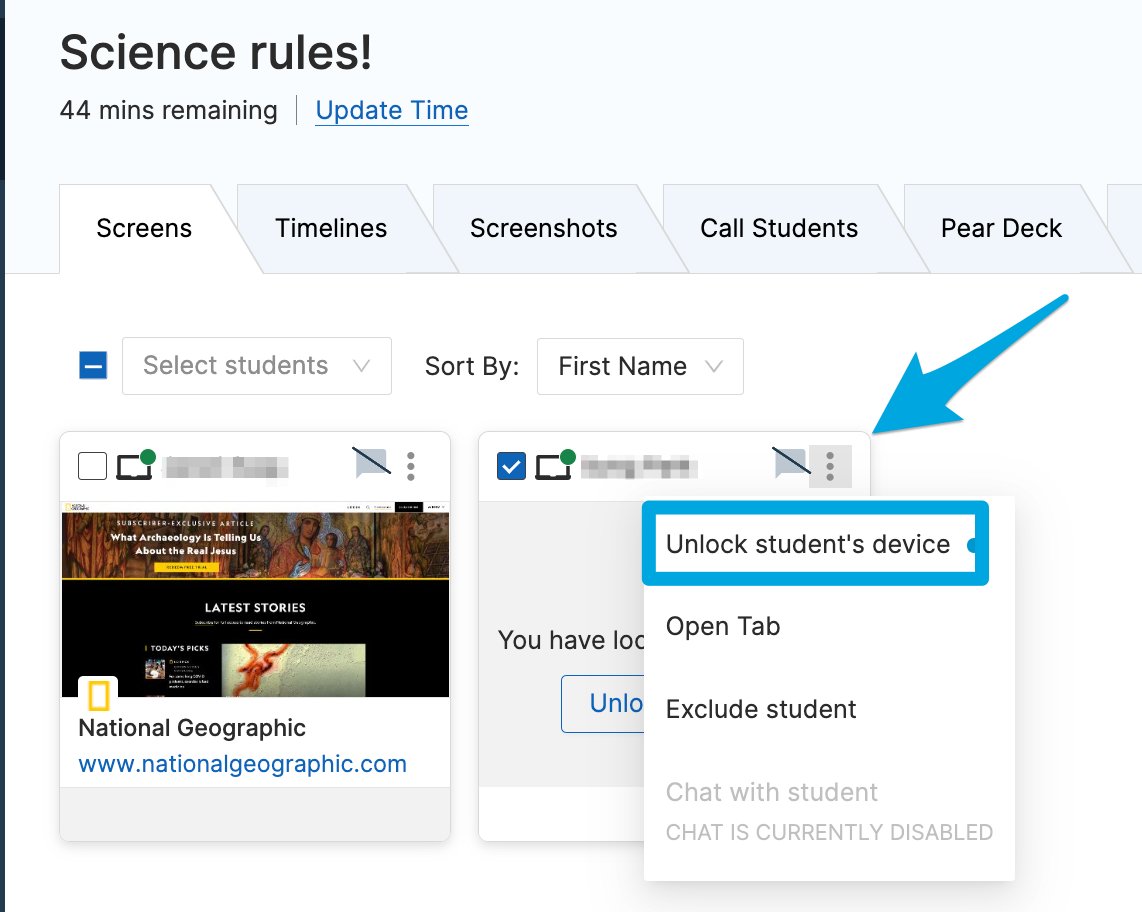
Unlock 1 Student
- Open a classroom session that includes the student.
- Click the 3-dot menu in the upper-right corner of the student’s tile.
- Select Unlock student’s device.
- Verify the result: The Browsing Disabled page closes, and the student can open a website.

Unlock Multiple Students
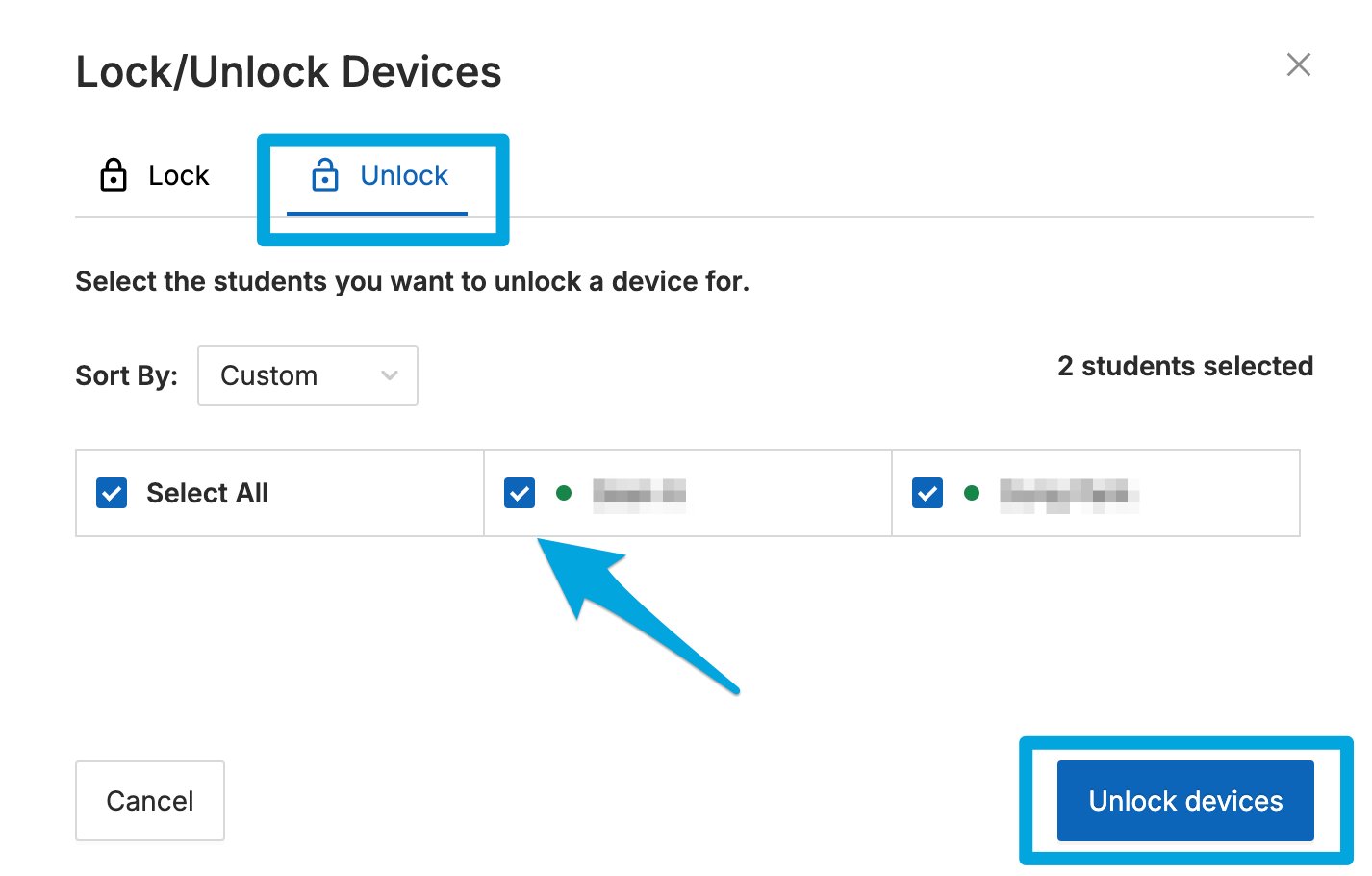
Use this method to unlock 2 or more students at once.- Click Lock/Unlock Device in the Commands toolbar.
- Select the open-padlock Unlock tab.
- Select the Select All checkbox to unlock every student, or select the checkbox next to individual student names.
- Click Unlock Devices.
- Verify the result: The selected students return to browsing within a few seconds.
Fix a Device That Remains Locked
If the Browsing Disabled page stays on screen after you issue the unlock command, work through these steps in order.- Wait 30 seconds for the command to reach the Chromebook.
- Have the student enter
chrome://restartin the Chrome address bar and press Enter. This restarts Chrome without restarting the Chromebook. - Wait for the student to reconnect to the classroom session, then issue the Unlock command again.
- If the device is still locked, issue Lock, then issue Unlock again. [TODO: verify — no retry or known-issue tracking for a stuck per-device lock was found in the Teacher command path, so reliability of this cycle needs product-team confirmation]
- Have the student sign out of their managed account and sign back in, or restart the Chromebook. [TODO: verify — this is a ChromeOS-level sign-out, distinct from GoGuardian’s own extension sign-out, and outside what goguardian/Development can confirm]
- Verify the result: The student reconnects without the Browsing Disabled page.
Check for Another Active Session
A student can belong to more than 1 active classroom session at the same time. Issuing Unlock from any session the student is currently in clears the lock, even if a different teacher’s session issued the Lock command. If the lock returns after you unlock it, another active session is re-locking the device.- Check the student’s tile for an active command or session indicator.
- Ask the teacher who owns the other active session to issue Unlock, or to end their session.
- Have the student restart Chrome.
- Verify the result: The lock does not return after the student reconnects.
Contact Support After Unlock Troubleshooting
Contact GoGuardian Support if the Chromebook stays locked after you complete the session check, the Chrome restart, the sign-out, and the device restart. Include the student’s school email address, the teacher account, the classroom name, the time the lock began, and a screenshot of the Browsing Disabled page.Resources
Lock a Student's Screen
Use the Lock Device command to restrict student browsing during class.
Commands Overview
Learn about all available commands in GoGuardian Teacher.
Start a Classroom Session
Get a classroom session up and running.
Troubleshoot Teacher Commands
Resolve issues with other GoGuardian Teacher commands, like locking screens or opening and closing tabs.