

Scene Conflict Notification
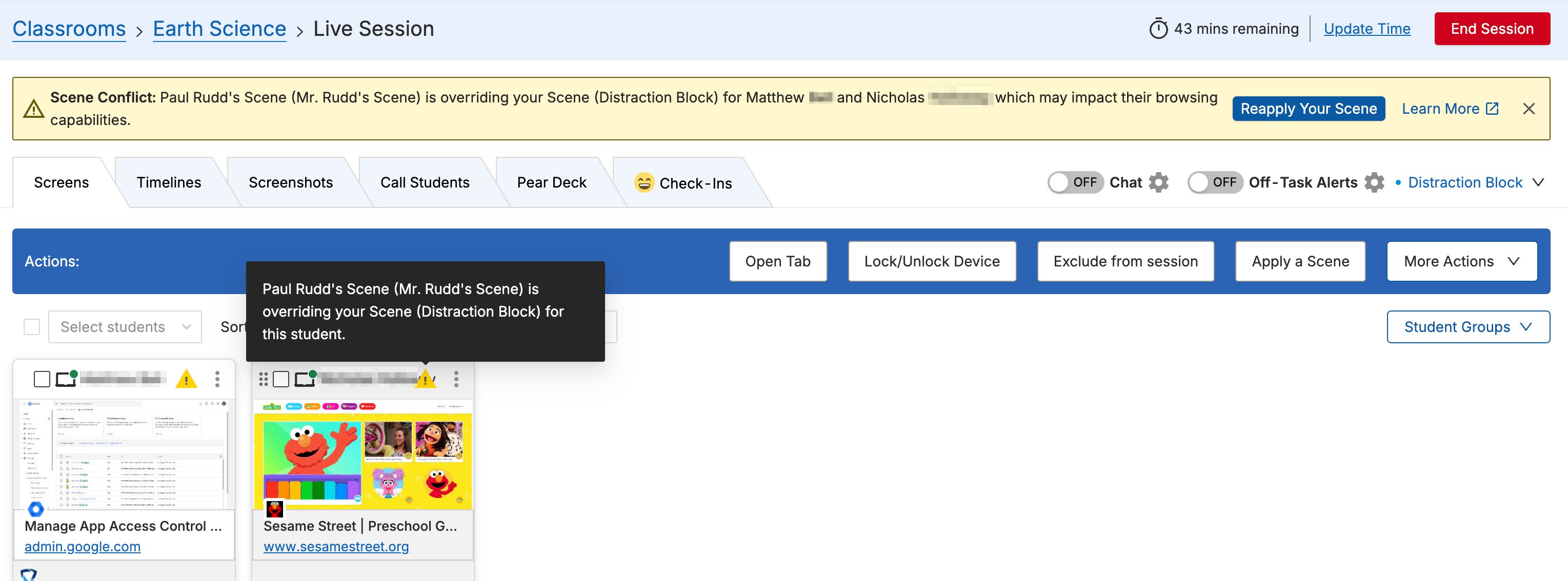
When a conflict is detected, a Scene Conflict banner appears in your session view. The banner:- Names the teacher whose Scene is conflicting with yours
- Lists the students affected by the conflict
- Provides a Reapply Your Scene button to push your Scene back to all affected students
Scene Status Icons
When a conflict is active, affected students’ tiles show a Scene conflict indicator. Hover over the tile to see which teacher’s Scene is currently applied to that student. In the expanded Student view, a Scene state icon shows which Scene is active for that student. Hover over the icon to see the Scene name.


Your Scene Was Overridden
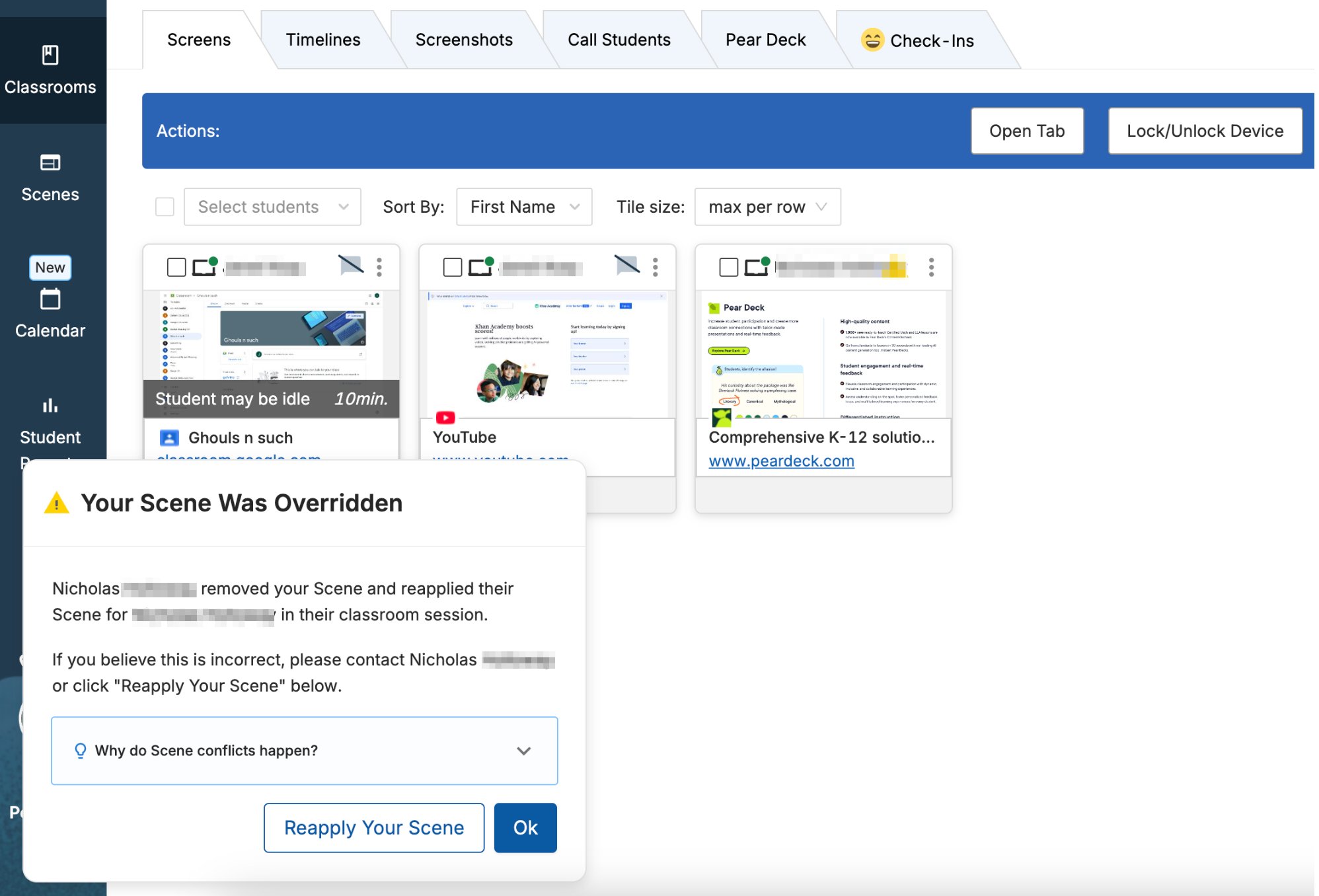
If another teacher removes your Scene or reapplies their own, you receive a Your Scene Was Overridden notification. The notification shows:- The name of the teacher who changed the Scene
- The students affected
Common Conflict Scenarios
Scenario 1: Both teachers have Scenes applied- Teacher A has a session running with a Scene applied.
- Teacher B starts a session with some of the same students and applies a Scene.
- Teacher B’s Scene takes priority because it was applied more recently.
- Teacher A sees the Scene Conflict banner and can click Reapply Your Scene to override.
- If Teacher A reapplies their Scene, Teacher B receives a “Your Scene Was Overridden” notification.
- Teacher A has a session with a Scene applied.
- Teacher B starts a session with some of the same students and does not apply a Scene.
- Teacher B sees the Scene Conflict banner showing Teacher A’s Scene.
- Teacher B can remove Teacher A’s Scene. If they do, Teacher A receives the “Your Scene Was Overridden” notification.
Resources
Scenes Overview
Review how Scenes work and how the most-recently-applied rule is determined.
Create and Apply a Scene
Apply, change, or remove a Scene during a session.