

- Classroom shows “Imported” but is missing from Active Classrooms
- Classroom was imported but some students aren’t syncing
- Classroom was imported but no students are syncing
- No classes show up when importing Google Classroom
- Reconnecting your Google account
Classroom Shows “Imported” but Is Missing from Active Classrooms
Potential cause: The Google Classroom was already imported but has since been archived in GoGuardian Teacher. Solution: Go to the Archived Classrooms page and check whether the class appears there. If it does, click Restore Class to make it active again.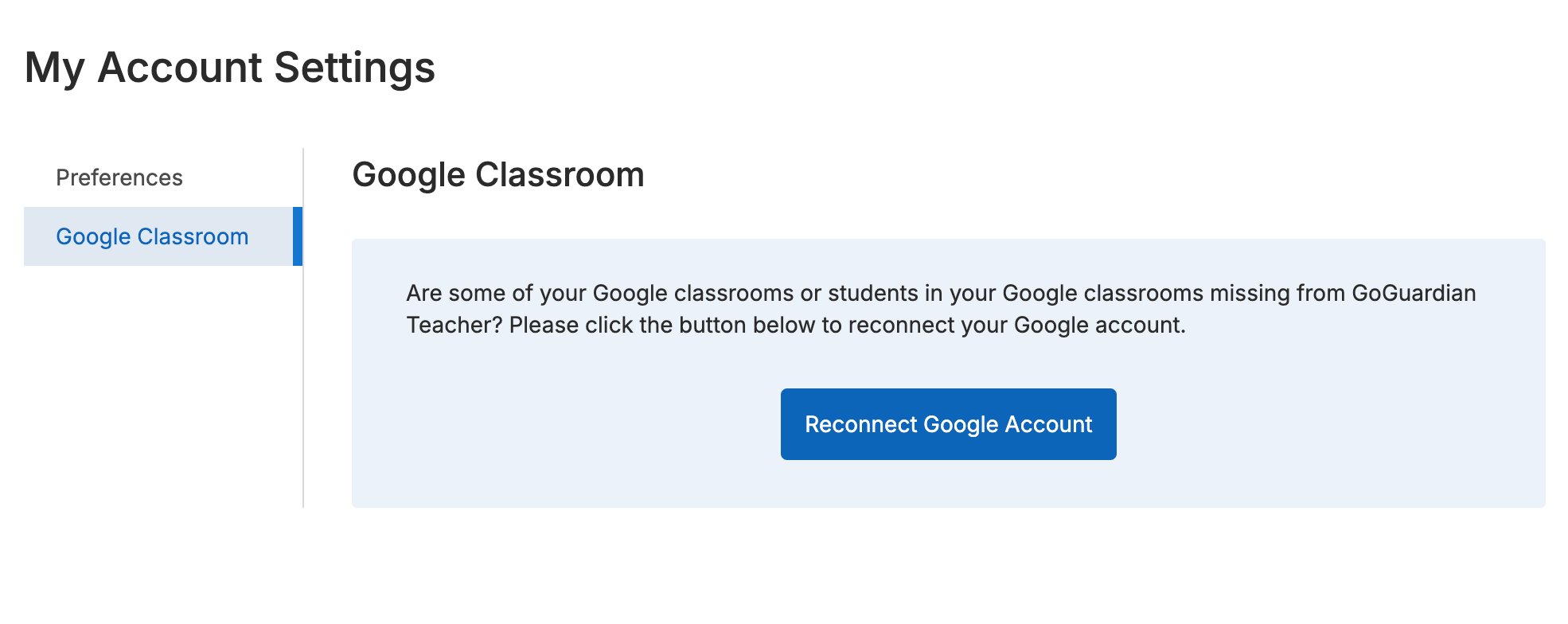

Classroom Was Imported but Some Students Aren’t Syncing
Solution 1: Reconnect Your Google Account
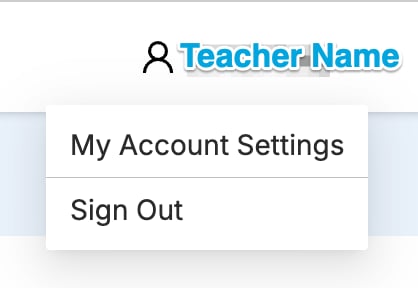
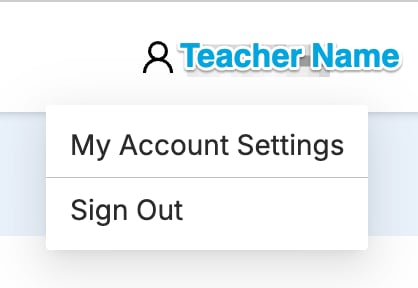
- Select your name in the upper corner of GoGuardian Teacher, then select My Account Settings.
- Go to the Google Classroom tab and click Reconnect Google Account, then select your Google account.
- Go to the Students tab of your Google Classroom class in GoGuardian Teacher and click Sync Google Classroom to update the class roster.
Solution 2: Check for Pending Student Invitations
Students who haven’t accepted their Google Classroom invitation can’t be synced. Pending students appear greyed out with an (invited) label next to their name. Once a student accepts the invitation, go to the Students tab in your GoGuardian classroom and click Sync Students From Google to update the roster.Classroom Was Imported but No Students Are Syncing
GoGuardian classroom rosters have a limit of 115 students. If your Google Classroom has more than 115 students, the sync will fail. Reduce the class roster size or split the class into 2 smaller classes.No Classes Show Up When Importing Google Classroom
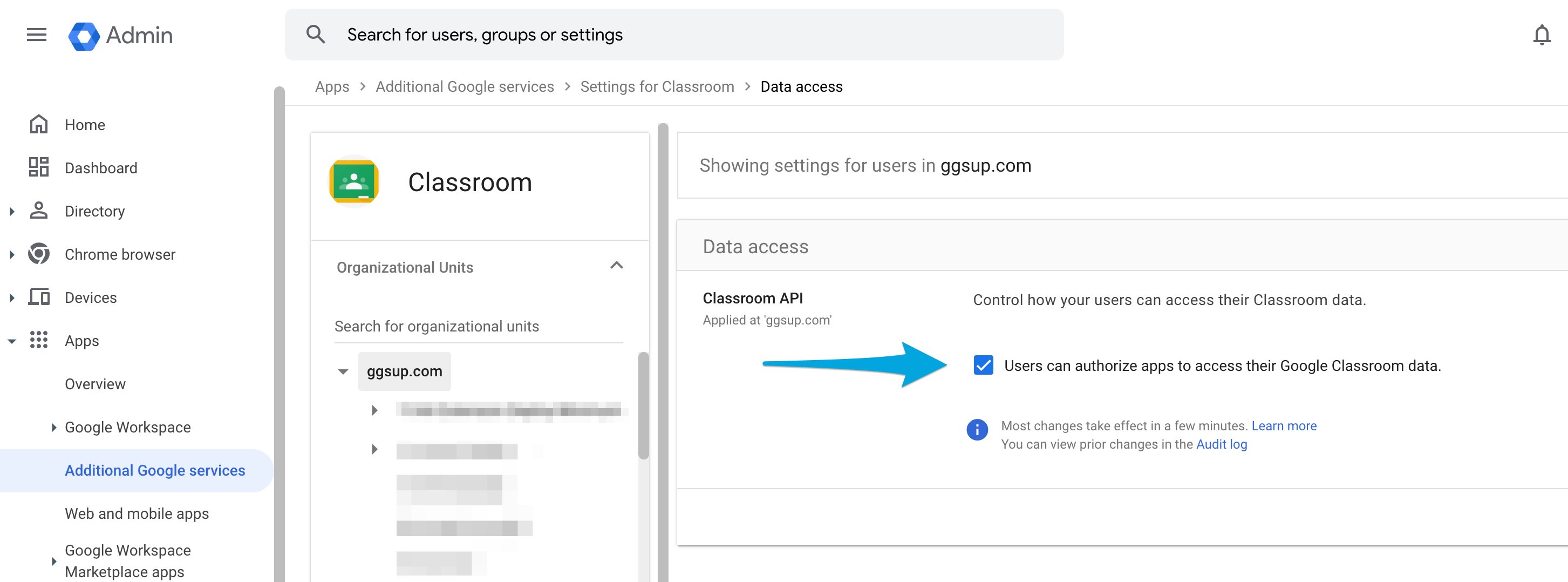
Solution 1: If you have active Google Classroom classes but none appear when you try to import them, reconnect your Google account first. See Reconnecting your Google account below. Solution 2: If reconnecting doesn’t resolve the issue, have a Google Admin Console administrator verify that the Data Access > Classroom API setting is configured to allow users to authorize apps to access Google Classroom data.Google administrators can find this setting by going to Apps > Additional Google Services, then selecting Classroom > Data access. You can also use this direct link to the Data Access Settings in Google Admin Console.

Reconnecting Your Google Account
Reconnecting your Google account refreshes the GoGuardian connection and can resolve multiple issues with Google Classroom.- Go to teacher.goguardian.com and log in.
- Select your name at the top of GoGuardian Teacher, then select My Account Settings.
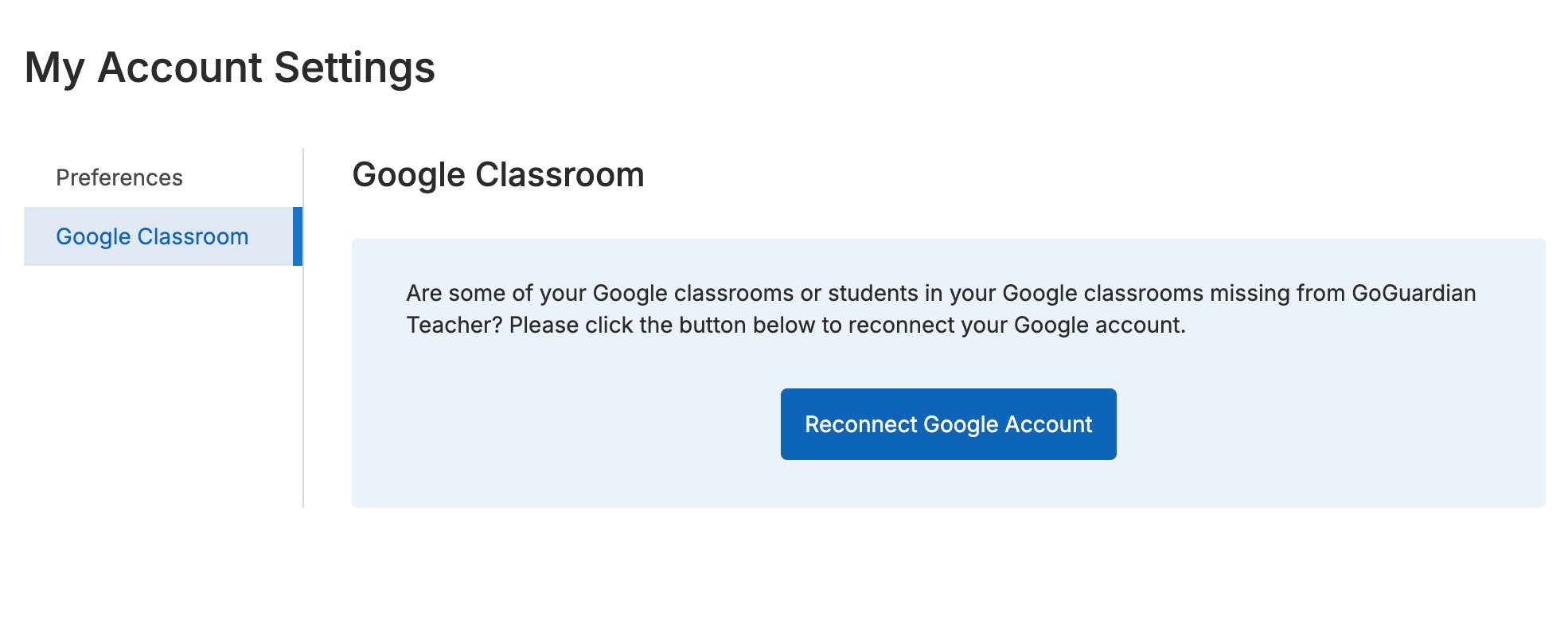
- Select Google Classroom in the sub-menu.
- Click Reconnect Google Account and select your Google Classroom account.
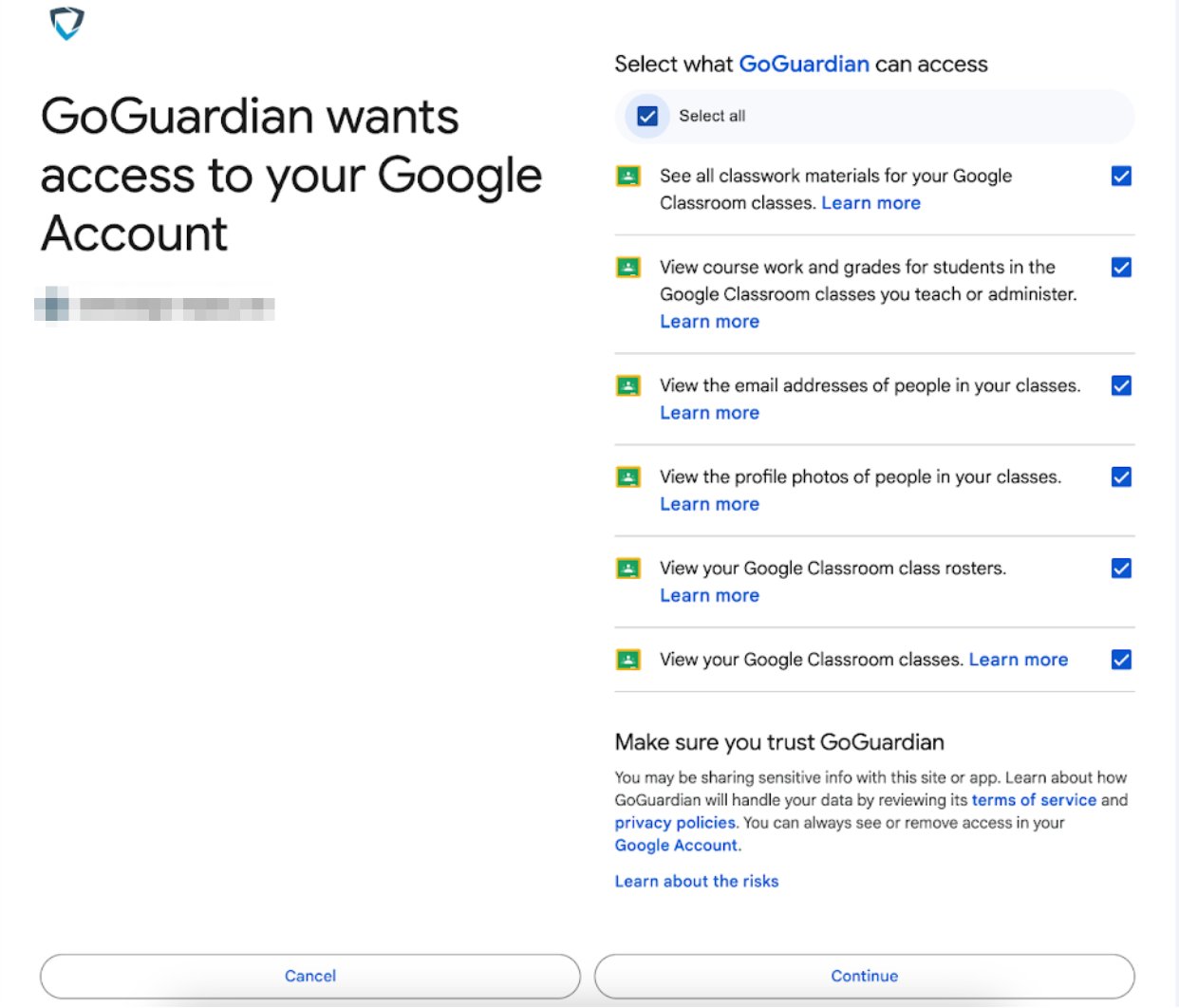
- On the “GoGuardian wants to access your Google account” page, click Allow, or select Select all (or check each box individually) before clicking Continue.
This page may look different depending on your organization’s Google settings.
- Verify that your Google account appears as connected under the Google Classroom tab in My Account Settings.
Resources
Add Students to a Class
Manage your class roster in GoGuardian Teacher.
Archive, Restore, or Delete a Classroom
Manage archived and active classrooms.
Set Up Teacher Accounts
Configure teacher accounts and Google Classroom integration.
Manage Users and Settings
Update account settings for GoGuardian Teacher.