

Review Requirements
Before configuring Google Admin Provisioning, confirm the following:- GoGuardian Admin licensing: An Admin license is required to sync and assign GoGuardian Admin roles.
- GoGuardian access in Google Admin Console: Grant GoGuardian access to Google Workspace data so provisioning can sync Google Groups. See Enable GoGuardian in Google Admin Console.
- Google Workspace permissions: The configuring user needs Super Admin access, or at minimum Read access to Groups in Google Workspace, to see Google Groups in Org Management.
Configure Google Admin Provisioning
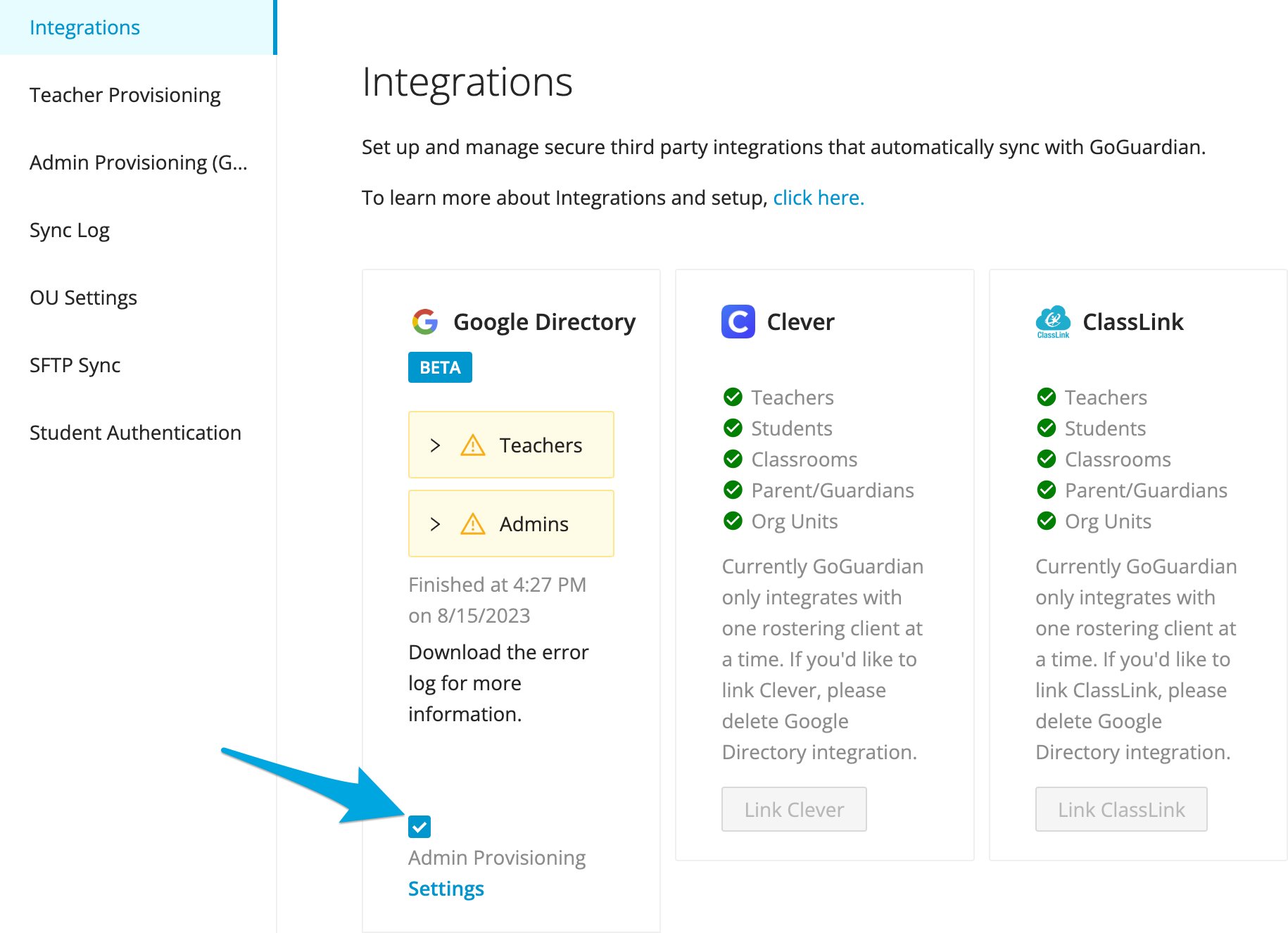
- In Org Management, navigate to Integrations and confirm the Google Directory link is enabled. If it is not, enable it before continuing. Once Google Directory is enabled, select the Google Directory tile and check the box for Admin Provisioning Settings to activate the feature.
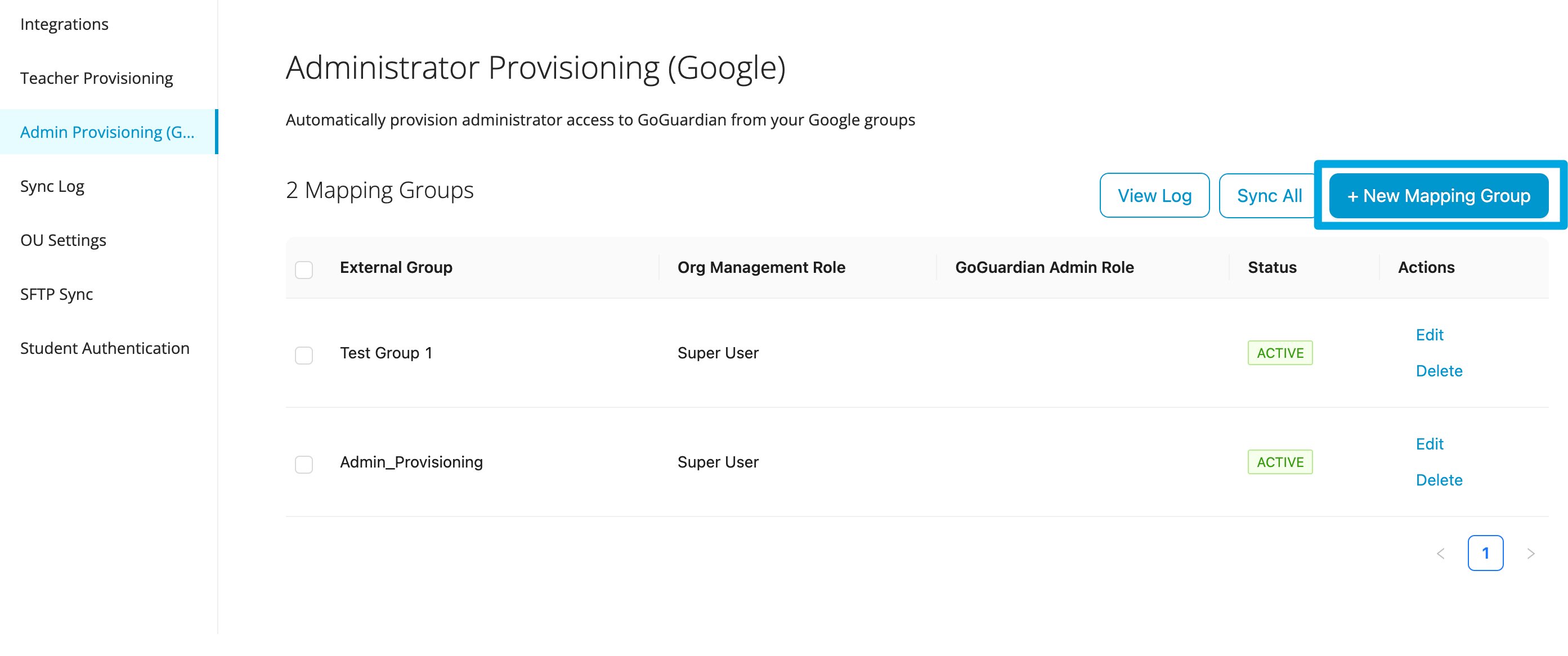
- On the Administrator Provisioning (Google) page, select + New Mapping Group.
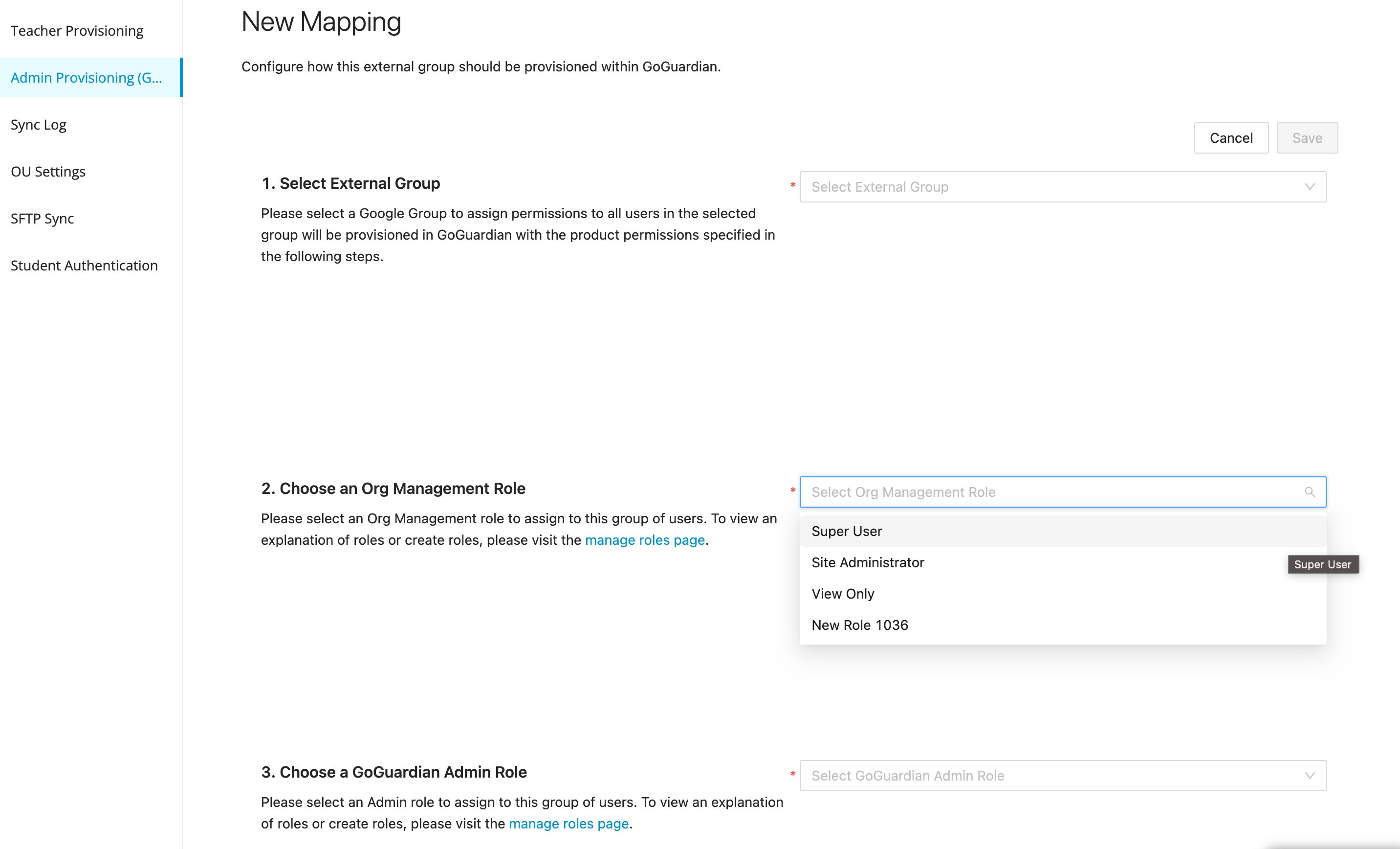
- On the New Mapping page, select a Google Group to provision, then choose an Org Management role and a GoGuardian Admin role to assign to members of that group. Select Save. Assignable roles include Super User (Org Management), Full Access, Filter and Monitor, and any custom RBAC roles your organization has created.
- Return to the Administrator Provisioning (Google) page to confirm the new mapping group appears in the list. Users already in the mapped Google Group receive their assigned role at the next sync. New group members are provisioned automatically after they join.
Resources
Review User Roles and Permissions
Reference the full permission levels available for GoGuardian Admin and Org Management.
Enable GoGuardian in Google Admin Console
Approve GoGuardian’s access to Google Workspace data before setting up provisioning.