With Google Directory Teacher Provisioning, Super Users can sync data with Google Admin Console to create new teacher accounts and optionally limit teachers’ access to a specific group of students.
Google Directory Provisioning also supports provisioning administrators from Google. See Provision Admin Accounts from Google for details.

Review Requirements

Before you begin, confirm you have the following:
  1. A Google account with Super Admin permissions. This is required to sync with Google Teacher Provisioning.
  2. GoGuardian app services enabled in Google Admin Console. See Enable GoGuardian as a Third-Party App in Google Admin Console for setup steps. For Google Directory sync, the second app on the list, Google OU Sync, is required.
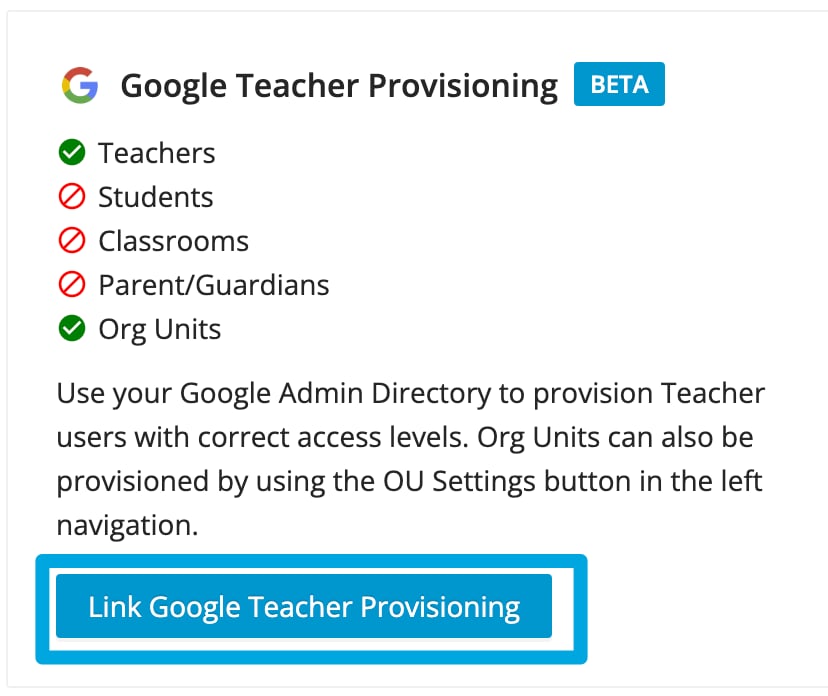
  1. Go to manage.goguardian.com/integrations and click Link Google Teacher Provisioning. Link Google Teacher Provisioning button highlighted
  2. Sign in with a Google account that has admin access to Google Admin Console. This step is only required during the initial integration setup. Google admin sign-in prompt for Google Teacher Provisioning
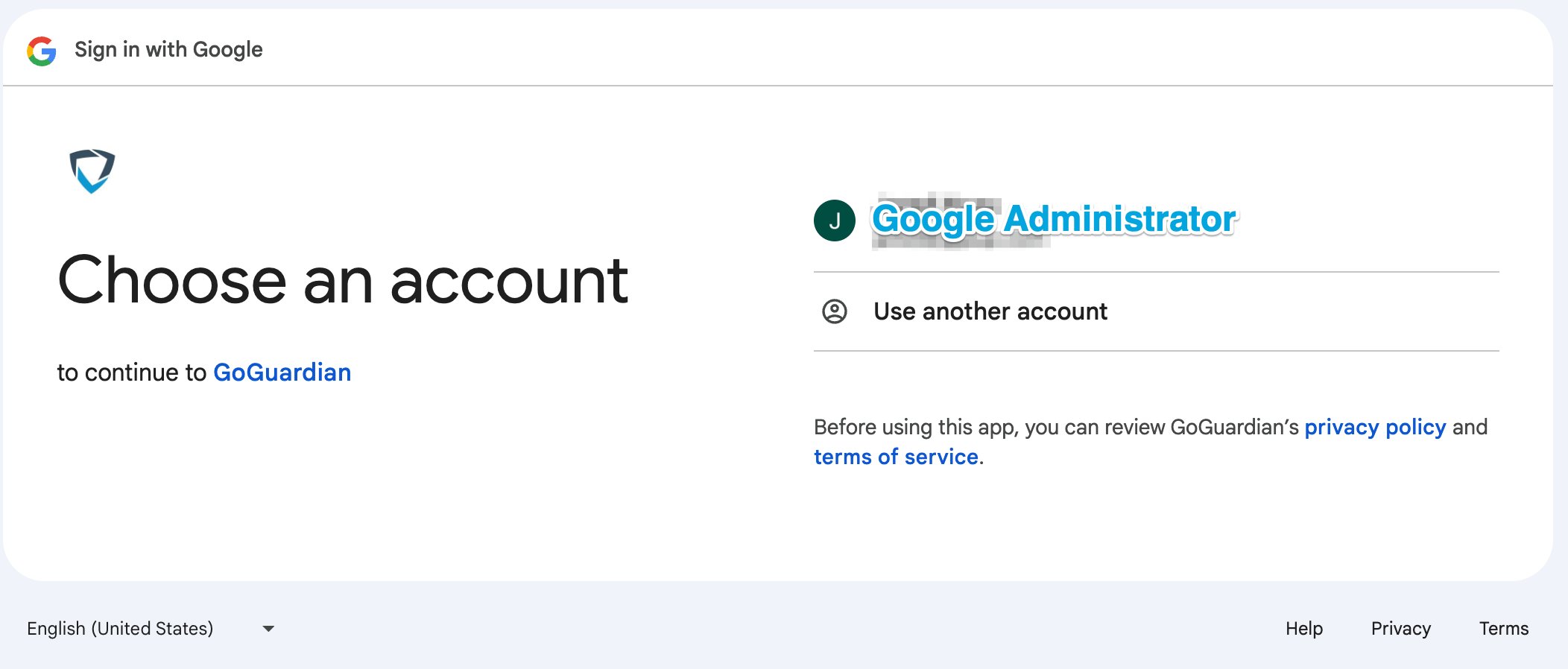
If the Google account used to set up the integration loses Super Admin access, Google Teacher Provisioning will fail to sync. The account must regain Super Admin access, or the integration can be deleted and recreated by another Super Admin’s Google account.
  1. Once linked, go to the Teacher Provisioning tab under Integrations and click New Sync Group to create a Sync Group. Teacher Provisioning option under Integrations tab menu

Create a Sync Group

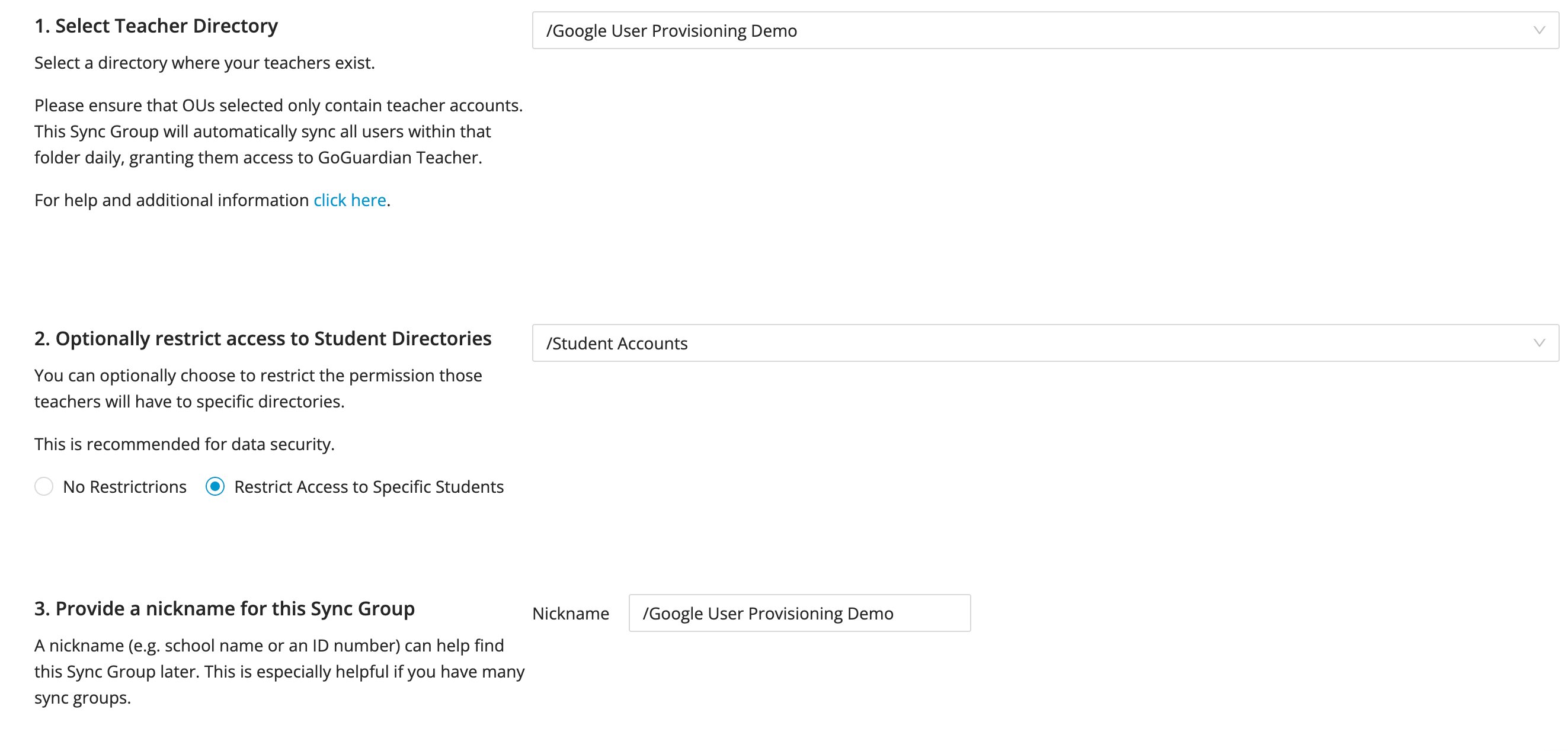
Each Sync Group has three selections: a Teacher Directory, an optional restriction to a Student Directory, and a nickname.

Teacher Directory Selection

Select Teacher Directory to choose an OU selection to sync The Teacher Directory selection specifies an Organizational Unit (OU) path from the Google Directory. This tells GoGuardian where to look to create or update GoGuardian Teacher accounts in the Organization Management portal. Teacher accounts that are newly created through User Provisioning, as well as pre-existing accounts included in a Sync Group, automatically receive GoGuardian Teacher access. Only one OU can be selected per Sync Group, but you can create multiple Sync Groups for different sync paths and options.
If an Organizational Unit containing sub-OUs is selected, users within the sub-OUs are also included in the sync. If instead a sub-OU path is selected and synced, only users within that sub-OU are included. The same logic applies to both the Teacher and Student Directory selections.
Confirm that only teacher email addresses are listed in the Teacher Directory OU. All email addresses included will receive access to GoGuardian Teacher, which could unintentionally grant students access to GoGuardian Teacher.

Restricting Access to Student Directories

Restrict access to Student Directory selection Restricting access to Student Directories is an optional toggle that lets admins restrict Google-synced teachers’ access to specific students by adding a Student Directory to the Sync Group. When you choose a Student Directory OU path, teachers automatically gain OU access and permissions for students in that OU. Only one Student Directory can be chosen per Sync Group. Teachers who need OU access to more than one OU can have their OU access changed outside of Google User Provisioning without later syncs overriding those changes. If you choose No Restrictions for the Student Directory selection, teachers receive full OU access and can access all students in the school.
Teachers added to a Sync Group who already have OU access assigned will have their current OU access replaced by the Student Directory OU selection only after their first sync. OU access can later be restored or reassigned as described above.
For more information on Teacher Organizational Unit access, how it’s assigned for individual teachers, and how it affects GoGuardian Teacher class sessions, see Teacher Organizational Unit Access. For instructions on bulk updating OU access for multiple teachers, see Bulk Update Permissions by CSV.

Sync Group Nicknames

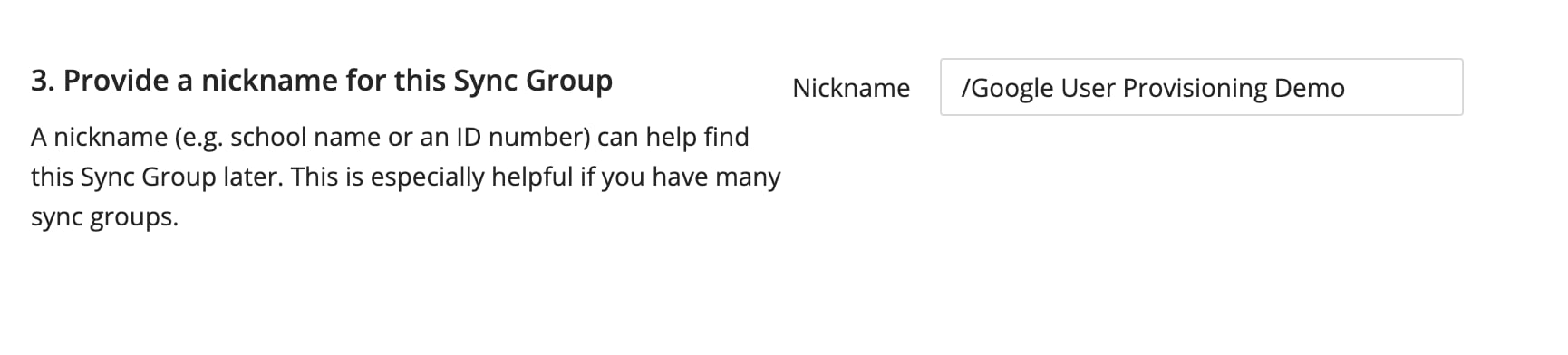
Selection to provide a nickname to the Sync Group Use the nickname field to specify a name or ID for each Sync Group. A nickname helps you keep track of different Sync Groups, especially if you anticipate changes to teacher access or student permissions throughout the school year.

Sync Group Walkthrough and Example

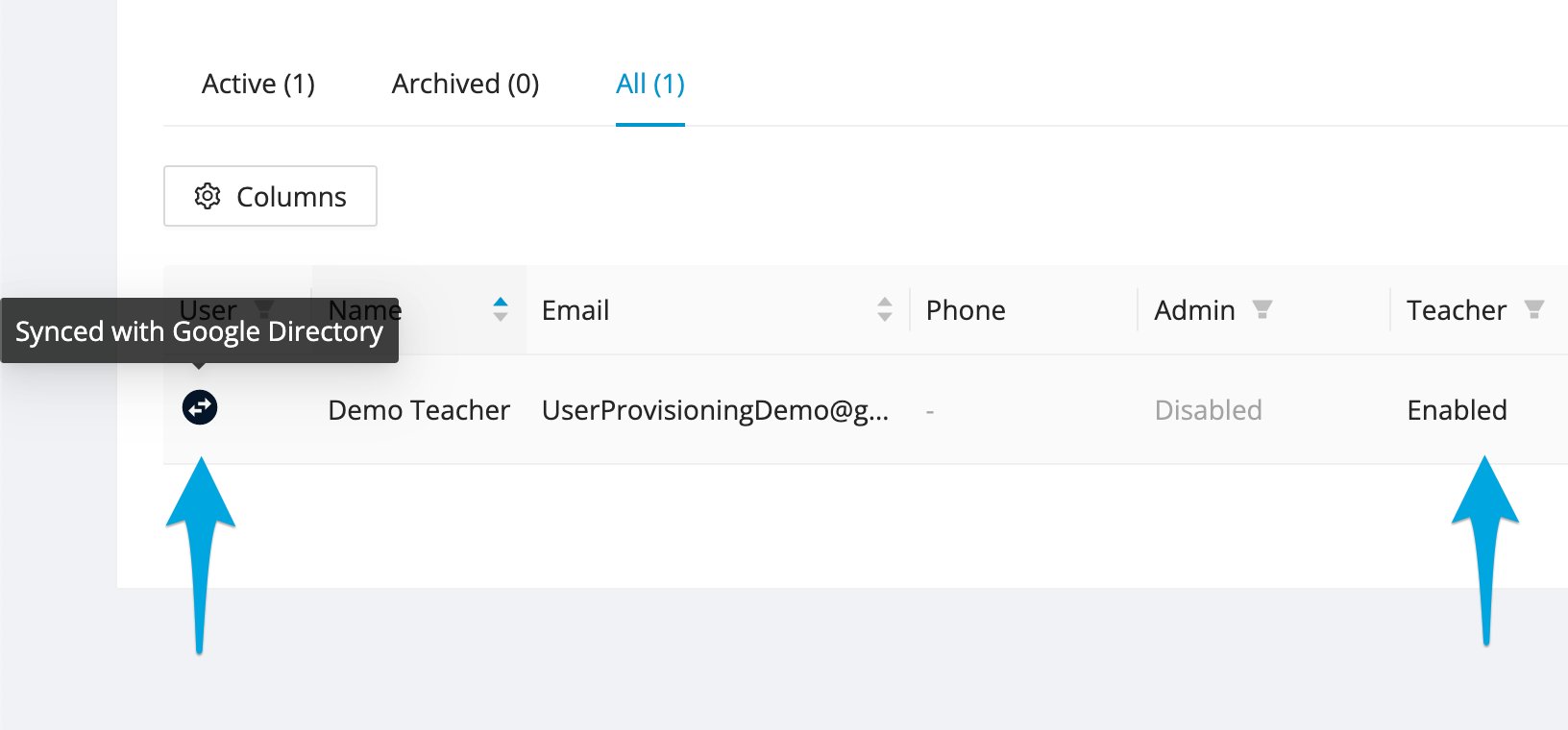
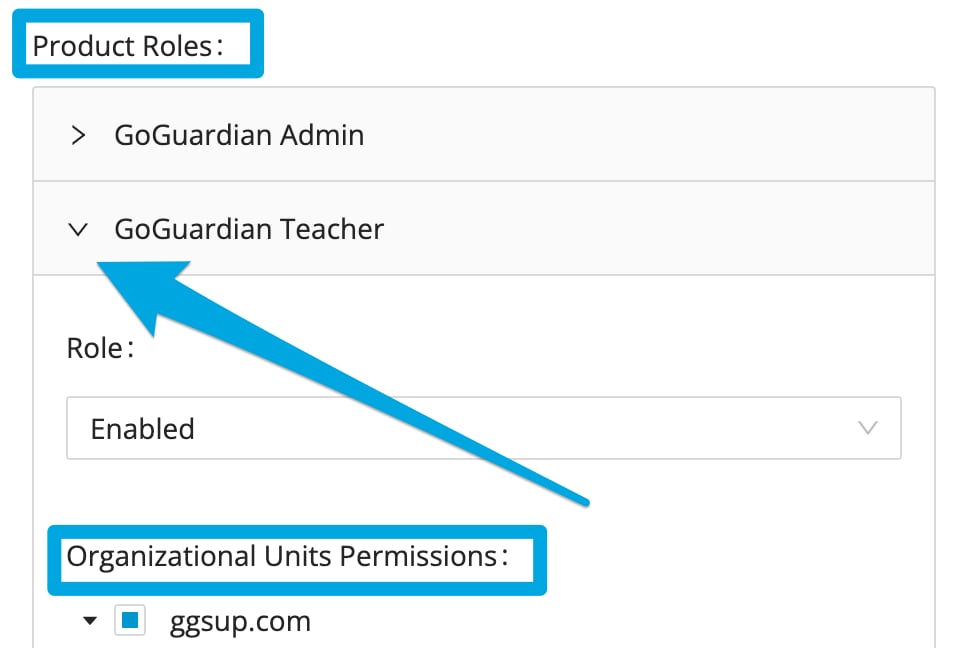
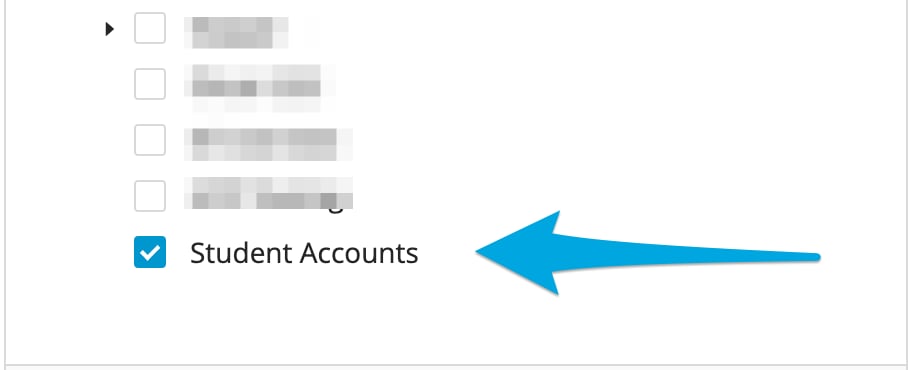
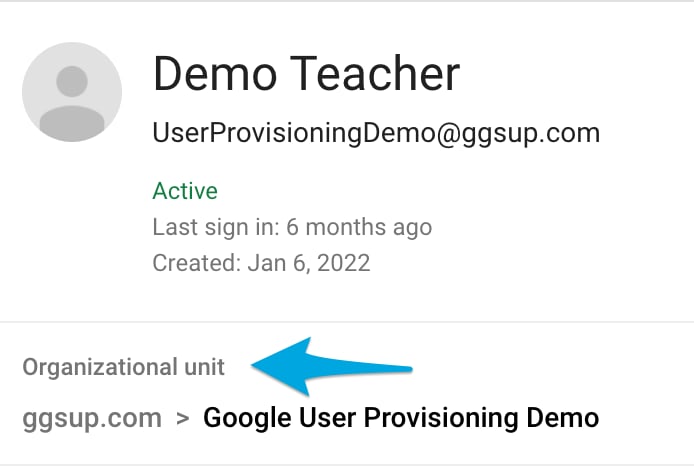
In the following example, the Demo Teacher account is actively assigned to the User Provisioning Demo Organizational Unit. Demo Teacher profile in Google Admin Console When the User Provisioning Demo Organizational Unit is selected as the Teacher Directory for a Sync Group, the Demo Teacher account is added to the Organization Management portal once the automatic or forced sync completes. Numbered steps to set up Settings for Sync Group Org Management showing Google User Provisioning icon User accounts synced using Google User Provisioning display a black integration icon underneath the User field. Hovering over the icon displays “Synced with Google Directory” to confirm the integration source. With the /Student Accounts OU listed in the Student Directory, the Demo Teacher account gains access to the /Student Accounts OU. User profile in Org Management highlighting Product Roles and OU Permissions Student OU selected in User Permissions
Sync Schedule

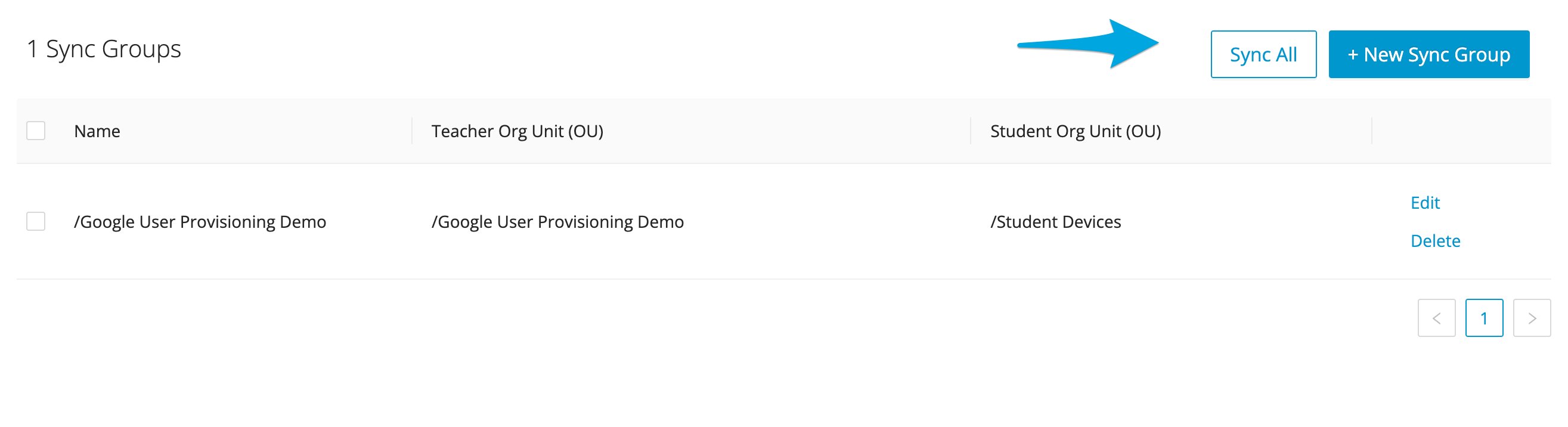
Similar to syncing Organizational Units with GoGuardian, User Provisioning syncs automatically each night. You can also queue a sync at any time by clicking Sync All. User Provisioning interface showing the Sync All option
Understand Changes to Teacher OUs

When a Google-synced teacher’s account is moved to an OU in Google Admin Console that’s outside a Sync Group’s Teacher Directory, the account loses access to GoGuardian Teacher the next time a sync occurs. Similarly, if a Sync Group’s Teacher Directory changes to a different OU, teachers no longer part of that Sync Group lose GoGuardian Teacher access.

Review Sync History

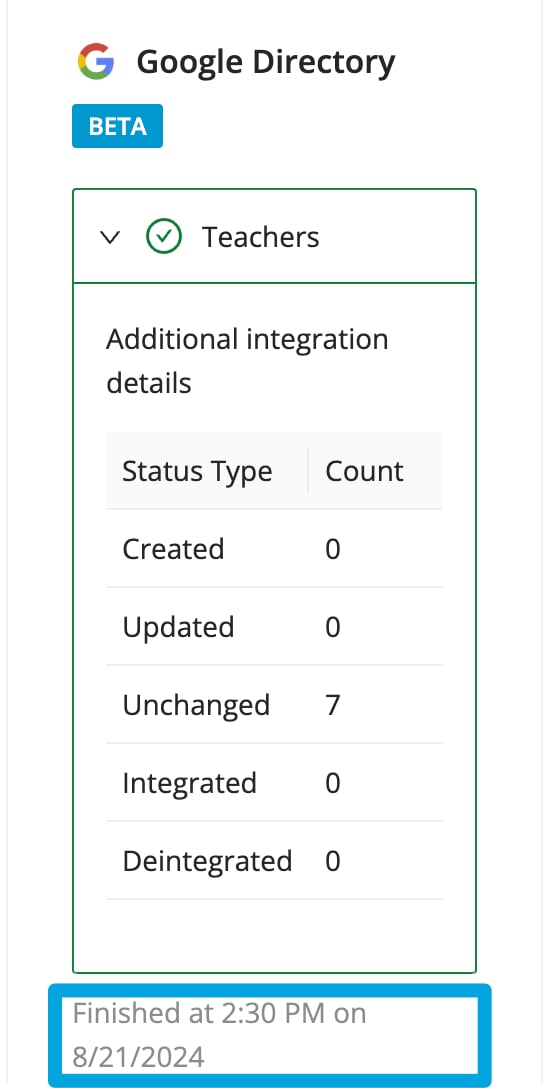
When a sync completes, the results and completion time appear in the Integrations tab by selecting the dropdown menu next to the Teachers field. Integrations tab dropdown showing sync completion details The same information, along with a history of all previous syncs, is available in the Audit Log. Filter the Audit Log results by Integration source using the cogwheel icon. Integrations tab in Org Management highlighting Audit Log to show when a sync was conducted
Last modified on July 15, 2026