

Access Student Account as Pear Assessment Teacher
Teachers can access student accounts by using a proxy or linking the student’s account to theirs. This article explains how to do each in Pear Assessment. Please note test results populate the standards report when a test is assigned to a student account. You can avoid skewing the report by unassigning the test after reviewing it.Proxy into Student Account
- Click Manage Class in the navigation menu.
- Click on a class name.
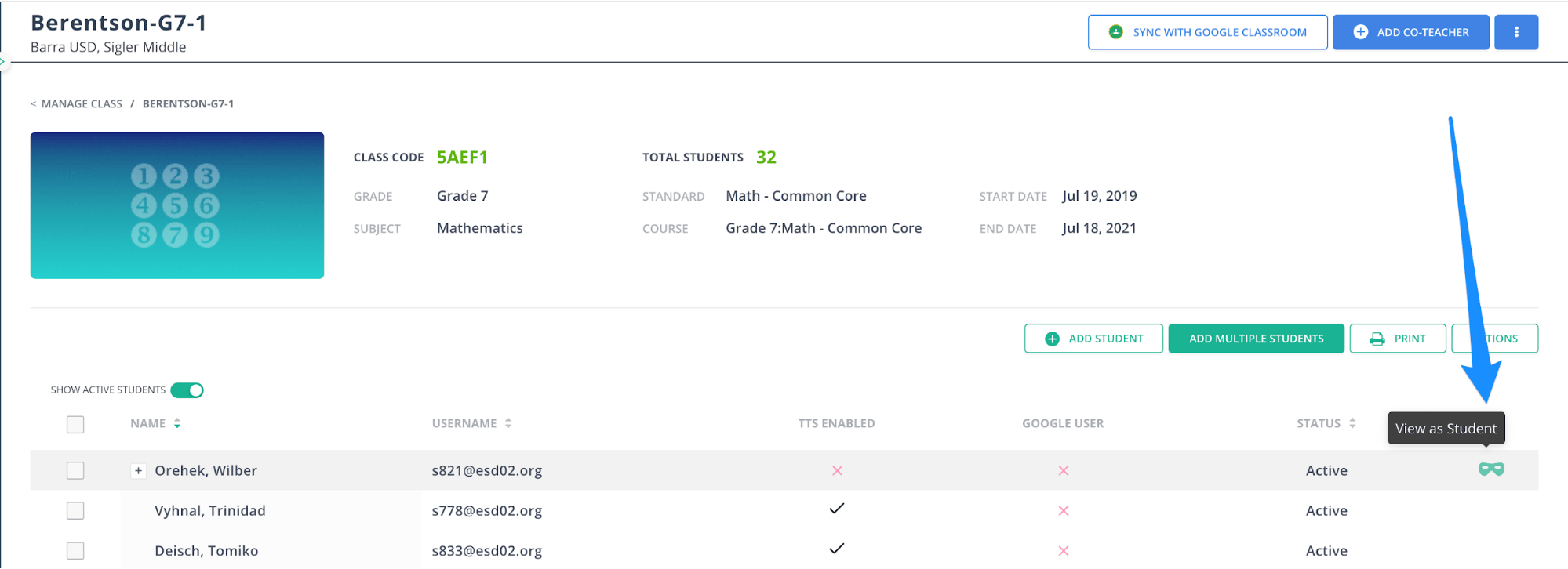
- Hover on a student’s row.
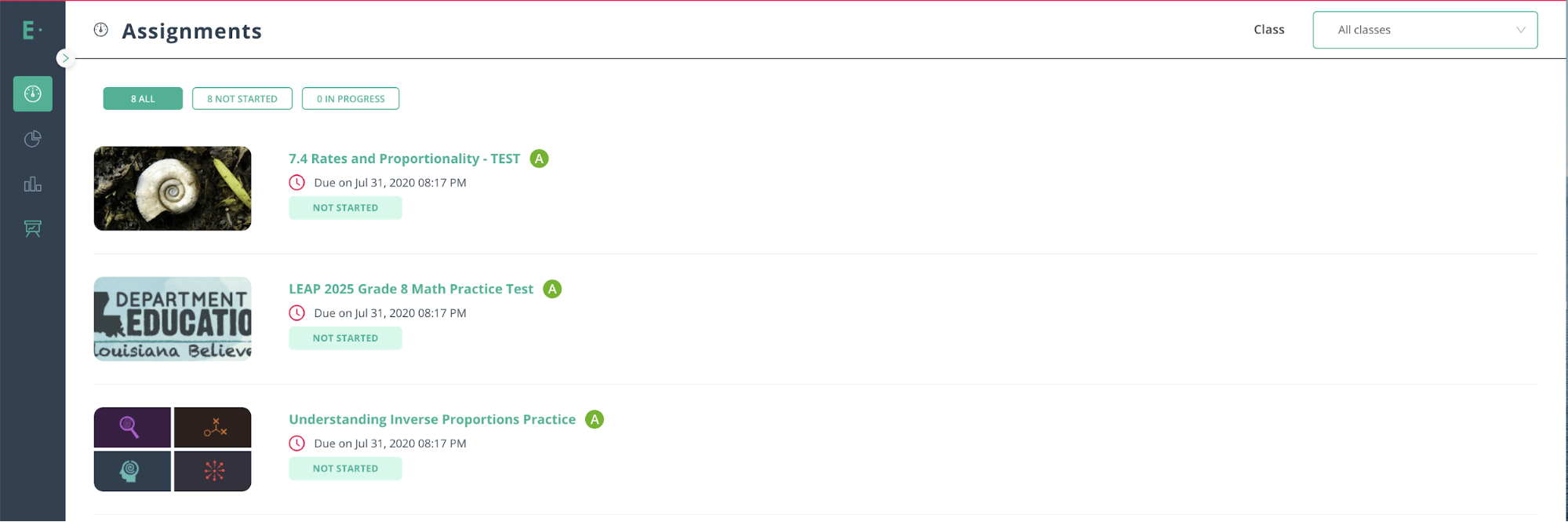
- While hovering, click the View as Student button at the end of the row.
Link Student Account
- Click Manage Class in the navigation menu.
- Click on a class name.
- Click Add Student.
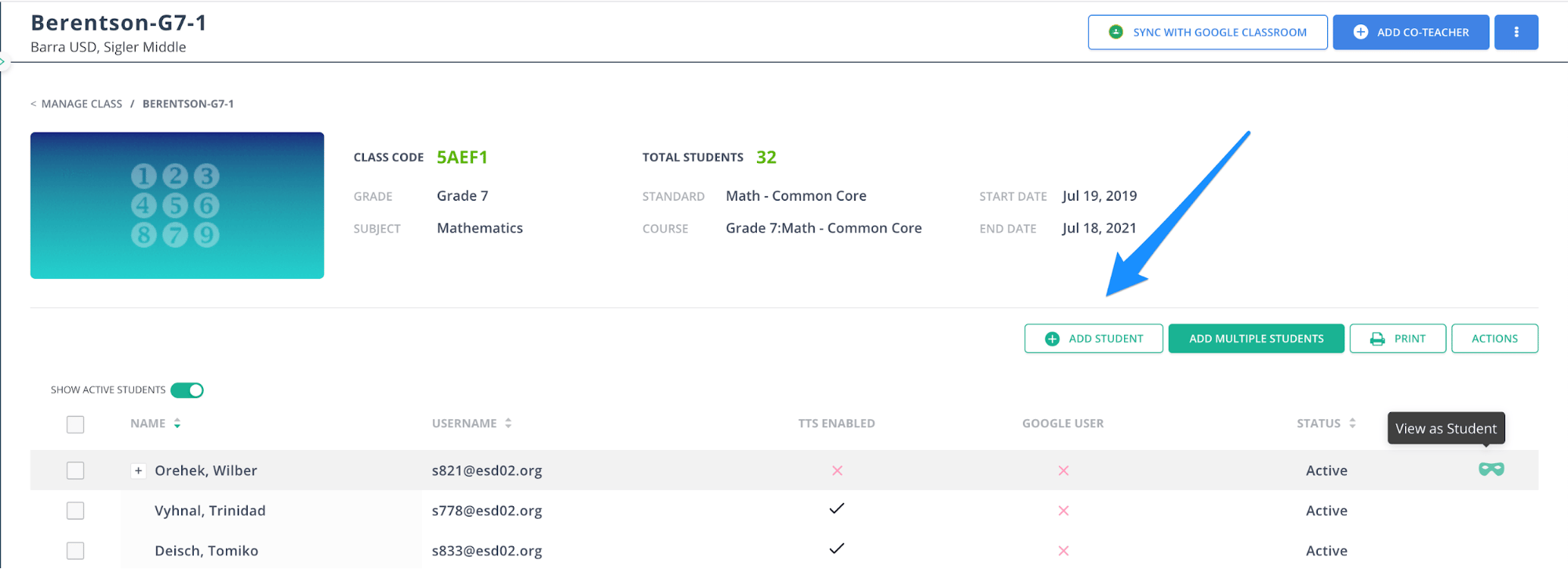
- Fill out the relevant details and click Yes, Add Student to create the student account.
- Click on your avatar in the navigation menu.
- Click Switch Account.
- Click Add Another Account.
- Sign in with the new student account.
- Confirm the account is now available in the navigation menu > your avatar > Switch Account.