

Add a Parent to a Student Account
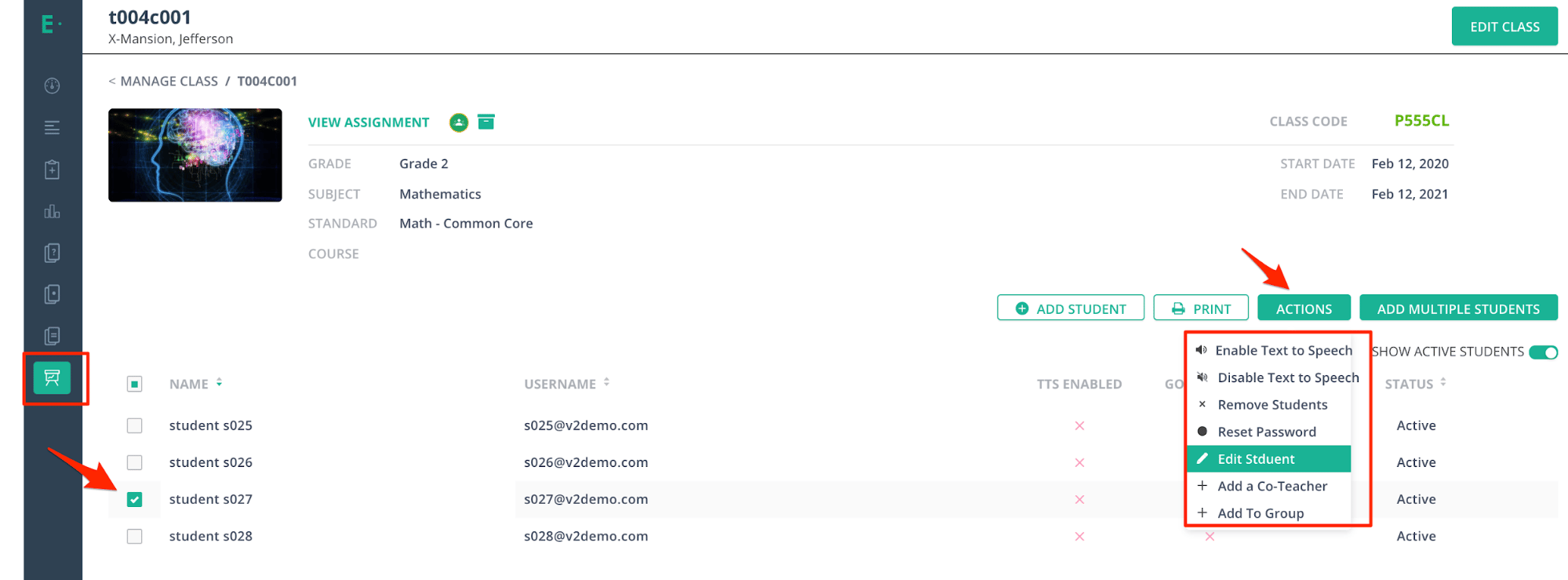
- In Pear Assessment, navigate to Manage Class.
- Click the class name to open the class roster.
- Check the box next to the student’s name.
- Click Actions, then select Edit Student.
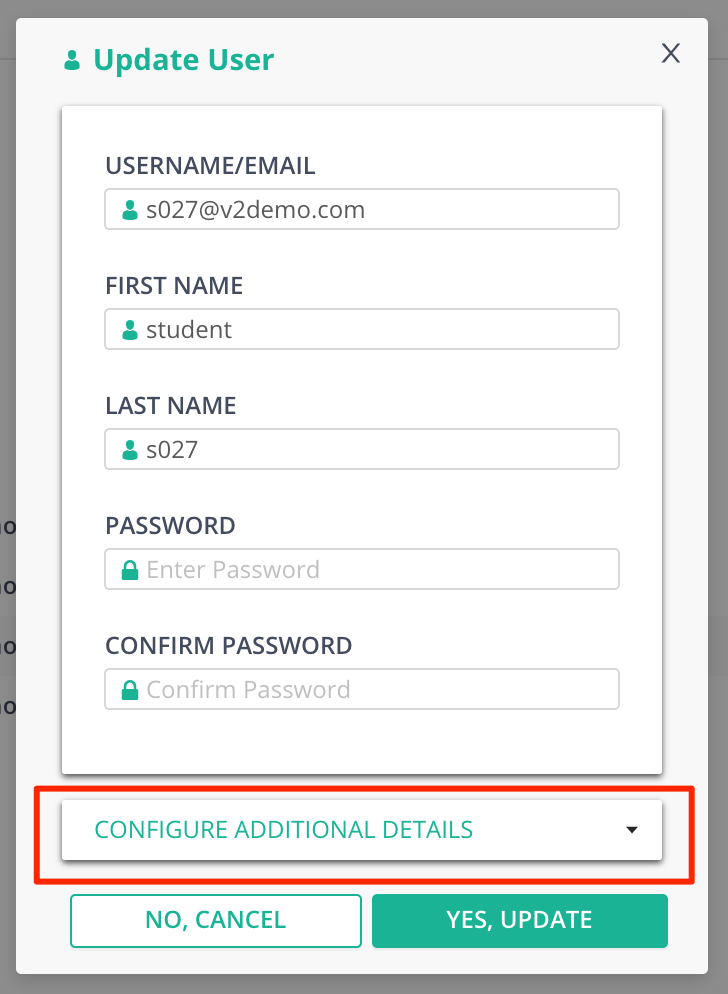
- In the student record panel, click Configure Additional Details.
- In the additional details section, enter the parent’s email address in the parent email field.
- Click Yes, Update to save the change.
Add Multiple Parents to One Student
To add more than one parent to the same student account, enter each parent email address in the parent email field, separated by commas. Pear Assessment sends a separate password-setup invitation to each address.- Follow steps 1 through 6 in Add a Parent to a Student Account.
- In the parent email field, enter each parent’s email address, separated by commas.
- Click Yes, Update to save the change.
Each parent receives their own password-setup email and signs in with their own email address as the username.
Resources
Reset Student's Password
Reset a student’s Pear Assessment password from the teacher’s account.
Access Student Account as Teacher
Sign in to a student’s account to view what the student sees in Pear Assessment.