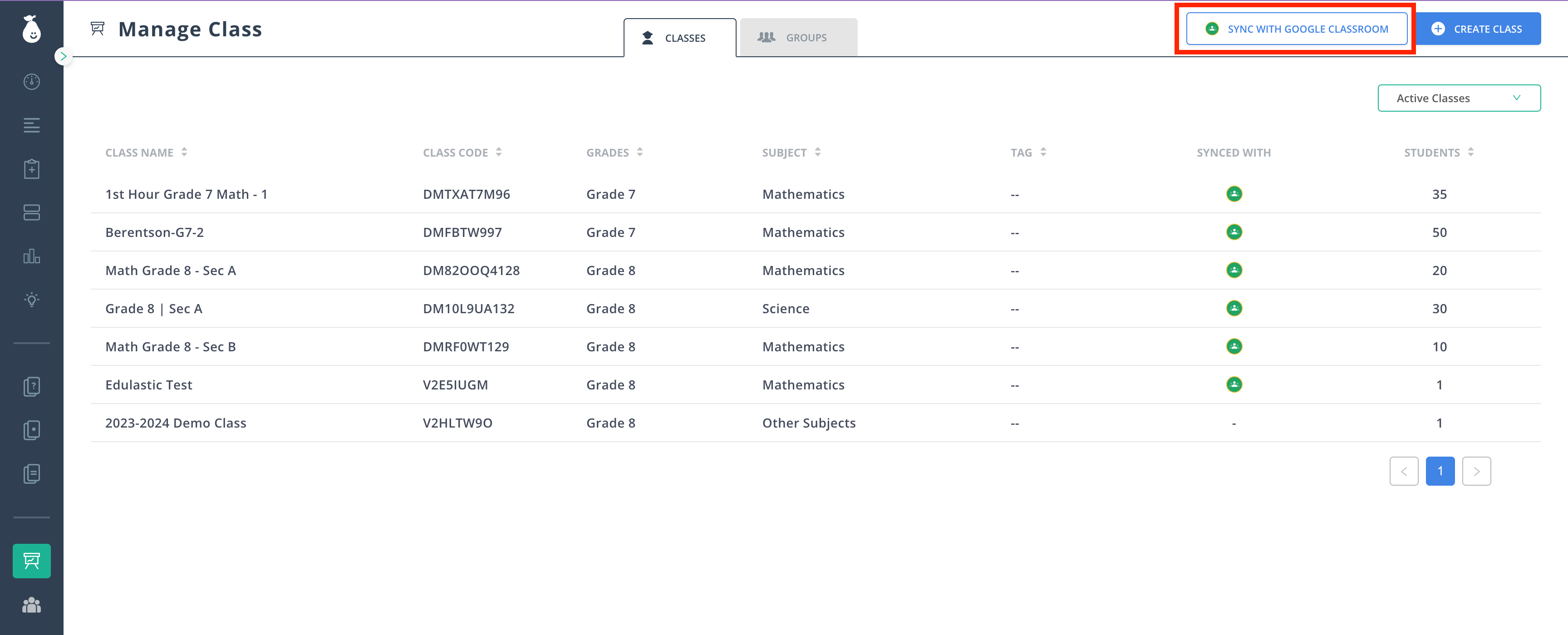
Sync with Google Classroom
- Click Sync with Google Classroom.
- Click your school Google account and enter your Google Classroom class code.
- Specify the grade and subject for each class you are syncing.
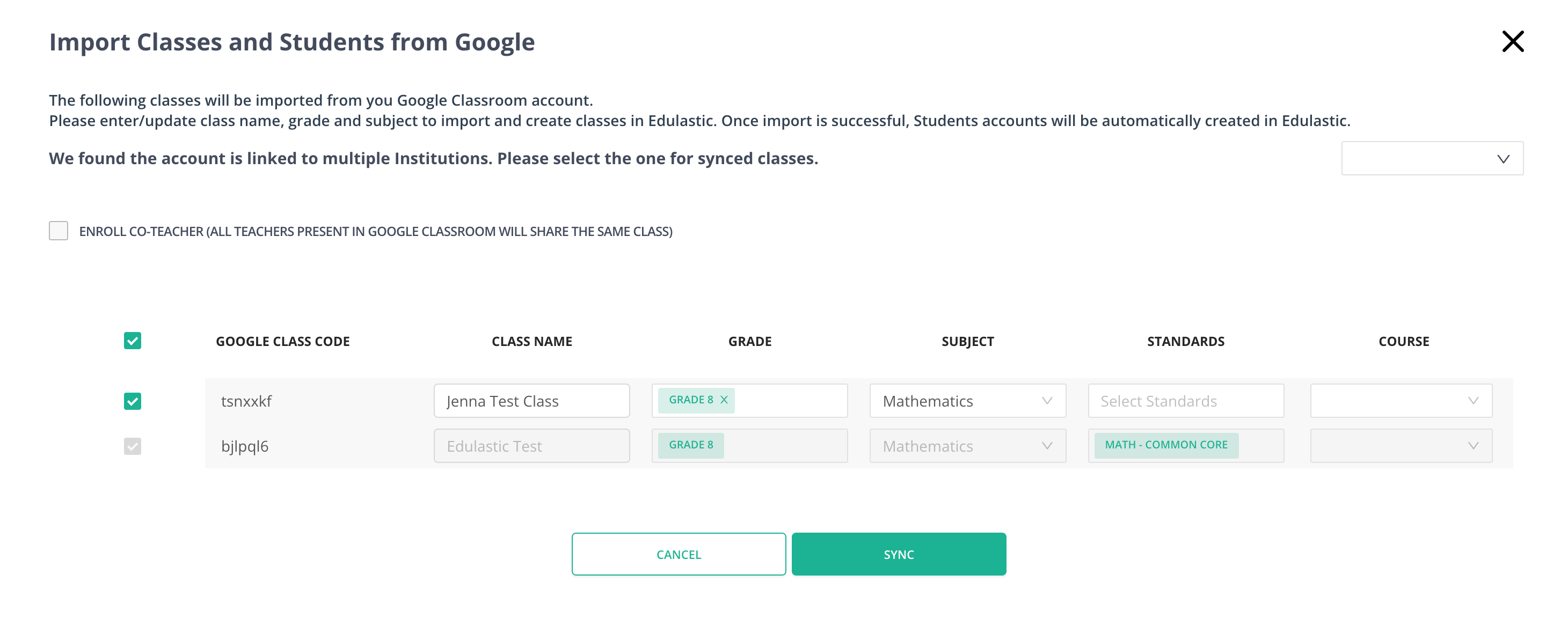
A co-teacher must have a Pear Assessment account to be synced from Google Classroom.
- Click Import.
Manually Upload Students
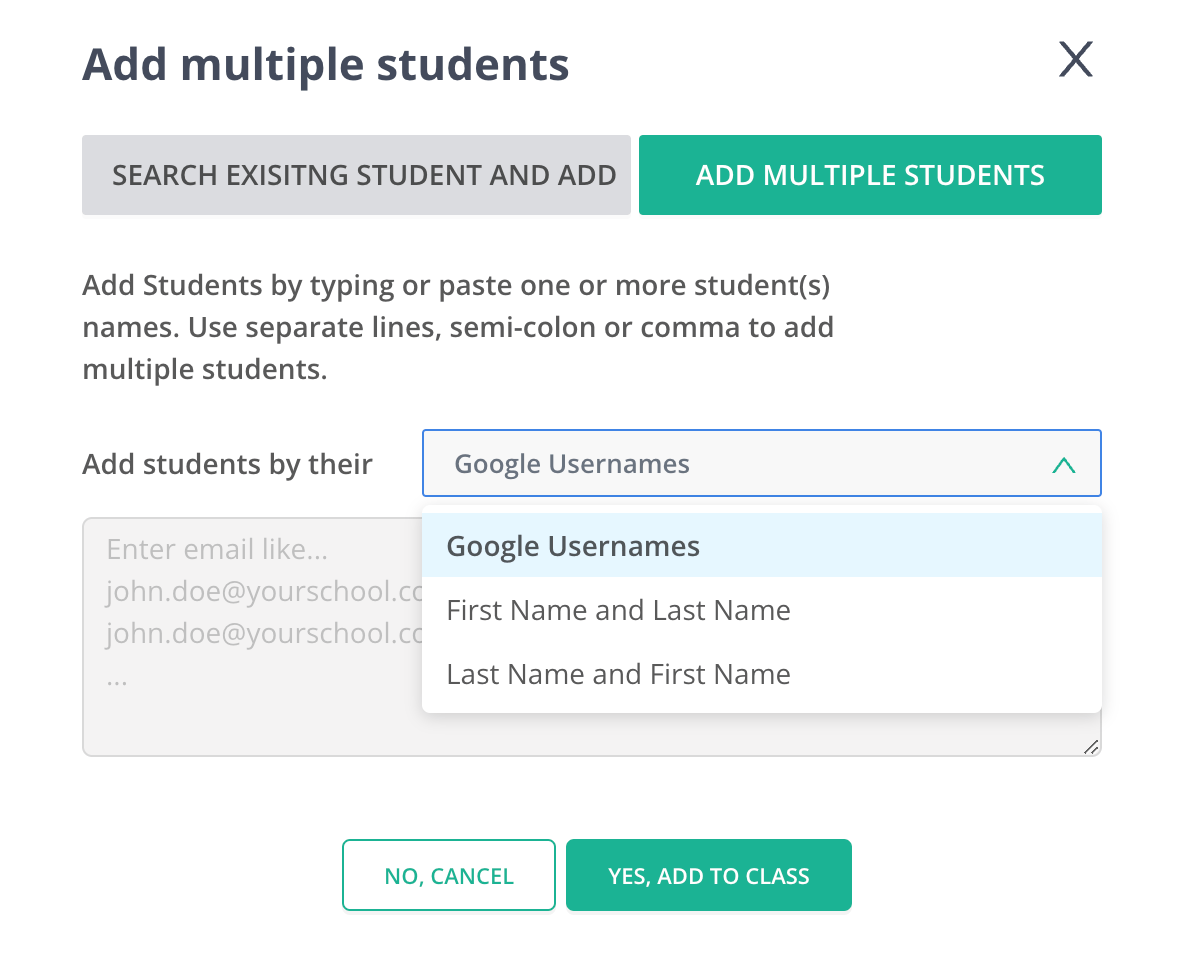
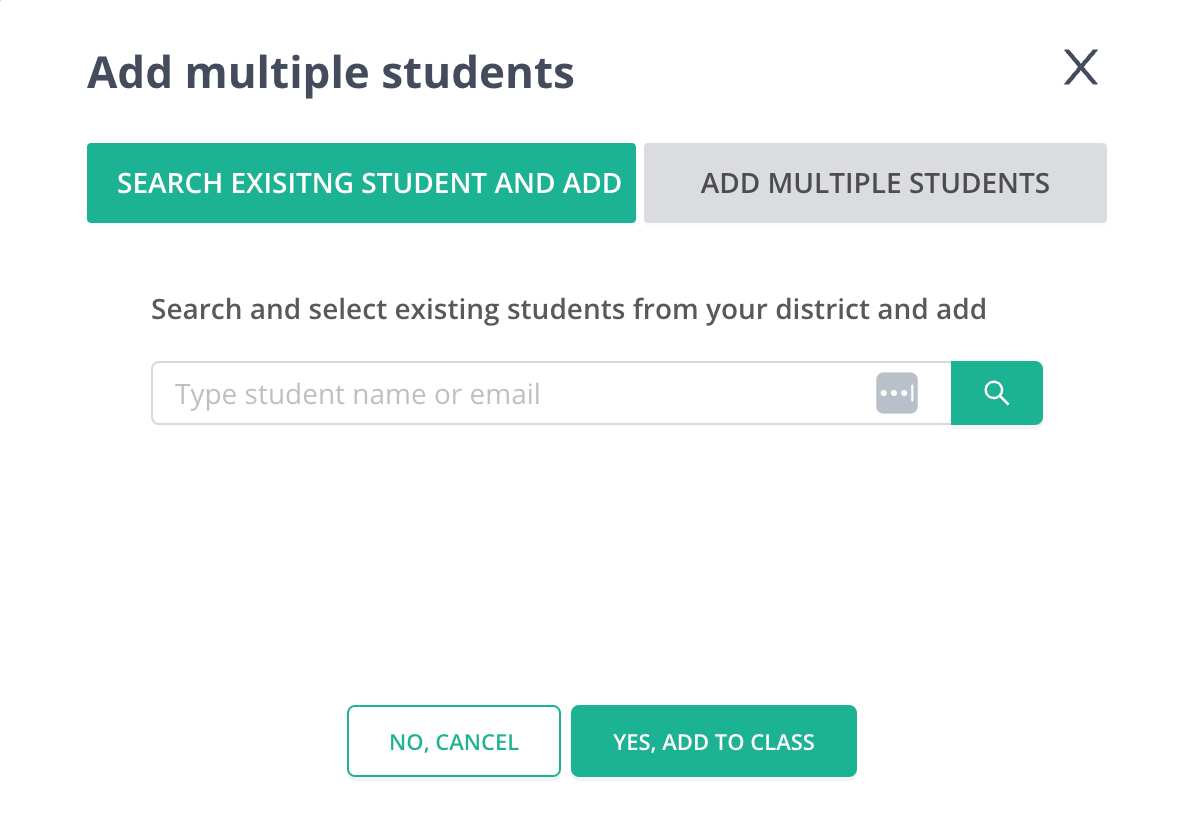
A teacher can add multiple students at once or add students individually.- Click Add Multiple Students to upload a roster from a Microsoft Excel file, Word document, Notepad file, or similar.
- From the dropdown, select the format needed to upload the roster: Google usernames, first and last name, or last and first name.
- If you do not use Google, add or search for students by their school email. After adding students, update the password for each student by proxying into their account using the View as Student feature.
- Paste the student names and click Add Students. Usernames are generated automatically and the class roster is populated.
If you are rostering for middle or high school students who will be members of several teachers’ classes, it is most efficient to have students create their own accounts and enter the class code for each class. This ensures each student has one user ID and can access all Pear Assessment assignments from a single dashboard.
Add Students Using a Class Code
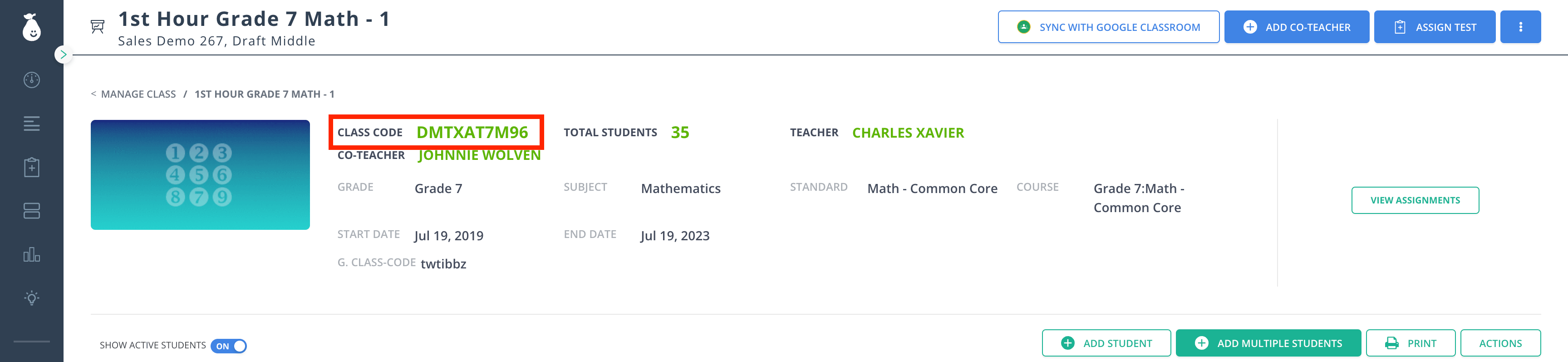
Students need their own Pear Assessment accounts to join a class with a class code. Once they have an account, they can join multiple classes by entering each class code.- Go to Manage Class and click the class name to find the class code. The class code appears in the top left corner of the class description.
- Instruct students to visit app.pearassessment.com and sign up with a username and password or with Google. Students are prompted to enter the class code during sign-up. Students do not need an email address , only a unique username.
- Students can also enter a class code from their Manage Class tab at any time.
- Once rosters are loaded, you are ready to assign assessments.