

Author Items in Multiple Languages
- Click Item Bank in the navigation menu.
- Click New Item.
- Click your preferred question type.
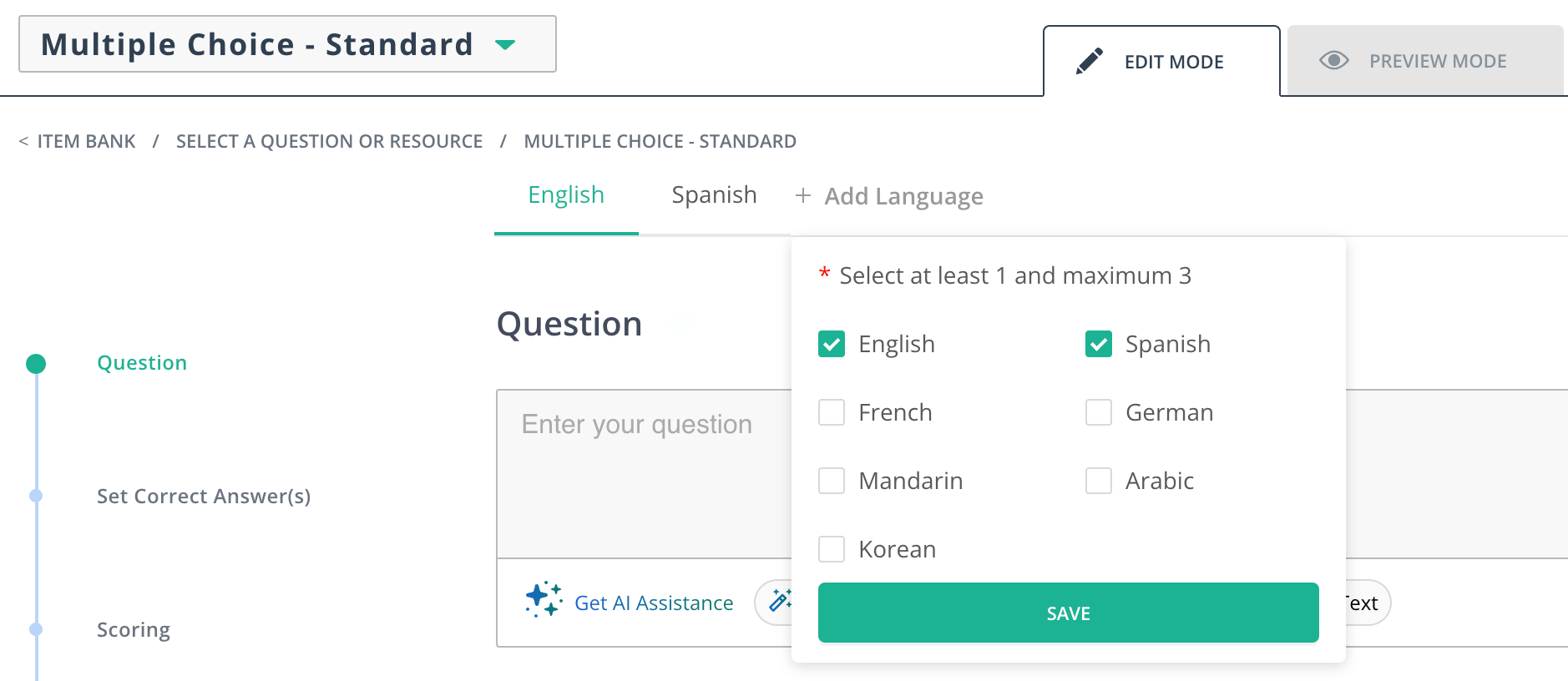
- Click + Add Language under Edit Mode > Question.
- Select your preferred languages.
- Click Save.
Enable or Disable Multi-Language for a Test
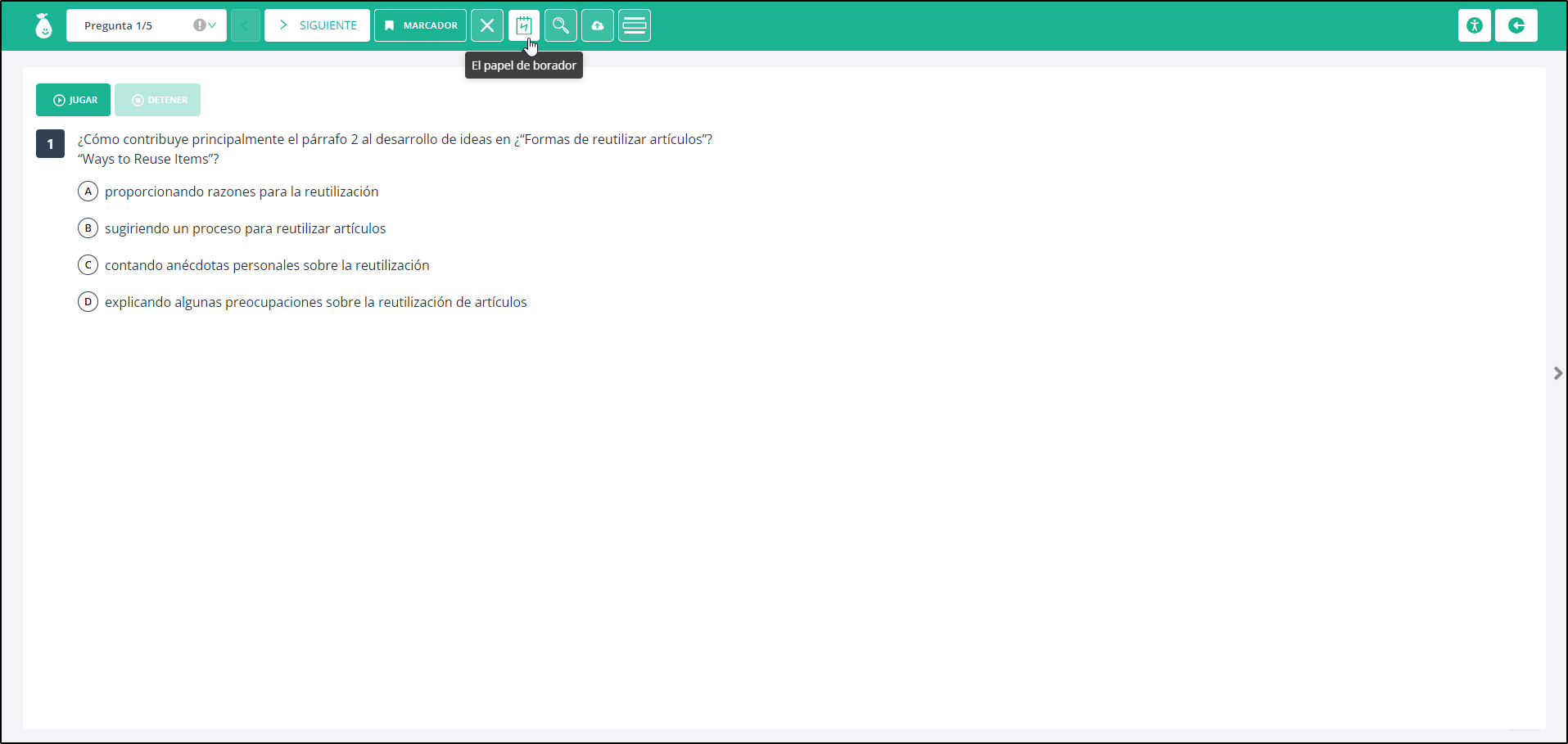
You can let students choose their preferred language on a test by enabling it in the test settings.- Open the test and click the Settings tab.
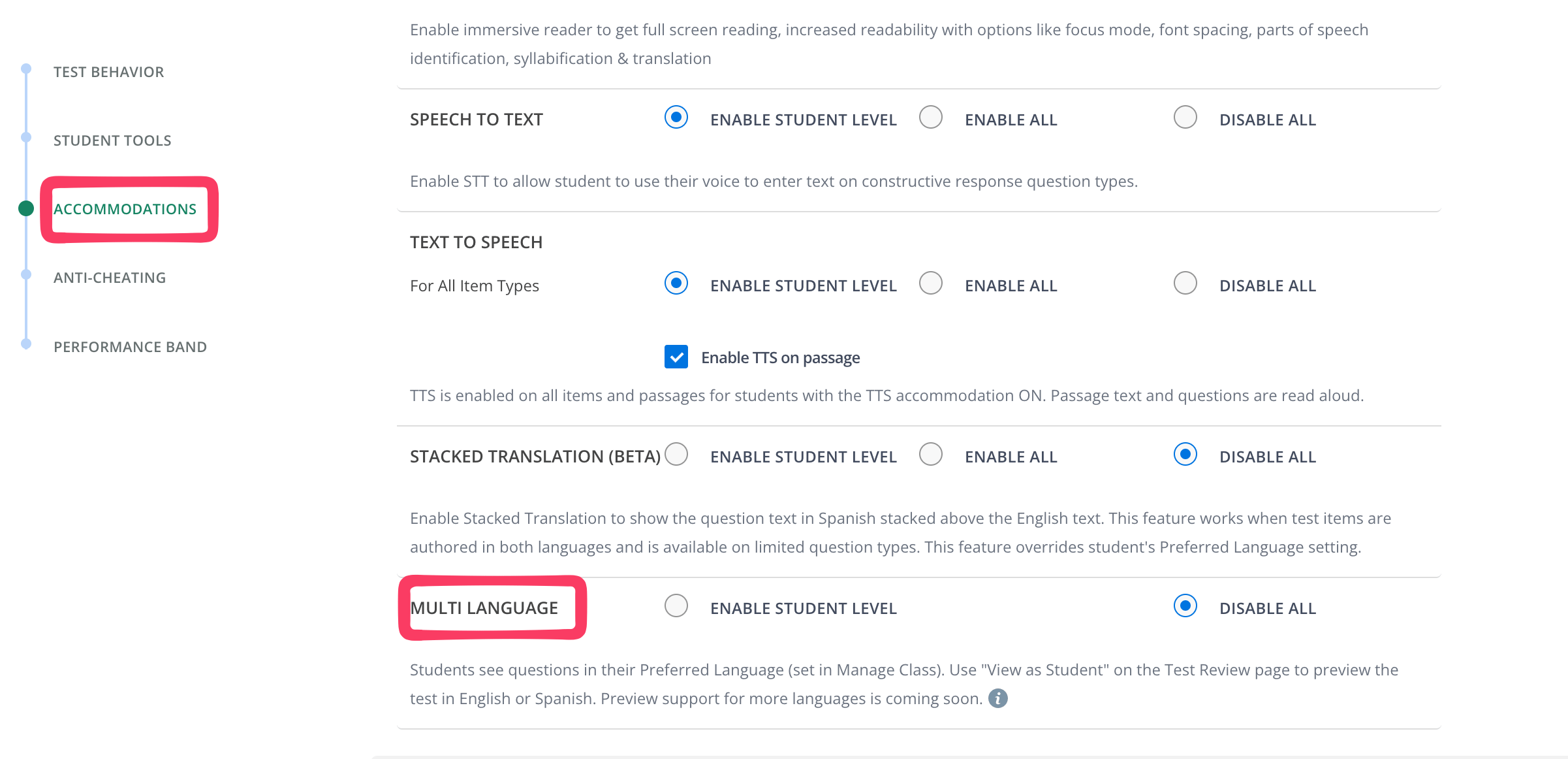
- Scroll down to Accommodations.
- Under Multi-Language, choose one of the following options:
- Enable Student Level: Allows Multi-Language to be enabled for individual students based on their accommodation settings.
- Disable All: Disables Multi-Language for all students taking the test.
- Click Save to apply your changes.
FAQ
Will This Auto-Translate My Items?
No. Items must be authored in each language you want to offer. Enabling Multi-Language on a test does not auto-translate existing content.Can I Use This Feature with All Item Types?
Multi-Language is supported for the following item types:- Multiple Choice
- Multiple Selection
- Matching Tables
- Classification
- Re-sequence
- Essay Rich Text
- Essay Plain Text
- Sentence Response
- Math types (except math-text-dropdown)
- Multipart with supported types
- Passage
- Video
- Text