Create Rubric for Scoring Essays and Written Responses
Build a grading rubric with custom criteria and performance ratings for essay and written response questions, then share it across your district.
The article guides users on how to create a rubric for scoring essays and written responses using Pear Assessment. It provides detailed steps to set up and use rubrics effectively for grading student work.
Create Rubric for Scoring Essays and Written Responses
The article guides users on how to create a rubric for scoring essays and written responses using Pear Assessment. It provides detailed steps to set up and use rubrics effectively for grading student work.Please note that a Teacher Premium subscription is required to create a rubric.
Choose Writing from the resource of questions and choose any question type from this source.
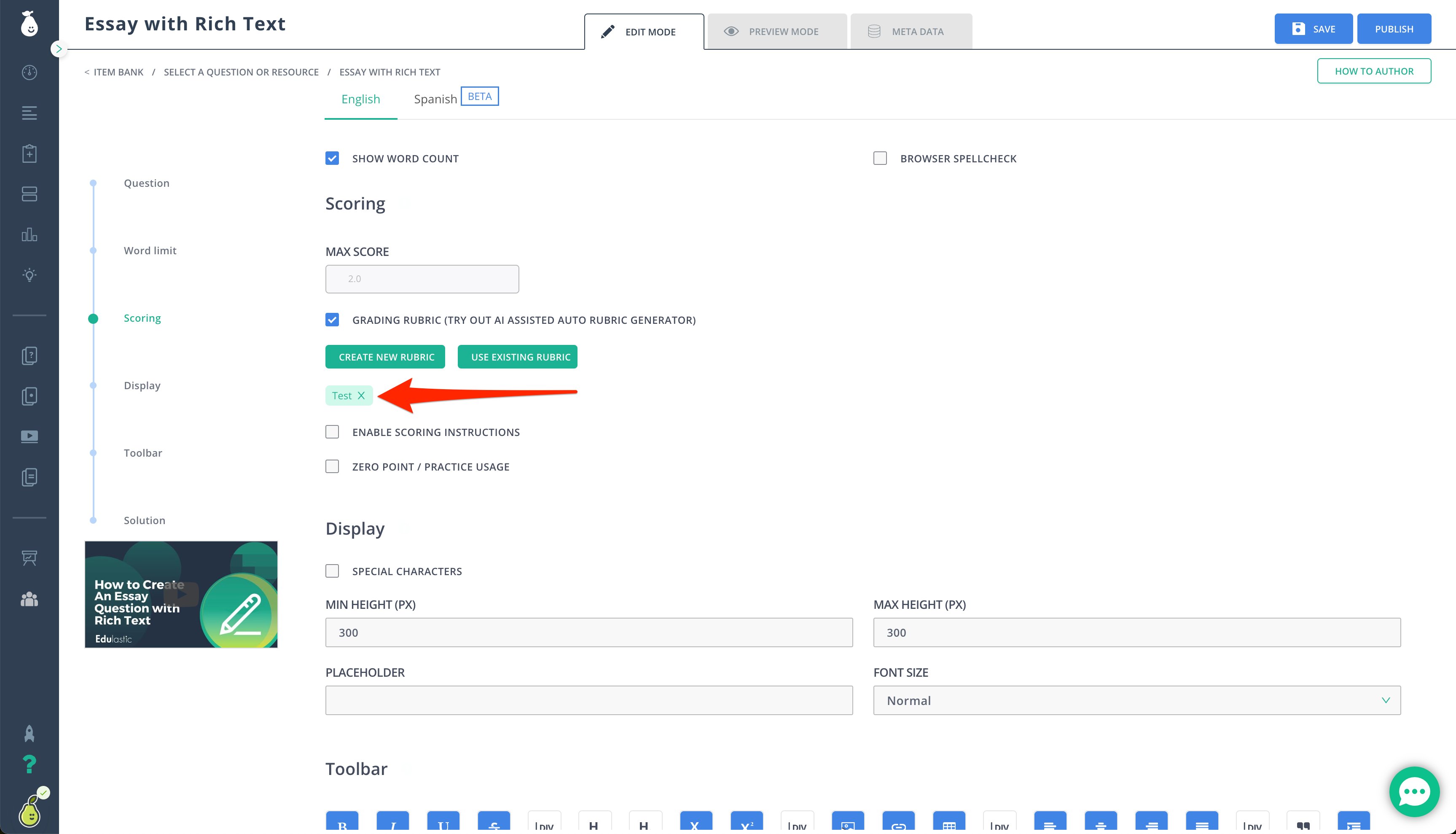
Under Scoring, select the checkbox next to Grading Rubric.
Users have two options:
Create New Rubric
Use Existing Rubric
Enter a name and description for the new rubric. Users can add criteria and ratings to the rubric by providing a name and description for each criterion. The criteria help users identify the parameters they want to grade the questions. Ratings represent the level of performance by the student in the concerned criteria. This Rating contains a name (like Satisfactory, Proficient, or Basic) with points associated with each rating and a basic description of the rating.
After users have created criteria and ratings for the rubric, click Save & Use to complete the rubric creation process. Users will then have the ability to clone, edit, delete, preview, or share the created rubric.
Tip: When using an existing rubric, users would need to type in the exact title of the rubric of a keyword of the title of a rubric.
Once an existing rubric is selected, the user can have the ability to go back and search for existing rubrics, clone rubrics, edit the existing rubric, delete the rubric, preview, remove, or share.
When the user has finished with all of their options, click the “X” and you will see the name of the rubric under the options of Create New Rubric and Use Existing Rubric. The name of the created rubric will appear as a light green button with green text. This indicates the name of the rubric is applied to the question. Complete the question/item and save it.
The created rubric needs to have at least one criterion.
Each criterion must contain at least two ratings.
Total points for the question, in which the user is using a rubric, is the summation of the maximum points for each criterion.
Users can edit the rubric as long as the question has not been saved. When users click Save for a question, the rubric is stored and not available to edit.