

Download Grades and Responses for Grading Programs
In Pear Assessment, you can download student grades and responses for completed assignments. They download as a CSV file, which you can upload to a grading program.Download Grades
- Click Assignments in the navigation menu.
- Click on the assignment’s name.
- In the Live Class Board tab, select a student or multiple students by checking the box next to their name.
- Click More > Download Grades.

Download Responses
- Click Assignments in the navigation menu.
- Click on the assignment’s name.
- In the Live Class Board tab, select a student or multiple students by checking the box next to their name.
- Click More > Download Response.
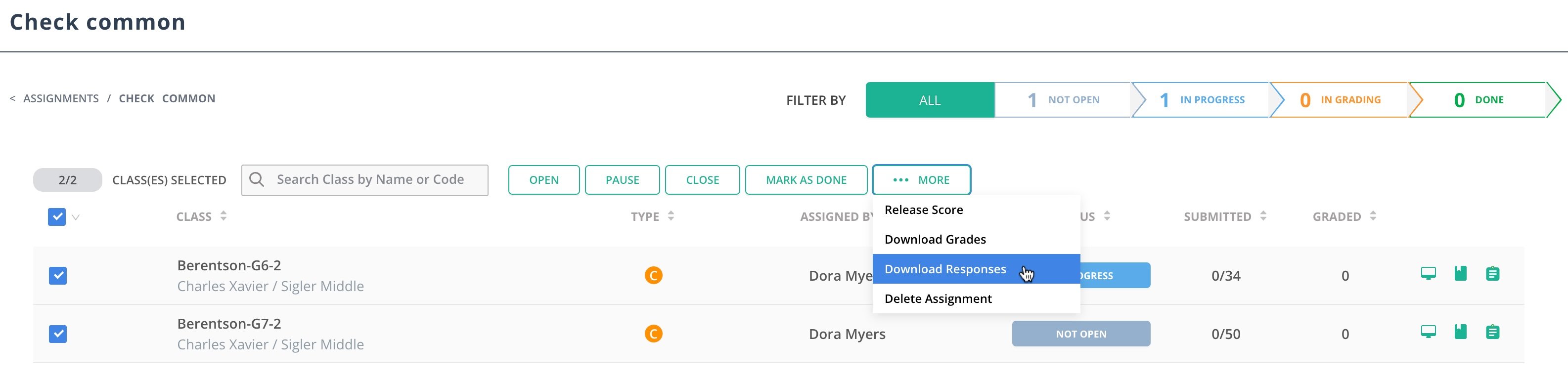
Bulk Download Grades as Admin
- Sign in as a district or school administrator.
- Click Assignments in the navigation menu.
- Click on the assignment’s name.
- Select a class or multiple classes by checking the box next to their name.
- Click More > Download Grades.
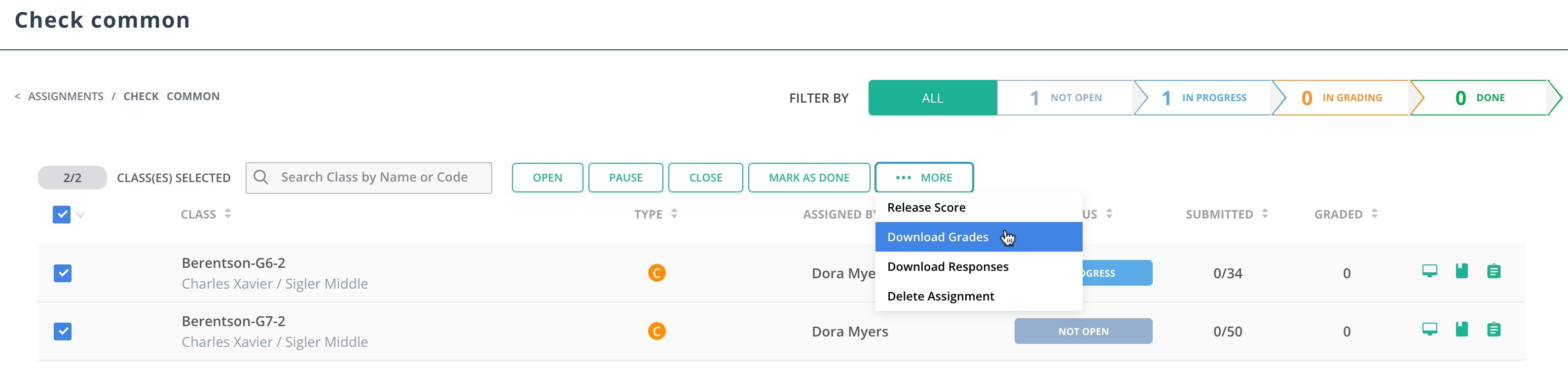
Bulk Download Responses as Admin
- Sign in as a district or school administrator.
- Click Assignments in the navigation menu.
- Click on the assignment’s name.
- Select a class or multiple classes by checking the box next to their name.
- Click More > Download Response.
