

Create a Graphing Question
To set up a graphing question:- Go to Graphing Questions in the question authoring tool.
- Scroll to Points on an Equation near the bottom of the form.
- Enter the equation: for example, an exponent or power function.
- Set the number of points the student must place on the graph.

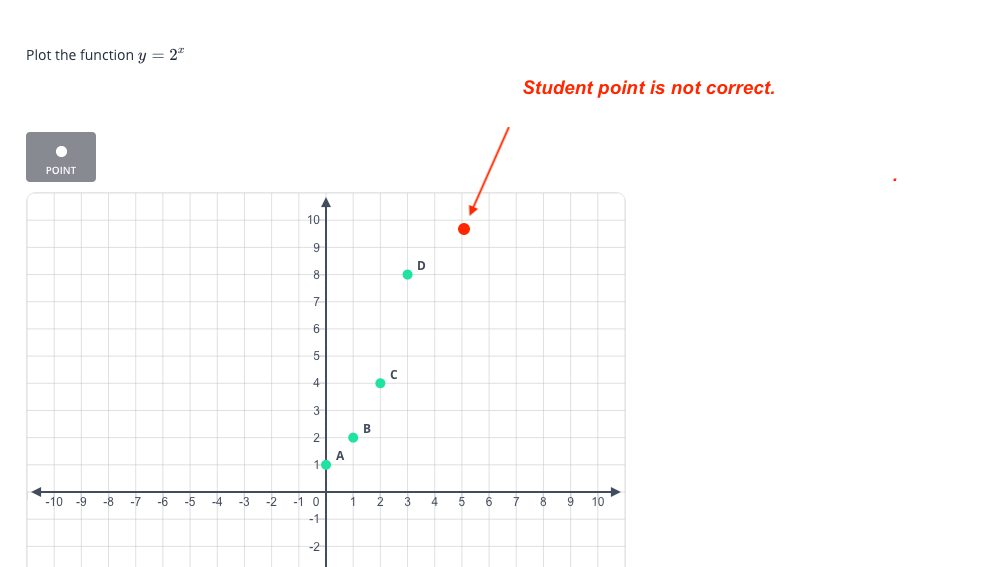
Preview and Grading
After configuring the question, open the Preview tab to review how Pear Assessment scores responses. If a student places the first four points correctly but misses the fifth, the default score is 0. Enable partial scoring to award credit proportional to the number of correct points: in this example, a student with four of five correct would receive 0.80 points.Resources
Authoring Math Questions
Learn how to build and configure math question types in Pear Assessment.