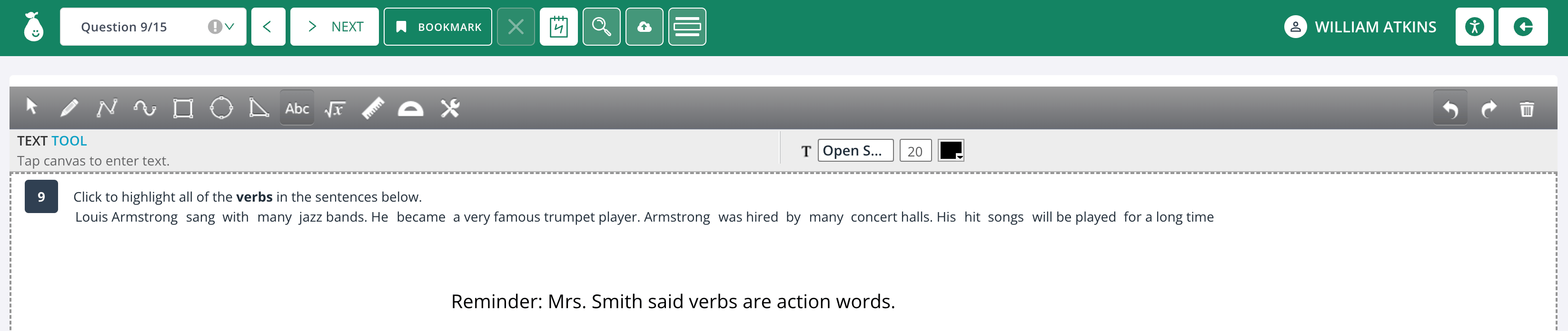
Enable or Disable Scratchpad
To turn Scratchpad on or off for an assignment:- In Pear Assessment, go to Assignments and click the assignment name.
- Select the Settings tab.
- Under Student Tools, go to Accessibility and toggle Scratch Pad.

Review a Student’s Scratchpad
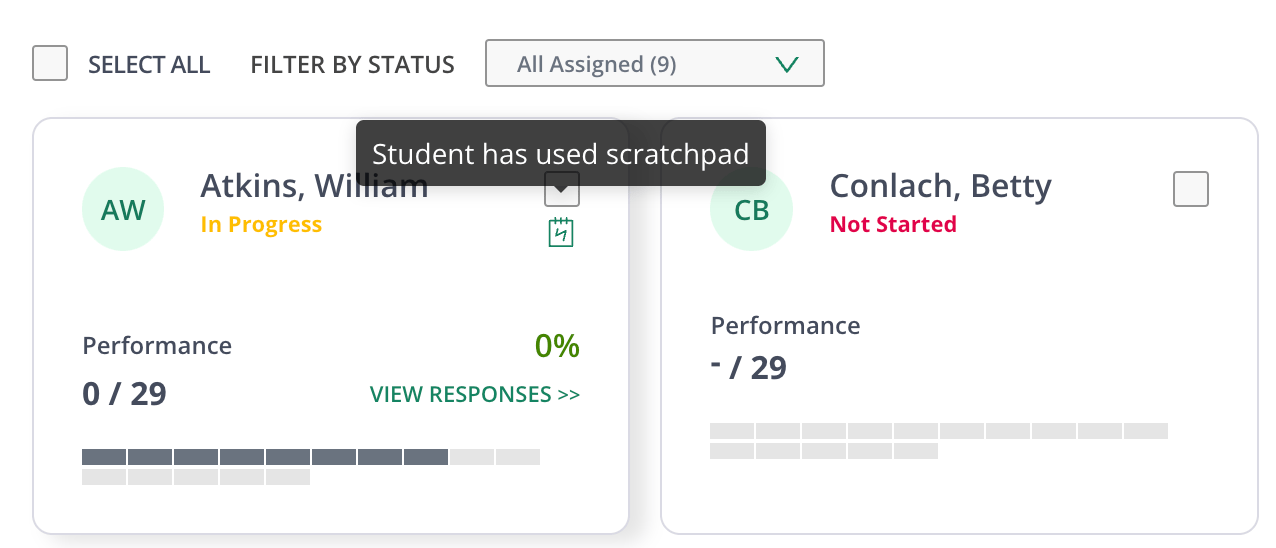
Teachers can view a student’s scratch work at any time while the assignment is active.- Open the assignment and select the Live Class Board tab.
- Locate the student’s name and click the Scratchpad button below their checkbox.
Activate Scratchpad as a Student
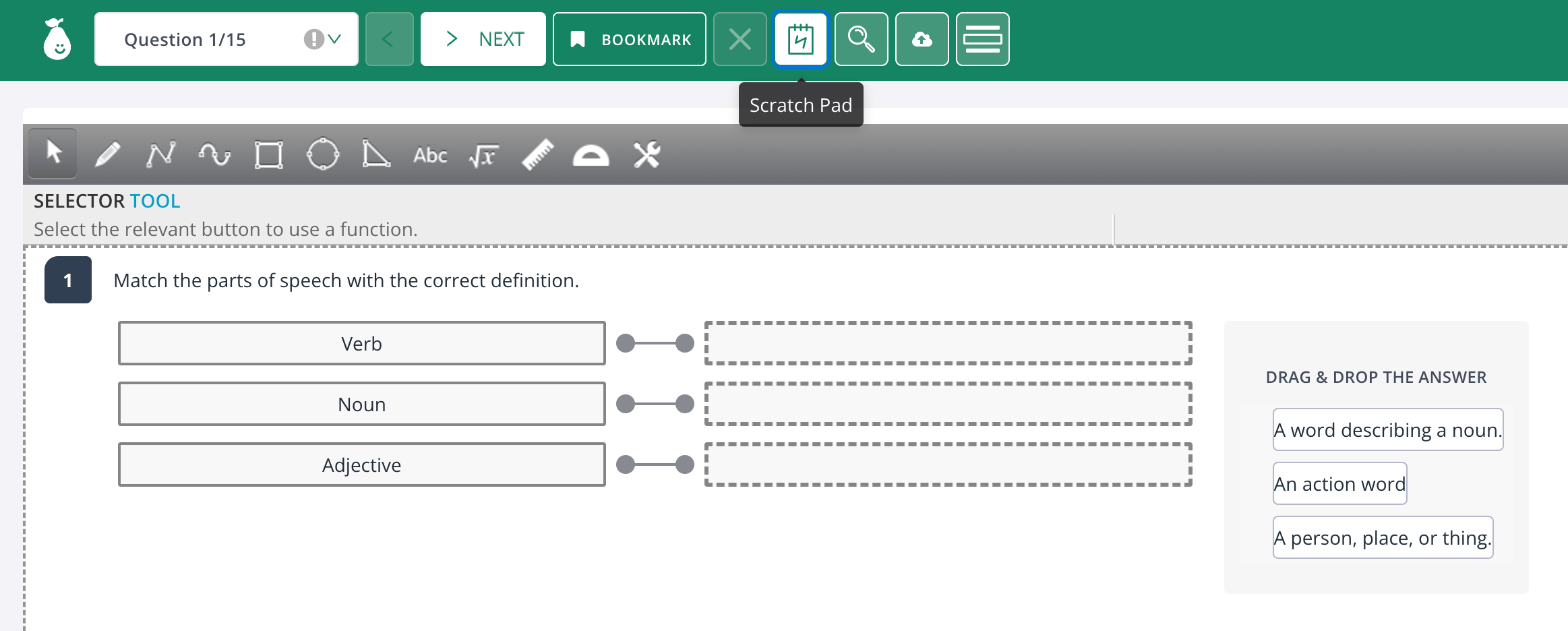
Students access Scratchpad from the assessment toolbar.- Click the Scratchpad button in the toolbar to open the scratch area.
- Use the available tools to show work.
- Click the Scratchpad button again before entering answers: the scratch area must be closed to interact with the question.
Scratchpad Tools
The Scratchpad toolbar includes the following tools. Each tool displays instructions when selected. Some tools require a double-click to complete an action.- Freehand drawing
- Straight line
- Curved line
- Quadrilateral shapes
- Circle drawing
- Triangle drawing
- Text tool to type words
- Math equation editor
- Ruler and protractor