

Export a PDF Overview Report
A PDF overview report summarizes a student’s activity for the selected date range. It includes:- Searches (count and top search terms)
- YouTube video views (count and top videos)
- Website visits (count and top sites)
- Installed Chrome apps and extensions
There may be up to a 4-hour delay between the exported report and the data shown in the dashboard. To generate a PDF immediately, use the browser print command (Command + P on Mac, Control + P on Windows) to save a PDF of the current page view.
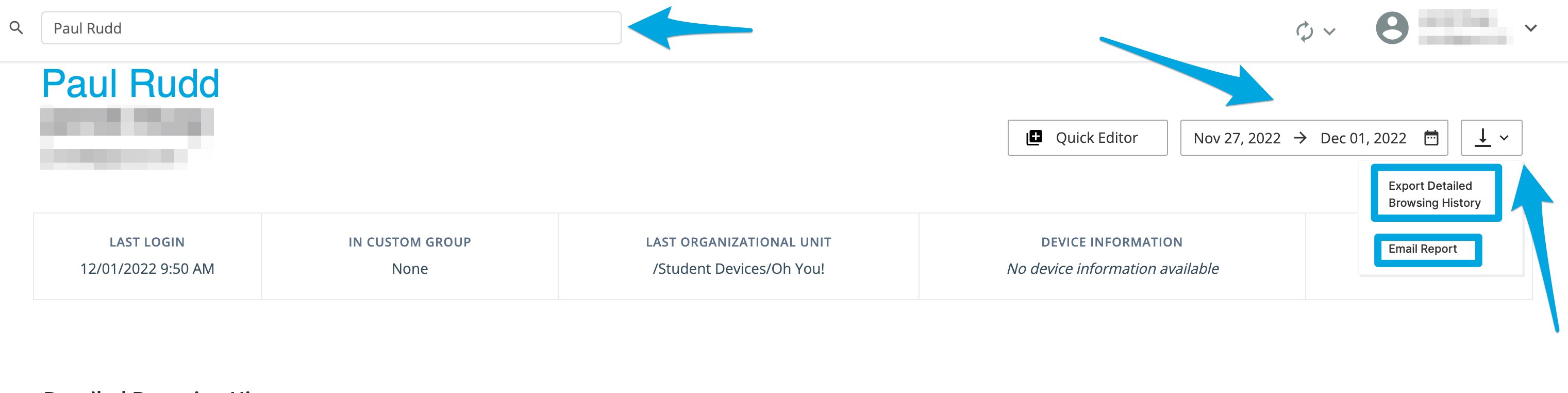
- Go to GoGuardian Admin and open the student’s individual browsing page.
- Select a date range using the date menu at the top of the page.
- Click the dropdown menu at the top of the page.
- Select Email Report from the menu.
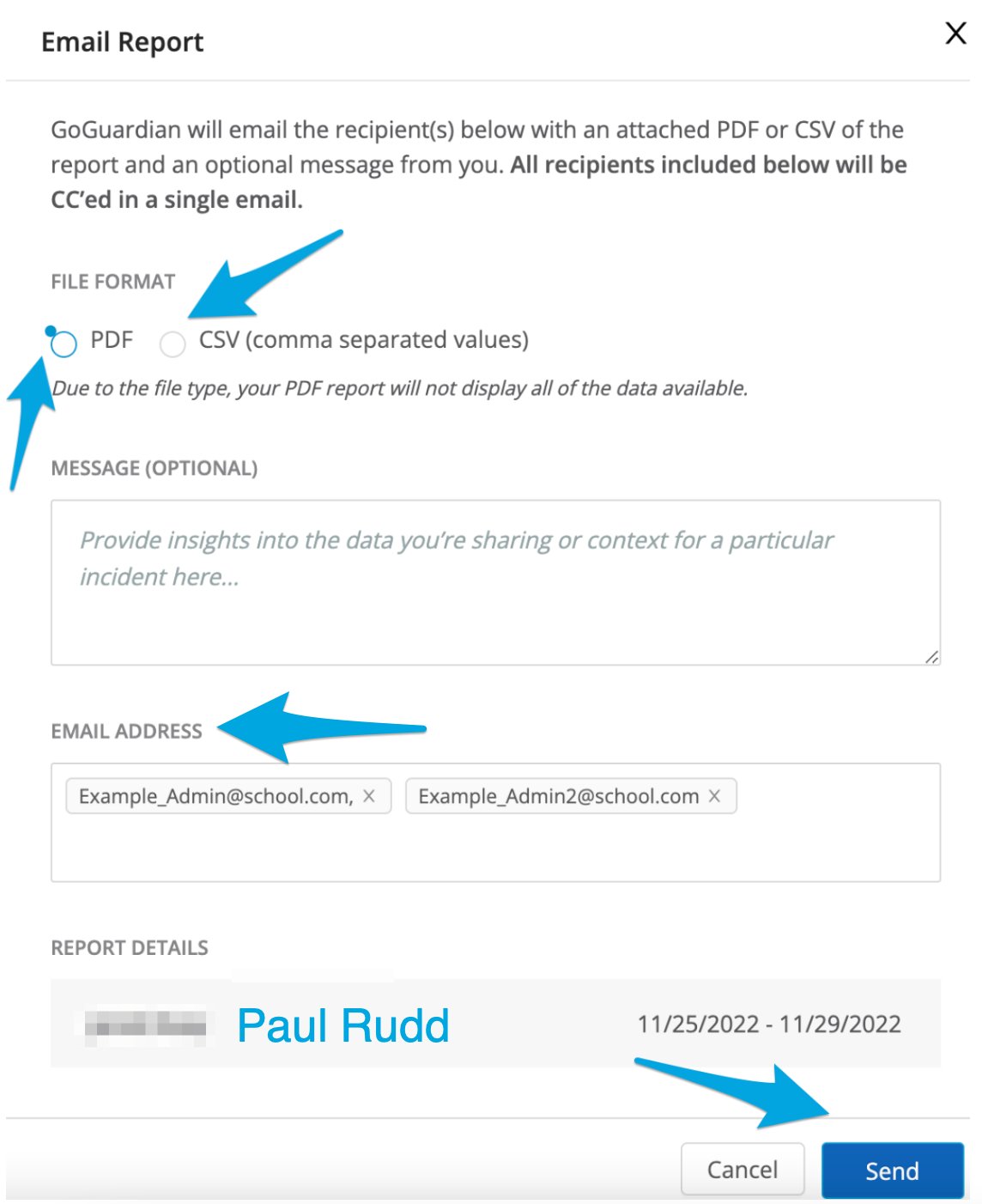
- In the Email Report dialog, select the PDF option.
- Enter one or more recipient email addresses, add an optional message, and click Send.
- Recipients receive an email from no-reply@goguardian.com with the subject line “GoGuardian Admin Student Browsing Activity Report for [student name].”
Export a CSV Browsing History
A CSV browsing history contains detailed event logs across six CSV documents:- Searches
- Flagged activity hostnames
- Google Docs
- Website browsing history
- YouTube videos
- Blocked content
Download a CSV to the Exported Reports Queue
- Go to GoGuardian Admin and open the student’s individual browsing page.
-
Select a date range from the date menu. CSV reports are available in the following increments:
- Last day
- Last 5 days
- Last 14 days
- Last month
- Last 3 months
- Last 6 months
- Click the dropdown menu at the top of the page.
- Select Export Detailed Browsing History.
- The report is added to the Exported Reports queue. Open the Exported Reports page in GoGuardian Admin to download the CSV file when it is ready.
Reports covering 3 or 6 months can take up to 6 hours to generate due to the volume of data included.
Email a CSV Report
- Go to GoGuardian Admin and open the student’s individual browsing page.
- Select a date range from the date menu.
- Click the dropdown menu at the top of the page.
- Select Email Report from the menu.
- In the Email Report dialog, select the CSV option.
- Enter one or more recipient email addresses, add an optional message, and click Send.
- Recipients receive an email from no-reply@goguardian.com with the subject line “Student CSVs.”
Understand Email Recipient Restrictions
Student reports can only be sent to email addresses within your organization. Recipients must be listed in Manage.goguardian.com and have GoGuardian Admin org unit access to the student. Reports cannot be sent to email addresses outside your organization.Resources
Review Browsing Activity
Filter, export, and investigate browsing activity data across your organization.
Review Exported Reports
Download and manage CSV reports in the Exported Reports queue.