

- Staff Notifications — Email and text message notifications can be disabled outside of school hours.
- Parent Notifications — When enabled, parents or guardians receive an email notification when an alert is generated outside of school hours. Guardian contact information is managed in Org Management.
- Student Messaging — Student messaging is disabled by default. When enabled, you can choose one of three options: Always, During School, or After School.
-
Go to
beacon.goguardian.comand sign in. Click Settings in the navigation menu, then select School Hours.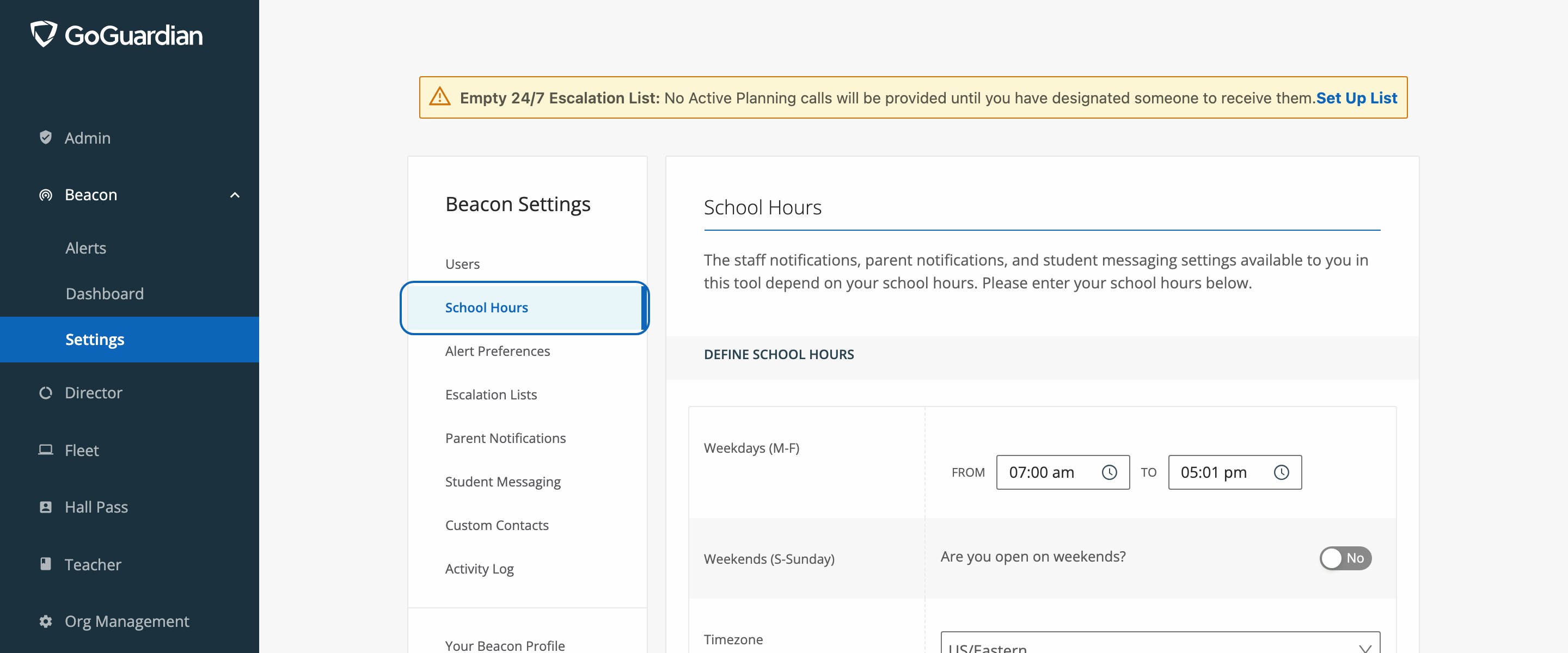
- Enter your start and end times for Monday through Friday under Weekdays (M–F).
- Under Weekends, turn on Are you open on weekends? and enter start and end times if your school operates on weekends.
- Choose the appropriate timezone from the Timezone dropdown.
- Click Save Changes.
Resources
Alert Preferences
Control which alert phases generate dashboard cards and notifications.
Configure Beacon Settings
Complete the full Beacon setup checklist.
Set Up Your Profile
Add your phone number and choose your notification format.
Schedule a Pause
Pause Beacon for a defined time period across all deployments.