

Enhanced Microsoft Outlook Monitoring requires Beacon Core or Beacon 24/7 licensing.
Enable Enhanced Outlook Monitoring
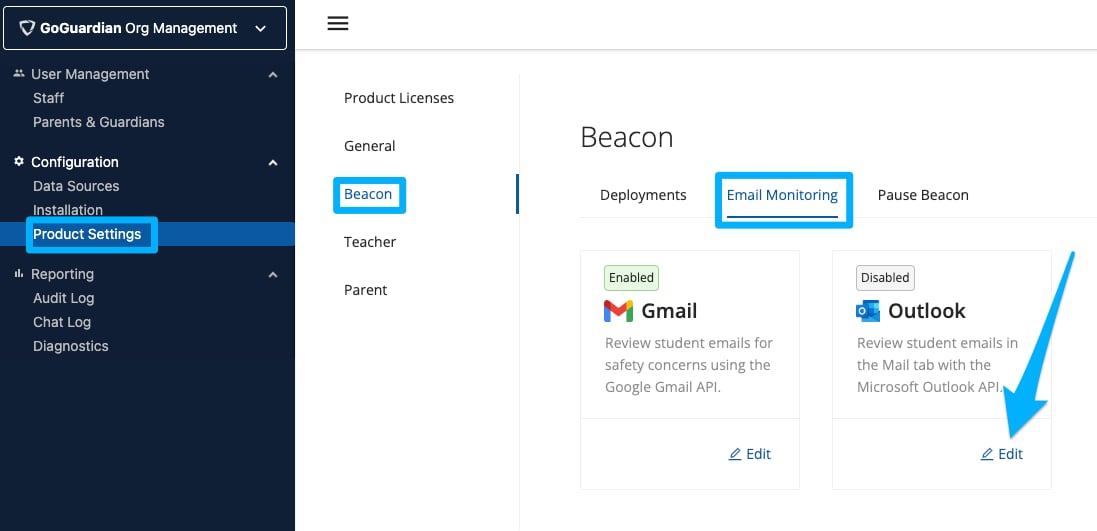
- Log in to Org Management at manage.goguardian.com as a Super User. Navigate to Configuration > Product Settings > Beacon > Email Monitoring. Click Edit under the Outlook option.
- Navigate to Microsoft Entra Admin Center with a Microsoft administrator account. Copy your Tenant ID from the Properties tab. Paste the Tenant ID into the field in Org Management and click Submit.
- Click the link with a URL customized for your Tenant ID, provided in Org Management. Sign in to your Microsoft account. Click Accept when prompted to grant GoGuardian Outlook API permission. Check the confirmation box once you have completed this step.
- Enter a user’s email address from your Microsoft tenant into the validation field. Click Start Validation. Confirm that you understand what enabling Outlook API for Beacon does.
- Toggle the Outlook API switch to ON to complete setup.



Resources
Enhanced Gmail Alert Cards
Understand alert cards generated from Gmail API-based monitoring.
Configure Beacon Settings
Review the full Beacon configuration checklist.
Alert Preferences
Configure which alert phases generate dashboard cards and notifications.
Initial Setup Checklist
Complete all Beacon setup steps before going live.