

Threats and Violence alerts are available on Beacon Core and 24/7 only.
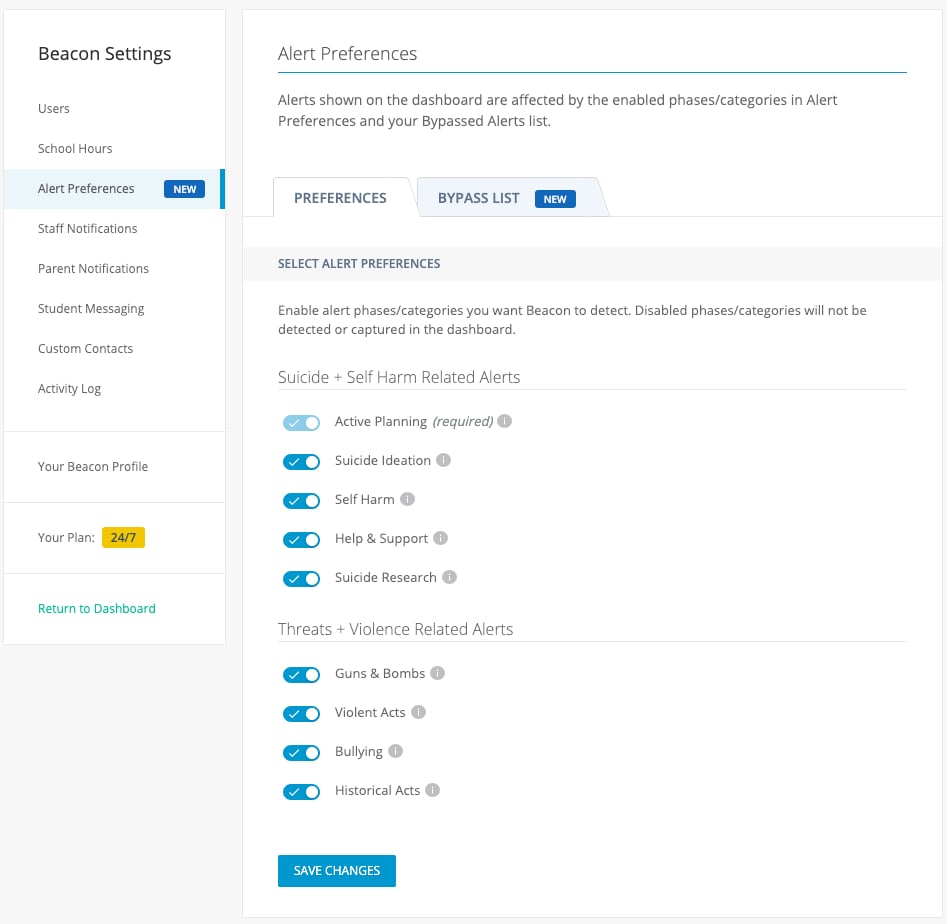
Enable Alert Categories
-
Go to
beacon.goguardian.comand sign in. - Click Settings in the navigation menu.
- Select Alert Preferences.
- Turn on the categories your staff should receive alert cards for.
- Click Save Changes at the bottom of the page.
Configure Staff Notifications for Categories
Enabling a category in Alert Preferences displays alert cards on the dashboard. To also send email and text notifications to staff, configure Staff Notifications separately.-
Go to
beacon.goguardian.comand sign in. - Click Settings in the navigation menu.
- Select Staff Notifications.
- Turn on the categories your staff should be notified about via email and text message.
- Scroll to the bottom of the page and click Save Changes.
Resources
Alert Categories
Review the definitions for all four Threats and Violence alert categories.
Alert Preferences
Configure which alert phases generate dashboard cards and notifications.
Configure Beacon Settings
Complete the full Beacon setup checklist.
Set Up Your Profile
Add your phone number and choose your notification format.