

Each OU can be part of only one deployment. There is no limit to the number of OUs in a single deployment. Update deployment configurations any time your OU structure changes.
Create a Deployment
Before creating a deployment, sync your OUs using the sync icon in the top-right corner of Org Management.
- As a SuperUser, go to manage.goguardian.com.
- Click Products in the main navigation.
- Select Beacon from the left sidebar.
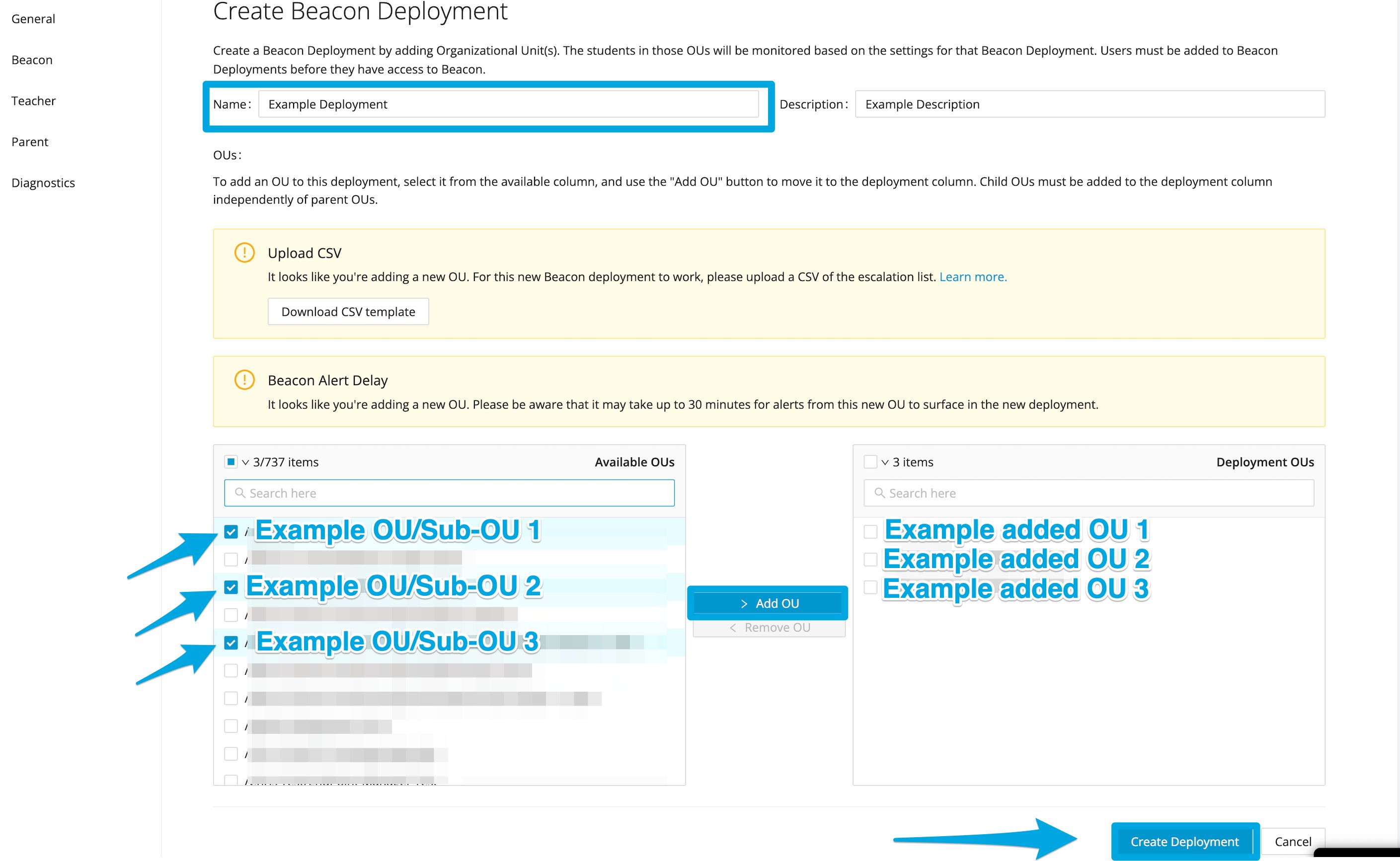
- Click Create Deployment.
- Enter a name (required) and an optional description for the deployment.
- Click the OUs search field in the Available OUs tile. Filter and select the OUs you want to include in this deployment.
- Click Add OU to move each selected OU into the Deployment OUs tile. Repeat for all OUs you want to include.
- Click Create Deployment. Newly added OUs may take up to 30 minutes to surface alerts.
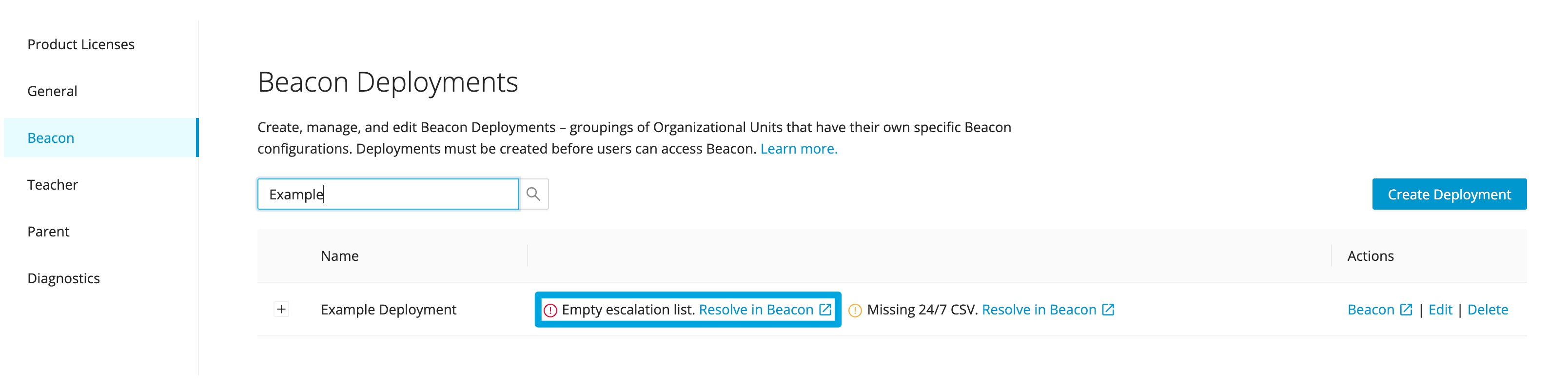
- After creation, an empty escalation list notification will appear. Click the Resolve in Beacon link to go to the Deployment settings page and configure the Escalation List.
Resources
Initial Setup Checklist
Complete the full Beacon Starter setup in the recommended order.
Beacon Glossary
Definitions for deployments, escalation lists, roles, and alert phases.
Install GoGuardian Extensions
Install the GoGuardian Extensions before creating your first deployment.
About GoGuardian Beacon
Overview of Beacon and how it supports student safety programs.