

Understand Grouping Criteria
Beacon groups alerts together when all of the following conditions are met:- Generated from the same URL
- Triggered the same predicted phase
- Occurred within a 15-minute window
Gmail and email inbox alerts may not be grouped due to technical complexities with determining similarity across a user’s inbox.
Review Grouped Alert Views
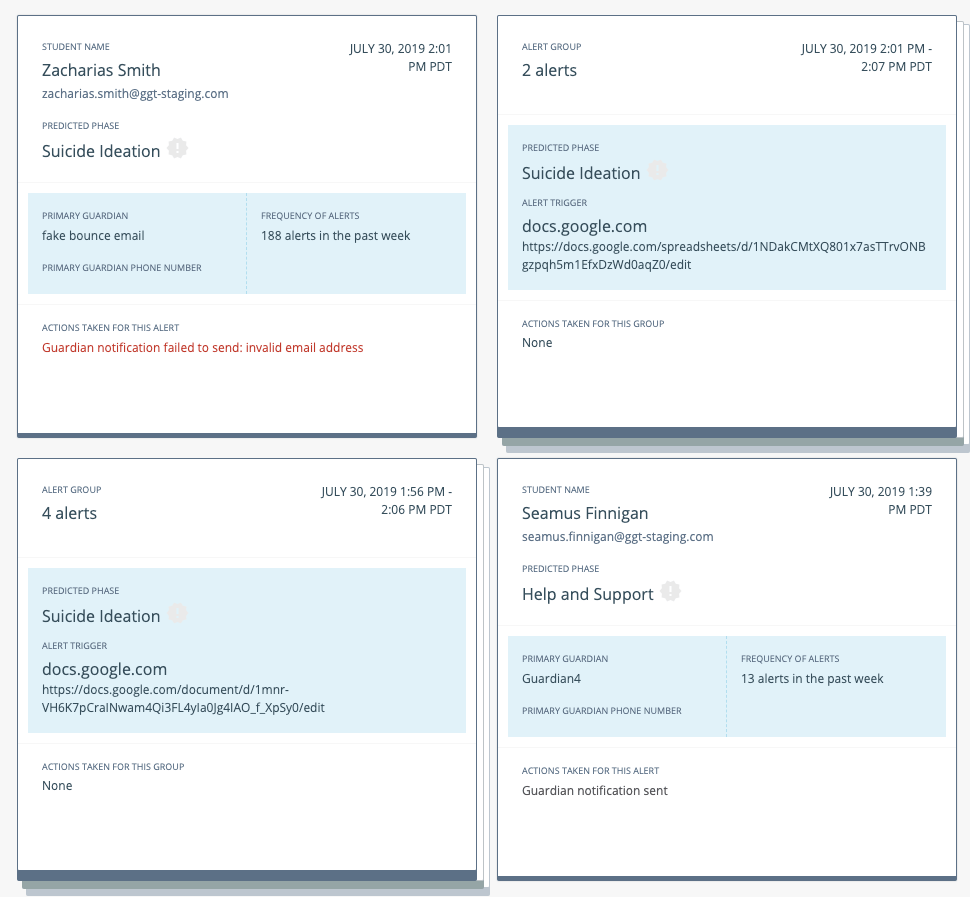
Grouped alerts appear consistently across all areas of the Beacon interface.Dashboard
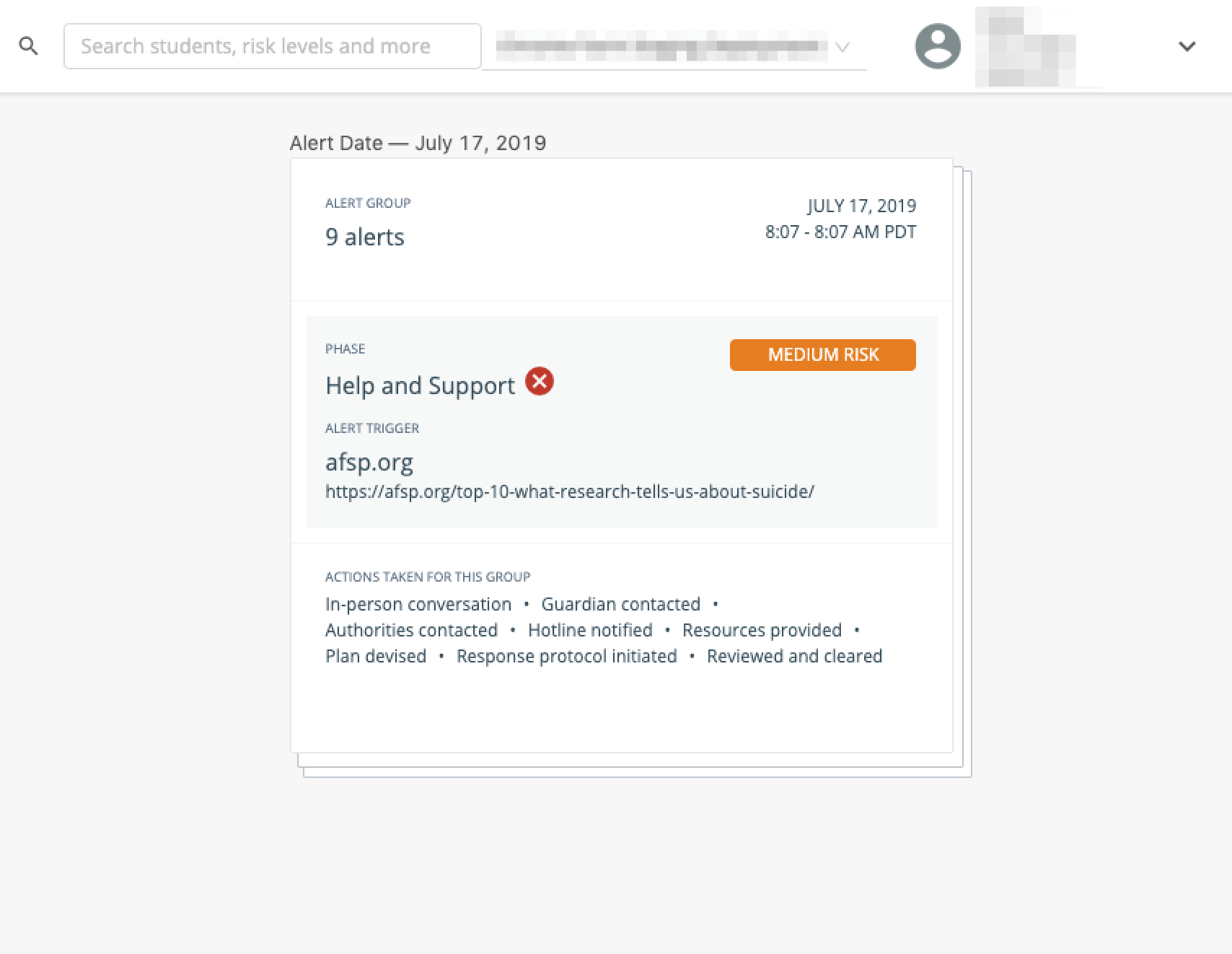
A grouped alert appears as a stack of cards in the Beacon dashboard. The card displays the phase, actions taken, and risk level for the entire group. It also shows the alert trigger (domain and full URL) and the time window over which the group was formed. Clicking a grouped alert card opens the detailed view.Search Results
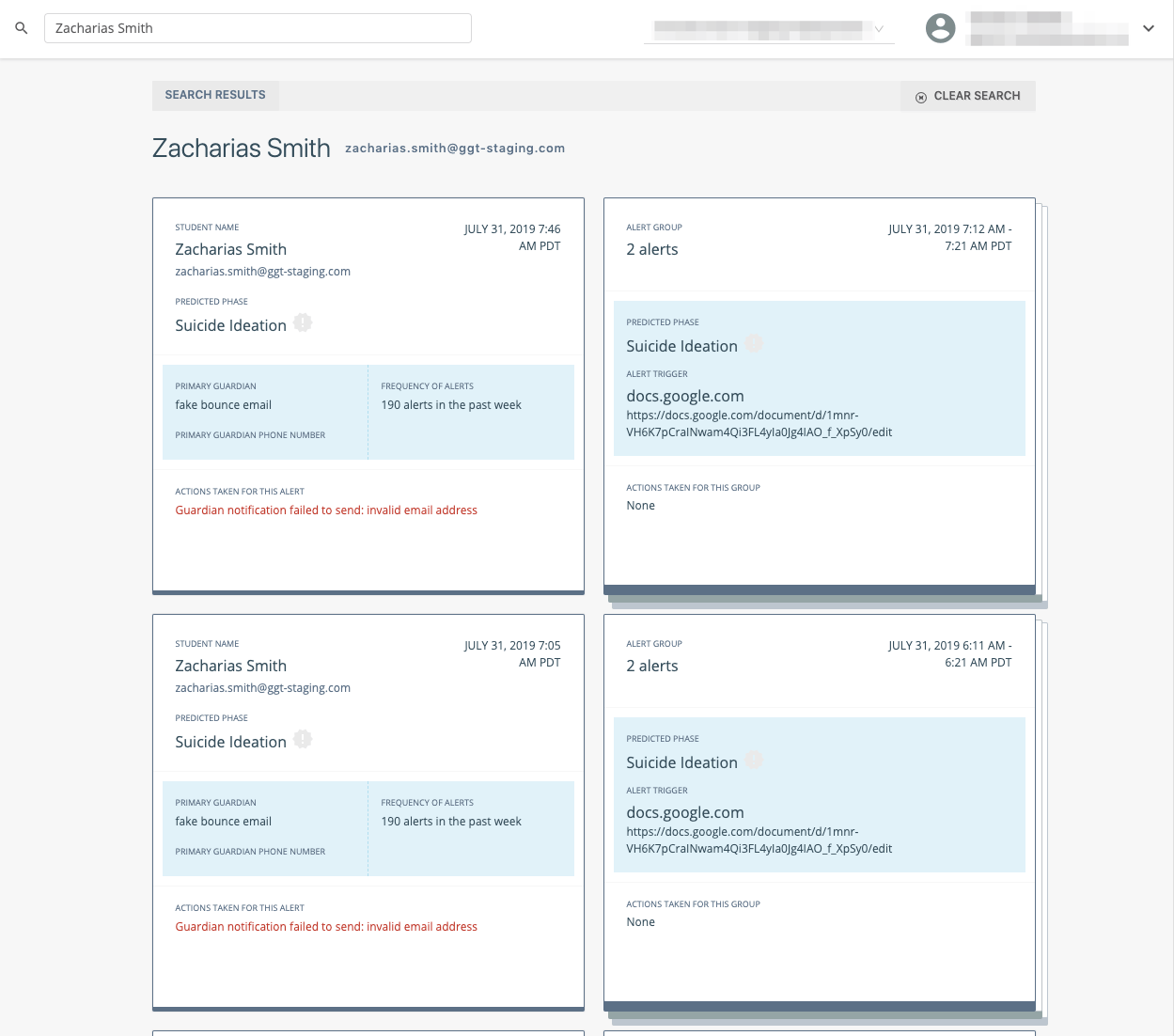
Searching by student name, risk level, phase, or any other criteria surfaces grouped alerts alongside individual alerts. Clicking a result in search opens the detail drawer.Quick View
Quick view uses the stacked card display to distinguish grouped alerts from individual alerts.Detailed View
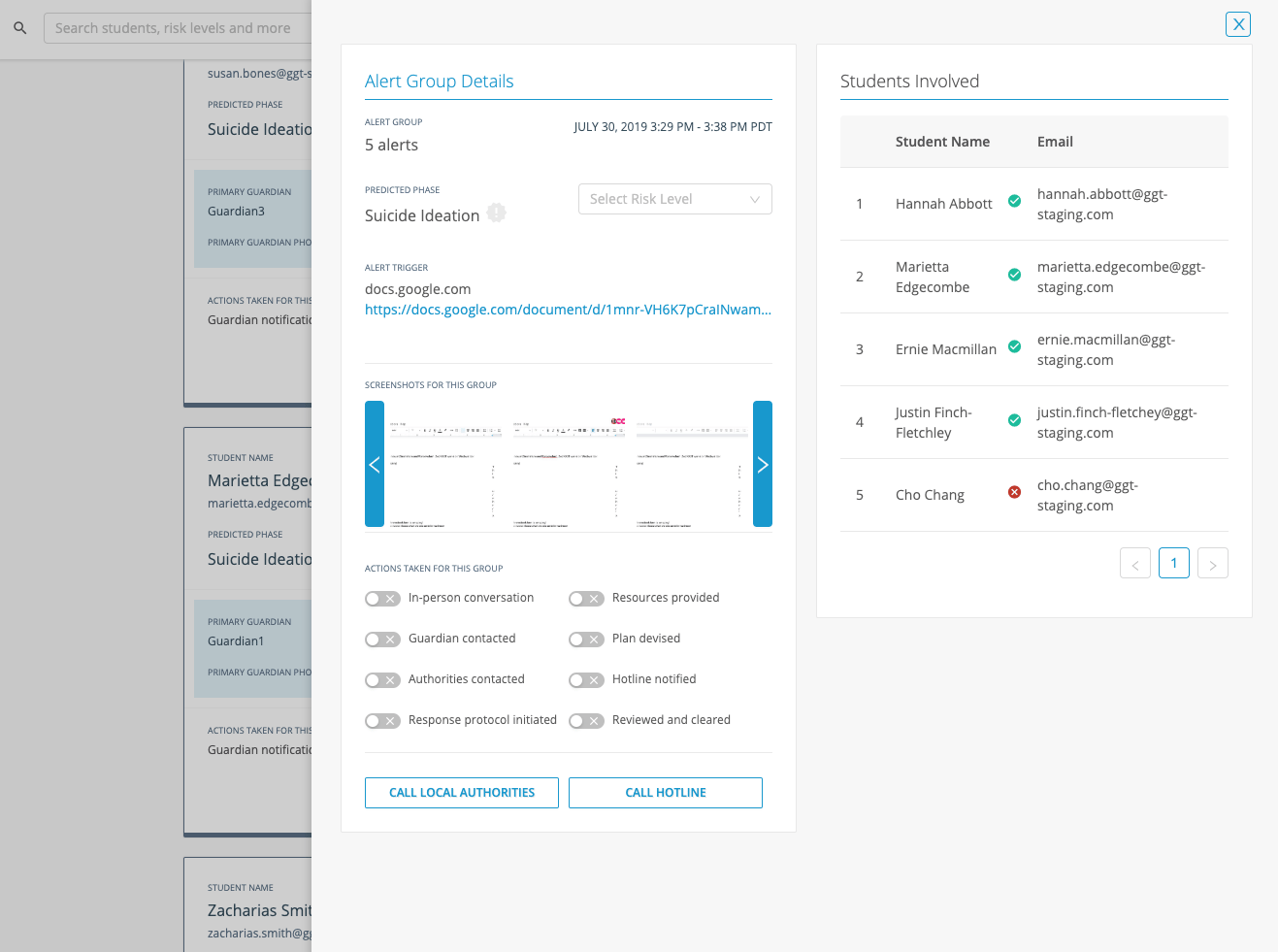
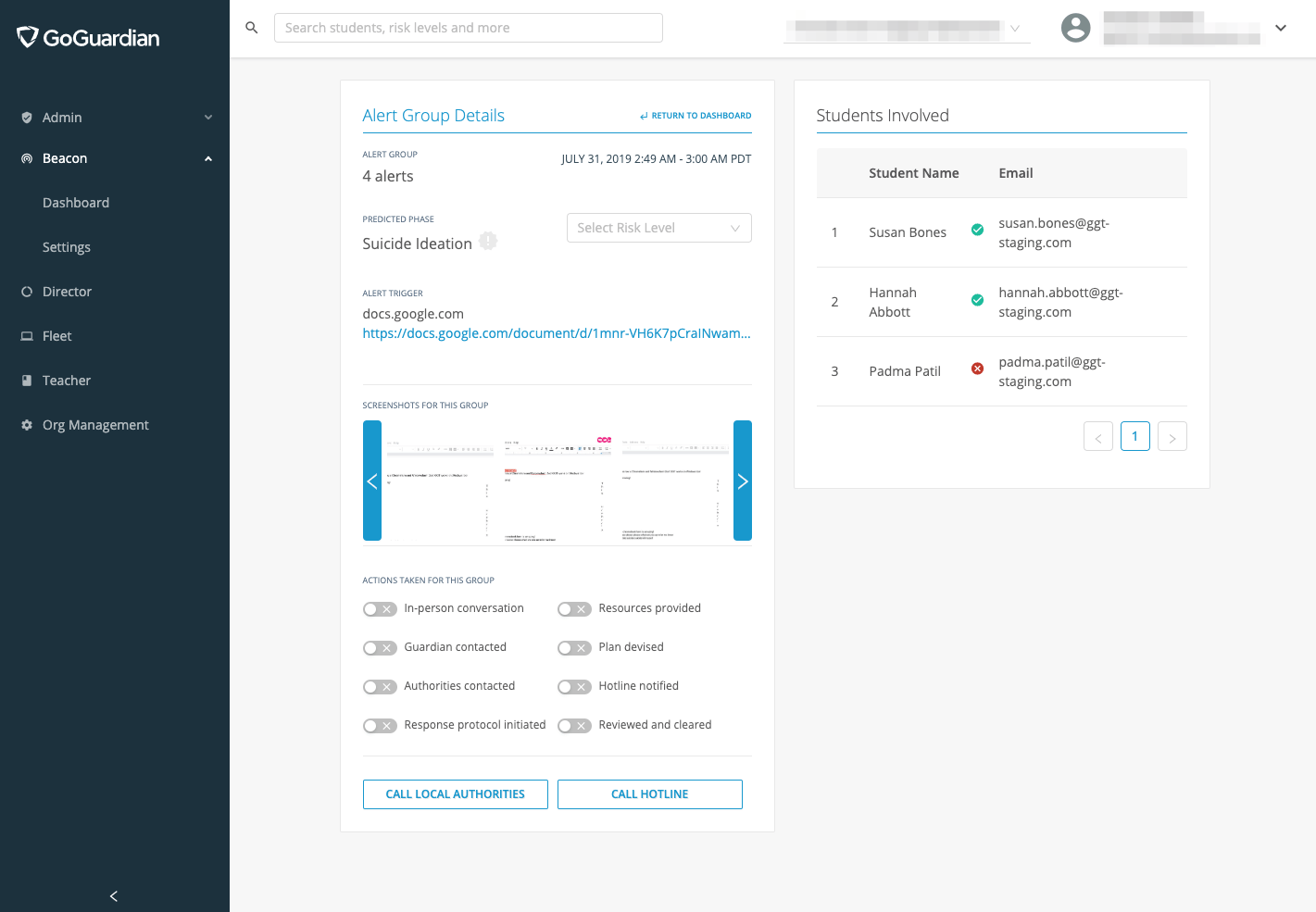
The detailed view for a group allows you to evaluate and act on the entire group in one place.- A carousel displays every screenshot associated with the individual alerts in the group.
- A unique list of all students involved appears in the view.
- Clicking a screenshot in the carousel expands it to show additional details, including a timestamp and the associated student.

Resources
Review a Beacon 24/7 Alert
Step-by-step instructions for accessing and resolving alerts.
Alert Phases
Descriptions of each alert phase detected by Beacon.
Risk Levels
How to assign and interpret risk levels on alert cards.
Dashboard Overview
Overview of the Beacon alerts dashboard.