

Prepare the App Catalog
- Go to Discover and select App Catalog.
- Apply the filters you want the Shared View to use, including Grade Levels when you want to limit the view to selected grade levels.
- Set the date range.
- Confirm that the App Catalog shows the apps you want to share.
Create a Shared View
- From App Catalog, click Create Shared View.
- Enter a Shared View Name.
- Enter a Public Description. This description appears to people who open the Shared View. Include the filtered scope when viewers need that context.
- Optionally, enter an Internal Description. Only Discover users who can manage Shared Views see this description.
- If the captured date range ends today, choose how the date range behaves:
- Fixed date range: Keeps the original start and end dates.
- Rolling date range: Moves the range forward over time while keeping the same duration.
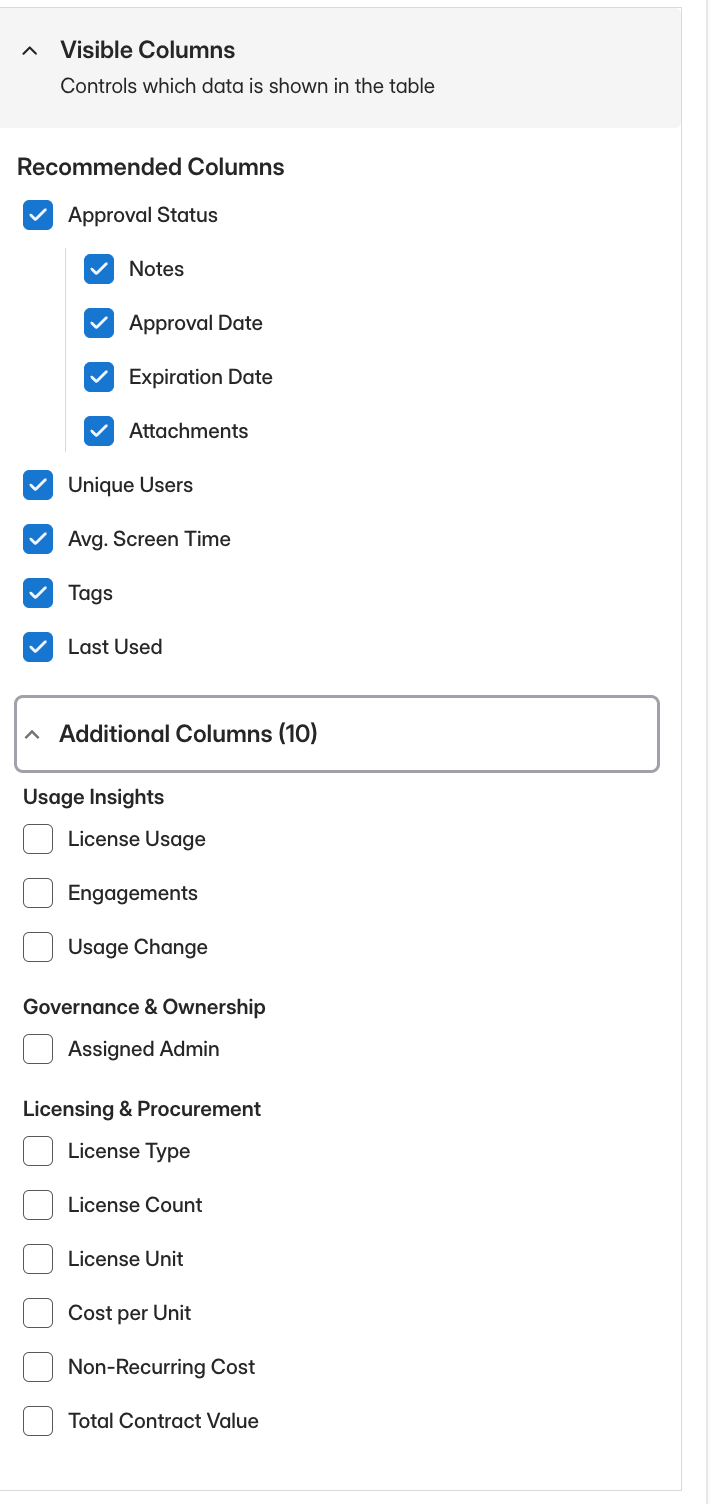
- Choose the columns to display.
- Finish creating the Shared View.
- Verify the result: Discover creates the view as Public, displays a toast with a copyable link, and adds the view to the top of the Shared Views table.
Choose Visible Columns
Turn each column on or off based on what the intended audience needs.Review Recommended Columns
- Approval Status
- Notes
- Approval Date
- Expiration Date
- Attachments
- Unique Users
- Avg. Screen Time
- Tags
- Last Used
Review Additional Columns
Understand Public and Private Access
Changing a Public view to Private immediately deactivates its link. Changing the view back to Public reactivates the same link.
Shared View links do not expire automatically. To replace a link, regenerate its URL or delete the view.
Manage Shared Views
Go to Shared Views to manage the organization’s views. Any Discover user with Shared Views: Edit/View can manage every view in the table, regardless of who created it. From the view or its actions menu, you can:- Edit its name, descriptions, date-range behavior, and visible columns
- Duplicate it
- Change its access mode between Public and Private
- Copy its link
- Regenerate its URL
- Delete it
Duplicate a View
Duplicating creates a separate Shared View with a new URL. The copy keeps the source view’s Public or Private access mode and configuration. You can then edit the copy without changing the original.Regenerate a URL
Use Regenerate URL from the view’s actions menu when you need to replace a distributed link. Regenerating a URL:- Immediately invalidates the old URL
- Creates a new URL for the same Shared View
- Preserves the view’s access mode, filters, columns, name, and descriptions
Delete a View
Deleting a Shared View permanently invalidates its URL. Create a new view if you need to share the configuration again later.Understand the Viewer Experience
A person opening a Public Shared View can:- Search within the displayed apps
- Sort the displayed columns
- Move between pages
- Download approval attachments when Attachments is included
- Change the captured filters
- Change the date range
- Turn columns on or off
- Export the displayed data
Use the Approved Apps View
Discover automatically provides an Approved Apps Shared View for the organization. Authorized users can manage it from the Shared Views table like other organization-owned views. Review its configuration and access mode before distributing its link.Troubleshoot an Unavailable Shared View
If a Public view displays Shared View Unavailable, traffic may be temporarily higher than usual. Refresh the page after a few minutes. If the link continues to be unavailable, ask a Discover user with Shared Views: Edit/View access to confirm that:- The view still exists
- Its access mode is Public
- The URL has not been regenerated