Apply Filters in Test Library
The Test library houses all prebuilt assessments shared by your Pear Assessment community and the primary copy of assessments you have created.Select Relevant Filters
- Click Test in the navigation menu.
-
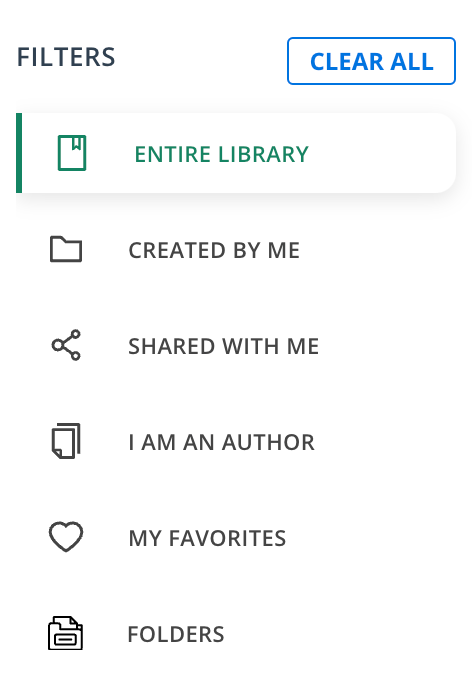
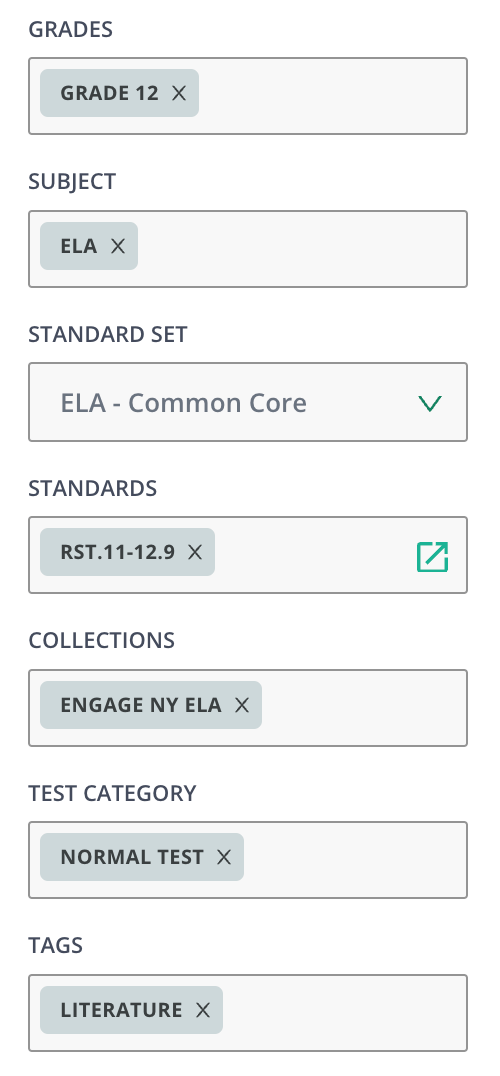
The filter panel is found next to the navigation menu and offers the following options:
- Search — Enter keywords and skills to narrow your scope.
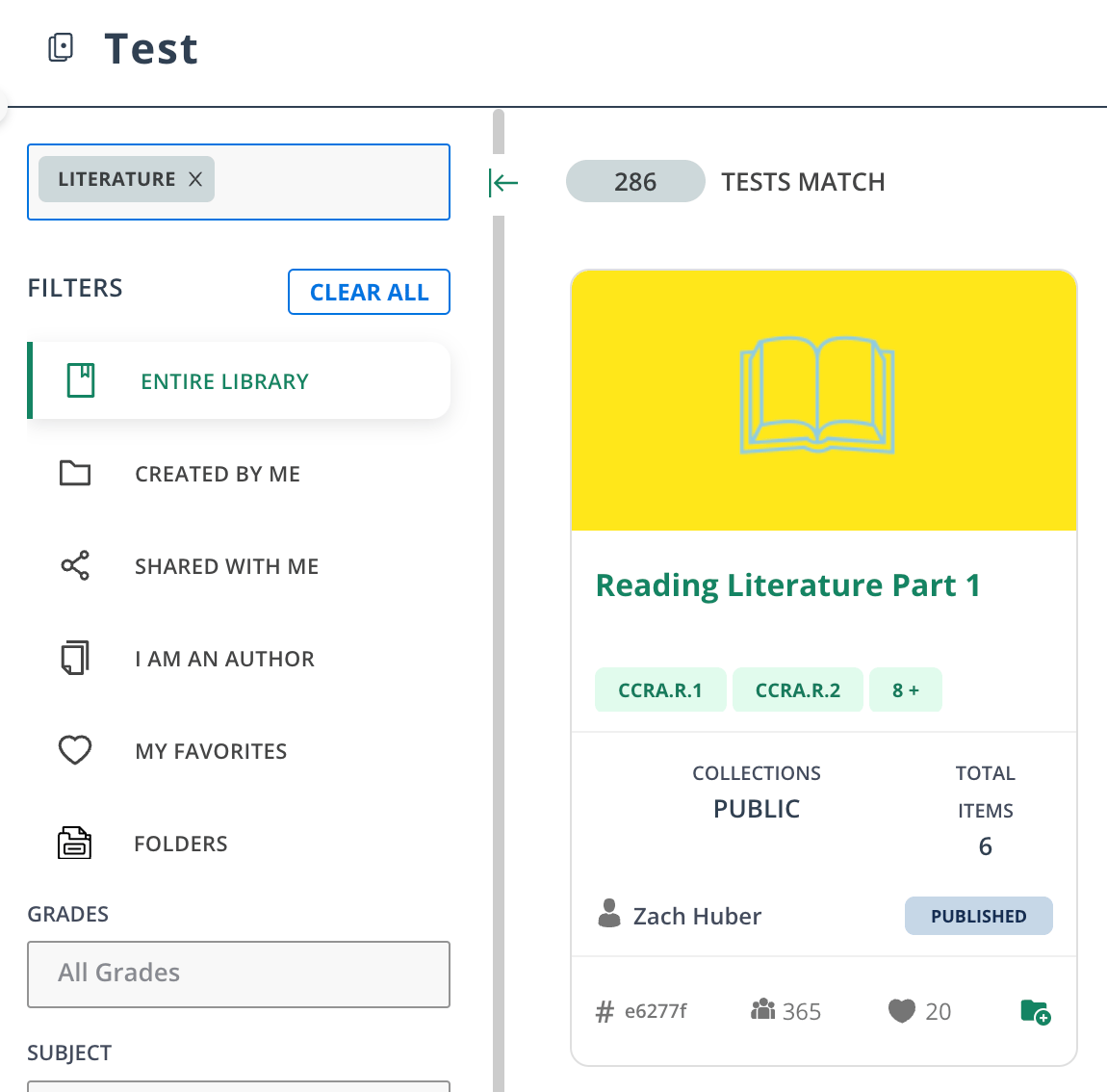
- Entire Library — All tests created by the Pear Assessment community.
- Created By Me
- Shared With Me — Shared with you by fellow teachers in the district or school.
- I Am An Author
- My Favorites — Saved tests from previous searches.
- Folders — Tests saved in folders.
- Grades
- Subject
- Standard Set
- Standards
- Collections
- Test Category
- Tags