

Change Item Type in Edit Mode
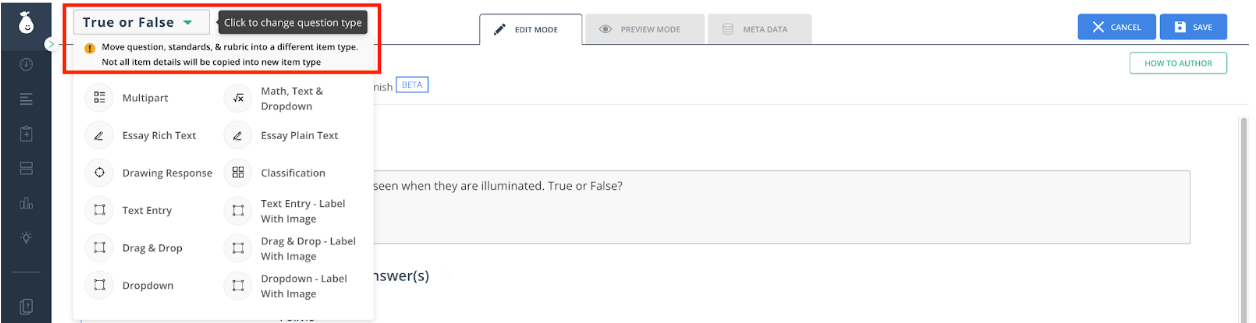
- When editing an item, click the dropdown in the top left corner of the screen to show all available item type options.
- Select the new item type. Once the item type changes, edit and update the item as needed.
- Click Save to save the item and the test.
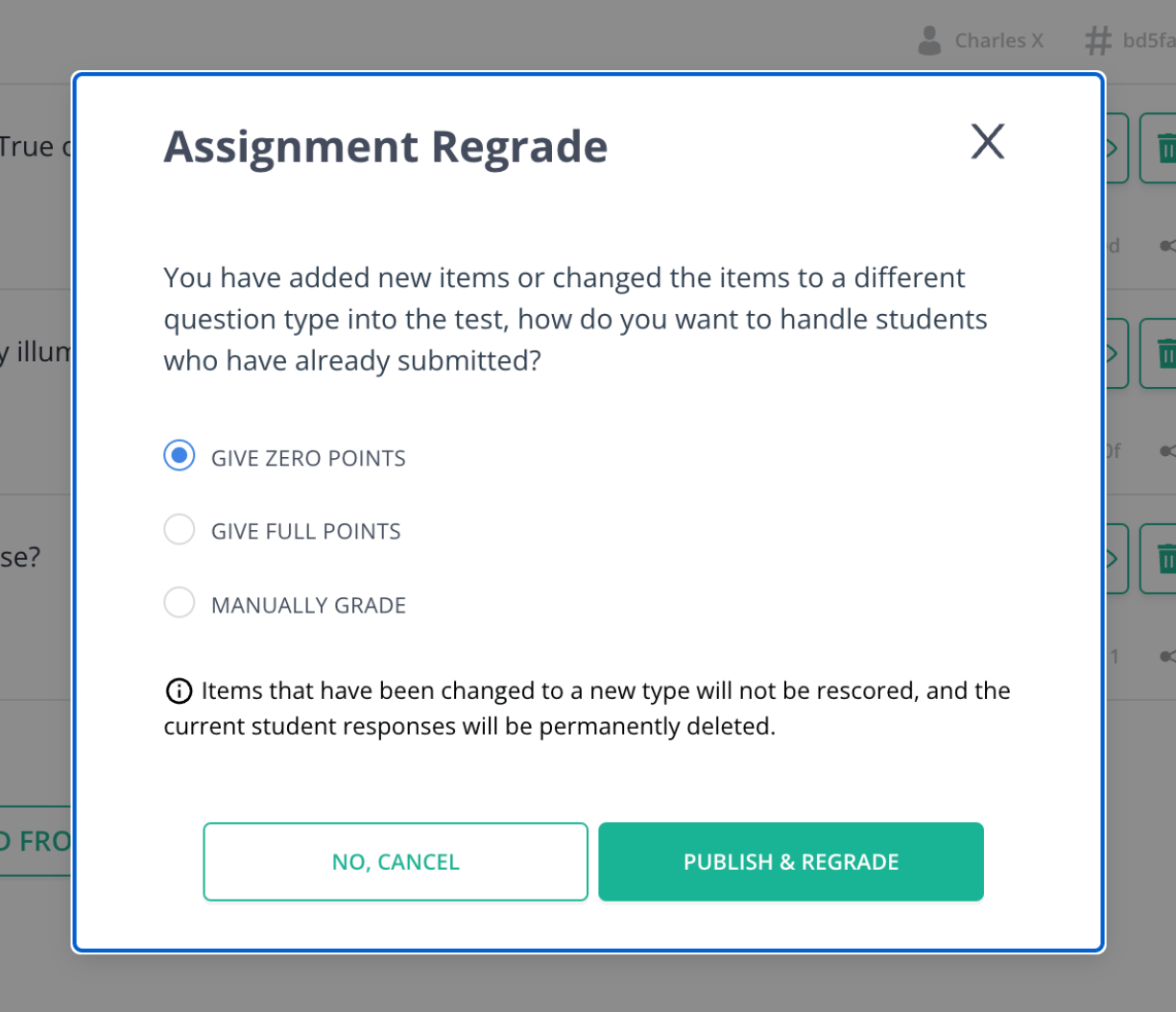
When editing an assigned test, follow the proper process to make edits to a test that has already been assigned. Once the edits are made to the item, regrading options will be available.
FAQ
Can I Change My Item to Any Item Type?
No. You can only change an item type to the following options:- Multipart (for single part)
- Essay Rich text
- Essay plain text
- Drawing Response
- Classification
- Math, text and dropdown
- Text entry
- Drag and Drop
- Dropdown
- Text Entry label with image
- Drag and drop label with image
- Drop down label with image
Will I Have to Add Back My Standards?
No. Changing the item type preserves the rubric, metadata, and solution.Will My Dynamic Parameters Carry Over to the New Item?
No. The correct answer block, dynamic parameter, UI settings, and question-specific settings will not carry over when the item type is updated.Resources
Edit and Regrade an Assigned Test
Follow the correct process to edit a test that has already been assigned and apply regrading options.
Create Questions in the Item Bank
Learn how to create and manage questions directly in the item bank.
Create Each Item Type
Step-by-step guidance for creating every available item type in Pear Assessment.