

Teachers cannot reset passwords for students who belong to multiple districts. Contact Pear Assessment Support for assistance with multi-district accounts.
Use Forgot Password on the Sign-In Screen
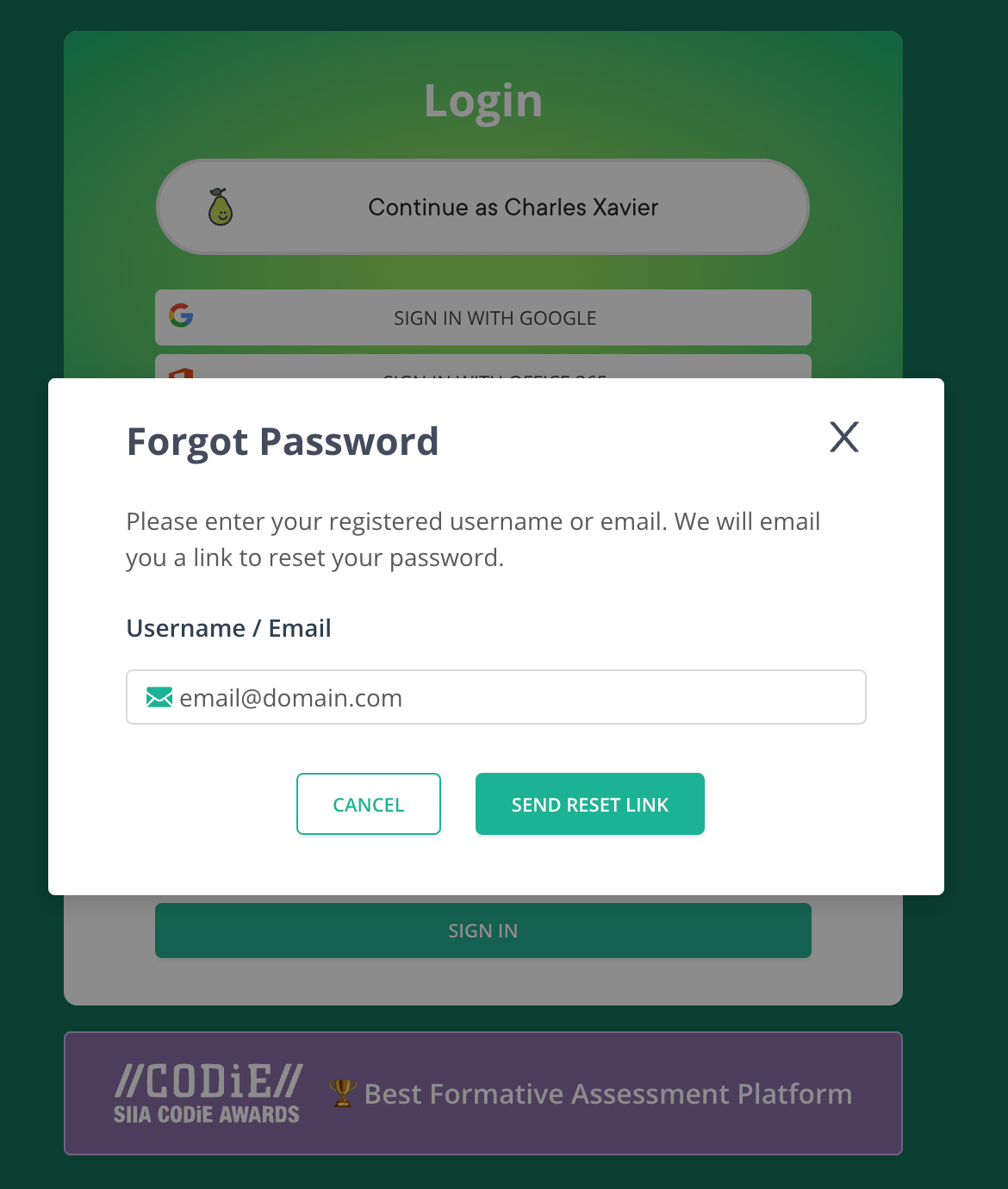
Users who sign in with a username or email address (not Google) can reset their own password from the Pear Assessment sign-in page.- Go to assessment.peardeck.com/sign-in in any browser.
- Select Forgot Password.
- Enter your registered username or email address.
- Check your email for the password reset link and follow the instructions.
Reset a Student’s Password as a Teacher
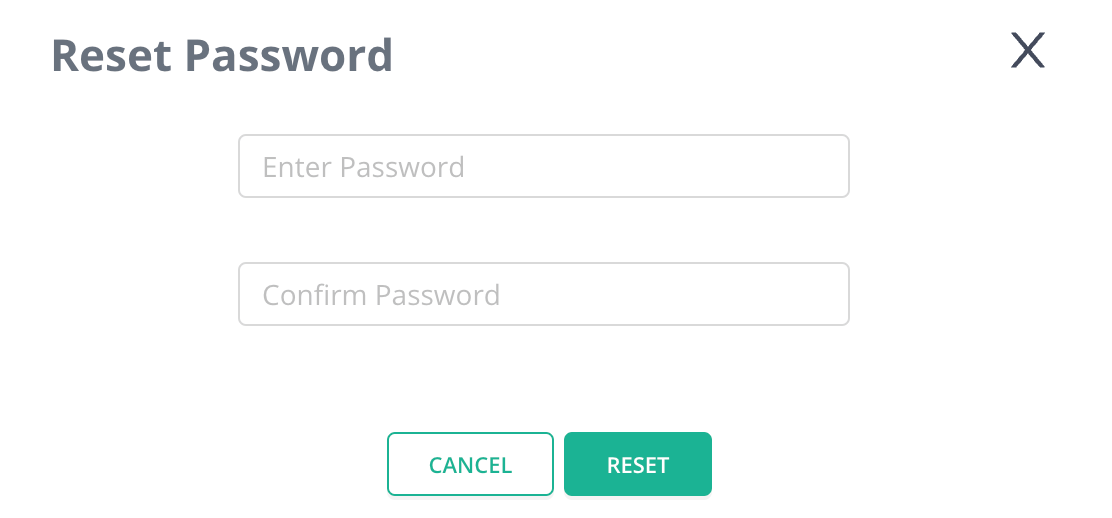
Teachers can set a new password for any student in their class, as long as the student belongs to only one district.- Select Manage Class in the navigation menu.
- Click a class name.
- Select the checkbox next to the student’s name.
- Select Actions > Reset Password.
- Enter the new password.
- Re-enter the new password to confirm.
- Click Reset.

Change Your Password in Your Profile
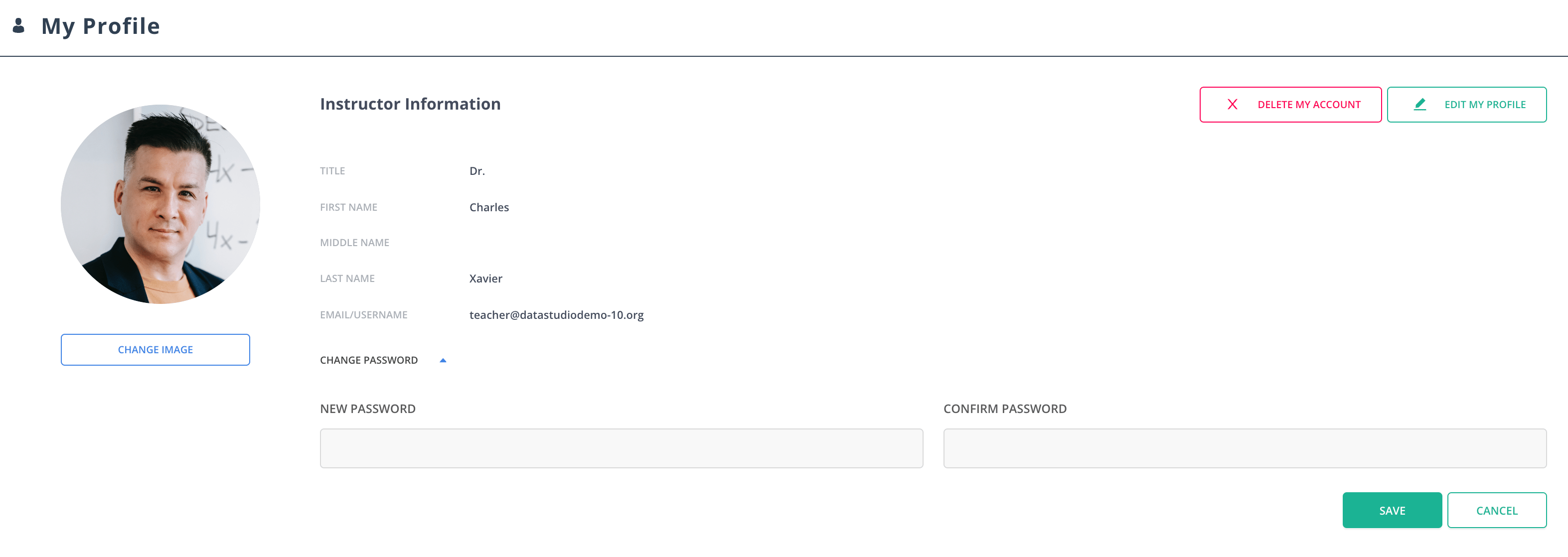
Any user can update their password at any time from their account profile.- Sign in to Pear Assessment.
- Select My Profile > Change Password.
- Enter and confirm your new password, then save.
Resources
Pear Assessment Overview
Learn about Pear Assessment features and how to get started.
Manage Classes
Add students, organize rosters, and manage class settings.