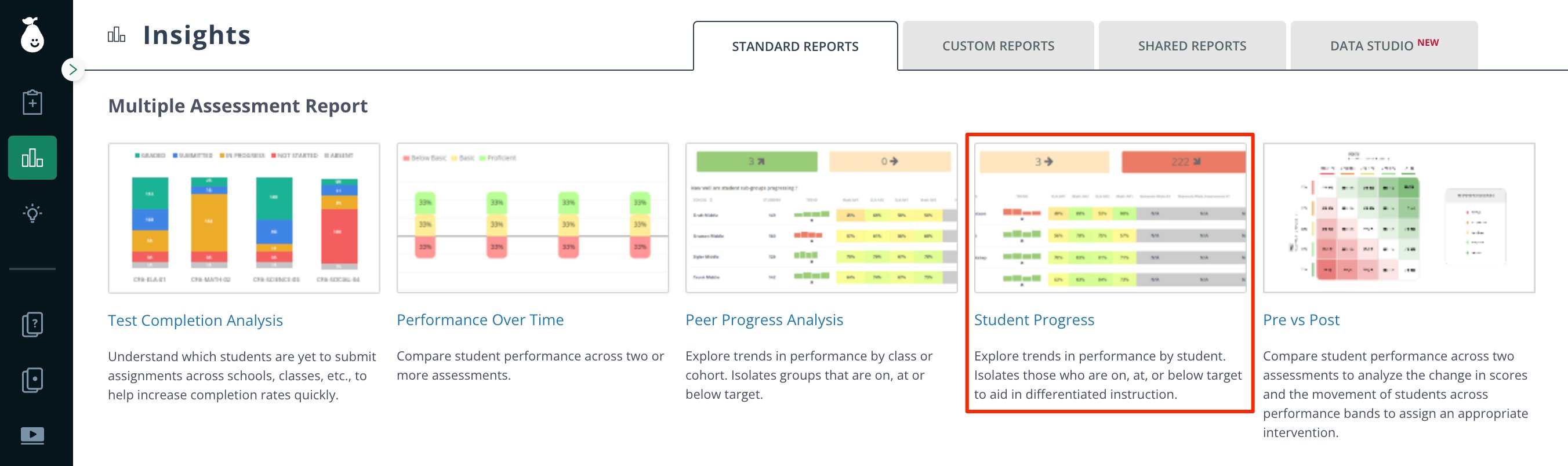
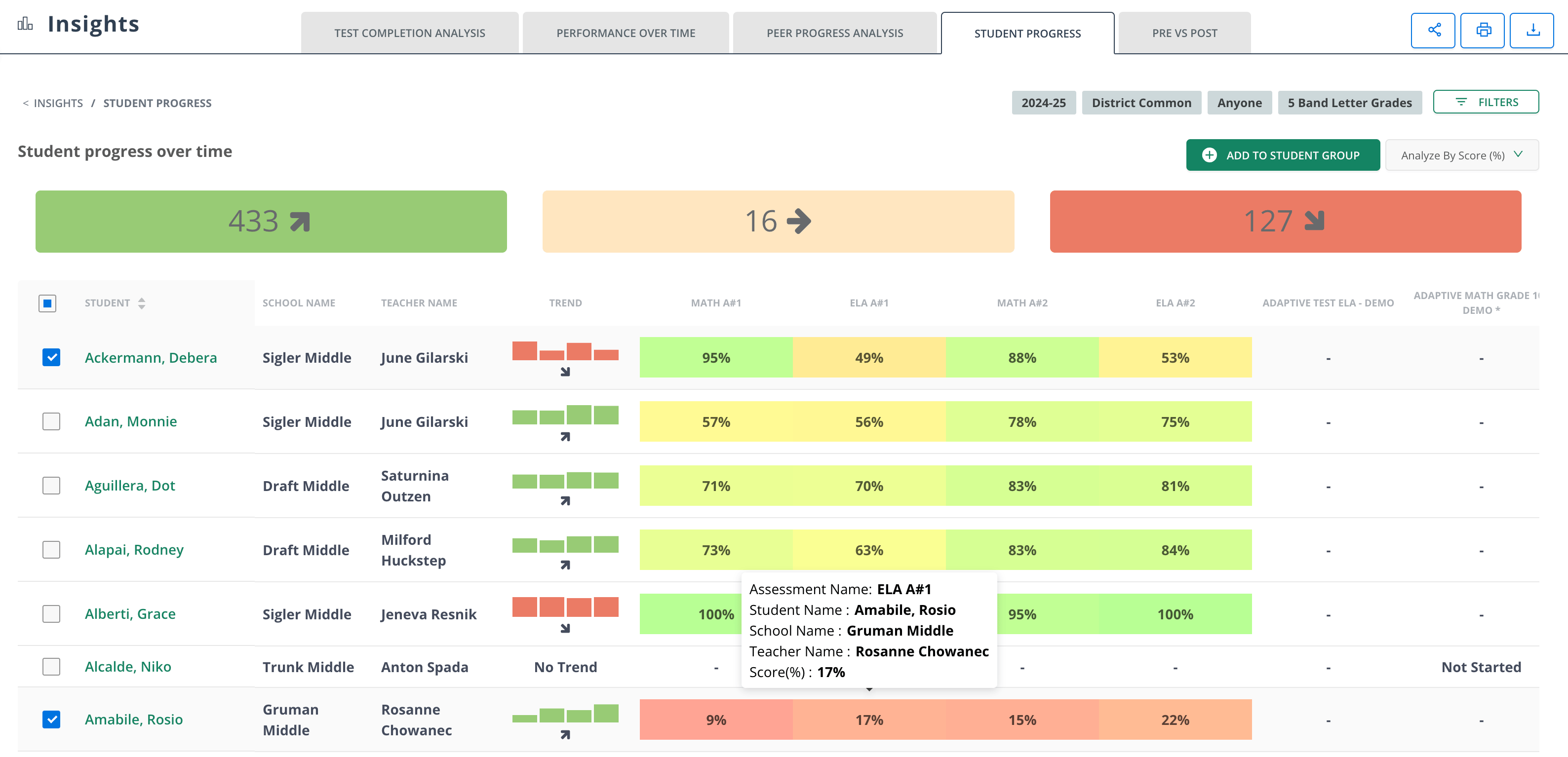
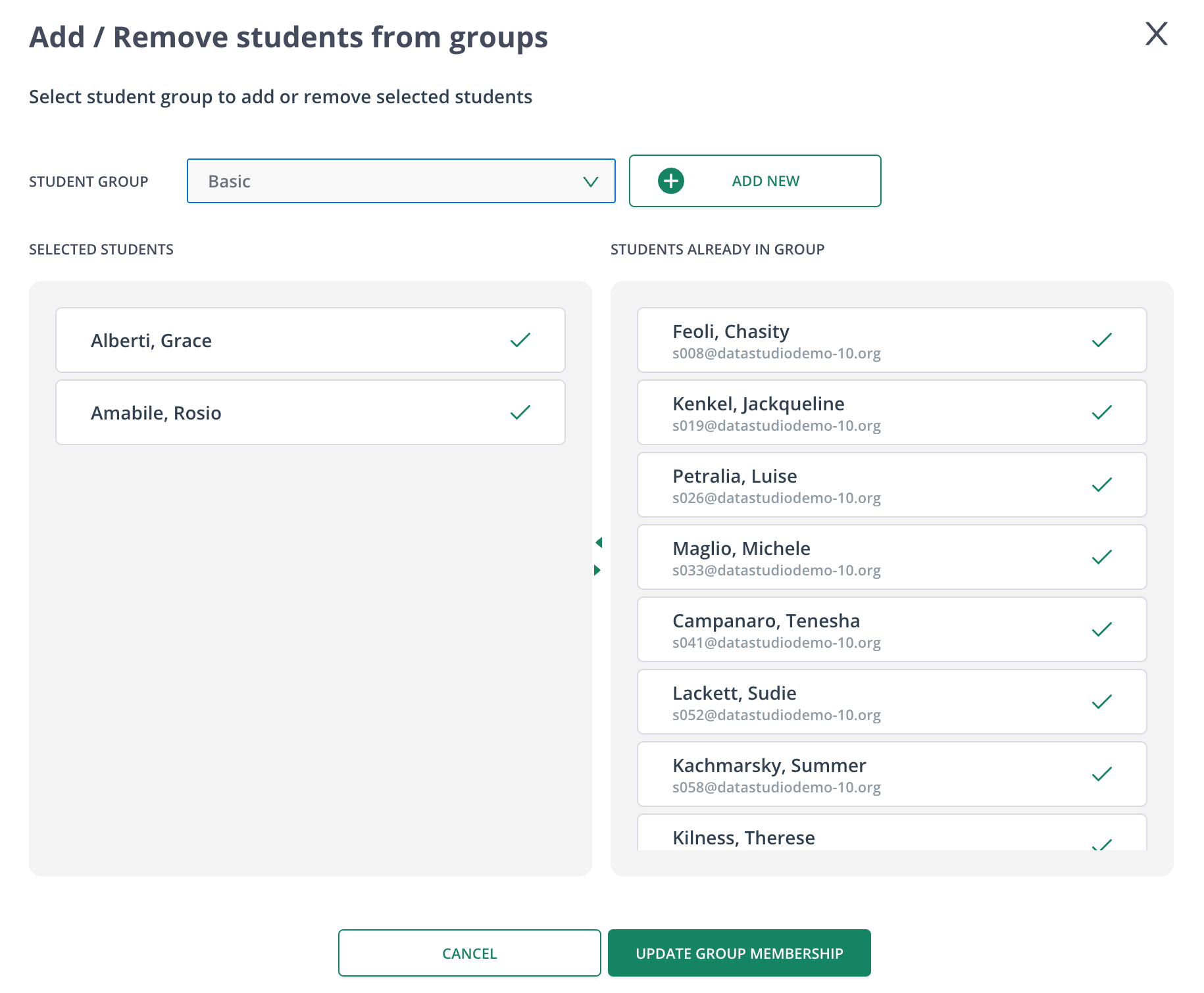
Review each student’s performance across multiple assessments, change how results are analyzed, and add selected students to a student group.
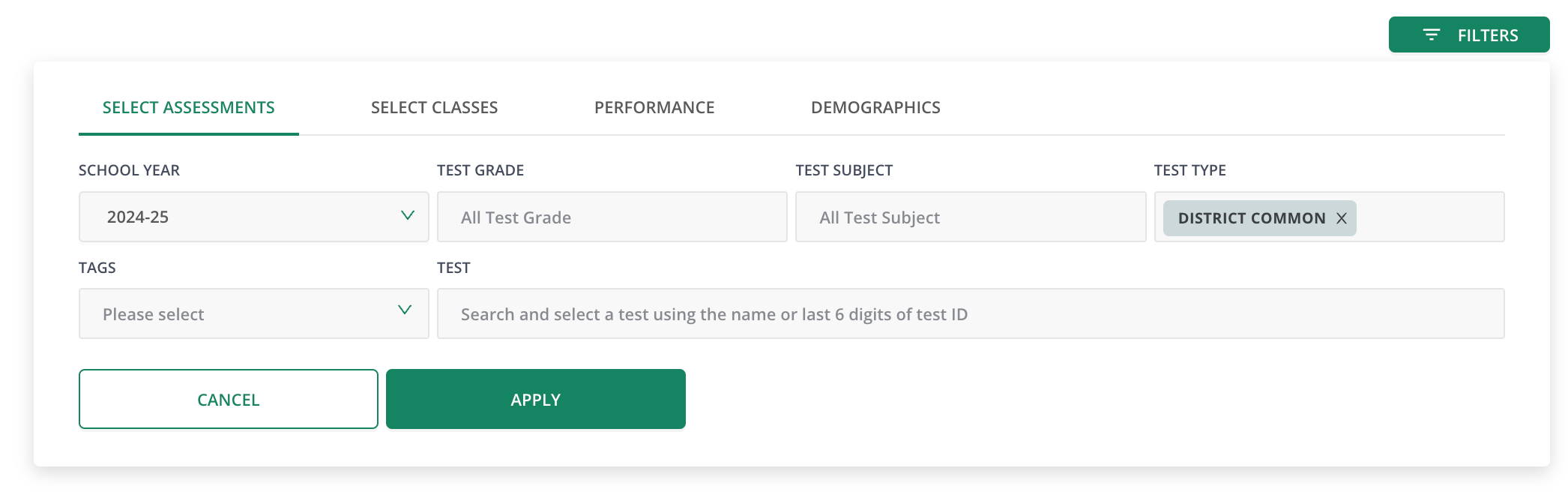
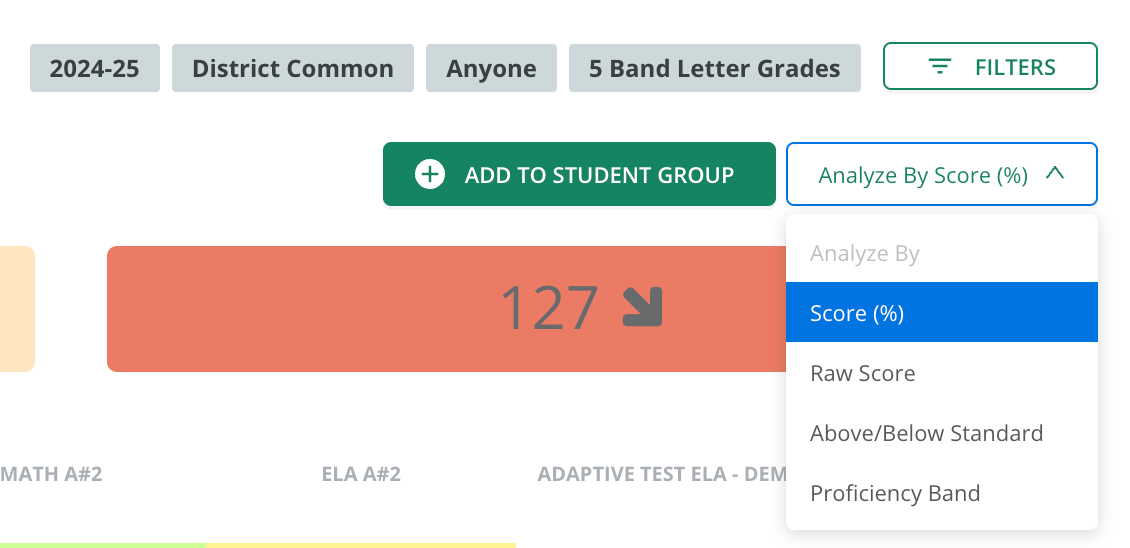
Use the Student Progress report in Pear Assessment to review each student’s performance across multiple assessments. You can filter the results, compare score measures, download the table as a CSV file, and add selected students to a student group.
The Student Progress report is part of the Multiple Assessment Report, which is available with Teacher Premium or Enterprise subscriptions.Report data can take about 1 hour to appear. The report includes students who submitted an assessment or were marked absent. Students with ungraded constructed responses also appear.
Confirm that the report displays the selected assessments and classes using your chosen Analyze By measure. If you updated a student group, open that group and confirm that the selected students appear as members.