Chromebook
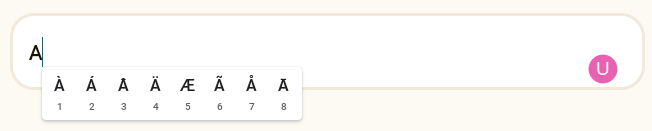
Chromebooks include a built-in keyboard languages and accents menu.- Hold the letter key on your keyboard.
- A popup shows the available accent marks for that letter, each numbered.
- Press the number that matches the accent mark you want.
Apple Devices
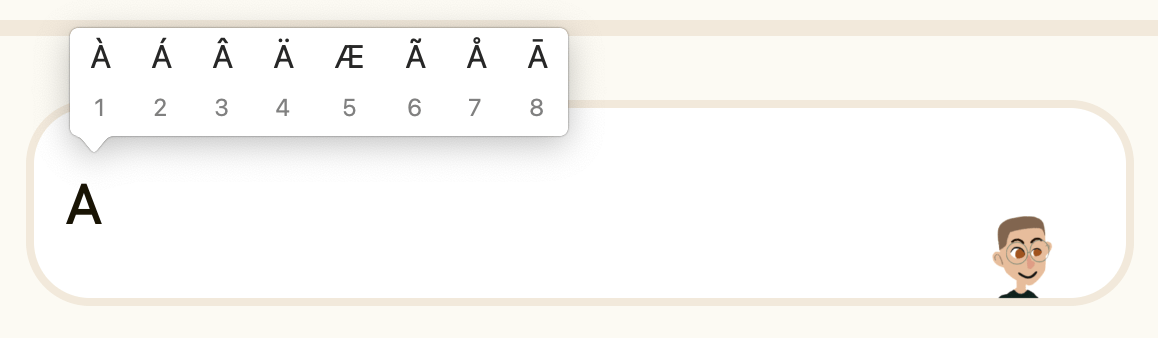
Apple devices use the same hold-and-select method as Chromebook. You can also add language-specific virtual keyboards. Hold-and-select method (macOS, iPadOS, and iOS):- Hold the letter key on your keyboard or on-screen keyboard.
- A popup shows the available accent marks for that letter.
- Press the number or tap the accent mark you want.
Windows
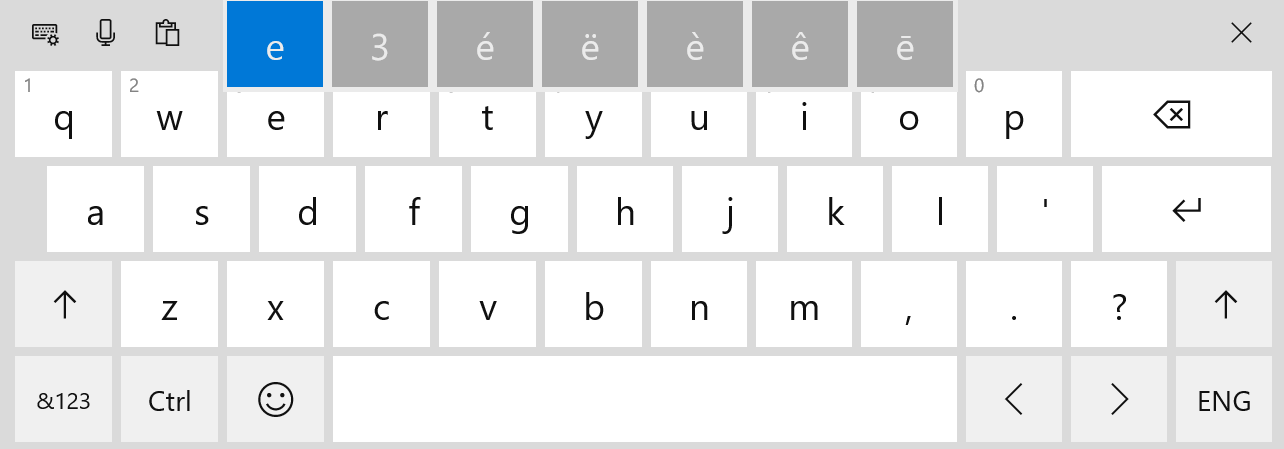
Windows supports accent marks through CTRL-key combinations and through the touch keyboard. CTRL keyboard shortcuts: See Microsoft’s keyboard shortcuts for international characters for the full list. Touch keyboard method:- Enable the touch keyboard on your taskbar. On Windows 10, right-click the taskbar and select Show Touch Keyboard Button. On Windows 11, open Taskbar Settings and turn on Touch Keyboard.
- Click the touch keyboard icon in the taskbar to open the virtual keyboard.
- Hold a letter key on your physical keyboard to display its available accent marks on the touch keyboard.
- Click the accent mark you want to insert.
The path to enable the touch keyboard changed in some Windows 11 builds. If right-clicking the taskbar does not show a Show Touch Keyboard Button option, open Settings → Personalization → Taskbar and enable Touch Keyboard there.