

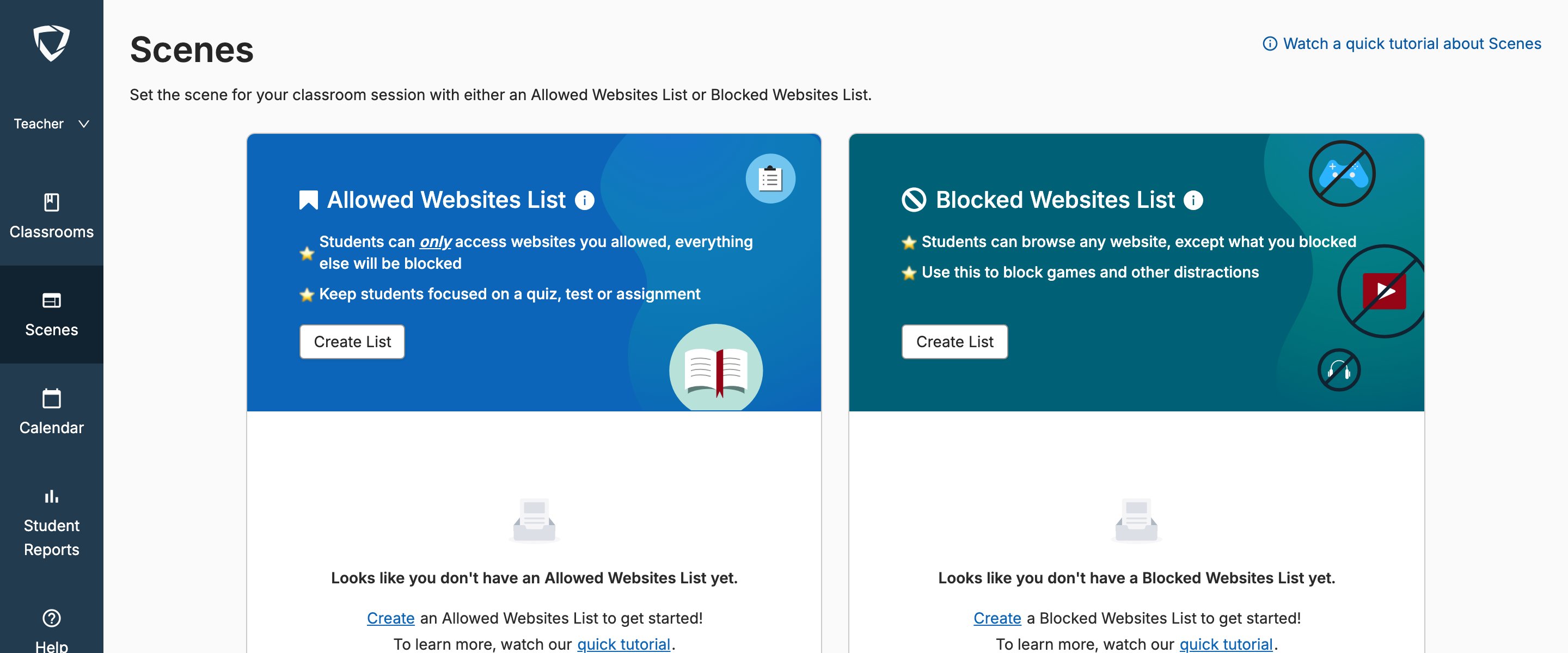
Delete a Scene
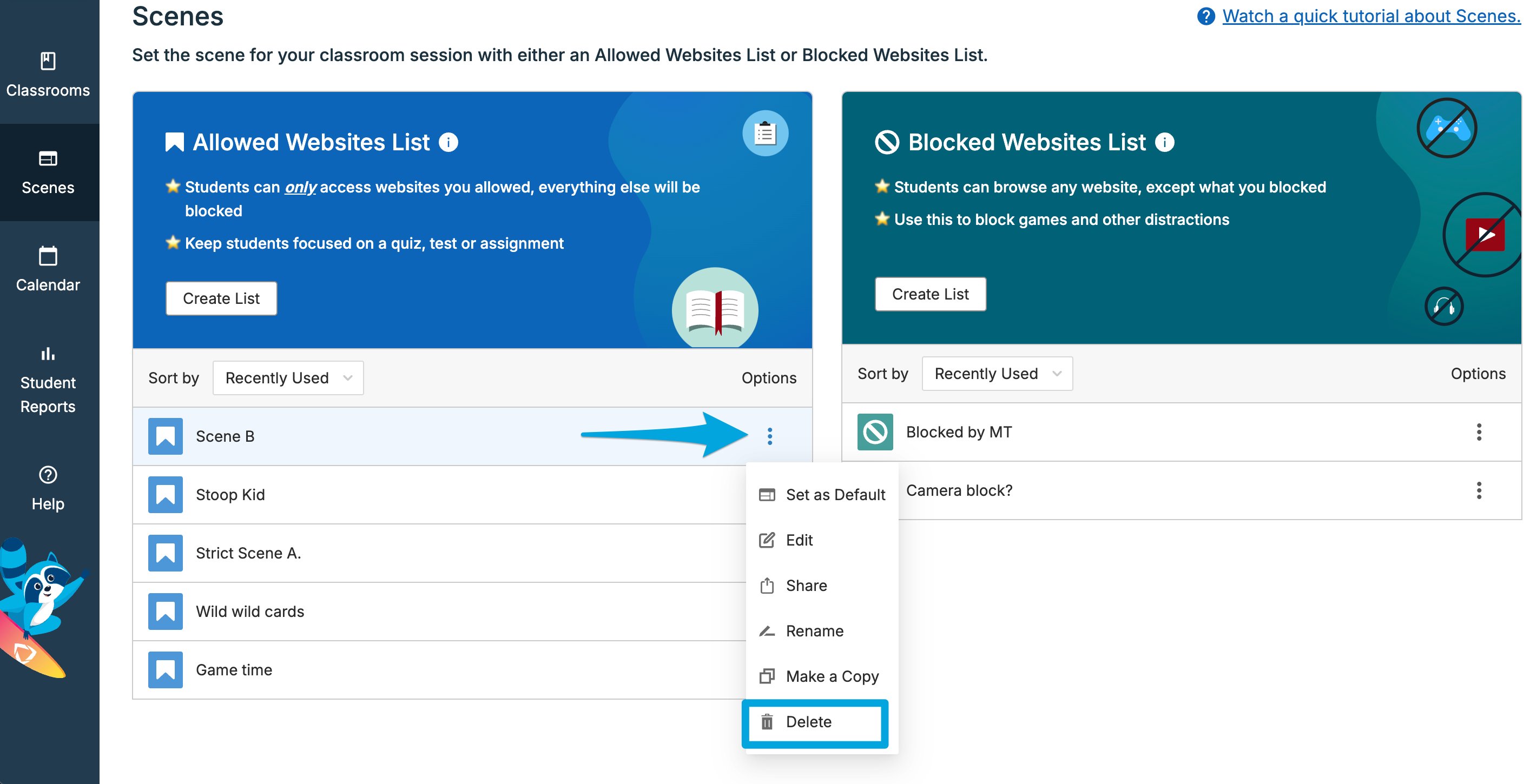
Go to your GoGuardian Teacher dashboard at teacher.goguardian.com and select the Scenes tab.- Click the gear icon next to the Scene you want to delete.
-
Select Delete from the dropdown.
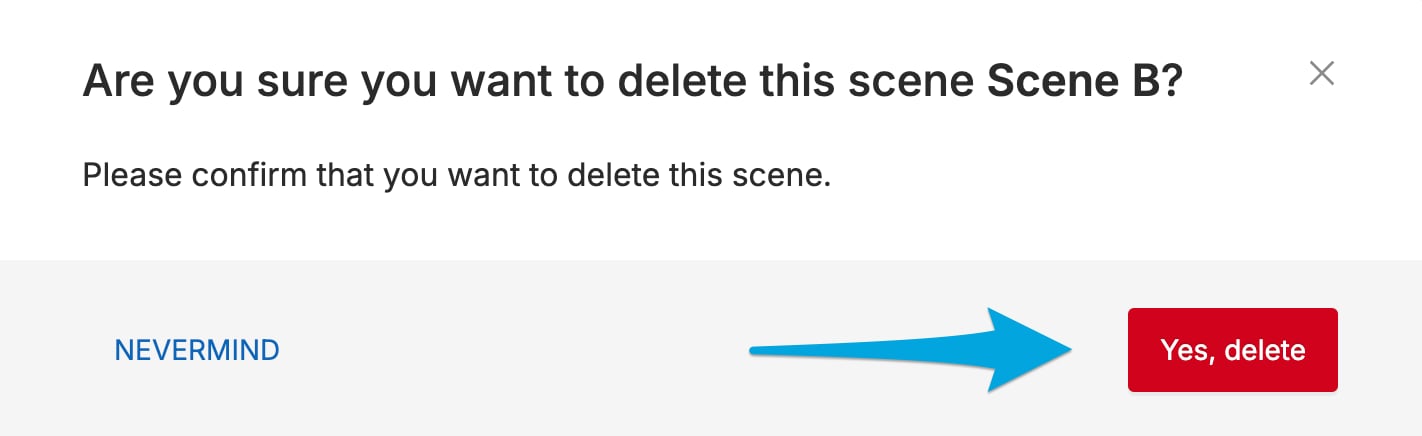
Scenes can’t be restored once they’ve been deleted.
- Click Yes, Delete on the confirmation dialog to permanently delete the Scene.
Resources
Scenes Overview
Learn how Scenes work in GoGuardian Teacher.
Create and Apply a Scene
Build a new Scene from scratch.
Components of a Scene
Understand the rules and settings that make up a Scene.
Use Wildcards in Scenes
Apply wildcard patterns to filter sites in a Scene.