

Threats and Violence alerts require Beacon Core or Beacon 24/7 licensing.
Understand How Escalation Lists Work
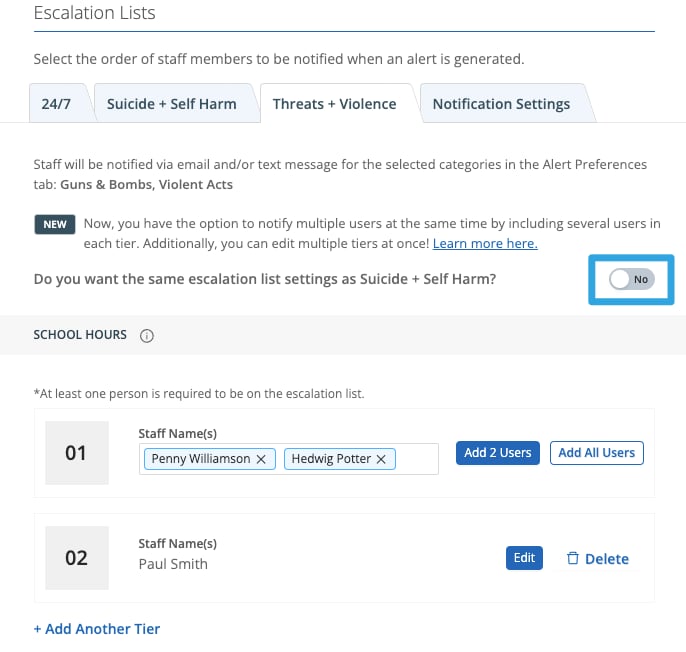
Notifications are sent based on tier order. Contacts in tier 1 are notified first. If no action is taken within the configured interval time, Beacon notifies tier 2 contacts. This cycle continues according to the notification settings for the category. You can add multiple contacts to each tier. All contacts in a tier are notified at the same time. Multiple tiers can be edited simultaneously.Use the Same Escalation List as Suicide and Self Harm Alerts
- Go to beacon.goguardian.com.
- Click Settings in the navigation menu, then go to Escalation Lists.
- Click the Threats + Violence tab.
- Turn on Yes for “Do you want the same escalation list settings as Suicide + Self Harm?”
- Click Save Changes at the bottom of the screen.

Create a Separate Escalation List for Threats and Violence Alerts
- Turn on No for “Do you want the same escalation list settings as Suicide + Self Harm?”
- Go to the School Hours section. Add contacts in the order they should be notified during school hours.
- Click Save Changes at the bottom of the screen.
Enable After-School Hours Notifications
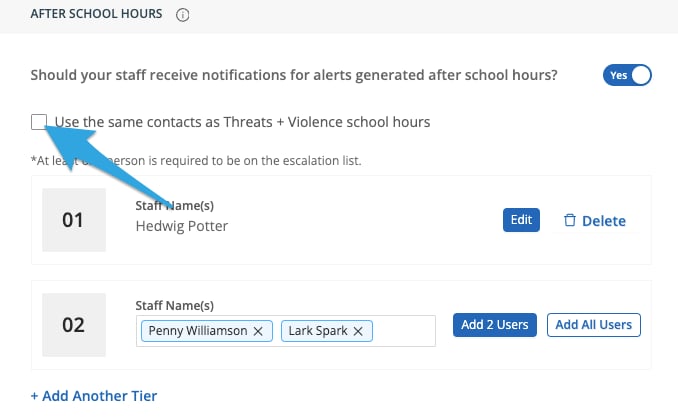
- Navigate to the After School Hours section within Escalation Lists.
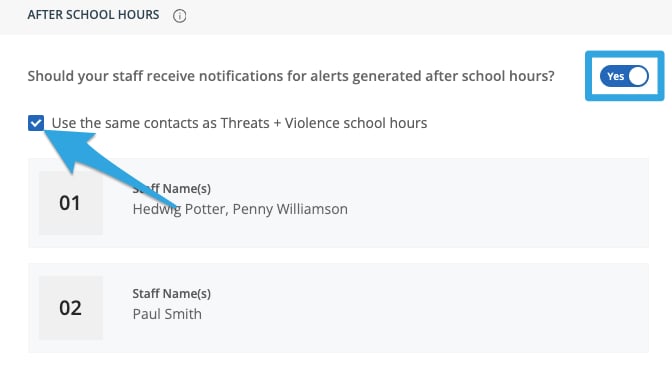
- Turn on Yes for “Should your staff receive notifications for alerts generated after school hours?”
- Select the checkbox next to “Use the same contacts as Threats + Violence school hours” to apply the same list, or leave it unchecked to add a separate after-school contact list.
- Click Save Changes at the bottom of the screen.
Disable After-School Hours Notifications for Threats and Violence Alerts
- Navigate to the After School Hours section within Escalation Lists.
- Turn on No for “Should your staff receive notifications for alerts generated after school hours?”
- Click Save Changes at the bottom of the screen.

Notification Settings
Configure interval times and reminder frequency for escalation list notifications.
Configure Alert Notifications
Set up individual notification preferences for dashboard, email, and SMS alerts.
Manage Beacon Users
Add and manage the users who can be added to escalation lists.
User Roles and Permissions
Understand the difference between Super Users, Super Counselors, and other roles.