

Excluding a student is temporary and does not remove them from the class roster.
Exclude 1 Student
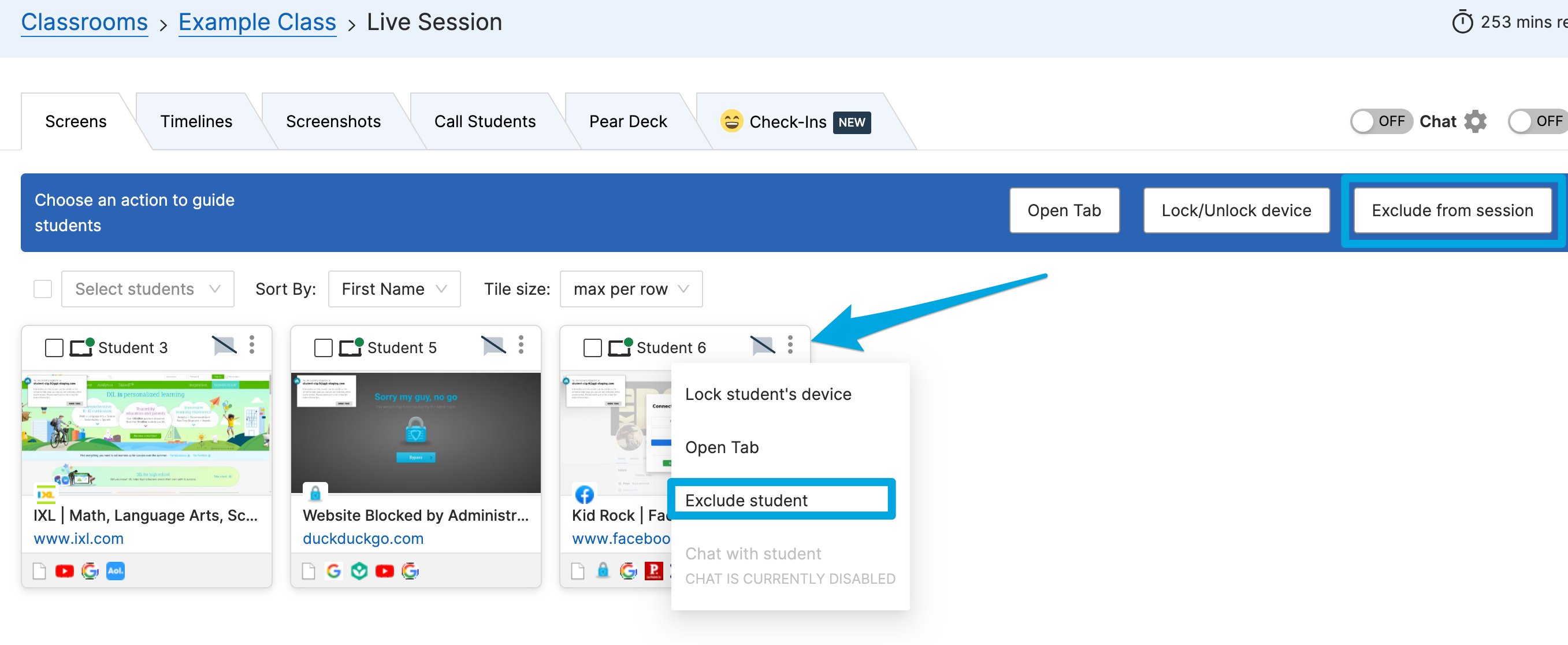
- Click the 3 dots button in the corner of the student’s tile.
- Click Exclude student.
Exclude Multiple Students
- Click Exclude from session in the command bar.
- Select All, or check the boxes next to specific students.
- Click Exclude students to apply.

Include a Student
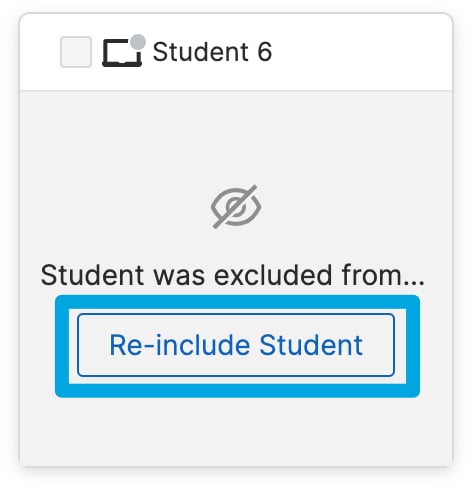
- Locate the excluded student’s tile in the classroom view.
- Click Re-include Student. The student returns to the main view.
Resources
Commands Overview
See all available commands for managing a session.
Start a Classroom Session
Learn how to start a session and manage your class.
Student Browsing Reports
Review browsing activity captured during a session.
Lock Screen
Lock student screens to pause activity during class.