

Enable Teacher Override in a Policy
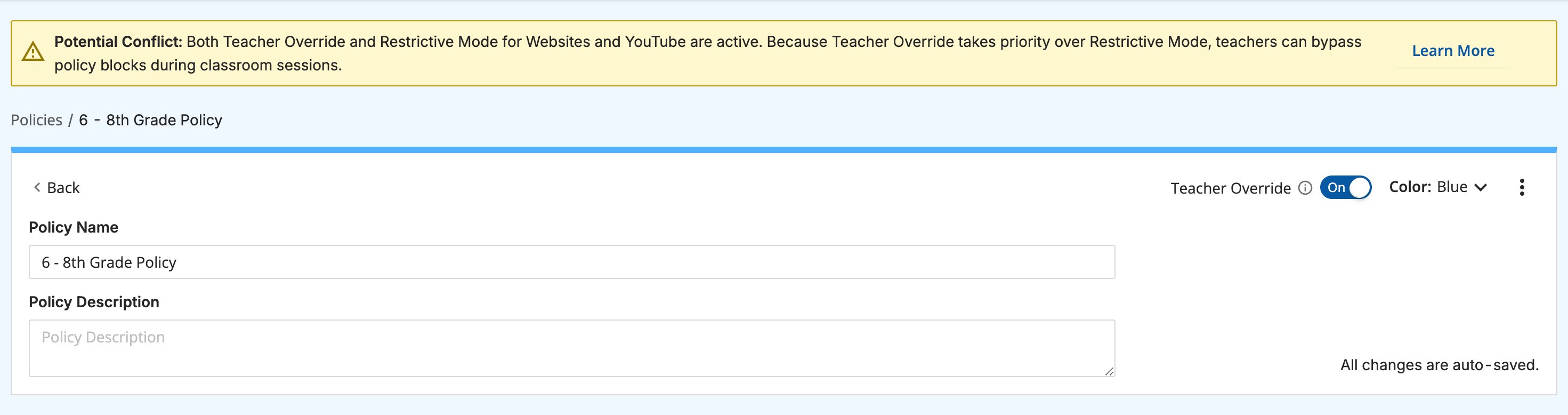
Teacher Override is configured on a policy-by-policy basis in GoGuardian Admin.- Go to GoGuardian Admin and navigate to the policy you want to configure.
-
Locate the Teacher Override toggle and turn it on.
Allow up to 15 minutes for the change to take effect.
- If the policy uses Restrictive Mode for Website URLs or YouTube, Admin will display a Potential Conflict message. Teacher Override supersedes Restrictive Mode, meaning teachers can unblock any content blocked by that setting.
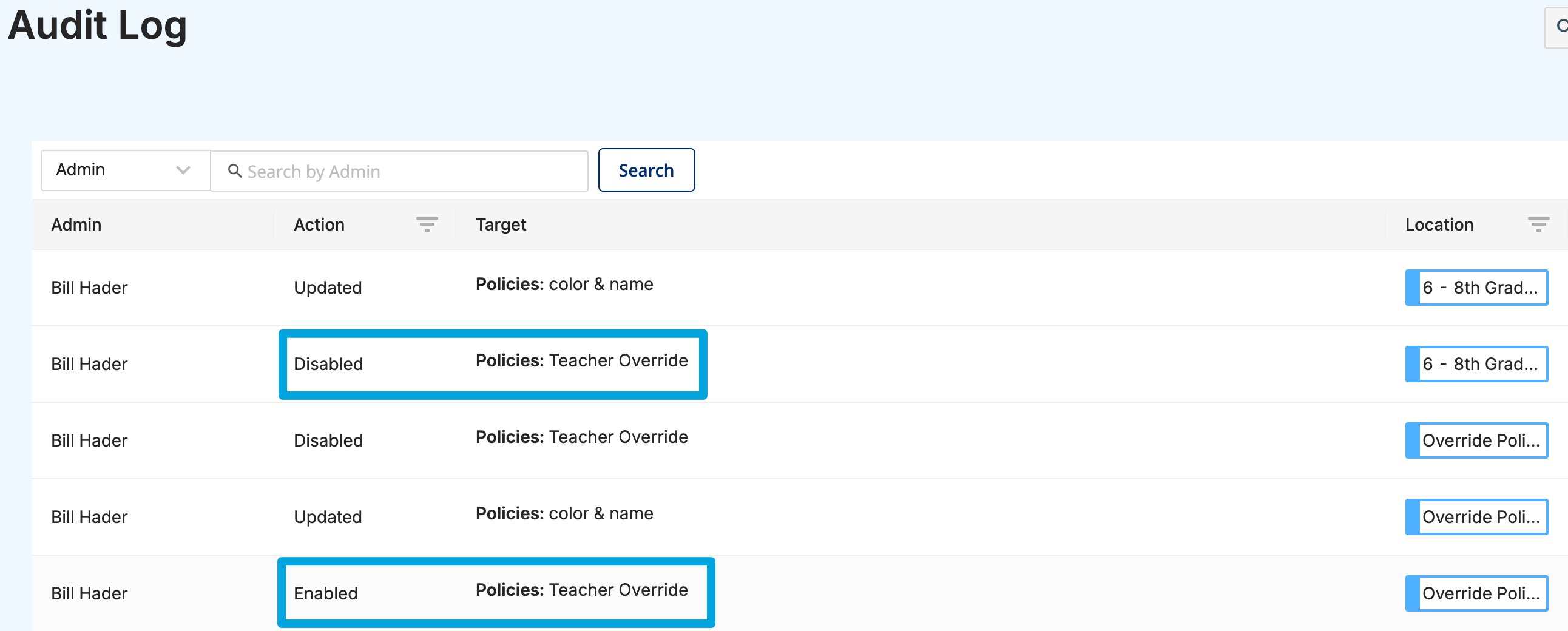
- Verify the result: Teachers whose students are filtered by this policy can now unblock blocked websites and YouTube videos during class. The change is recorded in the Audit Log.
Overridden blocks do not modify the policy’s rules. All overridden websites and videos return to blocked status after class ends.
Understand What Teachers Can Override
When Teacher Override is enabled on a policy, teachers can unblock content in these categories: Website filtering:- Websites blocked by Website URL rules
- Websites blocked by Website Category rules
- Websites blocked by the Restrictive Mode toggle
- Videos blocked by Channel, Video, Keyword, or Category rules
- Videos blocked by the YouTube Restrictive Mode toggle
Configure Override Scope with Multiple Policies
GoGuardian Admin allows multiple policies to apply to the same Org Unit through Assigned policies (applied directly to the OU) and Inherited policies (inherited from a parent OU). When both apply, the Assigned policy’s rules win in a conflict. The same logic applies to Teacher Override. The scenarios below compare one Assigned policy with one Inherited policy. If policies from multiple parent OUs apply, check which rule takes effect: a conflicting rule from the OU closer to the student’s OU takes precedence over one from farther up the hierarchy. GoGuardian recommends enabling Teacher Override only on Assigned policies and keeping a non-overridable, CIPA-compliant policy at the root level to be inherited by all users. See Scenario 2 in the table below for this configuration.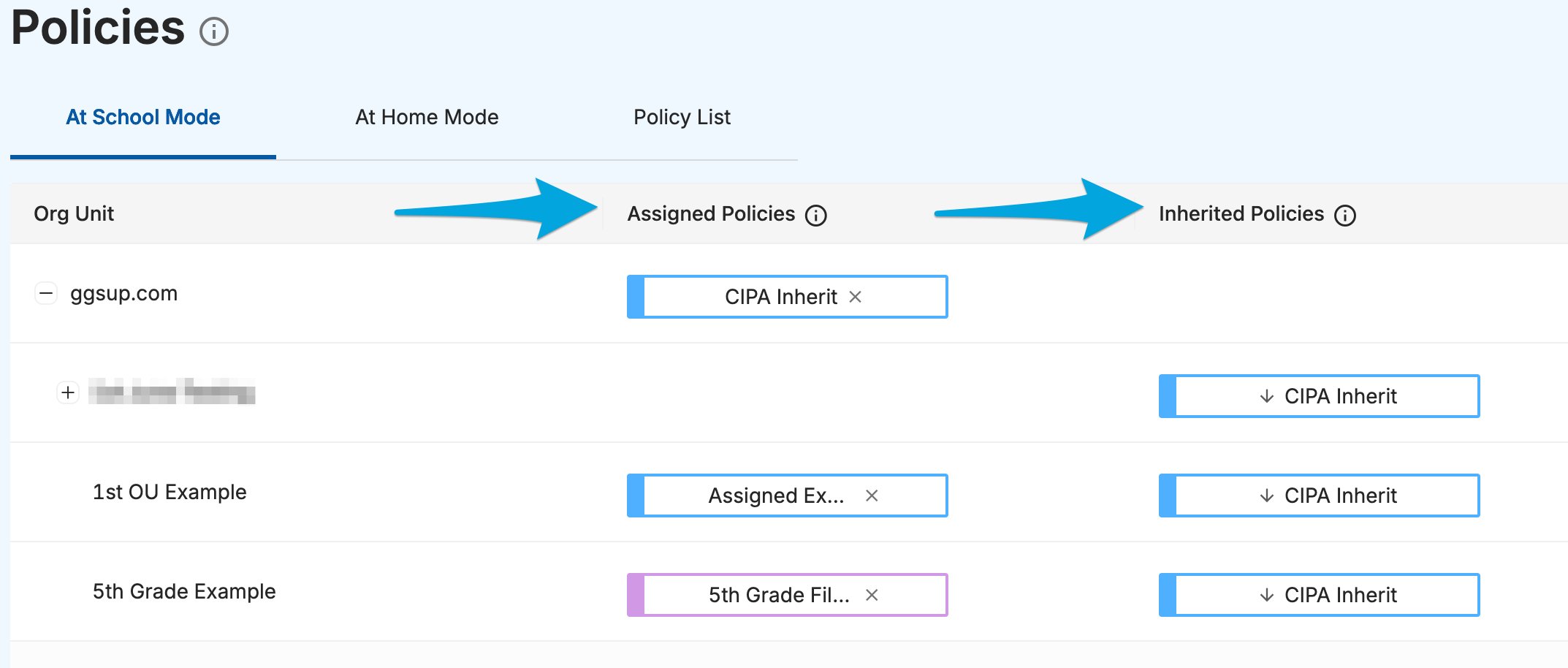
Override Blocked Websites in Teacher
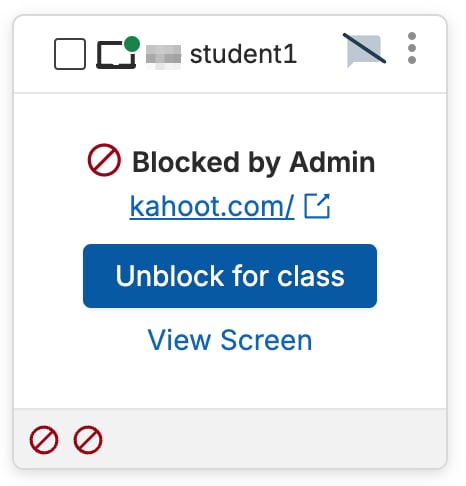
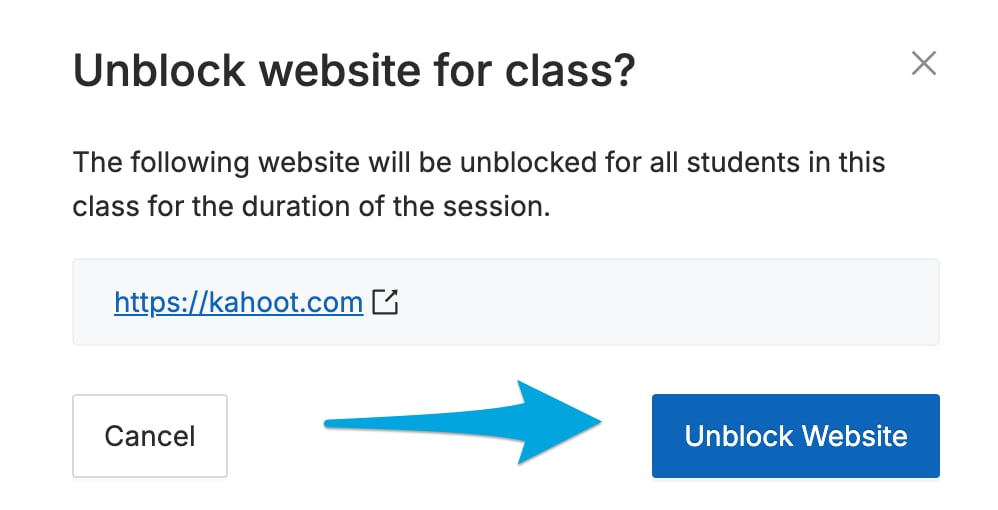
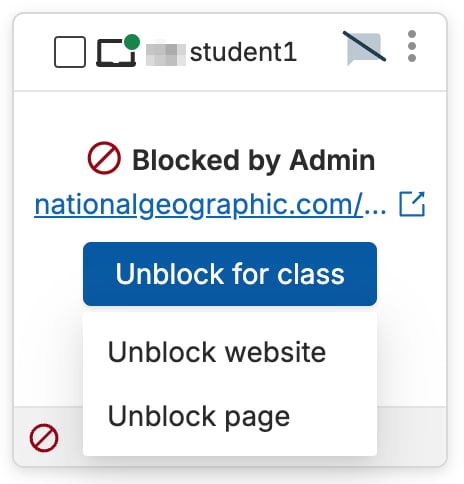
When a student is blocked by a policy that has Teacher Override enabled, teachers see an Unblock for class prompt. To unblock a full website: Click Unblock for class. On the confirmation page, confirm the action to unblock the site for all students in the class. To unblock a single webpage: If the student is blocked from an individual page rather than a full domain, clicking Unblock for class opens a dropdown menu with 2 options:- Unblock website — unblocks the full domain for all students
- Unblock page — unblocks only that specific URL for all students
Override Blocked YouTube Videos
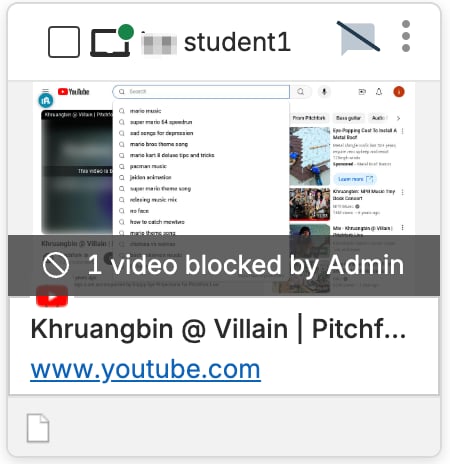
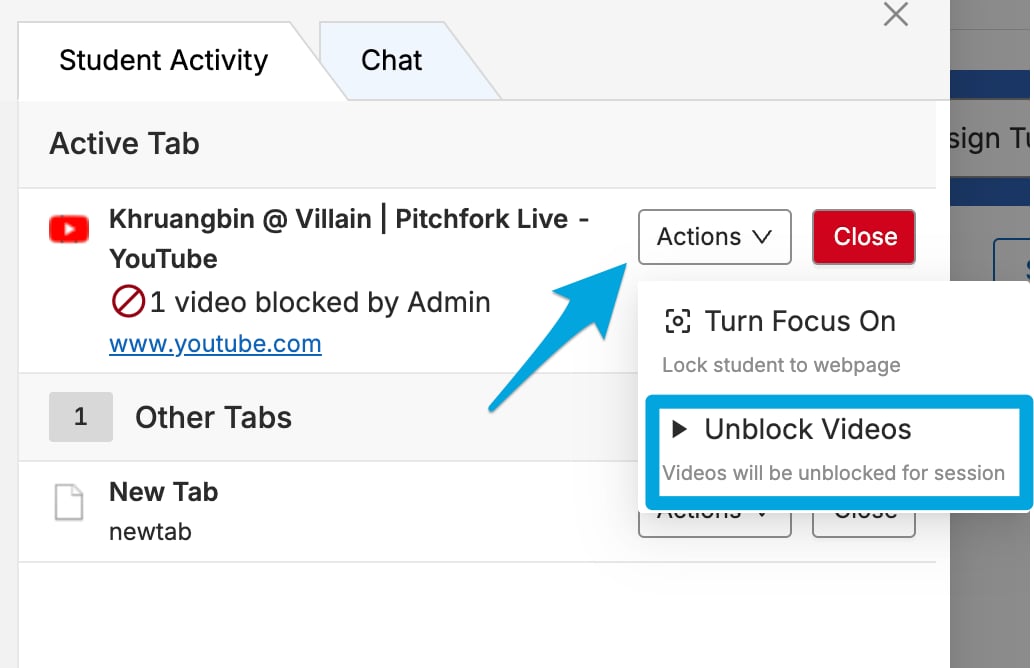
When a student is blocked from a YouTube video by a policy with Teacher Override enabled, teachers see an “X number of videos blocked by Admin” message on the student’s tile.- Click the message or expand the student’s screen view.
- Click the Actions dropdown menu and select Unblock Videos.
- Click Unblock Video on the confirmation page to allow access to the video.

Recognize When Override Is Not Available
If a student is blocked by a policy that does not have Teacher Override enabled, the Unblock for class button is grayed out. Hovering over it displays a message confirming that the active policy does not allow Teacher Override.Review Override Activity in Admin
View Student Browsing History
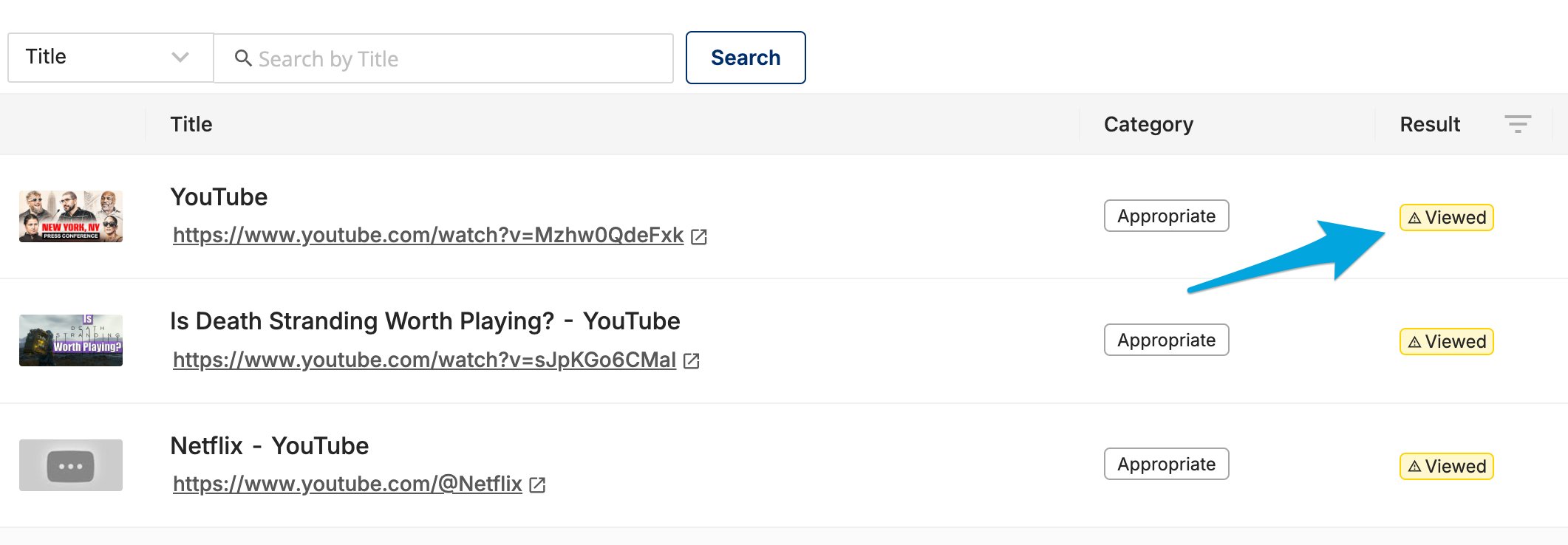
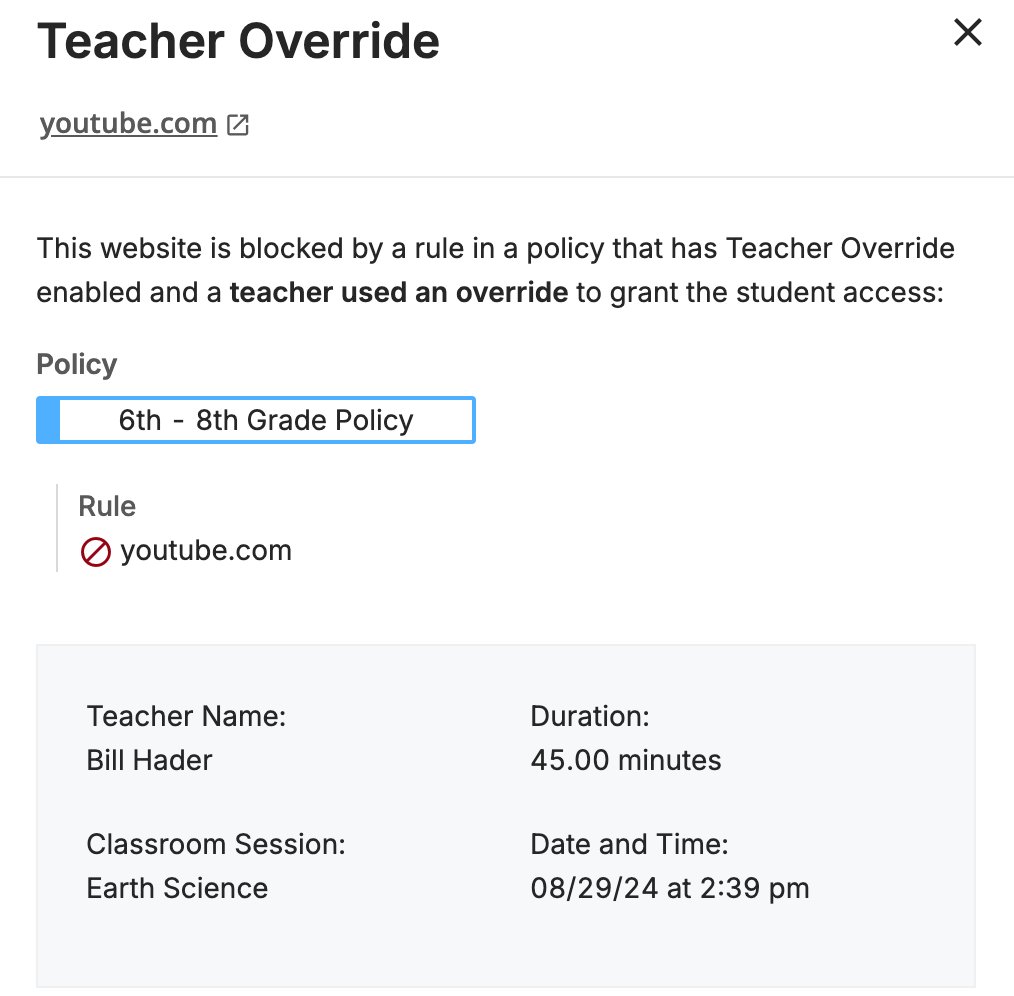
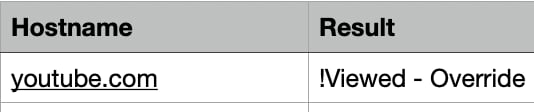
When reviewing a student’s browsing history in GoGuardian Admin, all websites accessed via Teacher Override are marked with a Viewed icon in the Result column. Clicking the icon opens a Teacher Override modal showing the overridden policy, teacher’s name, class name, and class session date. Downloaded CSV browsing reports include a !Viewed - Override label in the Result column for any site accessed via Teacher Override.Review Audit Log Records
The GoGuardian Admin Audit Log captures Teacher Override activity in 2 ways:- Each time Teacher Override is turned on or turned off in a policy, the change is logged.
- Each time a teacher uses Teacher Override to allow a blocked website or video, the event is logged with the teacher’s name.

FAQ
Can I override content for 1 student only? No. Teacher Override applies to all students in the class who are filtered by the same policy. It cannot be scoped to individual students. How long does an override last? Overrides last for the duration of the class session. Once the session ends, all overridden content returns to blocked status. Why isn’t Teacher Override working for all of my students? Teacher Override is based on the filtering policy applied to each student. Students in different organizational units may have different policies, some of which may not have Teacher Override enabled. Contact a GoGuardian administrator to confirm the intended configuration. Do Scene rules still apply when a website is overridden? Yes. Teacher Override removes blocks applied by GoGuardian Admin policies only. GoGuardian Teacher Scene rules are a separate filtering layer and remain active.Resources
Create and Apply a Scene
Set up Scene rules to control what students can access during class.
Allow Access to Blocked Sites
Manage site access from within a Teacher session.
Scenes Overview
Understand how Scenes and filtering policies interact in Teacher.
Student Browsing Reports
Export and review browsing activity, including override records.