

Open Tab for Multiple Students
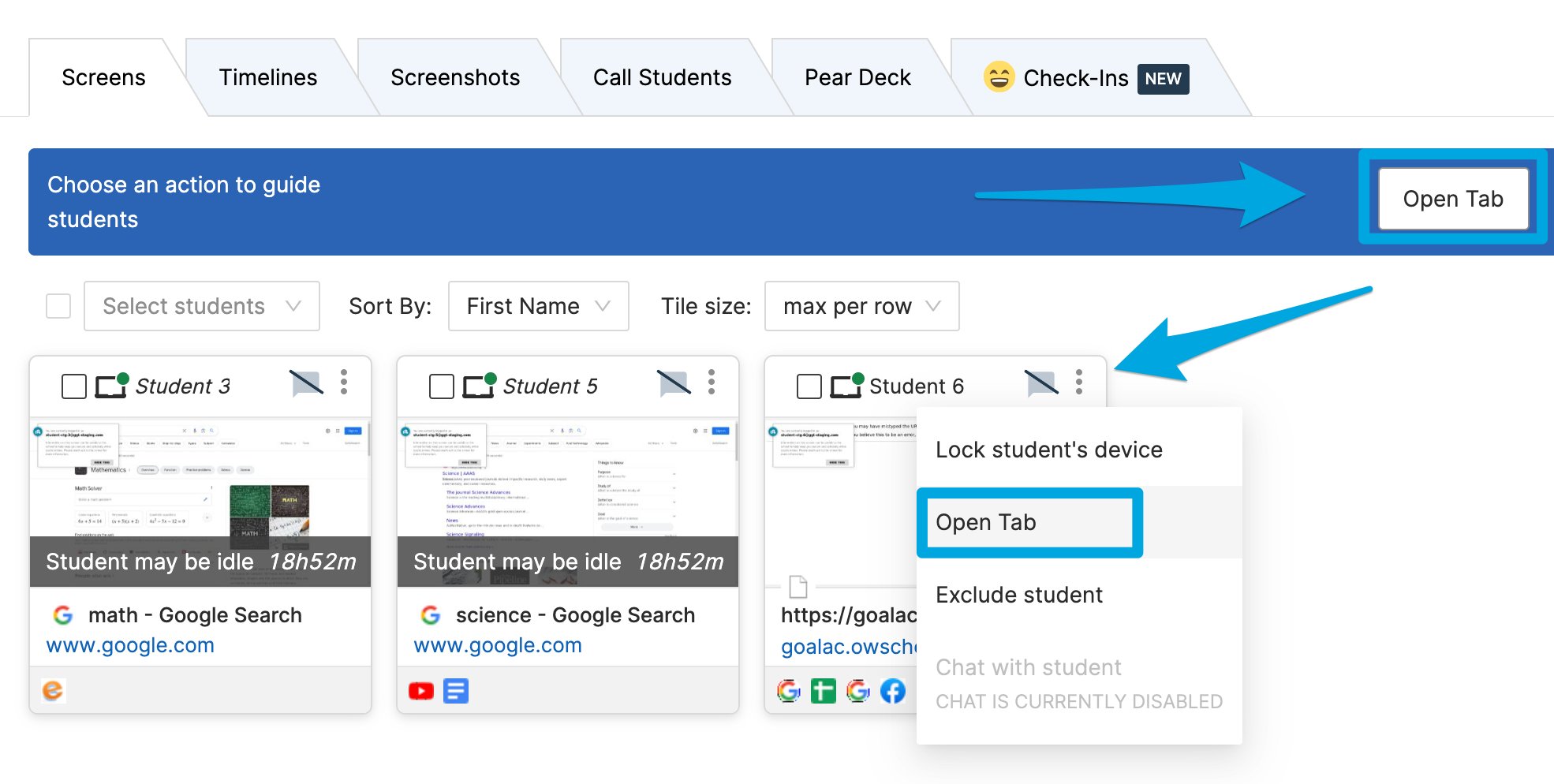
- Click the Open Tab button on the command bar.
- Select the boxes next to Select All or choose specific students, then click Next.
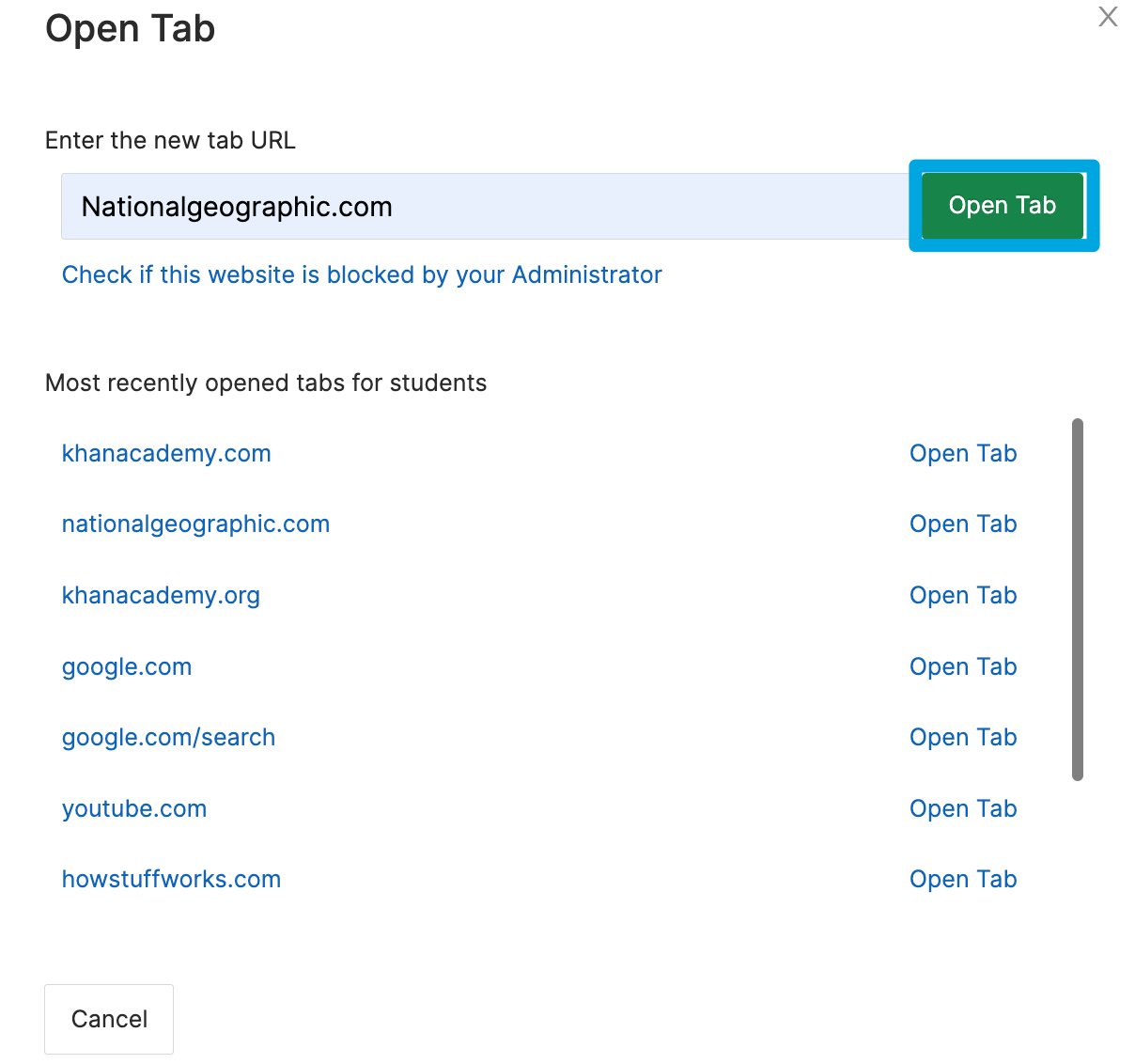
- Enter a URL in the Open Tab interface and click Open Tab to push the page to all selected students.
Open Tab for 1 Student
- Click the 3-dot button in the corner of the student’s tile.
- Select the Open Tab button.
- Enter a URL in the Open Tab interface and click Open Tab to push the page to the student.
Due to limitations in Chrome’s API, a student must have a browser window open for Teacher to push a tab to them. If the student’s screen shows a No Active Tab message, have the student open a web browser before you open a tab.
Resources
Commands Overview
Review all available Teacher commands and when to use them.
Lock Screen
Use the Lock Screen command to pause student browsing.
Start a Classroom Session
Get a class session running before using commands.
Active Screens View
See all student screens in one place during a session.