

Focus and Make Active are supported on Chromebooks only.
Tab Actions
Focus applies to 1 student at a time. Applying Focus to an entire classroom is not currently supported. Focus clears automatically when the session ends.
Use Make Active
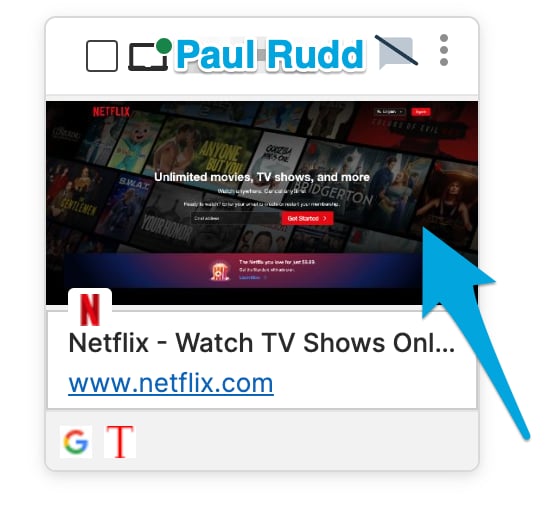
- Click a student’s tile to expand their screen view.
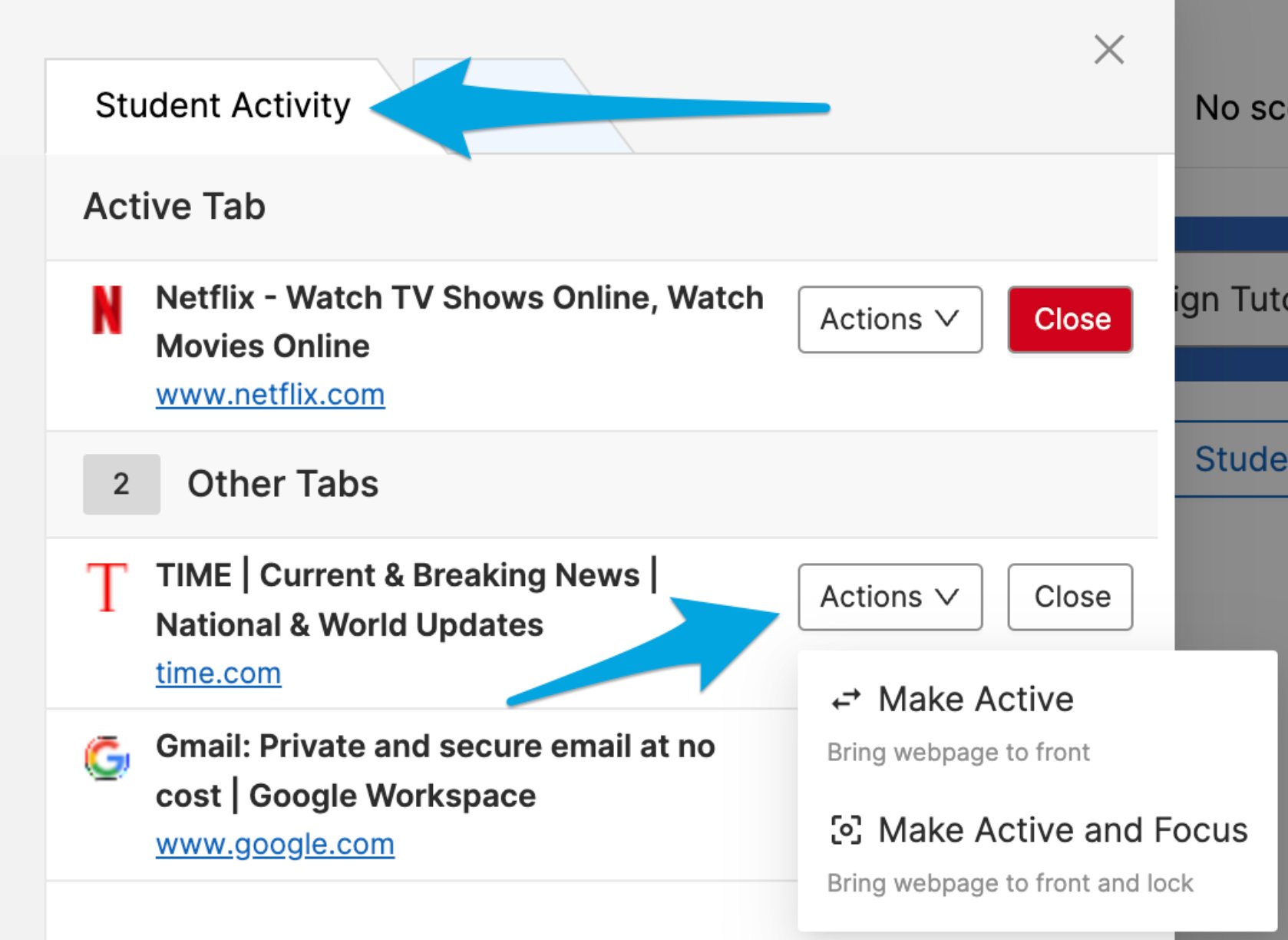
- Go to the Student Activity section.
- Find the background tab you want to move to active.
- Click Actions and select Make Active.
Turn Focus On
- Click a student’s tile to expand their screen view.
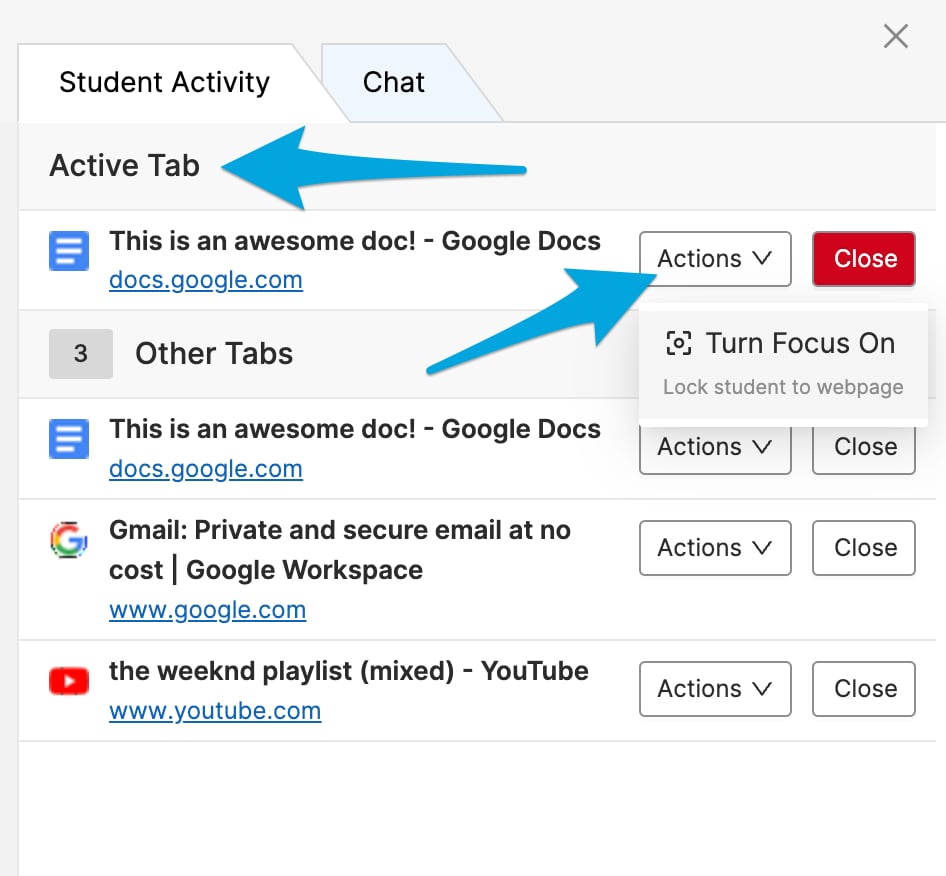
- Go to the Student Activity section.
- Find the tab that is already the student’s active tab.
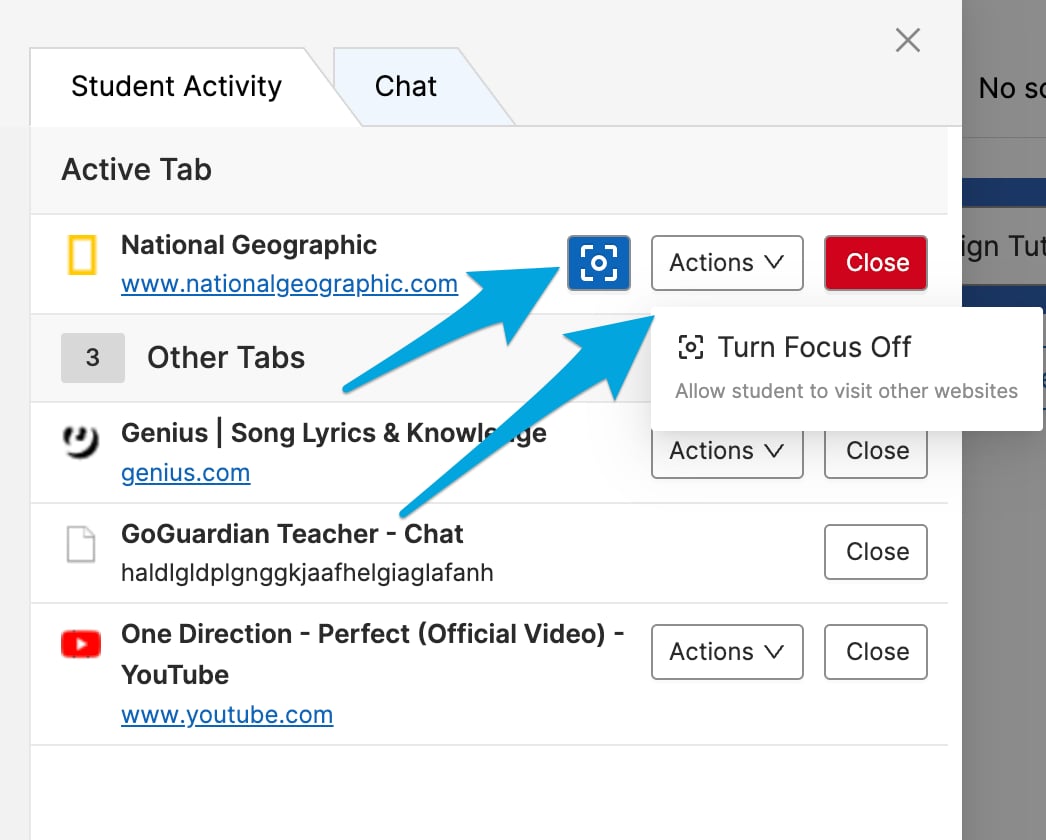
- Click Actions and select Turn Focus On.
Turn Focus Off
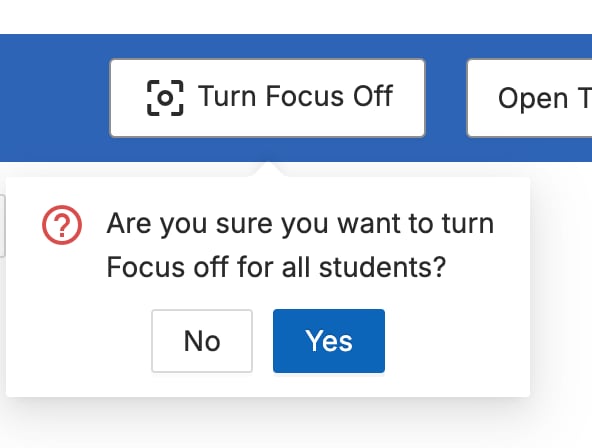
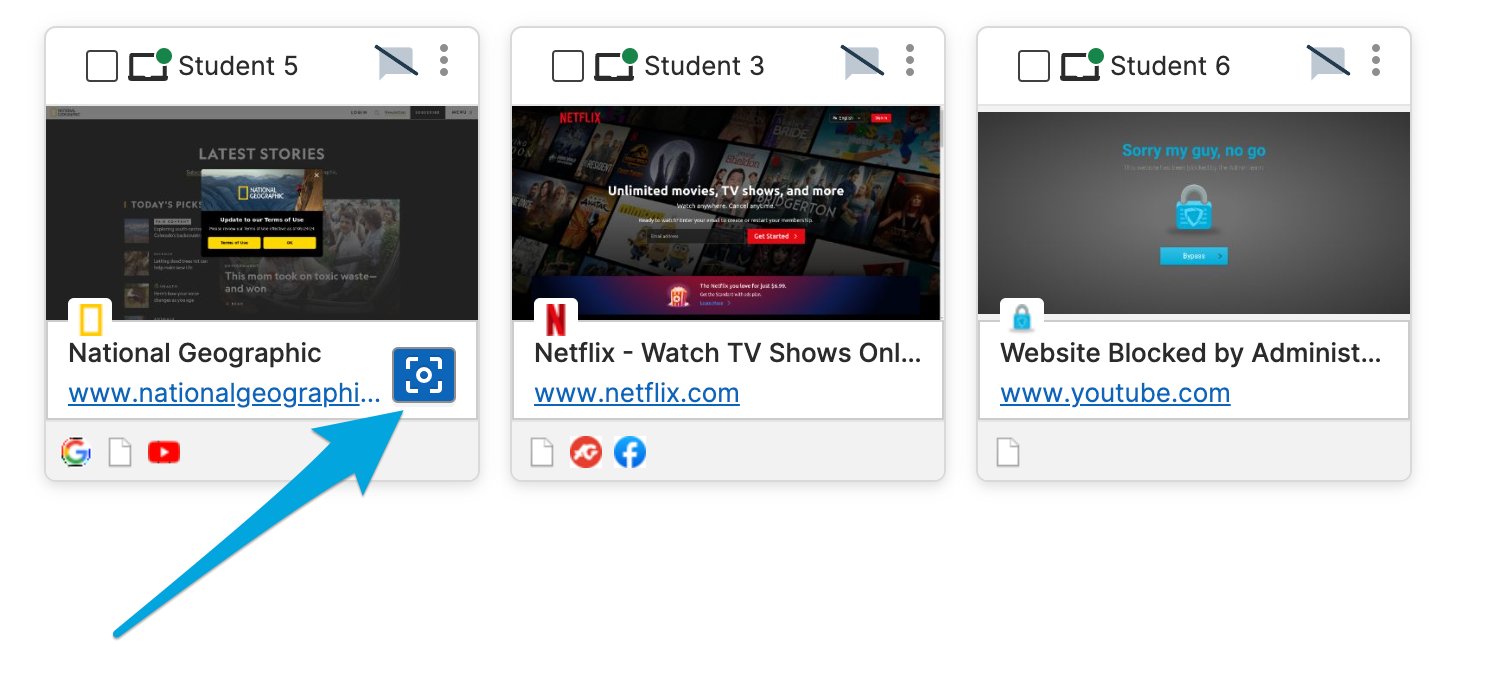
Turn off Focus for all students: Click the Turn Focus Off button in the command bar and confirm by clicking Yes. Turn off Focus for one student:- Click the Unfocus button in the lower corner of the student’s tile in the Screens grid.
- Or expand the student’s screen view and click Actions then Turn Focus Off.
Open a Tab and Focus It Immediately
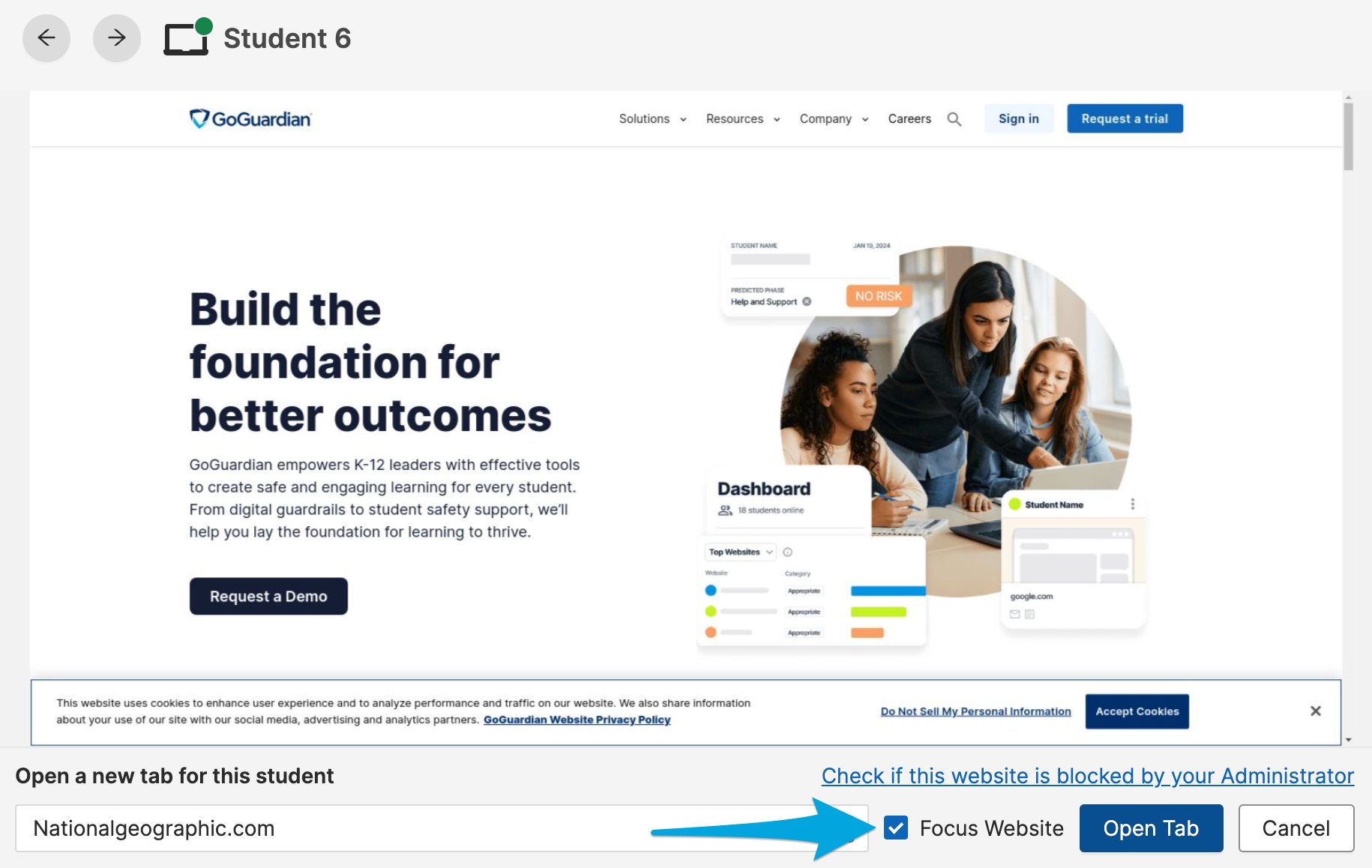
- Click a student’s tile to expand their screen view.
- Click Open new tab.
- Enter the URL.
- Turn on the Focus Website toggle.
- Click Open Tab.
Resources
Commands Overview
Review all teacher commands, including Open Tab and Close Tab.
Active Screens View
Navigate the full Screens view and Student Activity section.