

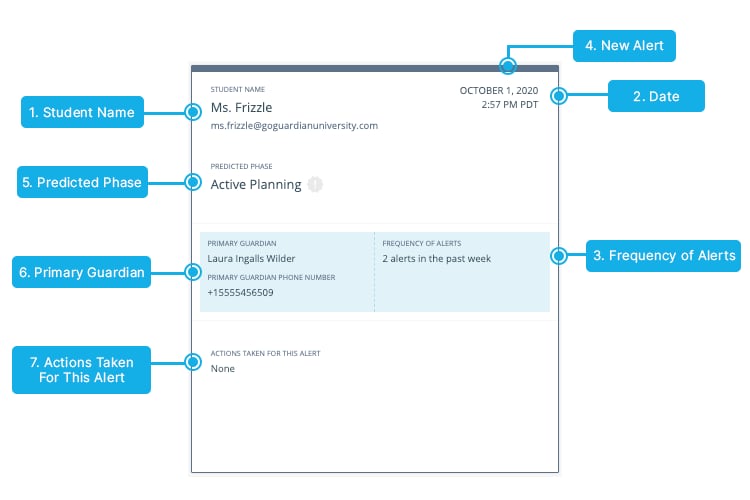
Alerts that have not had an action taken on them appear with a dark outline on the alert card list view.
Beacon 24/7 Alert Card Anatomy
Status bar and result badges specific to Beacon 24/7 alerts.
Understand Alert Generation
How the Rationale tab explains why Beacon generated an alert.
Respond to Email Alerts
Steps for reviewing and resolving an alert from an email notification.