Filter the Dashboard
The dashboard supports filtering by deployment, date range, theme, and phase. By default, all deployments, all themes, and a 30-day time frame are applied. After changing any filter, click Apply Filters to update the dashboard. Applied filters persist until you change them manually.
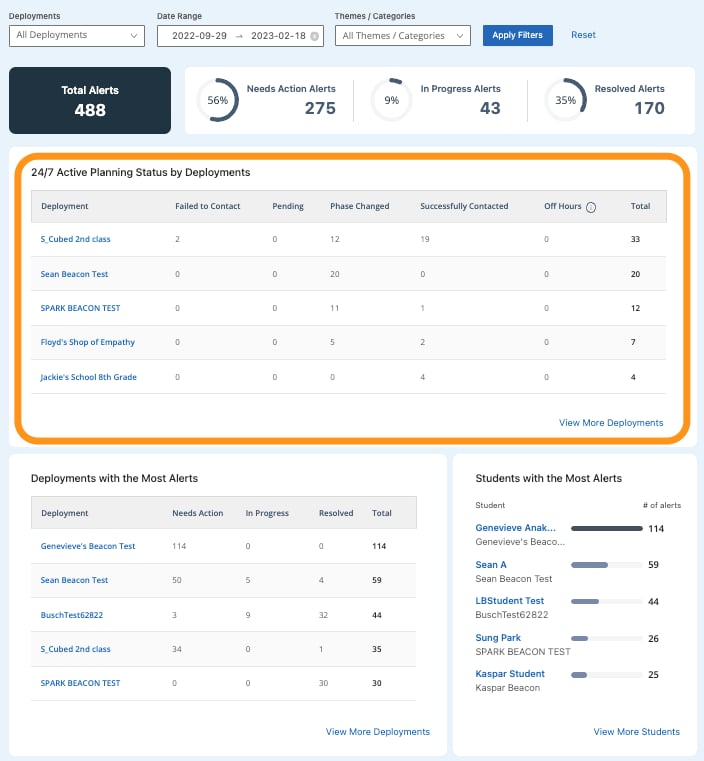
Review 24/7 Active Planning Status by Deployment
This table is available to Beacon 24/7 customers only. It shows alert outcomes for all alerts originally designated as Active Planning, after review by the Safety Support Specialists (SSS) team.
The table displays the top five deployments by total count. Click View More Deployments to see all deployments within the selected filters. A CSV download is available from that expanded view.
Deployments with Most Alerts
This table shows alert breakdown by deployment, organized by resolution status: Needs Action, In Progress, and Resolved. The table displays the top five deployments by total count. Click View More Deployments to see all deployments. A CSV download is available from the expanded view.
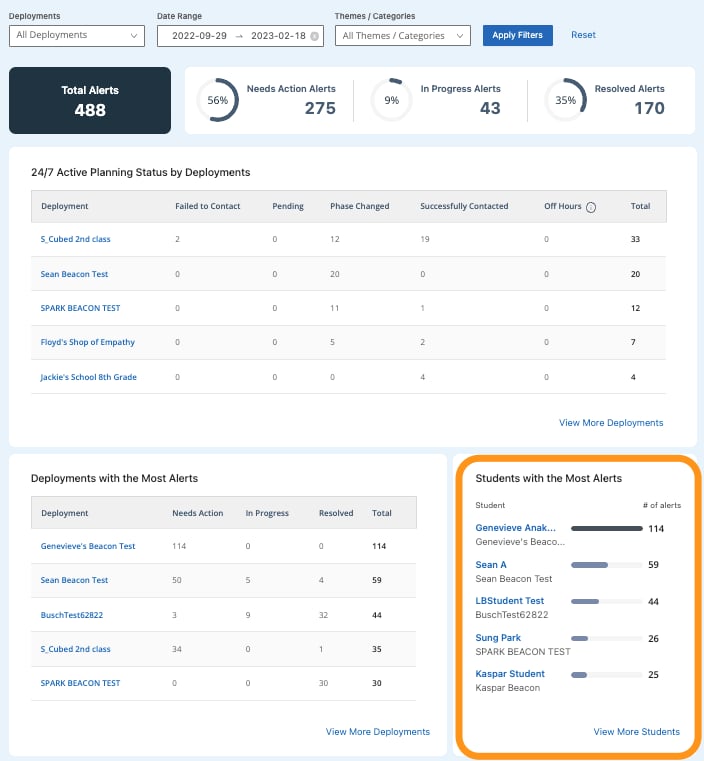
Review Students with the Most Alerts
This table shows the students who have generated the most alerts within the selected filters. The table displays the top five students by total count. Click View More Students to see all students. A CSV download is available from the expanded view.Alert Card Anatomy
Reference for every field on a Beacon alert card.
Beacon 24/7 Alert Card Anatomy
Status bar and result badges specific to Beacon 24/7 alerts.
Activity Log
Track all changes made to Beacon settings.
Understand Alert Generation
How Beacon determines why an alert was generated.