

Access the Alert
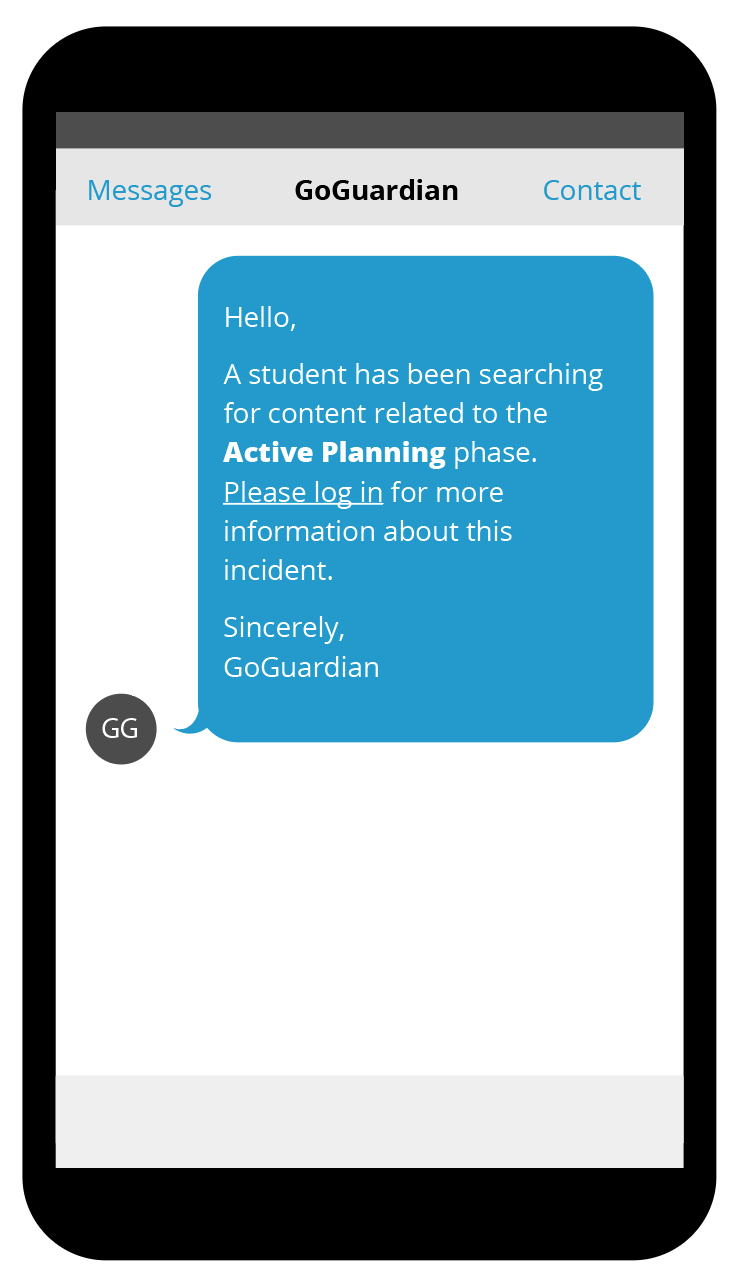
- Click the View Alert link in your Alert Notification email. You are taken to the Beacon sign-in page.
-
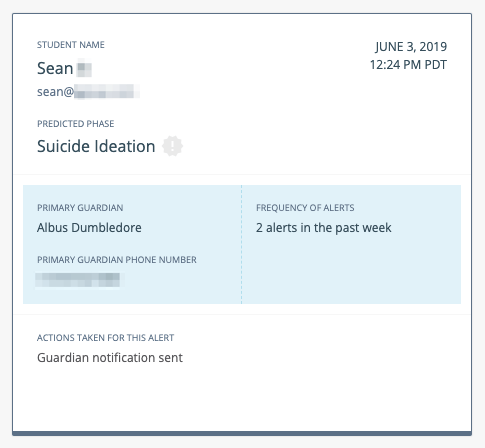
Sign in at beacon.goguardian.com. The Alerts page displays your most recent alert.
Alerts that have not had an action taken on them appear with a dark outline on the alert card list view.
Review the Alert
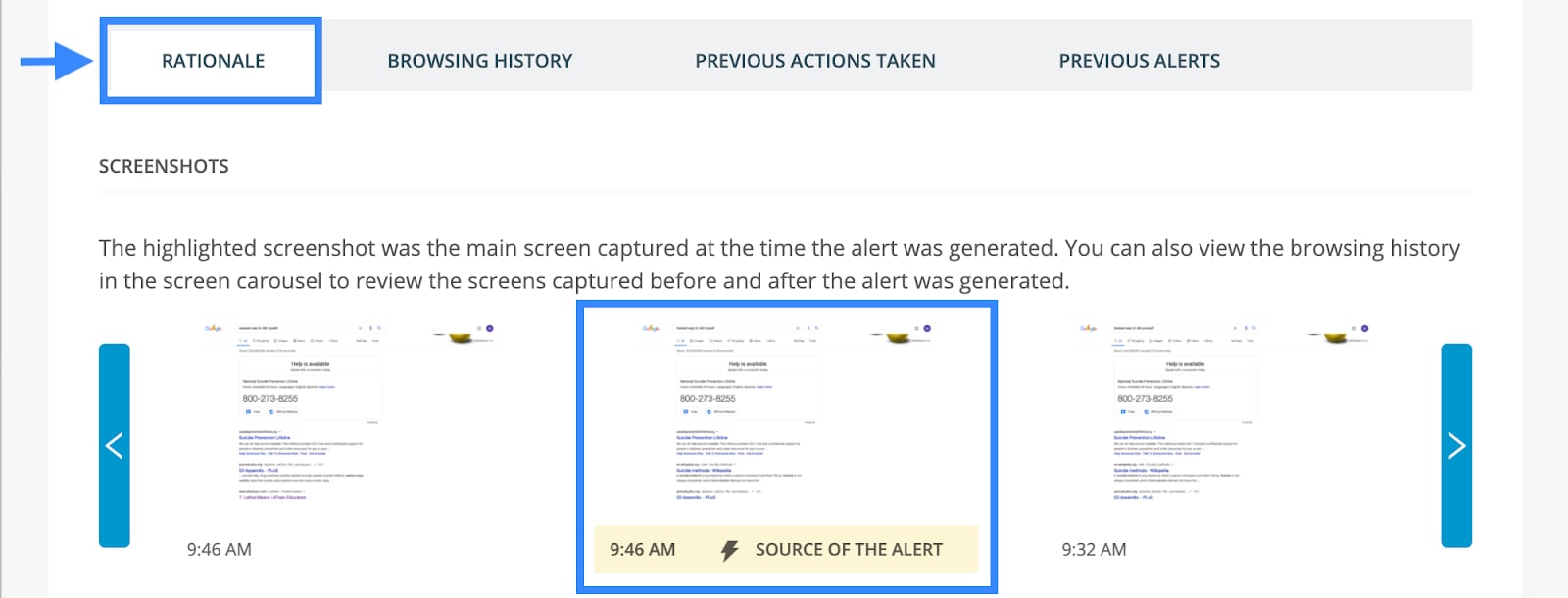
- Click the alert card to open it. Go to the Rationale tab.
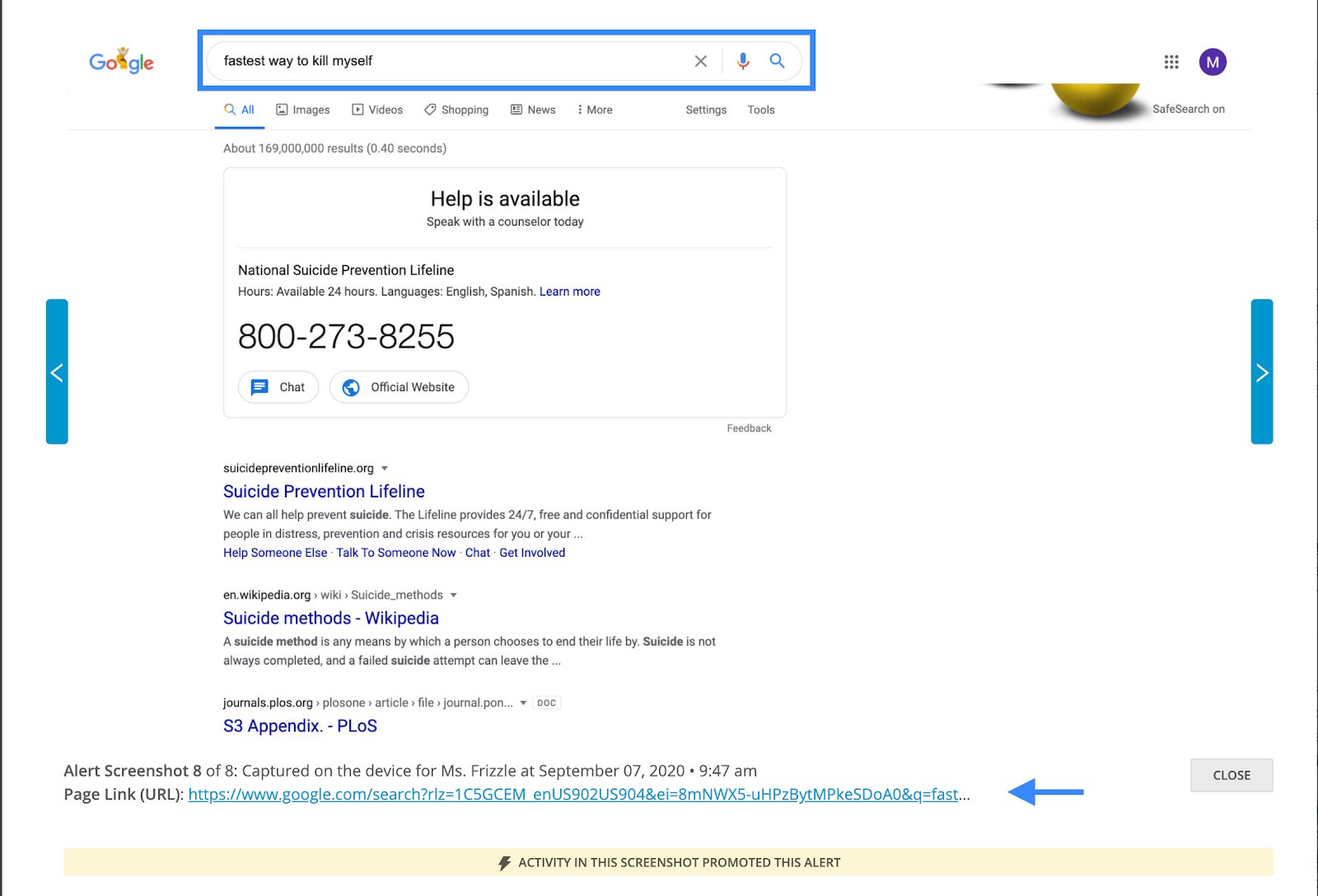
- Click the screenshot labeled Source of the Alert. An enlarged view opens.
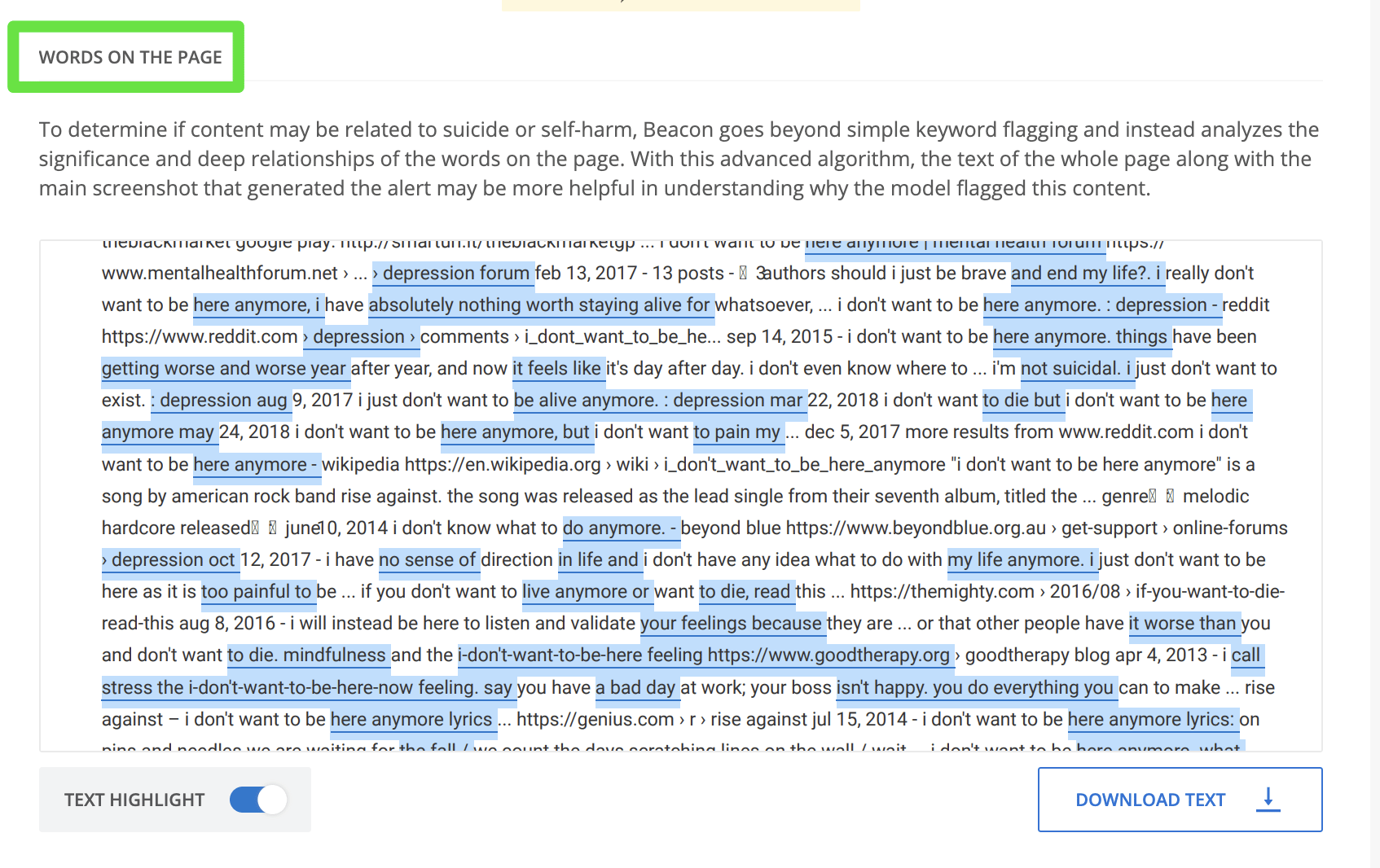
- If the screenshot is ambiguous, scroll to the Words on the Page section. This displays all text Beacon analyzed on the page, with relevant terms highlighted.
Resolve the Alert
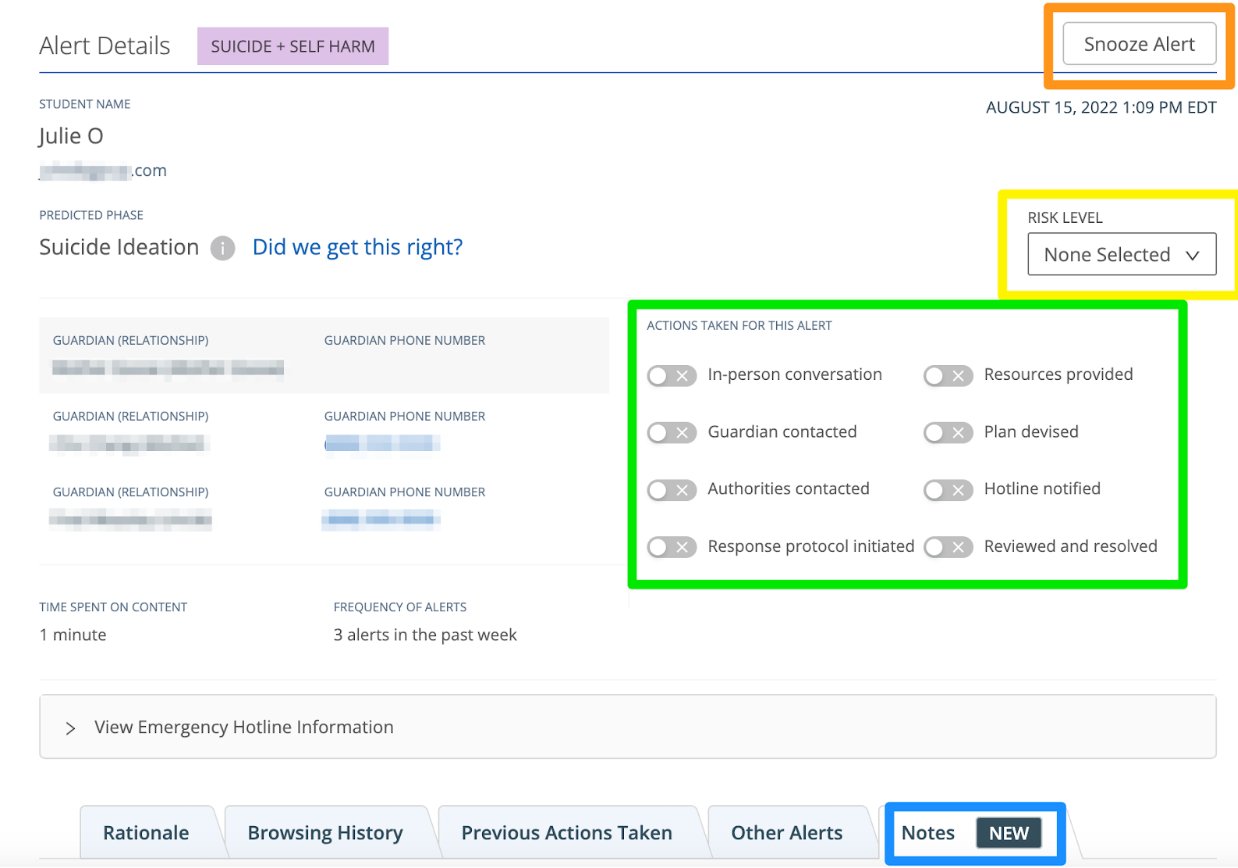
Taking any of the following actions stops email notifications and moves the alert to the Needs Action status.-
Select one of four resolution options:
- Toggle on an Action Taken — for example, In-Person Conversation, Guardian Contacted, Plan Devised, or Authorities Contacted.
- Select a Risk Level from the drop-down menu.
- Create a Note in the Notes tab.
- Snooze the alert — available only on non-Active Planning alerts.
Verify the Phase Prediction
After taking action, verify Beacon’s Predicted Phase by clicking the listed phase and selecting Yes or No. This feedback improves Beacon’s prediction model and can be updated at any time.Dismiss a Miscategorized Alert
Alerts cannot be deleted from Beacon. If an alert was generated for activity that does not reflect a concern, mark it accordingly.- In the alert card, set the Risk Level to No Risk. This also ends the Escalation List notification cycle.
- Click the Predicted Phase and select No to indicate the phase prediction was not accurate.
Alert Card Anatomy
Reference for every field on a Beacon alert card.
Understand Alert Generation
How the Rationale tab explains why Beacon generated an alert.
Snooze an Alert
Pause future alerts for a specific URL, domain, or search phrase.